
How to Install Ghost CMS and Configure It for a Website on AccuWeb.Cloud?
Ghost is a popular open-source Content Management System (CMS) designed for building blogs, websites, and newsletters. With a user-friendly interface, customizable themes, and strong SEO features, it’s a great choice for individuals and businesses looking to run a professional-looking site with minimal effort. In this guide, we’ll walk you through the process of installing Ghost on AccuWeb.Cloud and configuring it for your website.
Steps to Install Ghost CMS and Configure
Step 1: The first step is to access your AccuWeb.Cloud account. Open your browser and navigate to the AccuWeb.Cloud login page. Once you’ve entered your credentials, you will be directed to the main dashboard where you can manage your cloud services.
Step 2: Once you are logged into the dashboard, look for the Marketplace option. This is where you can access various software and services to install on your AccuWeb.Cloud server.
 Step 3: In the Marketplace, you will find various software organized by categories such as CMS, eCommerce, Development tools, and more.
Navigate to the Content Management section. Here, you will find a list of popular content management systems. Look for Ghost in the list.
Step 4: Once you’ve located Ghost, you’ll see an Install button below its description. Click on the Install button to begin the installation process.
 This action will initiate the creation of a Ghost environment on your AccuWeb.Cloud server.
Step 5: A new window will appear prompting you to enter several configuration details to proceed with the installation. These details help set up your Ghost instance according to your specific requirements.
- Environment: Enter a unique URL for your Ghost environment. For example, ghostapp.us-accuweb.cloud. This will be the domain or subdomain where your Ghost site will be accessible.
- Display Name: Provide a name for the environment, which will help you easily identify this specific installation in your dashboard.
- Region: Select the region where you want your Ghost instance to be hosted. Choose the one that is geographically closest to your target audience for better performance.
Once you’ve filled in these details, proceed by clicking the Install button.

Step 6: After you’ve entered all the necessary details, AccuWeb.Cloud will begin creating your Ghost environment. The installation may take a few minutes, depending on the resources available and the size of the Ghost application.
During this process, AccuWeb.Cloud automatically handles the deployment of the Ghost CMS application, setting up the necessary databases, configurations, and server resources.
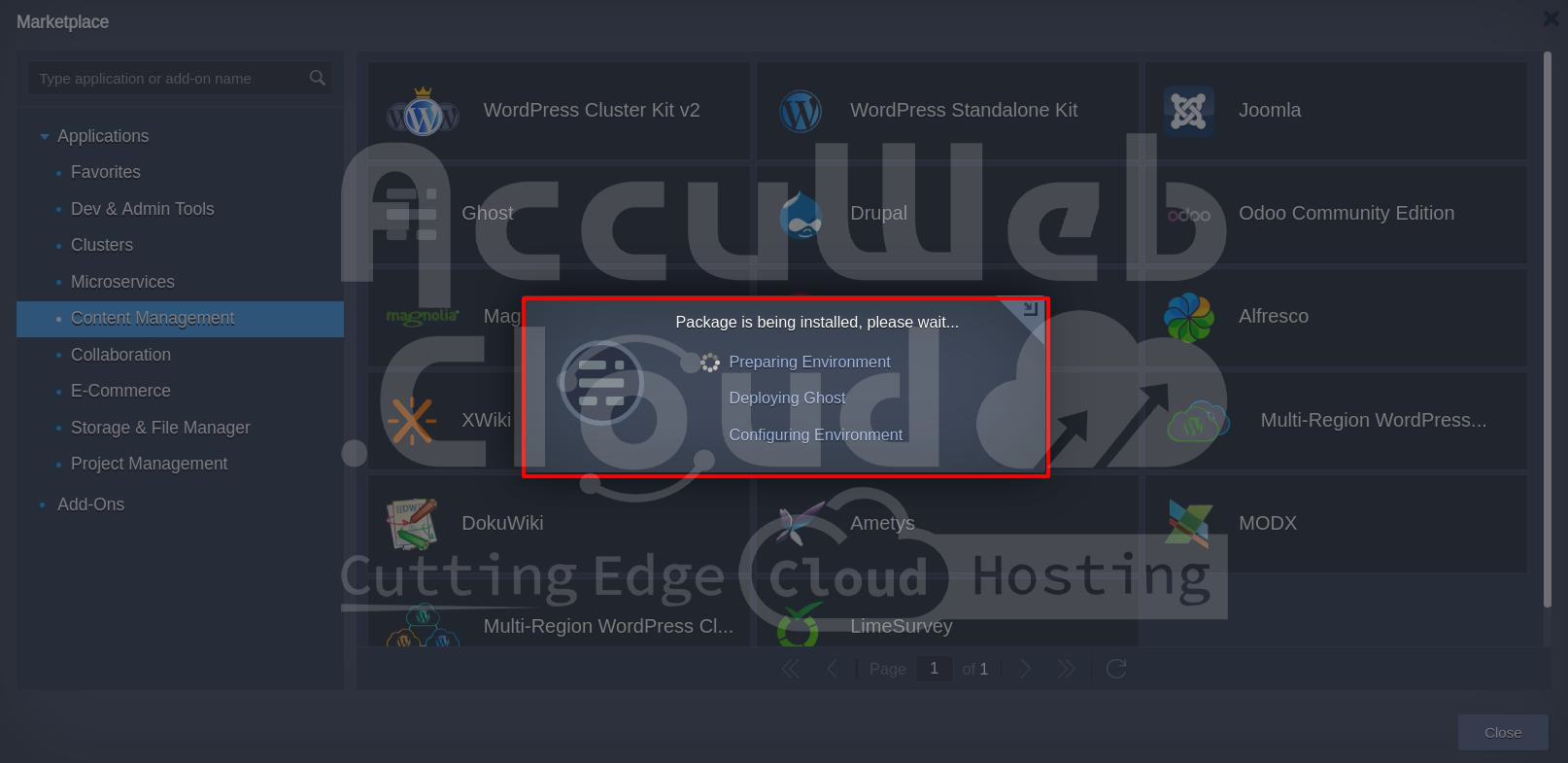 Step 7: The deployment process may take several minutes. While it’s working, you may see a progress bar or other indicators showing the installation status.
Once the installation is completed, you will receive a message that says: “Your Ghost application has been successfully deployed.” Along with this message, the system will provide you with the URL to access your Ghost instance.
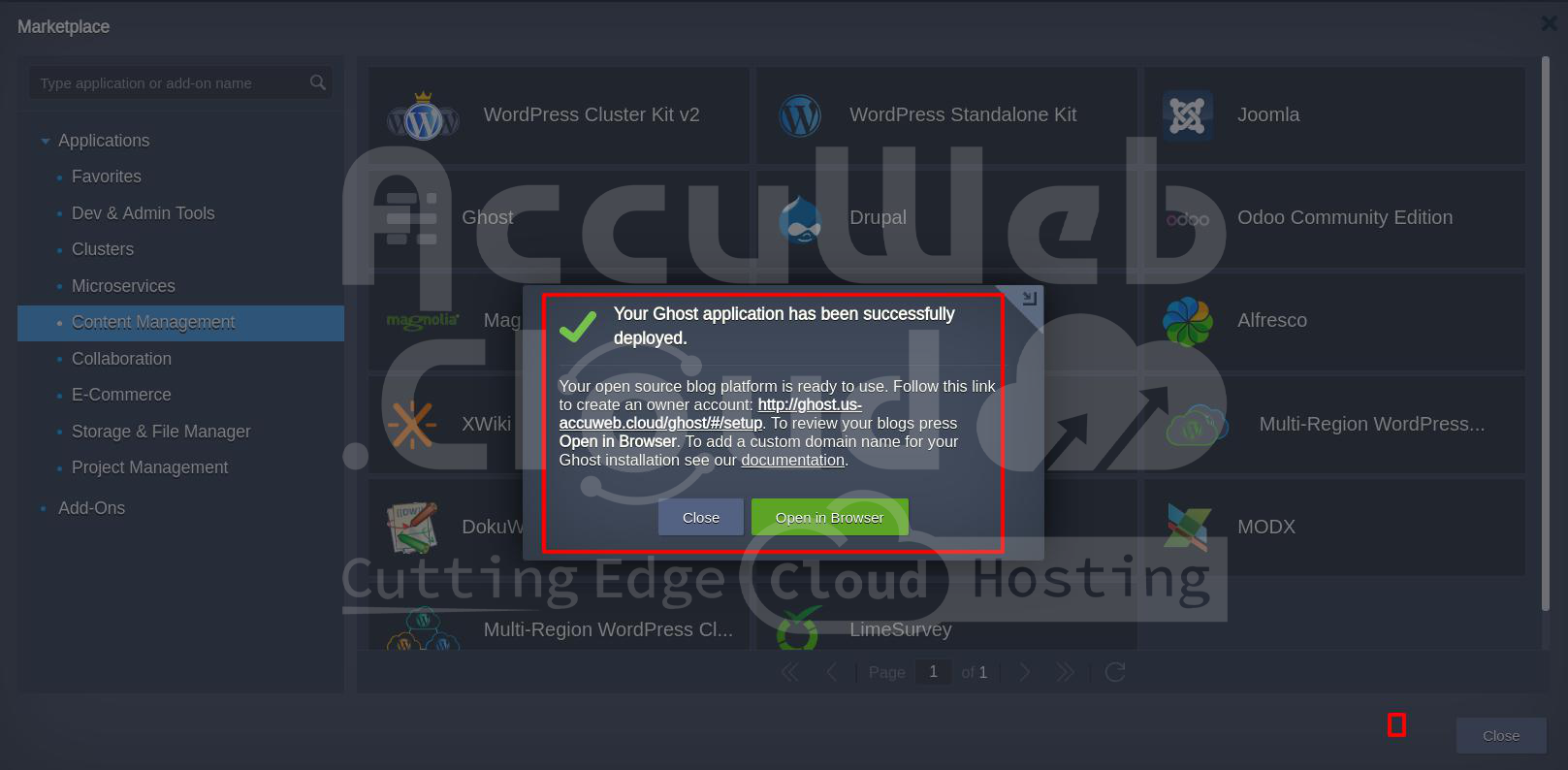 At this point, your Ghost CMS is live, but there are a few more configurations to complete.
Step 8: In some cases, you might encounter an error message after the installation, such as “SSL Service Unavailable”. This error typically means that SSL (Secure Sockets Layer) encryption is not enabled by default for your new Ghost installation.

Here’s how to fix it:
- In your AccuWeb.Cloud dashboard, go to the Environment section.
- Look for the option to change your environment’s topology. This option is typically labeled Change Environment Topology. Click on it.
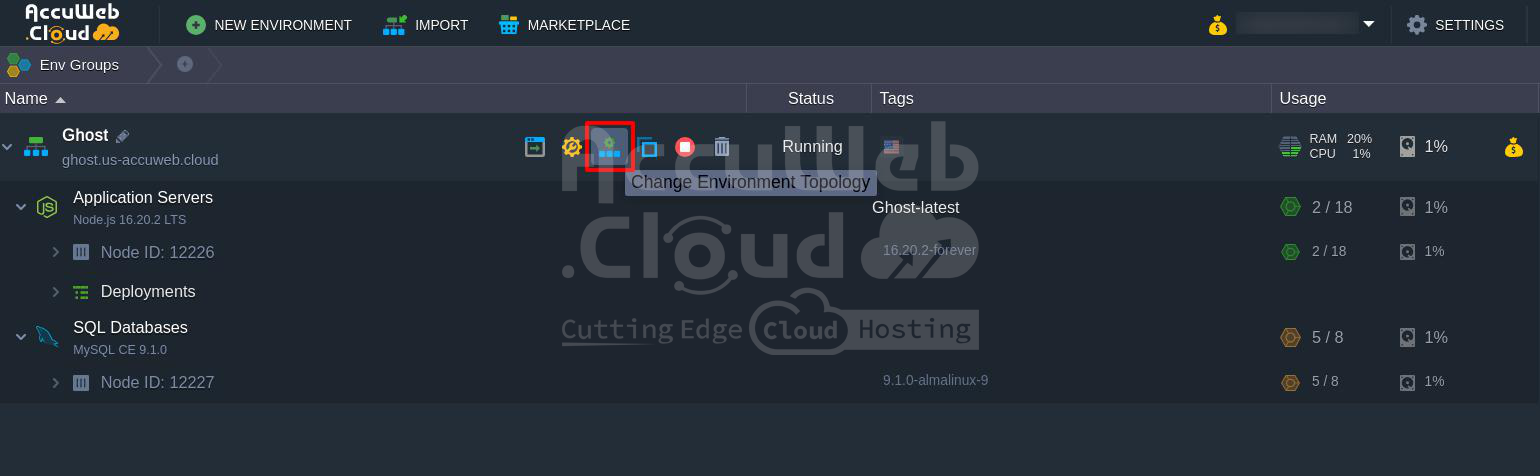
- In the topology settings, navigate to the SSL section. You should see an option called Built-in SSL.
- Toggle the Built-in SSL option to Enabled. This will ensure that your Ghost application uses HTTPS, providing a secure connection for your site visitors.
- After enabling SSL, click on the Apply button to save your settings.
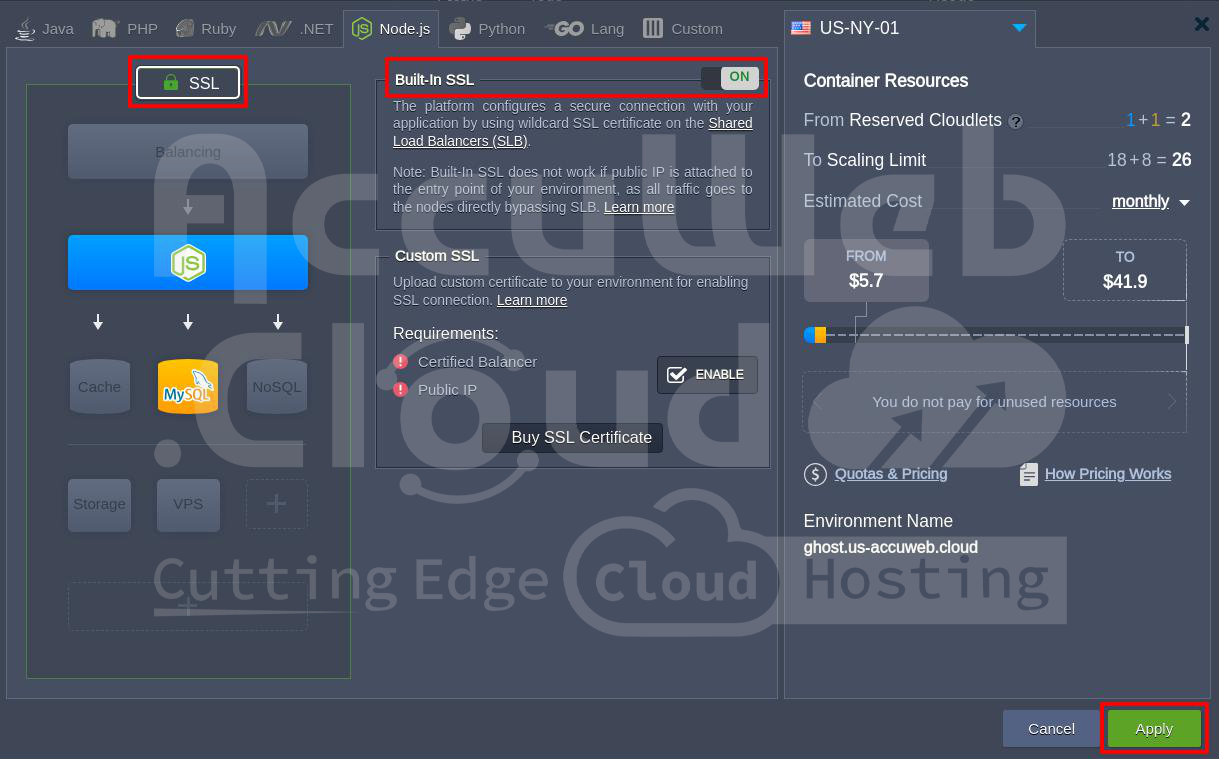
Now, the SSL certificate will be applied to your Ghost installation, and the error message should disappear.
Step 9: Once SSL is enabled (if necessary) and the setup is complete, it’s time to verify that your Ghost installation is working properly. Open a web browser and navigate to the Admin Panel URL provided in the success message. You’ll be directed to the Ghost setup page.
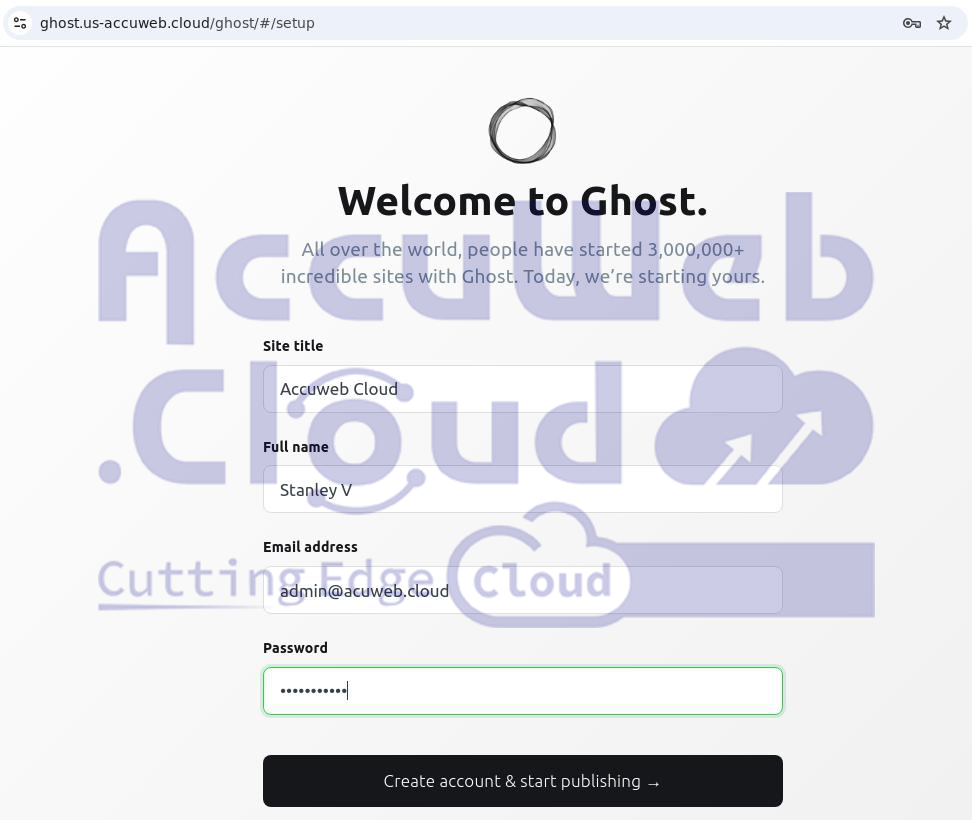
Step 10: On the setup page, you’ll need to enter some basic details for your Ghost website:
- Site Title: This is the name of your website. For example, “AccuWeb.Cloud“. This title will appear in browser tabs and on your site.
- Full Name: Enter your name or the name of the site administrator. This is often used for author attribution in blog posts.
- Email Address: Provide the email address that will be linked to your Ghost account. This will be used for administrative tasks and notifications.
- Password: Choose a strong, secure password for your Ghost account.
Once you’ve entered all the details, click on the Create account & start publishing button. This will complete the basic setup process and redirect you to the Ghost Admin Dashboard.
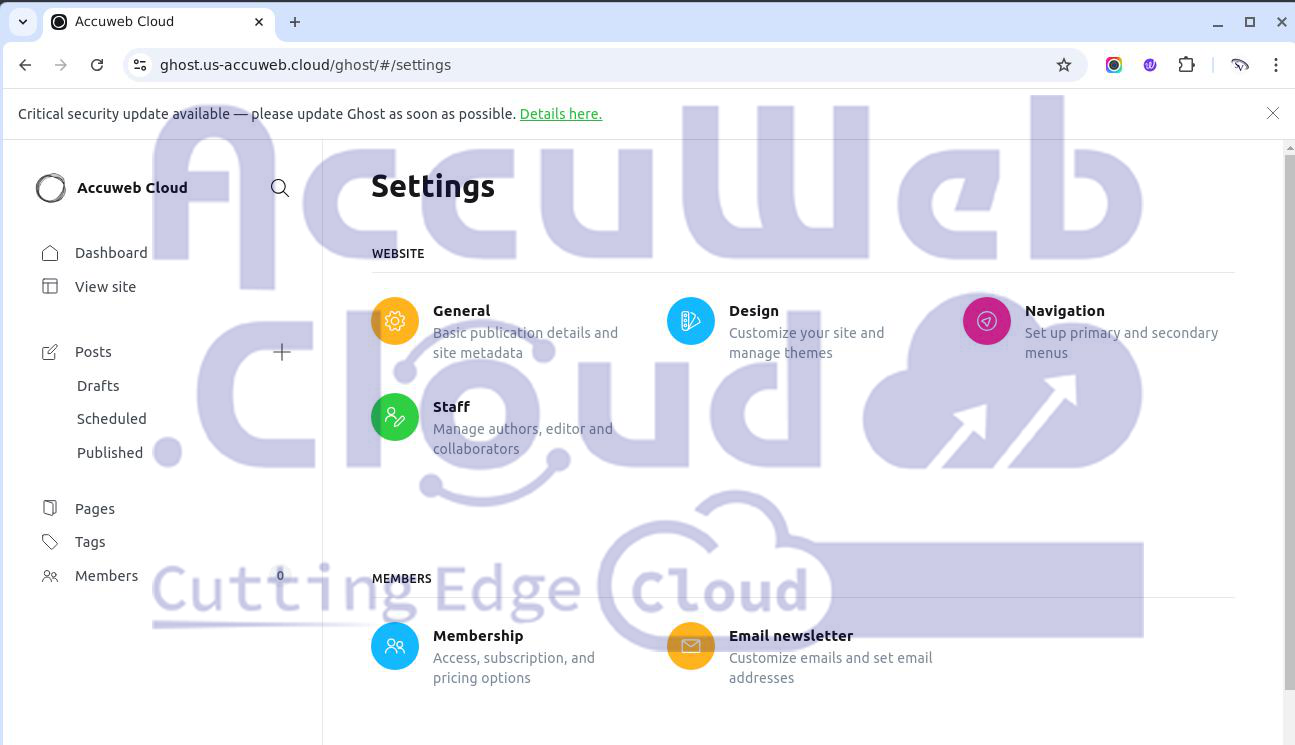
 Step 11: Now that your Ghost installation is set up, you’ll be taken to the Ghost Admin Dashboard. Here, you can start managing and customizing your website, including:
- Creating Posts and Pages: Write and publish articles for your blog or website.
- Customizing Themes: Choose from various themes or upload a custom theme to suit your brand.
- Managing Settings: You can adjust your site’s settings, such as SEO, user permissions, and integrations with third-party services.
- Adding Users: If your site has multiple contributors, you can add users and assign roles such as author or editor.
Conclusion:
Congratulations! You have successfully configured Ghost CMS on AccuWeb.Cloud for your website. From here, you can start customizing the look and feel of your site, create and publish content, and even monetize your website if desired. Remember that Ghost is a powerful and flexible CMS that can scale as your website grows. You can always add new themes, install plugins, or make further optimizations based on your specific needs.