
How to install python on windows 10
Python is a popular programming language that many people, from beginners to experts like to use. It can do many things like scripting, automating tasks, analyzing data, doing machine learning, and making the back-end of websites.
This guide will show you how to put Python on your Windows 10 computer using a special installer made just for Windows. To do this, you’ll need a Windows 10 computer with administrative privileges and an active internet connection.
Step 1: Download the Python Installer
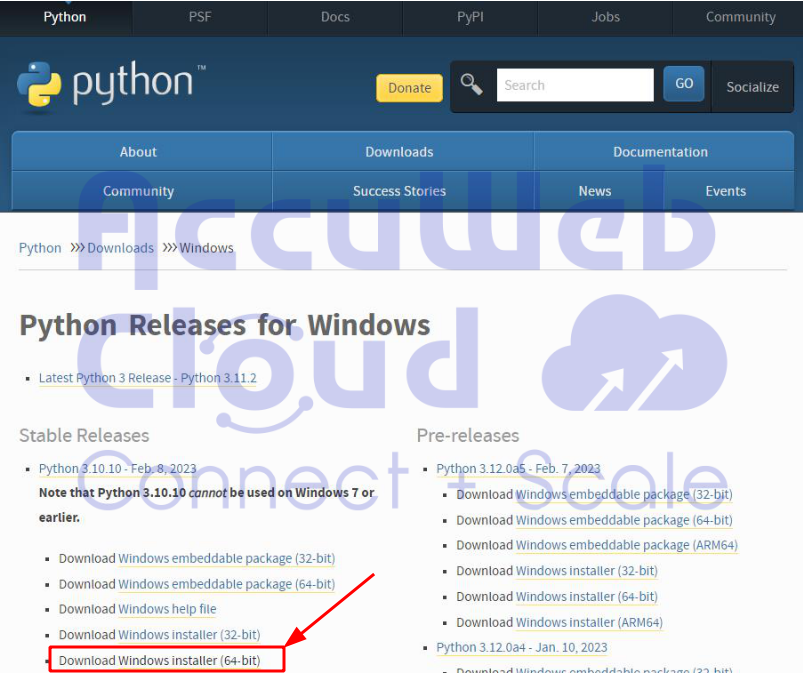
First, go to the official Python page for Windows: https://www.python.org/downloads/windows/
Now, locate the stable Python version. Here, I am showing you how to download Python version 3.10.10 with testing.
After that, click on the appropriate Python version for your Windows system. Since my system supports 64-bit, I’m downloading the ‘Windows installer (64-bit)’.
Step 2: Run the installer
Afterward, you will see the pop-up.
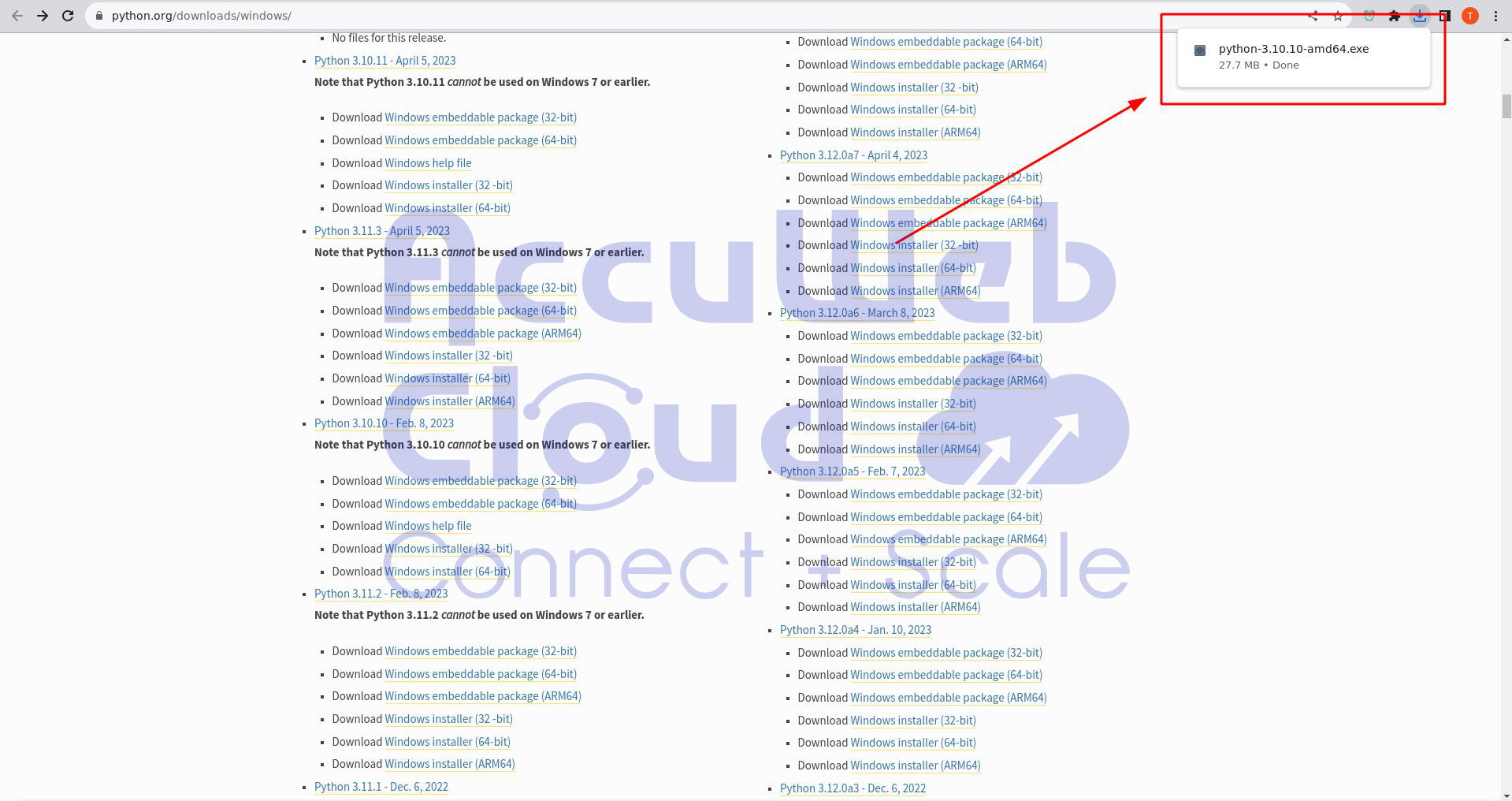
Now your .exe file is downloaded. Afterward, go to the file path and open it
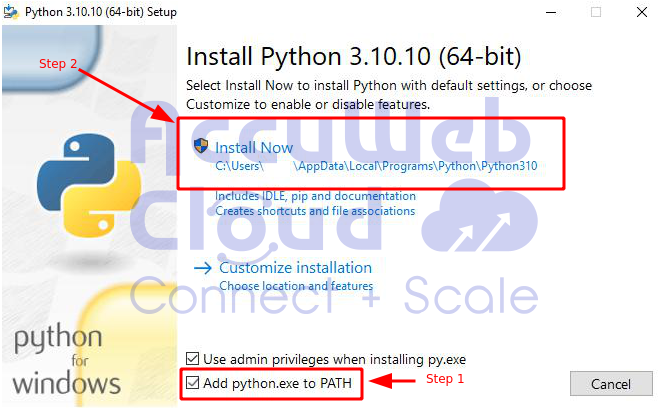
- Check the box labeled “Install launcher for all users”. This allows everyone who uses the computer to use the Python launcher app.
- Select the “Add python.exe to PATH” option. This helps users start Python right from the command line.
- If you want to continue with the default features, click ‘Install Now,’ then proceed to step number 4 for the installation verification process mentioned below.
- If you want to customize the installation, then click Customize installation as mentioned below and download any features you want.
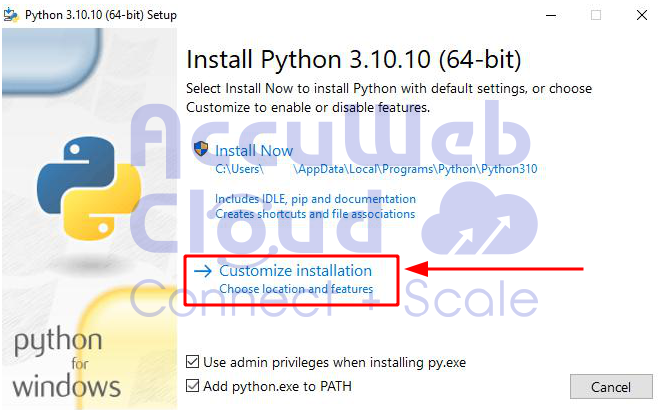
- Later, you will see the below window, where you can choose any option you prefer.
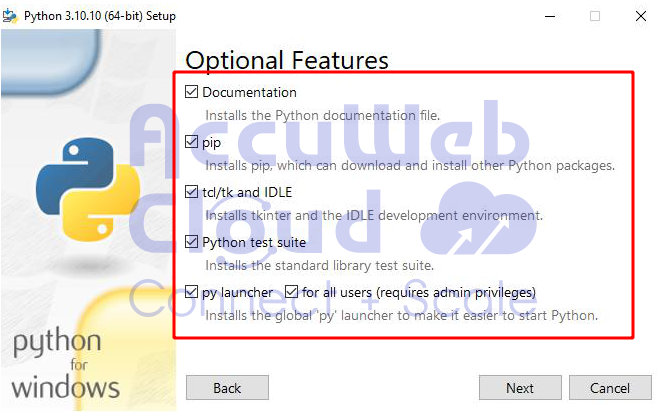
Pick what you want from these options:
- Documentation: Good to have.
- pip: Good if you plan to add more Python stuff, like NumPy or pandas.
- tcl/tk and IDLE: Good if you might use IDLE or follow tutorials using it.
- Python test suite: Good for testing and learning.
- py launcher and for all users: Good for letting everyone use Python from the command line.
- Afterward, click on the ‘Next’ button.
- You will see another dialogue box, as shown below.
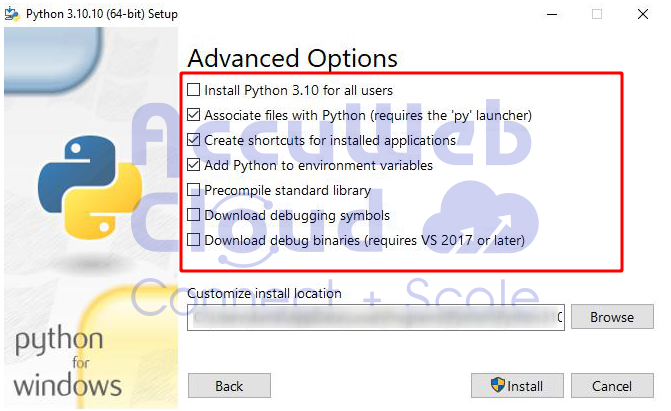
Pick the things that match what you want:
- Install for all users: Good if many people use this computer.
- Associate files with Python: Good; this links all Python files to the launcher or editor.
- Create shortcuts for apps: Good for quick app access.
- Add Python to environment variables: Good for starting Python.
- Precompile standard library: Not needed; might take longer to install.
- Download debugging symbols and debug binaries: Good if you’re making C or C++ stuff. Remember where Python installs, you might need it later.
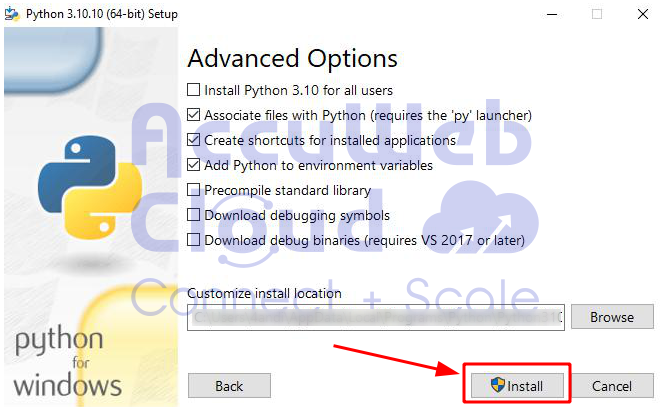
- Click on the install button to start the installation.
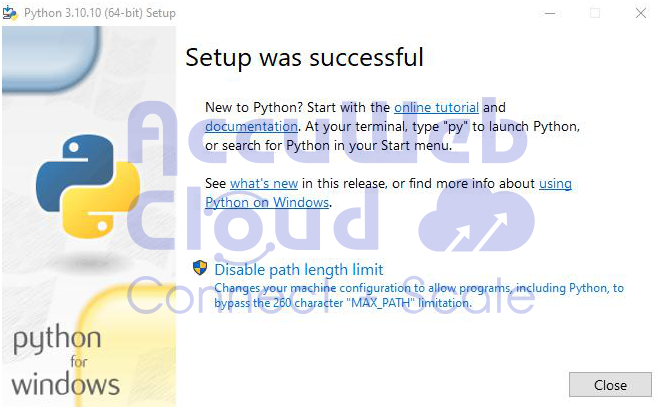
- Afterward, you will see the successful message
Step 3: Adding Python to Your Computer’s Settings (optional)
You might have already done this when you installed Python. If not, and you want to use Python from the command line, follow these steps:
First, find where Python is installed on your computer. Here are two common places:
- C:\Program\Python310: If you picked “Install for all users” during setup, Python will be here, available for everyone.
- C:\Users\Tirth\Local\Programs\Python310: If you didn’t choose “Install for all users,” Python will be here, just for your Windows user.
Keep in mind that the folder name might change if you install a different version, but it will always start with “Python.” Here’s what to do:
- Open the Start menu and type “advanced system settings” in the search bar.
- Click on “View advanced system settings.”
- In the System Properties window, go to the Advanced tab and click “Environment Variables.”
- Depending on how you installed Python:
i. If you picked “Install for all users,” choose “Path” from the System Variables list and click “Edit.”
ii. If you didn’t pick “Install for all users,” choose “Path” from the User Variables list and click “Edit.” - Click “New,” type in the Python directory path, and then click “OK” until all the boxes close. Remember, the folder name might change if you install a different version, but it will start with “Python.”
Step 4: Installation Verification Process
You can check if Python is installed correctly by using the command line or the IDLE app if you installed it. Here’s what to do:
- Go to the Start menu and search for “cmd.” Click on “Command Prompt.”
- In the Command Prompt, type:Python -version
It should show something like “Python 3.10.10.”
To check in IDLE:
- Open the Start menu and search for “python.”
- Click on “IDLE (Python 3.10 64-bit)” in the search results. This opens the IDLE environment.
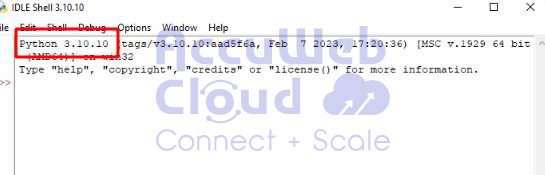
- The Python version will show up in the IDLE shell window once it’s open.
Conclusion:
Installing Python 3.10.10 on Windows is straightforward; just follow the installation prompts. Once installed, you can confirm it through the Command Prompt or by launching the IDLE application. This version brings new features and enhancements for coding on the Windows platform.