
Discourse is a fantastic, free, and popular platform for running online discussions. Whether you want to build a public forum, a private group, or a place for customer support, Discourse is a great choice. In this guide we will walk you through setting up Discourse on an Ubuntu Server using Docker.
Steps to Installing Discourse on Ubuntu Server Using Docker
Step 1: To update your server, log in through SSH or open your terminal and run:
sudo apt update && sudo apt upgrade -y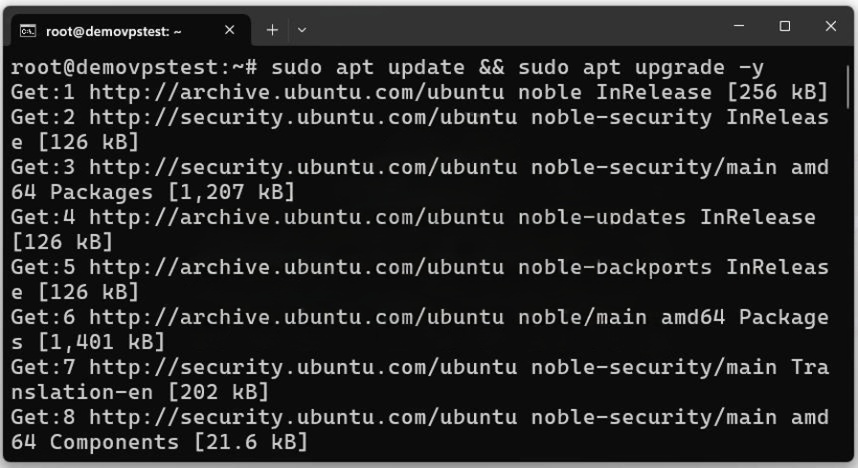
Step 2: Before installing Docker and Discourse, you’ll need some basic tools such as Git and Curl. Install both with:
sudo apt install -y git curl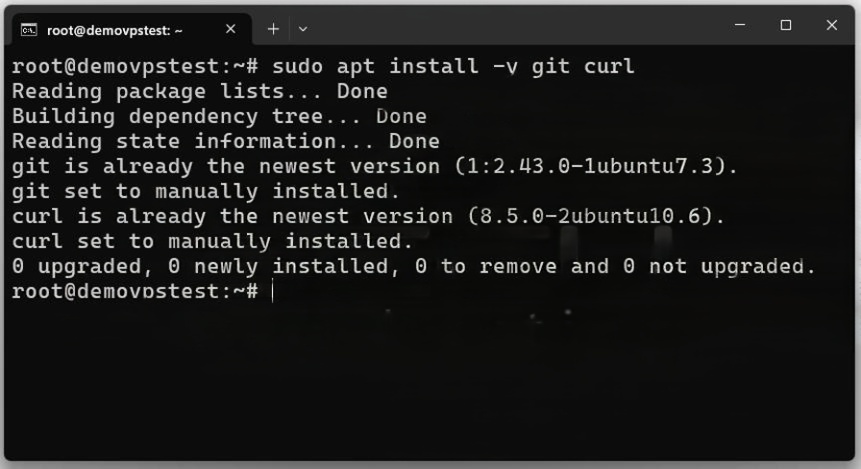
Step 3: Discourse is built to run inside a Docker container. To install Docker on Ubuntu, run the following commands
curl -fsSL https://get.docker.com -o get-docker.shsudo sh get-docker.sh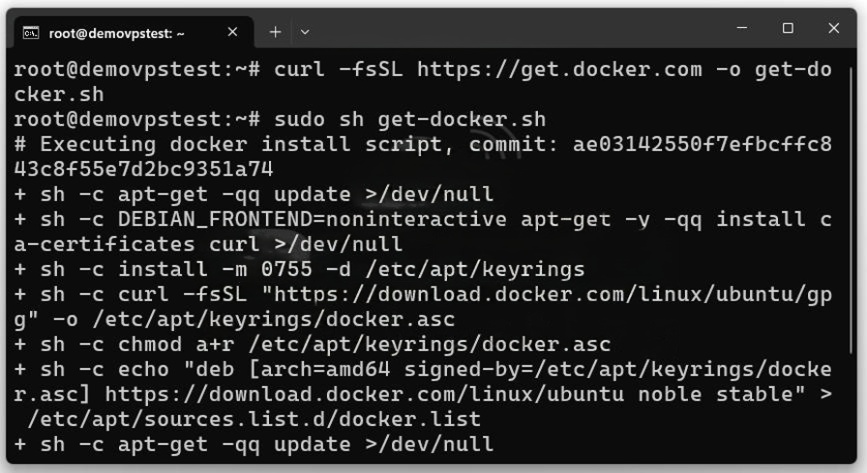
The first command downloads the script and the second command executes it with sudo privileges. Once installation completes, Docker should be up and running on your system. Check that Docker was installed successfully by running:
docker --version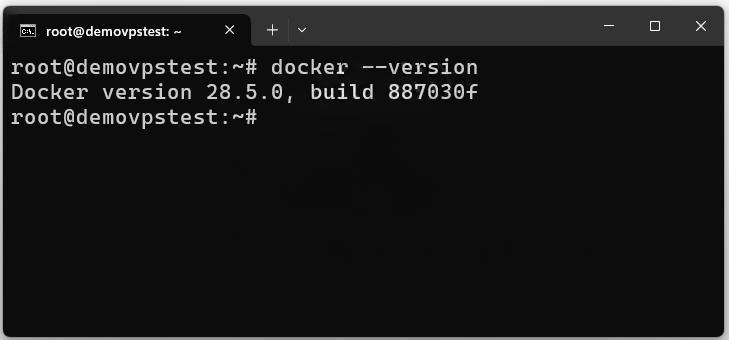
Install Docker Compose:
sudo apt install docker-compose -y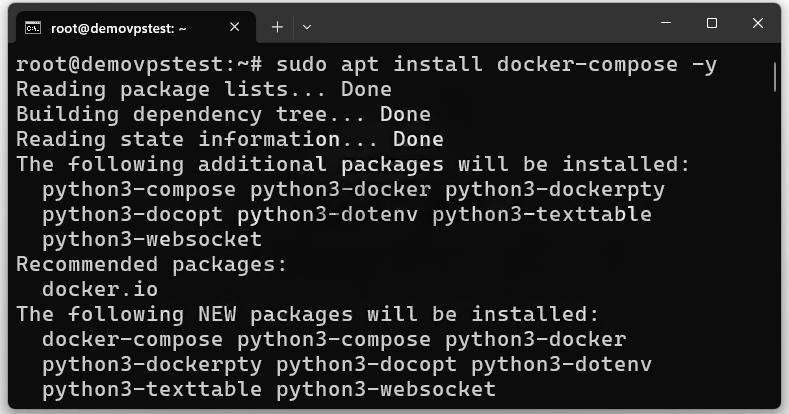
Once the installation is done, verify it by checking the version:
docker-compose --version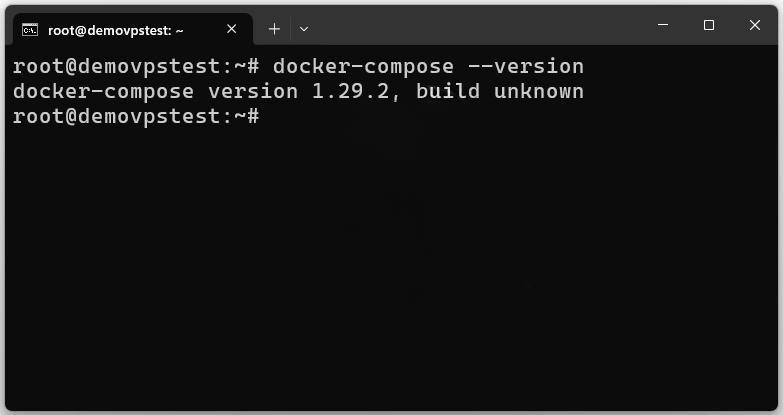
Step 4: Discourse provides an official Dockerized installation that simplifies the setup process. Create a directory for Discourse and adjust permissions so your user can manage it:
sudo mkdir /var/discoursesudo chown ${USER}:${USER} /var/discourse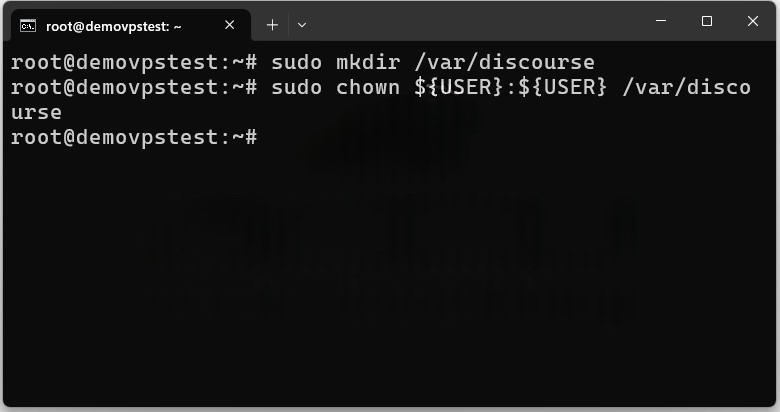
Now clone the official Discourse Docker repository:
cd /var/discoursegit clone https://github.com/discourse/discourse_docker.git.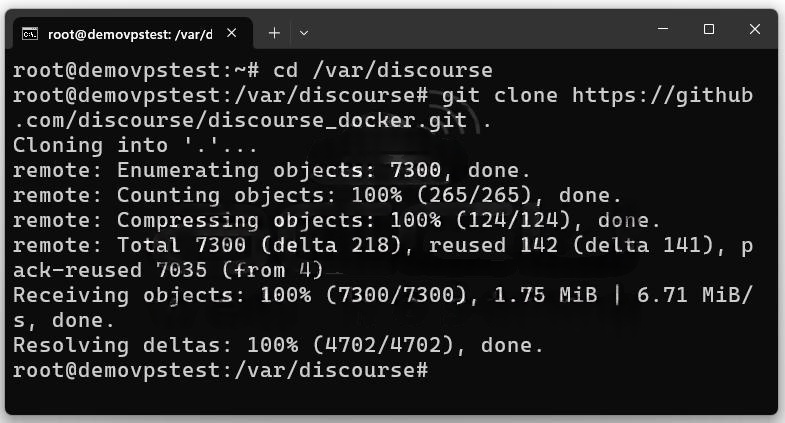
This command downloads all the necessary configuration files, including templates and scripts that automate installation and management.
Step 5: The Discourse Docker repository comes with an automated setup script that configures your forum step-by-step. You’ll need to provide a few details like your domain name, email, and SMTP settings.
Navigate to your Discourse directory and run:
sudo ./discourse-setup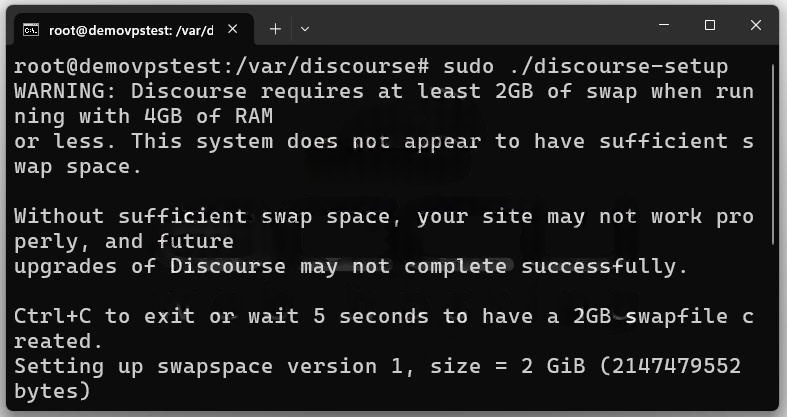
This command launches an interactive setup script that asks several details like:
Hostname: Enter the full domain name where you want to host your Discourse forum, for example: forum.yourdomain.com
Important: Before proceeding, make sure your domain’s DNS record points to your server’s IP address. Without this, Let’s Encrypt (which provides SSL certificates) won’t be able to verify your domain.
Admin Email Address: Provide an email address that will serve as your admin contact.
SMTP Settings: Discourse uses email for account verification, password resets, and notifications. You’ll need to configure your mail server details:
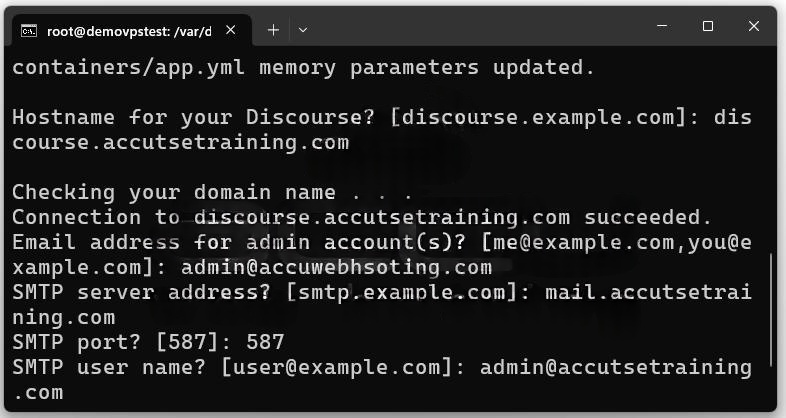
SSL Certificate Setup with Let’s Encrypt: The setup script will ask if you want to enable SSL via Let’s Encrypt. Type “Y” when prompted.
Once all the information is entered, the setup script will download the necessary Docker images, configure your Discourse environment, and launch the Discourse container. When the setup completes, Discourse will be running on your domain and ready for use.
Steps of a Discourse installation from website
Once the Discourse application has been successfully installed on your server, you’ll need to create and confirm the primary administrator account.
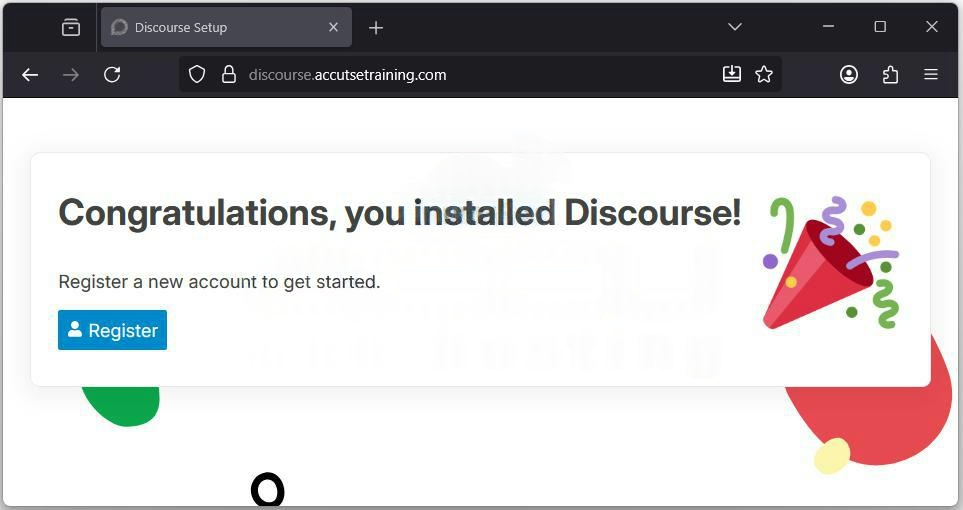
Step 1: Access the Discourse URL. The first screen confirms the successful installation of Discourse. Click the Register button to proceed with creating the admin account.
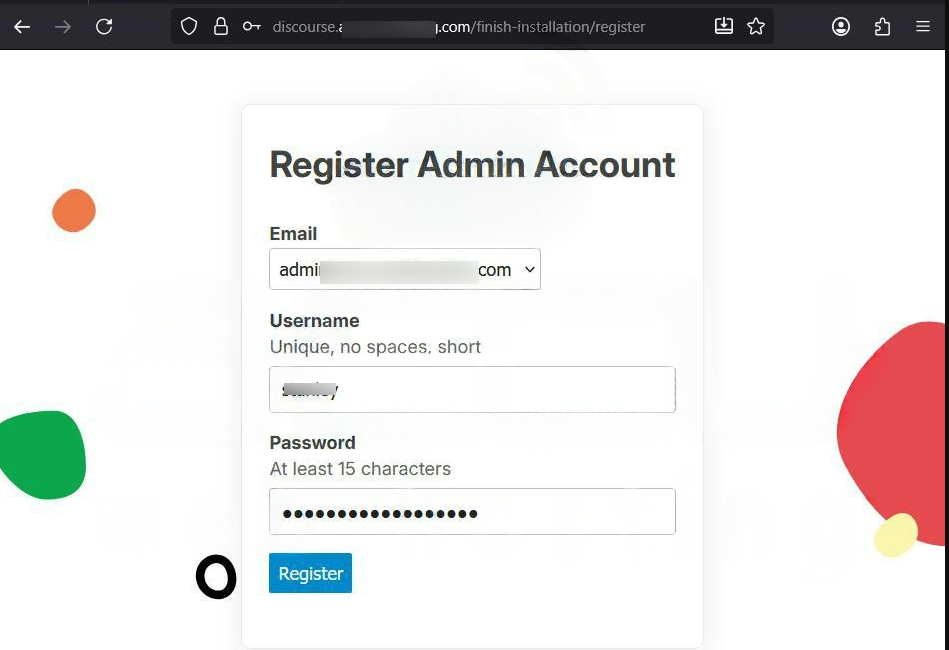
Step 2: Select the desired Email for the administrator, enter a Username and set a strong Password. Click Register.
Step 3: Check the email inbox for the activation email with the subject [Discourse] Confirm your new account. Click the activation link inside the email.
Step 4: Click the Click here to activate your account button to finalize your administrator registration.
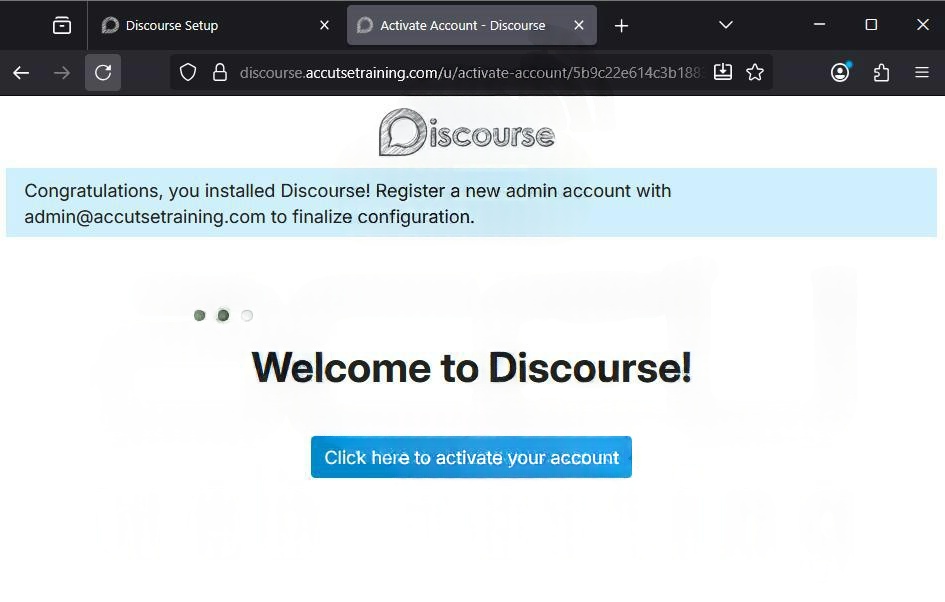
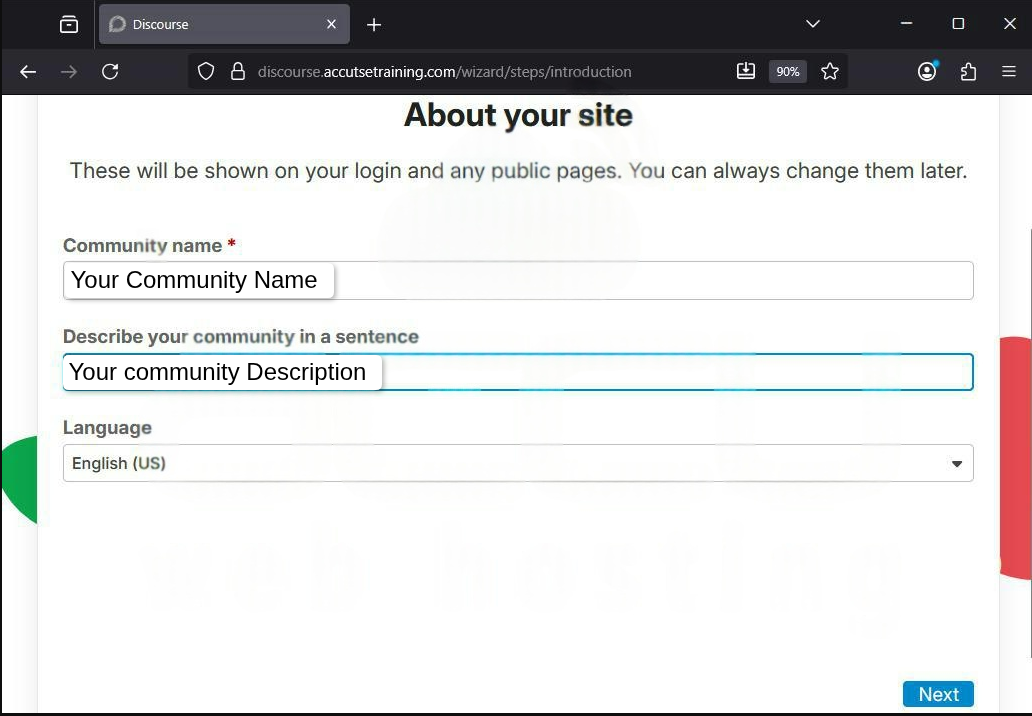
After activating the administrator account, Discourse launches a quick wizard to configure the basic settings for your new community.
Step 5: Enter your Community name, provide a short sentence to describe your community and confirm the Language. Click Next.
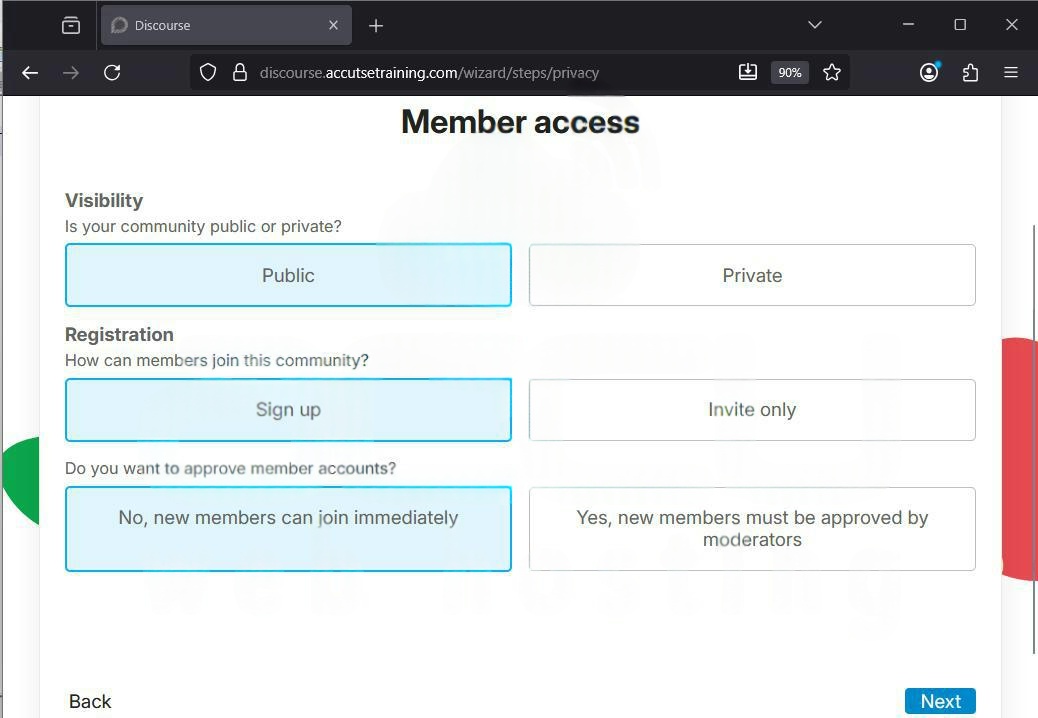
Step 6: Set Member Access and Privacy and click Next.
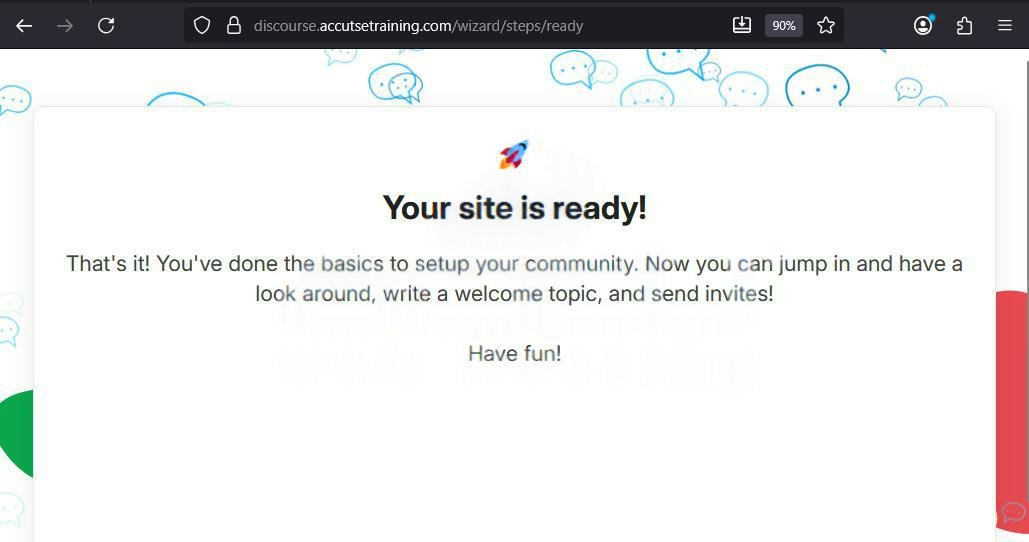
Step 7: Review the “Your site is ready!” message, confirming you have completed the basic configuration.
You will be directed to the Admin Dashboard. From this central hub, you can view your Community health and site traffic, check your installed Discourse Version, manage Users and Groups, and configure Security, Email, and Appearance settings for your site.
Your Discourse community is now installed, configured, and ready for you to create your first topics and invite users!
Conclusion
By following this step-by-step tutorial, you’ve installed and configured Discourse on an Ubuntu Server using Docker and Docker Compose. You’ve set up a fully functional, secure, and scalable forum that can serve as the backbone of your online community.