
How To Use the SQLite3 in Python 3?
SQLite stands as a self-contained SQL database that operates on file-based principles. One of its remarkable features is its seamless integration with Python, eliminating the need for extra software installation in your Python applications.
In this guide, we will explore the SQLite3 module in Python 3. Our journey will encompass establishing a connection to a SQLite database, introducing a table within the database, populating it with data, and manipulating the data within this table.
Throughout this tutorial, our focal point will revolve around an inventory of cars. This inventory will serve as the canvas upon which we adapt, add, or remove cars in a fictional showroom.
1. Establishing a Connection to a SQLite Database
When connecting to a SQLite database, we essentially access data stored within a file on our local machine. SQLite databases are versatile SQL engines suitable for various applications. In this context, we will focus on a database designed to monitor the car inventory at a fictitious showroom.
To establish a connection to a SQLite database in Python, we can utilize the sqlite3 module.
import sqlite3
connection = sqlite3.connect("accucloud.db")
The inclusion of `import sqlite3` provides our Python program with access to the SQLite3 module. When we invoke the `sqlite3.connect()` function, it yields a Connection object, serving as our gateway to interact with the SQLite database stored in the “accucloud.db” file. It’s worth noting that if the “accucloud.db” file doesn’t exist on our computer, sqlite3.connect() will create it automatically.
To confirm the successful creation of our connection object, we can execute the following:
print(connection.total_changes)
Output:0connection.total_changes tells us how many rows in the database have been changed by our connection. We
haven’t made any changes right now, so it’s okay that it shows 0.
2. Putting Information into the SQLite Database
With our connection to the “accucloud.db” SQLite database established, we can begin adding and retrieving data.
In a SQL database, information is organized within tables. These tables define specific columns and can house multiple rows, each holding data related to those defined columns.
Our next step involves creating a table named “car,” which will be used to record and manage the following data:

The car table is designed to record information for each car in the showroom, including the brand name, model, and price. Three sample car entries are provided: one for Lamborghini, another for Porsche, and a third for Land Rover.
You can establish this car table in SQLite by utilizing the connection established in Step 1.
cursor = connection.cursor()
cursor.execute("CREATE TABLE car (Brand TEXT, Model TEXT, Price TEXT)")
Explanation
cursor = connection.cursor():
This line creates a cursor object. A cursor is a database object that allows you to interact with a database using SQL commands. In this case, it is created from the connection object, presumably representing a connection to an SQLite database. The cursor executes SQL commands and fetches results from the database.
cursor.execute(“CREATE TABLE car (Brand TEXT, Model TEXT, Price TEXT)”):
This line uses the execute method of the cursor object to execute an SQL command. The SQL command being executed here is a “CREATE TABLE” statement. It creates a table named “car” in the connected database with three columns: “Brand,” “Model,” and “Price.” Each column is defined with the data type “TEXT,” meaning these columns will store text (string) values.
With the table successfully created, we can now add data rows to it:
cursor.execute("INSERT INTO car VALUES ('Lamborghini', 'Urus', '$233,263')")
cursor.execute("INSERT INTO car VALUES ('Porsche', 'Taycan', '$86,700')")
cursor.execute("INSERT INTO car VALUES ('Land Rover', 'Range Rover', '$52,600')")
The above code executes SQL `INSERT` statements to add rows of car data to the “car” table in an SQLite database, including information about each car’s brand, model, and price.
3. Retrieving Data from the SQLite Database
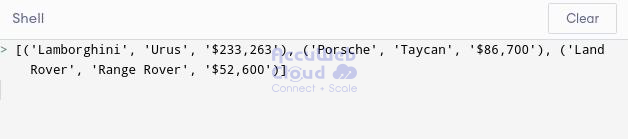
After inserting three rows into the SQLite table named “car” in Step 2, we can access and retrieve this data using a SELECT SQL statement:
rows = cursor.execute("SELECT Brand, Model, Price FROM car").fetchall()
print(rows)
If we run this code, we will see output like the following:
Output
Explanation
rows = cursor.execute(“SELECT Brand, Model, Price FROM car”).fetchall():
This line of code sends an SQL SELECT query to the database. It retrieves data from the “car” table and selects the columns “Brand,” “Model,” and “Price.” The execute method is used to execute the query, and the fetchall() method is used to fetch all the rows that match the query. The result contains the selected data rows and is stored in the rows variable.
To retrieve rows from the car table that meet specific criteria, we can employ a WHERE clause:
brand_name = "Land Rover"
rows = cursor.execute(f"SELECT Brand, Model, Price FROM car WHERE Brand = {brand_name}").fetchall()
print(rows)
If we run this, we will see output like the following:
Output

Explanation
rows = cursor.execute(f”SELECT Brand, Model, Price FROM car WHERE Brand = {brand_name}”).fetchall():
This line sends an SQL SELECT query to the database. It retrieves data from the “car” table, specifically selecting the columns “Brand,” “Model,” and “Price.” The WHERE clause is used to filter the rows based on the “name” column matching the value stored in the “brand_name” variable. The f-string format (formatted string) is used to insert the value of “brand_name” into the query.
fetchall(): This method fetches all the rows that match the criteria specified in the SELECT query and stores them in the “rows” variable.
4. Making Changes to the SQLite Database
You can modify rows in a SQLite database by using UPDATE SQL statements.
For instance, if the Lamborghini Brand is changing the price to $300,000, you can update the Lamborghini row in the car table to reflect this change as follows:
car_name = Lamborghini
new_price = "$300,000"
cursor.execute(f"UPDATE car SET price = {new_price} WHERE Brand = {car_name}")
Explanation
cursor.execute(f”UPDATE car SET Price = ‘{brand_name}’ WHERE Brand = ‘{car_name}'”):
This line executes an SQL UPDATE statement. It updates the “Price” column in the “car” table with the value stored in the “brand_name” variable, but only for rows where the “Brand” column matches the value stored in the “car_name” variable. The f-string format is used to include the values of these variables in the SQL statement.
rows = cursor.execute("SELECT Brand, Model, Price FROM car").fetchall()
print(rows)
If we run this, we will see output like the following:
Output

Here, Lamborghini’s value has been updated from $233,263 to $300,000.
5. Removing a value from the database
You can also modify rows in a SQLite database by using DELETE SQL statements.
car_name = Porsche
cursor.execute(f"DELETE car from car WHERE Brand = {car_name}")
Explanation
DELETE FROM car: To delete rows from the “car” table.
WHERE Brand = {car_name}: The condition for which rows should be deleted, based on the “Brand” column’s value matching the car_name variable. Again, make sure that car_name is properly formatted and safe to use in the SQL statement.
rows = cursor.execute("SELECT Brand, Model, Price FROM car").fetchall()
print(rows)
If we run this, we will see output like the following:
Output

Conclusion
The SQLite3 module in Python’s standard library is a robust tool that enables us to work with complete on-disk SQL databases without the need for extra software installations. It offers powerful database capabilities for your applications, all within the Python environment.