
How to Establish SSL Connection to PostgreSQL DB Server?
One of the biggest challenges in the Internet of Things is achieving top security. Today, we’ll learn how to set up a secure SSL connection to your PostgreSQL container on AccuWeb.Cloud.
To keep your PostgreSQL database safe, the first step is to encrypt all connections to protect usernames, passwords, and data from being intercepted.
We’ll cover how to adjust the database server and generate the necessary certificates for SSL. Then, we’ll show how to add certificates to a client machine and finally establish a secure connection to our server using pgAdmin. Let’s get started!
PostgreSQL Server Setup
In the instructions below, we’ll look at two setups: a single PostgreSQL database and a two-node cluster with master-slave replication.
You can create a single node easily using the environment setup wizard.
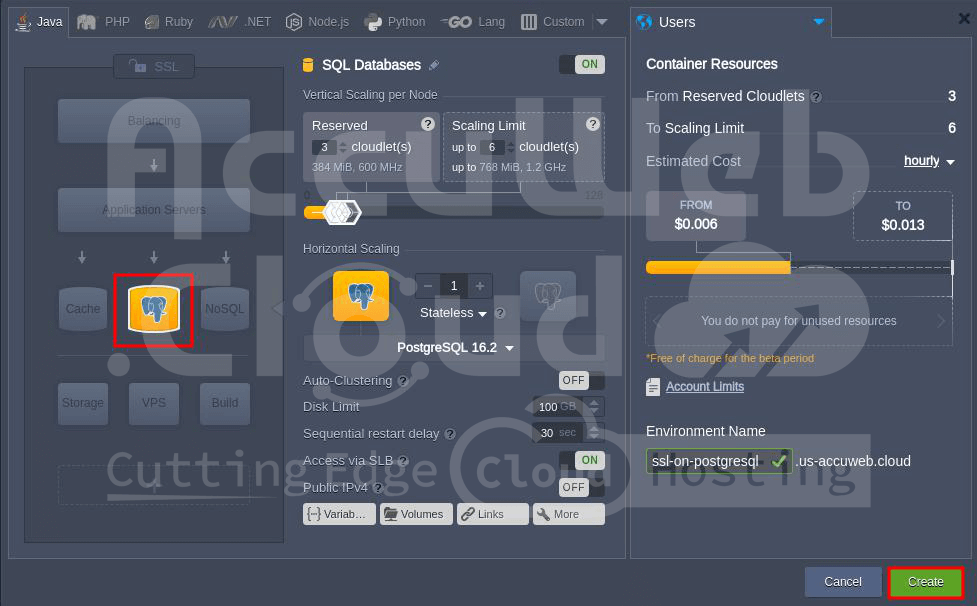
For a quick cluster setup, use the pre-configured PostgreSQL Database Replication package found in the Marketplace > Clusters section. To find what you need, use the search bar at the top. Then click Install for the right option.

PostgreSQL Server Setup
Depending on your chosen setup, you’ll see either a single database node or two connected nodes (as shown above) in your AccuWeb dashboard.
Step 1. Access Your Database Server
To start setting up an SSL connection, access your database server through AccuWeb SSH Gate. You can do this in two ways:
The easiest way is to use the built-in Web SSH client directly from your AccuWeb Dashboard.

Alternatively, use your local SSH client. If you haven’t done this before, you’ll need to:
- Generate an SSH keypair.
- Add your public SSH key to the dashboard.
- Access your account via SSH.
Step 2. Add SSL Files
Once you’re connected to your PostgreSQL server via SSH, add the following files to the /var/lib/pgsql/data directory for SSL:
- server.key – private key
- server.crt – server certificate
- root.crt – trusted root certificate
If you already have these files, upload them using the Configuration Manager in the Accuweb dashboard and skip to Step 6. Otherwise, follow Steps 3-5 to generate them.
Step 3. Create the server.key File
To create the server.key file, run these commands:
- $ cd /var/lib/pgsql/data
- $ openssl genrsa -des3 -out server.key 1024

You’ll be asked for a passphrase—enter and confirm it. Then, remove the passphrase with this command:
$ openssl rsa -in server.key -out server.key

Re-enter the passphrase to confirm. Finally, set the file permissions and ownership:
- $ chmod 400 server.key
- $ chown postgres.postgres server.key

Step 4. Create the server.crt File
Create a server certificate based on your server.key file:

Step 5. Copy the Certificate
Since we’re signing certificates ourselves, the server certificate we generated can also serve as a trusted root certificate. Simply make a copy of it with the appropriate name:
$ cp server.crt root.crt

Now that you have all three certificate files, you can proceed to configure PostgreSQL for SSL activation and usage.
Step 6. Configure pg_hba.conf
In the same folder, edit the pg_hba.conf file. Replace its default content with the following lines:
# TYPE DATABASE USER CIDR-ADDRESS METHOD
# "local" is for Unix domain socket connections only
local all all trust
# IPv4 local connections:
host all all 127.0.0.1/32 trust
# IPv4 remote connections for authenticated users
hostssl all webadmin 0.0.0.0/0 md5 clientcert=1
# IPv6 remote connections for authenticated users
hostssl all webadmin ::/0 md5 clientcert=1
- If you have a clustered solution installed, perform the same step described above, except for the line related to replication—it must remain unchanged to keep data replication enabled.
- If you’re not using the default webadmin user, replace it with your database username in the last lines of the file. Remember to use this username for all further commands.
Save the updated file.
Step 7. Configure postgresql.conf
Navigate to the Security and Authentication section of the postgresql.conf file (around line 80) and enable SSL usage by uncommenting the ssl parameter and setting its value to “on”. Also, add the ssl_ca_file parameter:
- ssl = on
- ssl_ca_file = ‘root.crt’

Save these changes.
Step 8. Restart PostgreSQL
Finally, restart your PostgreSQL server to apply the new settings:
$ sudo service postgresql restart
Creating SSL Certificate Files for Clients
Now, let’s make another set of SSL certificate files for the client instance to enable secure connections on both sides.
Step 1. Generate a Private Key
Go back to the terminal window where you connected to your PostgreSQL server using SSH during server setup. Generate a private key for the client. You’ll do this in the tmp directory:
- openssl genrsa -des3 -out /tmp/postgresql.key 1024
- openssl rsa -in /tmp/postgresql.key -out /tmp/postgresql.key

Step 2. Create an SSL Certificate
Next, create an SSL certificate for your PostgreSQL database user (usually webadmin) and sign it with your trusted root.crt file on the server.
- openssl req -new -key /tmp/postgresql.key -out /tmp/postgresql.csr -subj ‘/C=US/ST=NJ/L=Old Tappan/O=Accuweb.cloud/CN=webadmin’
- openssl x509 -req -in /tmp/postgresql.csr -CA root.crt -CAkey server.key -out /tmp/postgresql.crt -CAcreateserial

Note:
- You can change the data provided within the -subj parameter to your personal information, but the Common Name (/CN=) must match the database username set in the pg_hba.conf server configuration file during the first certificate generation (usually webadmin).
- The second command must be run from the location (server directory) where the root.crt and server.key files are stored. Otherwise, you need to specify the full path to them.
Step 3. Move the Files to the Client
Once the files (postgresql.key, postgresql.crt, and root.crt) are ready, move them to the .postgresql folder on your client machine. You can do this through the Accuweb dashboard UI by downloading them or copying/pasting the files’ content.


You can also set read permission for the key to the owner only for added security with the chmod 400 ~/.postgresql/postgresql.key command.
Tip: Remember to delete the keys from the tmp directory on your DB server afterward.
Connecting with PgAdmin
Once you’ve finished setting up the server and client, you’re ready to connect. We’ll use the pgAdmin 3 tool as an example.
Step 1. Set Up an Endpoint
To connect to the database server using SSL, you need either a Public IP or an endpoint attached to your PostgreSQL database container.
For the latter case, go to environment Settings, switch to the Endpoints section, and Add a new endpoint.

Step 2. Register the Server in pgAdmin
With an access point set up, open pgAdmin 3 and select New Server Registration.
In the Properties tab, fill in:
- Name: Choose any name for the connection (like ssl-to-pgsql)
- Host: Use the access point from the first step (Public IP or endpoint Access URL without port)
- Port: Use the default 5432 port for External IP or the endpoint’s Public port
- Username: Use the database user you configured for SSL (usually webadmin)
- Password: Enter the corresponding user’s password
Leave the rest unchanged or adjust as needed.

Step 3. Enable SSL
Switch to the Parameters tab and select the required option from the drop-down list for the SSL line.

That’s it! The necessary certificates will be loaded automatically during the first connection. If not, you can choose them manually. Click Save to start managing your database securely.
Now you can connect your application to the database and enable SSL configurations to encrypt your data during fetching or transferring.
Conclusion
Setting up an SSL connection to a PostgreSQL database server involves a few simple steps. First, make sure both the server and client have the required SSL certificates and keys. Enable SSL on the PostgreSQL server by setting ssl = on in the postgresql.conf file and specifying the locations of the SSL certificate and key files.
On the client side, configure the connection settings to use SSL by choosing the SSL mode (e.g., require, verify-ca, verify-full) and providing the client certificate and key if needed. Finally, test the connection to ensure SSL is working properly, creating a secure communication channel between the client and the PostgreSQL server.