
Ways to Deploy Kubernetes Applications in AccuWeb.Cloud
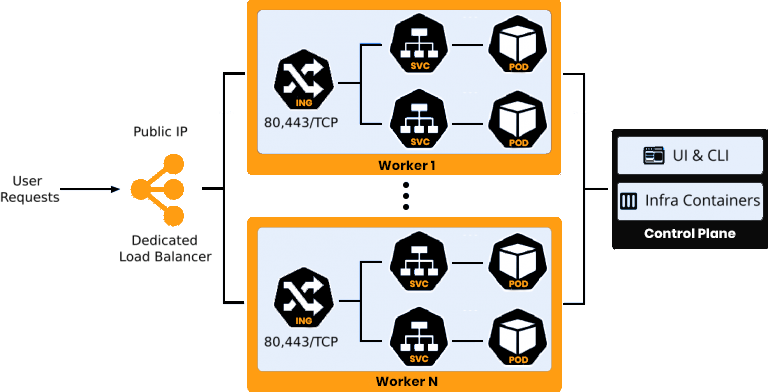
In this post, we aim to demonstrate the process of exposing applications via a public IP address linked to one of the nodes within a Kubernetes cluster environment in AccuWeb.Cloud PaaS. This can be achieved through two potential methods: attaching the IP address to a Dedicated Load Balancer or a K8s Worker node.
Dedicated Load Balancer for Application Access
To begin, install the Kubernetes cluster from the AccuWeb.Cloud Marketplace and deploy the application. For instance, let’s proceed with deploying a single web application as an example.
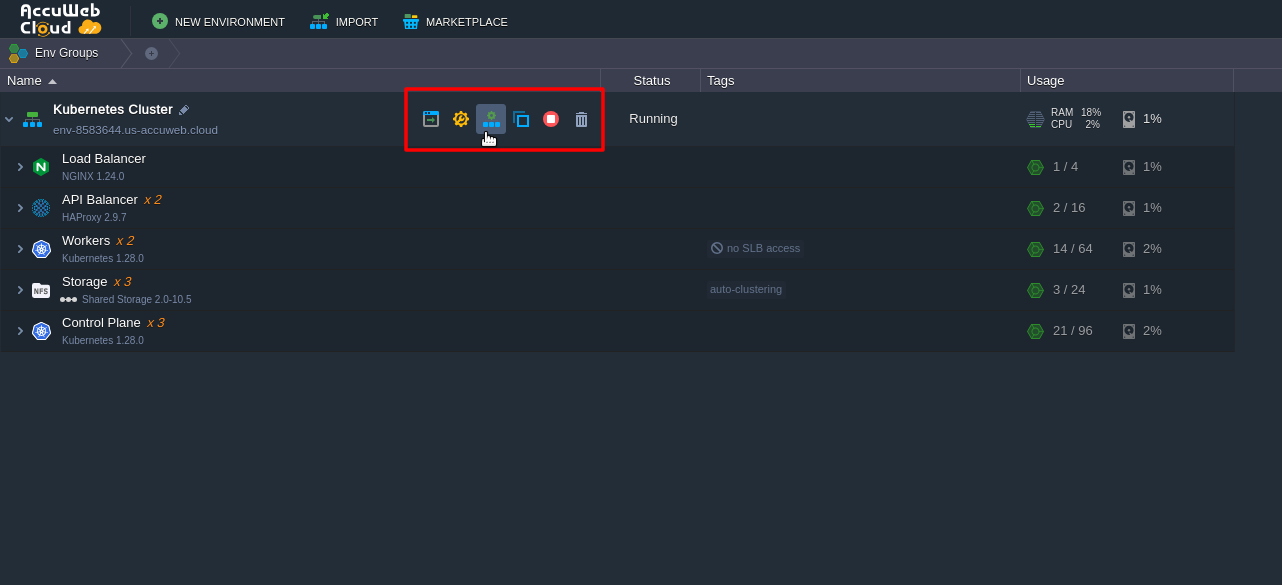
Next, click on “Change Environment Topology” next to your Kubernetes cluster. In the opened window, add a Dedicated Load Balancer node and attach a public IP address to it.
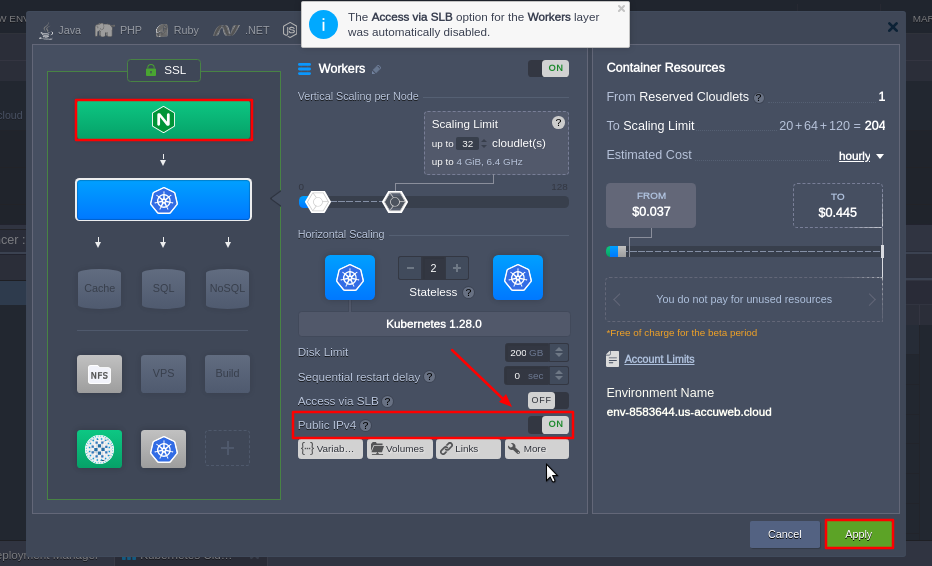
Here, we use the NGINX load balancer node, although you have the option to select any other available option, such as HAProxy, LS Web ADC, or Varnish. After the topology is changed, it should resemble the following configuration:
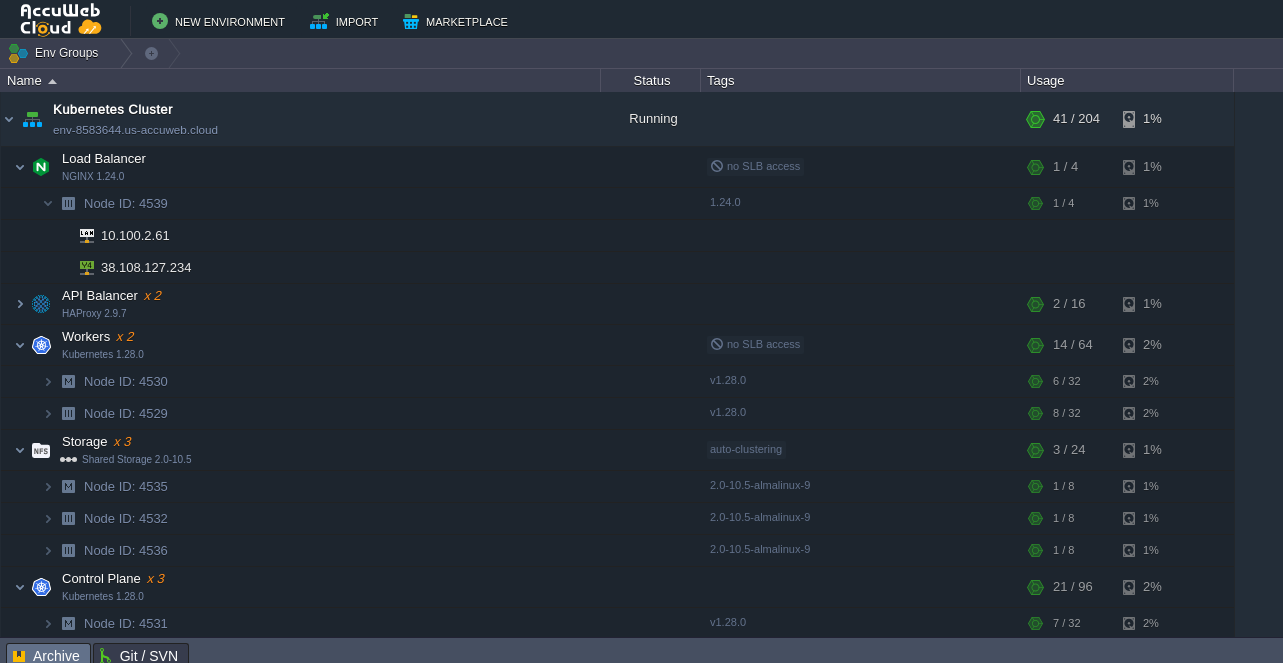
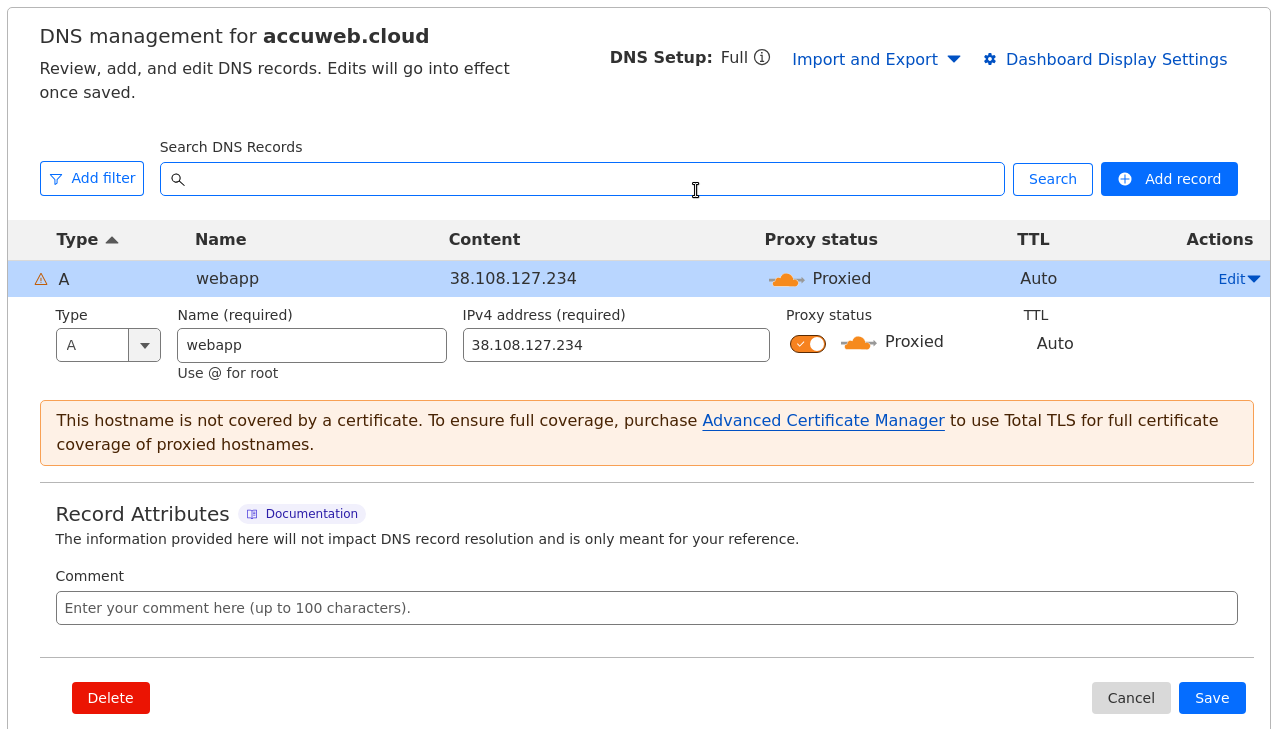
Following that, create an A record for a custom domain using the IP address added in the previous step. For example, you can create an A record for the domain “webapp.accuweb.cloud.”
Now, you can bind the custom domain to the K8s cluster and initiate a request to issue a trusted Let’s Encrypt SSL certificate to secure the applications’ traffic.
Navigate to the load balancer Add-Ons and locate the Let’s Encrypt Free SSL option.

Enter the custom domain name that we have chosen and apply it accordingly.
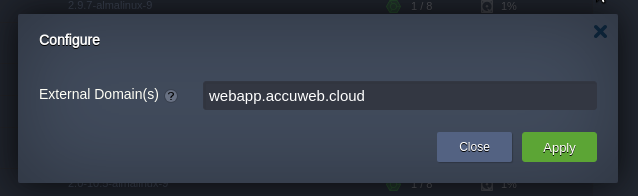
Now, the Webapp application is accessible using the custom domain name https://webapp.accuweb.cloud, and the traffic is encrypted with a valid Let’s Encrypt SSL certificate.
Public IP Address Allocation to Kubernetes Worker Nodes for Application Access
Let’s explore an alternative method for making applications available outside of the Kubernetes cluster. This approach involves directly accessing the application through a public IP address attached to one of the worker nodes.

Let’s continue with the same cluster where the webapp application is deployed.
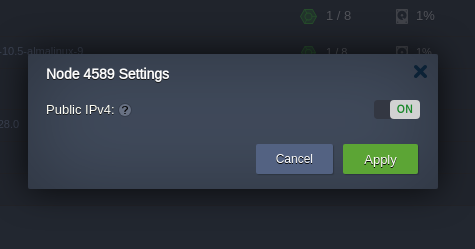
Click on “Change Environment Topology” and proceed to add the public IP address to the worker node, following the same steps as described above.
Create an A record for a custom domain mapping to the newly added IP address. Use a domain name different from the one used in the previous chapter. For example: webapp-worker.accuweb.cloud.
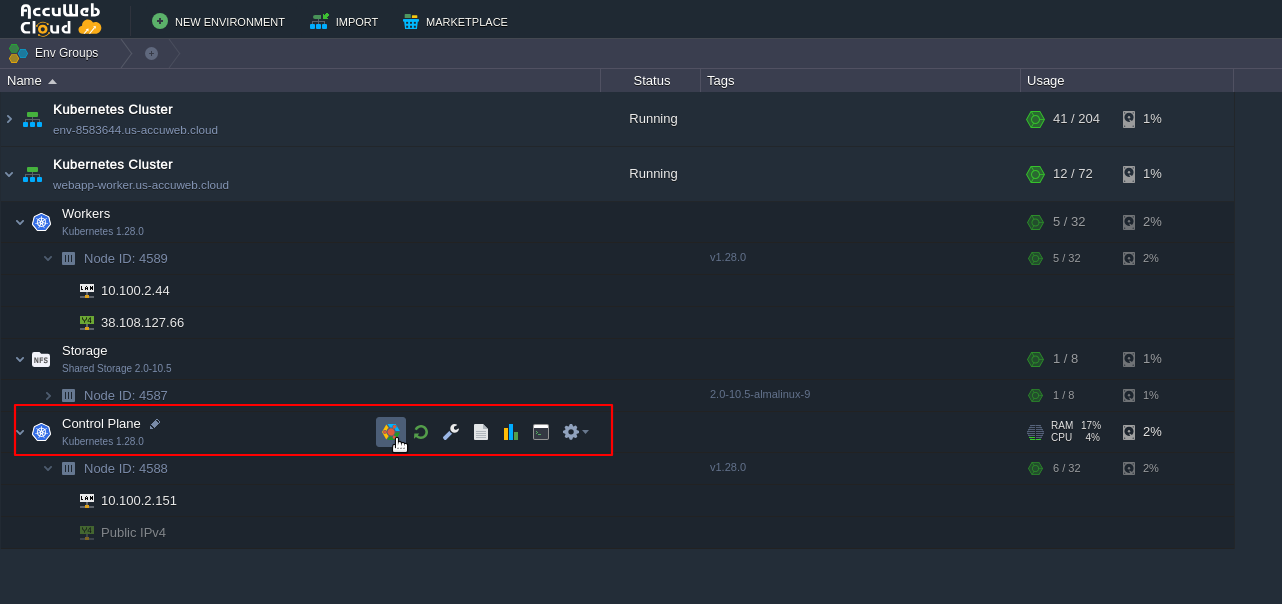
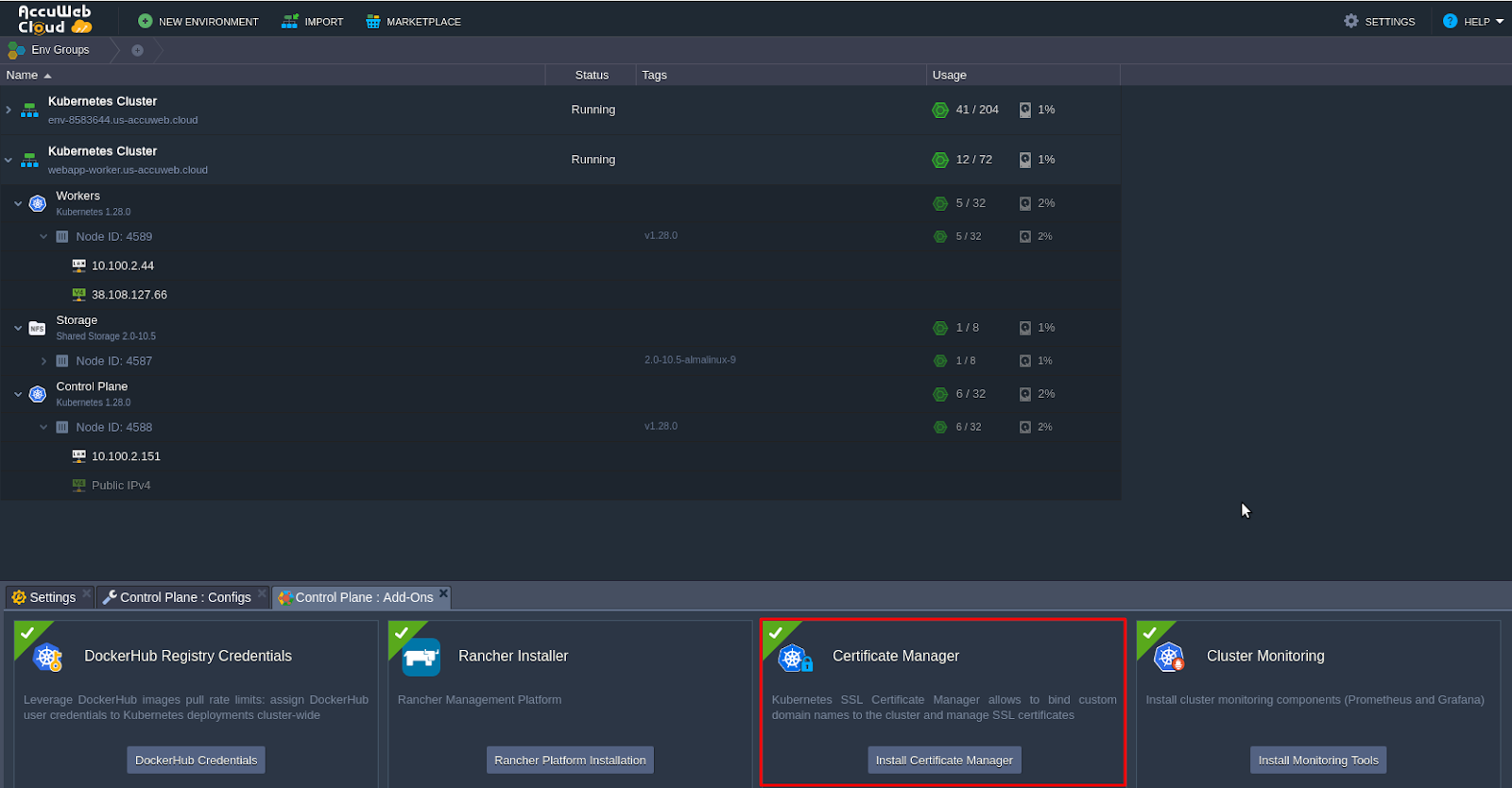
Next, navigate to the add-ons section of the Control Plane node and install the Certificate Manager. This installation will include a cert-manager controller, which will also install an NGINX ingress controller with LoadBalancer service type. This NGINX ingress controller will hold the IP attached to the worker node and will serve the “nginx-cert” ingress class resources.
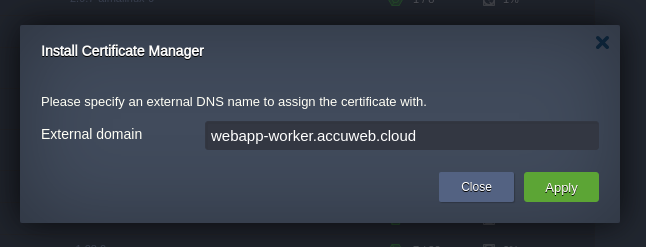
Enter the custom domain name and apply it accordingly.
After installation, the add-on installs a test application called “helloworld-cert.” Let’s delete the resources it occupies:
$ kubectl delete deploy hello-cert-manager
$ kubectl delete svc hello-cert-manager
$ kubectl delete ing helloworld-cert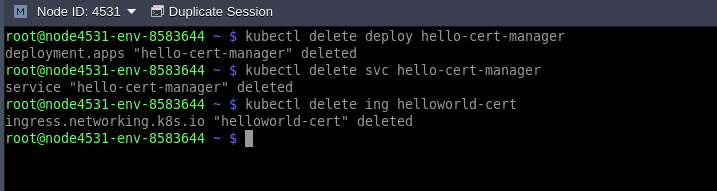
Finally, create an ingress resource named “webapp-worker” that will terminate application SSL traffic and handle routing to the webapp service. For example, you can create a file named “webapp-worker-ingress.yaml” with the following content:
apiVersion: networking.k8s.io/v1
kind: Ingress
metadata:
  name: webapp-worker
  namespace: default
  annotations:
    kubernetes.io/ingress.class: nginx-cert
    cert-manager.io/cluster-issuer: "letsencrypt-prod"
    kubernetes.io/tls-acme: "true"
    nginx.ingress.kubernetes.io/affinity: "cookie"
    nginx.ingress.kubernetes.io/affinity-mode: "persistent"
    nginx.ingress.kubernetes.io/session-cookie-expires: "172800"
    nginx.ingress.kubernetes.io/session-cookie-max-age: "172800"
spec:
  tls:
  - hosts:
    - webapp-worker.accuweb.cloud
    secretName: external-domain-tls
  rules:
  - host: webapp-worker.accuweb.cloud
    http:
      paths:
      - path: /
        pathType: ImplementationSpecific
        backend:
          service:
            name: webapp
            port:
              number: 80
Once you have created the “webapp-worker-ingress.yaml” file, you can apply it to your Kubernetes cluster using the following command:
kubectl apply -f webapp-worker-ingress.yamlThis command will apply the configuration defined in the “webapp-worker-ingress.yaml” file to your Kubernetes cluster, creating the Ingress resource named “webapp-worker” for your web application.
After creating the ingress, a Let’s Encrypt SSL certificate will be automatically issued for this domain name with Certificate Manager. Please wait for a minute and then check the availability of the application by accessing it using the custom domain name: https://webapp-worker.accuweb.cloud.
Congratulations! You’ve successfully exposed your application in two different ways. As a result, you should see two ingresses configured: one for accessing the application via the Dedicated Load Balancer and another for accessing it directly through the Kubernetes worker node’s public IP address.

In a production environment, you typically need only one ingress, depending on the chosen implementation and your specific requirements. Choose the method that best suits your needs and use only that ingress for exposing your application to external traffic.