
Private Registry Inside AccuWeb.Cloud PaaS
AccuWeb.Cloud’s Platform-as-a-Service (PaaS) takes Docker deployment to the next level. Docker’s lightweight containers, designed for effortless application distribution, perfectly complement AccuWeb.Cloud’s focus on agility and scalability. This combination empowers developers and system administrators to deploy applications rapidly across diverse environments, eliminating the hassle of constant adjustments.
However, public Docker registries, while convenient, might not be suitable for all situations. When dealing with sensitive code or proprietary information, security becomes paramount. This is where AccuWeb.Cloud’s private registry functionality shines.
AccuWeb.Cloud’s private registry allows you to create a secure haven for your custom Docker images. You can restrict access, ensuring only authorized personnel can view or utilize your confidential information. This granular control safeguards your intellectual property and empowers you to manage sensitive data responsibly.
Here’s what makes AccuWeb.Cloud’s private registry a compelling choice:
- Enhanced Security: Restrict access to your private Docker images, ensuring only authorized users can leverage them.
- Streamlined Workflows: Integrate your private registry seamlessly with your CI/CD pipelines for automated deployments.
- Centralized Management: Manage all your Docker resources, public and private, from a single, intuitive interface within AccuWeb.Cloud’s PaaS platform.
By leveraging AccuWeb.Cloud’s private registry functionalities, developers can enjoy the full benefits of Docker while maintaining the highest levels of security and control over their containerized applications.
Deploy Private Registry
Deploying a private registry within AccuWeb.Cloud is a streamlined process, facilitated by the wealth of base templates available on Docker Hub. Utilizing these open-source images, you can effortlessly host the registry within AccuWeb.Cloud’s Platform-as-a-Service (PaaS) environment by creating the necessary custom container:
Log in to your AccuWeb.Cloud account and navigate to the dashboard.
Click on the “New Environment” button located at the top pane of the dashboard.
In the opened topology wizard, navigate to the Custom tab. Then, click on the “Select Image” button.

Use the Search function to find the registry image and add it to your custom container configuration.

Tip: You can select the required tag for your Docker image at the top of this frame or during the next step.
Click “Next” to proceed to the next step within the AccuWeb.Cloud interface.
Adjust all other configurations for the environment, such as disk limits, name, etc., according to your specific requirements within AccuWeb.Cloud interface.
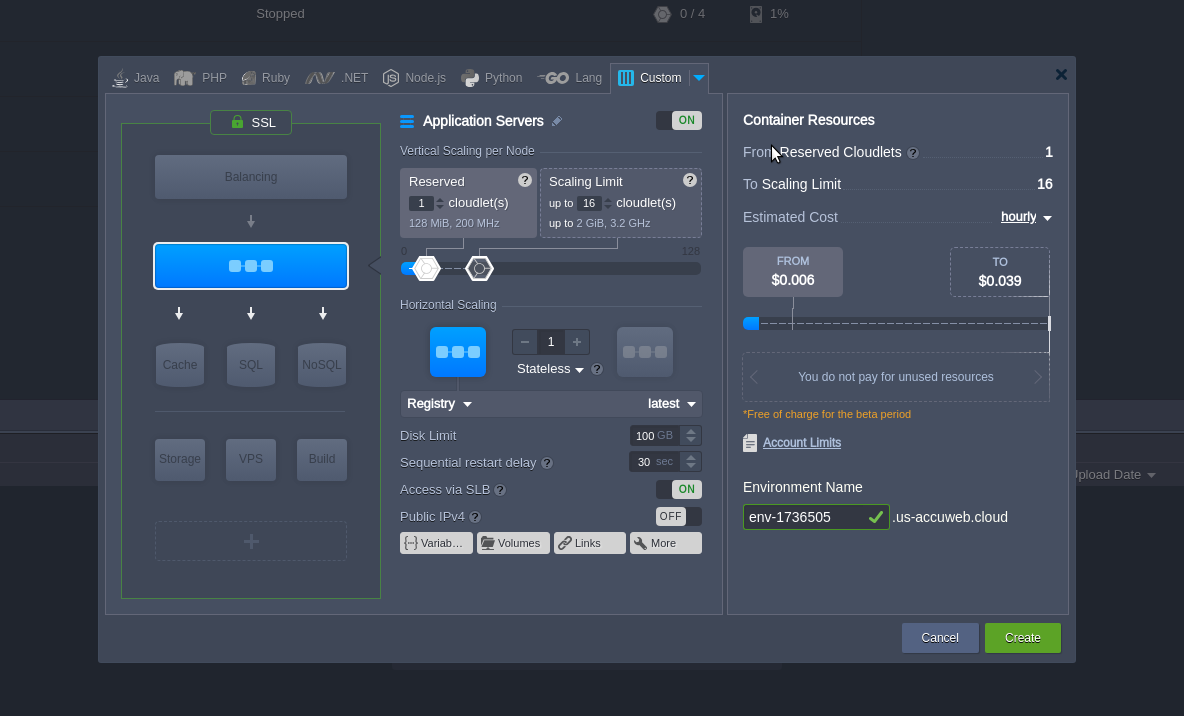
Click on the “Create” button and patiently wait for a minute while the environment is being configured.
Note: The instruction below is tailored for the newest registry versions, denoted by tags starting with 2.x and higher. For deprecated registries, please be aware that the configuration and interaction flow may differ in detail.
Next, configure an entry point for external access by creating one using the platform endpoints feature. This will expose the container’s port 5000.
Note: Alternatively, you can attach and work over a public IP (a paid option) without any additional configurations.
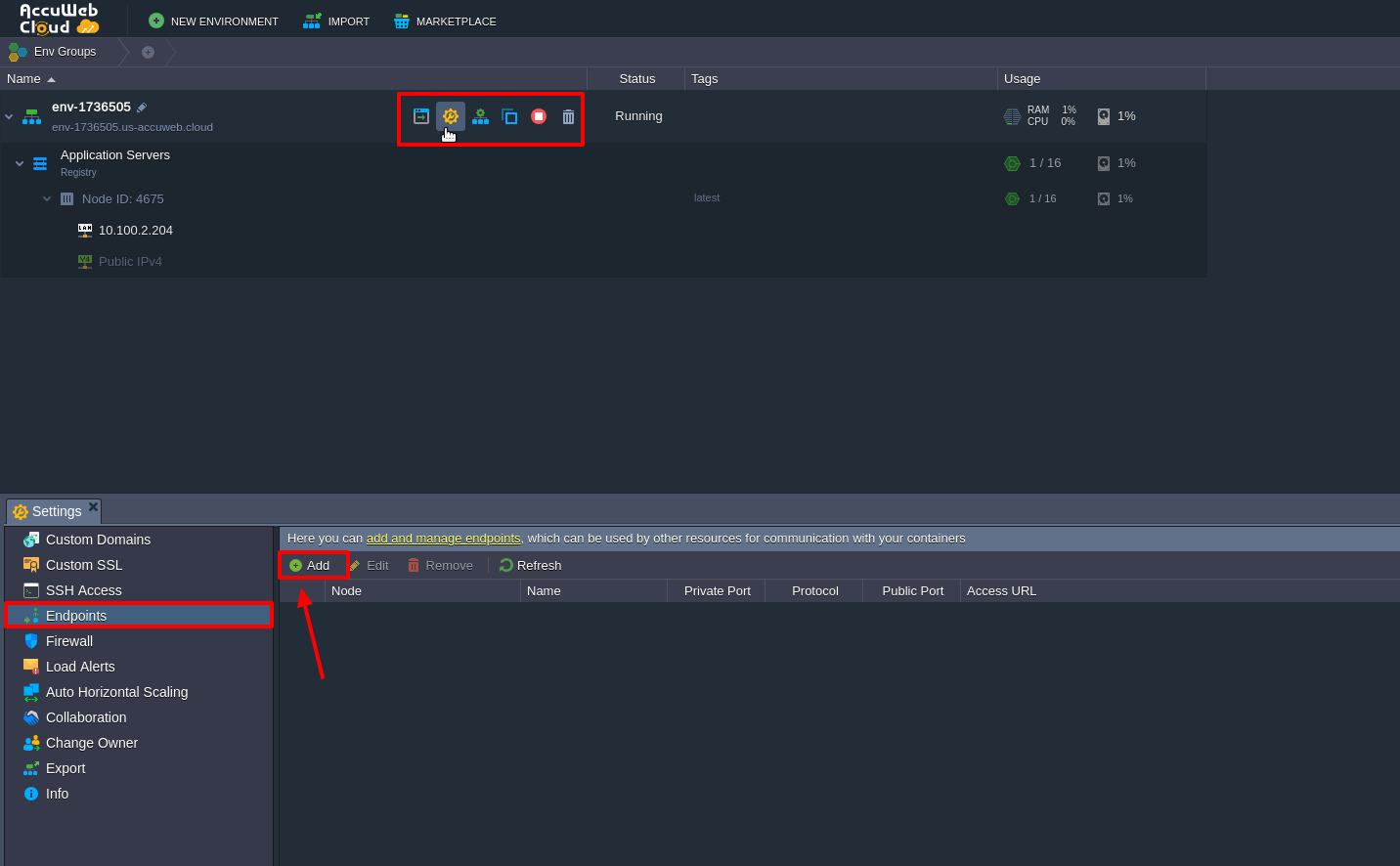
Click on the Settings button next to your environment, navigate to the Endpoints section, and Add a new endpoint.
Within the opened frame, specify the desired parameters, stating the 5000 Private Port number within the same-named field.

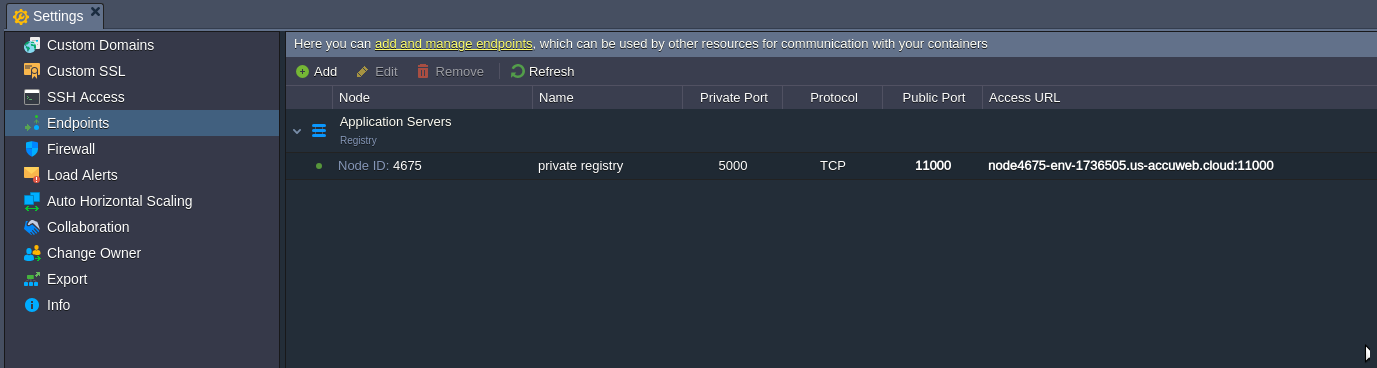
As a result, you should receive a record similar to the one shown in the image above. Now, you can begin populating your registry with Docker images.
Know more about how to install Docker swarm cluster with Auto-Scaling and Auto-Clustering.
Add Image to Registry
To demonstrate how a Docker template can be added to your registry, we’ll take an existing image from the central Hub registry and push it to our private repository. However, you can also use your own locally composed image if preferred.
However, before proceeding, you need to make some slight adjustments to your local machine configurations to ensure proper operation.
To begin, if you haven’t already, install Docker CE by following the instructions provided in the [Official Docker installation guide].
Note: Ensure that the installed Docker daemon version is 1.6.0 or higher, as registry usage is incompatible with prior versions. You can check the actual Docker daemon version by executing the following command in your terminal:
docker -v

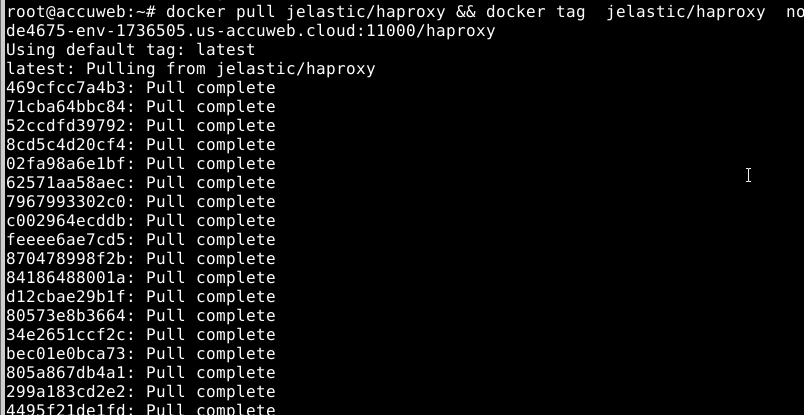
Next, select any preferred image from Docker Hub, obtain it using the pull command, and tag the received template so that it points to your private registry. If you are using a local template, you can skip the first command part.
docker pull {image} && docker tag {image} {entry_point}/{repository}
Where:
{image} – the name of the Docker template you’d like to pull and tag (e.g., jelastic/haproxy)
{entry_point} – the private registry entry point, i.e., either the endpoint (which was created at the end of the previous section) or the external IP address. We’ll use the first one: endpoint URL
{repository} – the name of a repository at your remote private registry (e.g., haproxy) where the image will be stored
Now, it’s important to ensure secure interaction with your remote private registry by implementing TLS. To achieve this, you need to place the corresponding SSL certificate files, including the server key and domain certificate issued by a known Certificate Authority (CA), into your registry.
Tip: You can also apply a self-signed certificate if needed. In this case, you’ll have to manually configure your Docker daemon to trust the certificate.
However, for testing purposes, you can apply a relatively simpler configuration that allows bypassing this requirement. You can run your registry in an insecure mode, where all communication is performed over plain HTTP. It’s important to note that this approach is highly unrecommended for production usage.
To enable insecure mode, add the following line to the /etc/default/docker configuration file of your daemon (or the equivalent file according to your OS distribution). You can use the vim OR nano editor with sudo permissions to do this.
DOCKER_OPTS=”–insecure-registry {entry_point}”
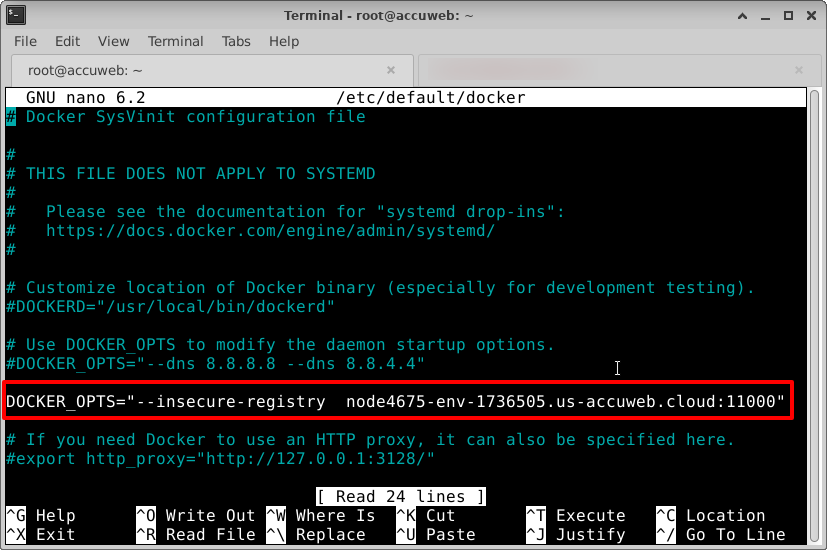
DOCKER_OPTS=”–insecure-registry node4675-env-1736505.us-AccuWeb.Cloud:11000″
Don’t forget to save the changes after adding the line to the configuration file.
Note: If you’re using self-signed certificates or the insecure option, the same extra configurations will be required for every Docker daemon that needs to access your registry.
Now, restart your local Docker daemon and proceed to push the prepared image to your remote repository.
sudo service docker restart
docker push {entry_point}/{repository}
docker push node4675-env-1736505.us-AccuWeb.Cloud:11000/haproxy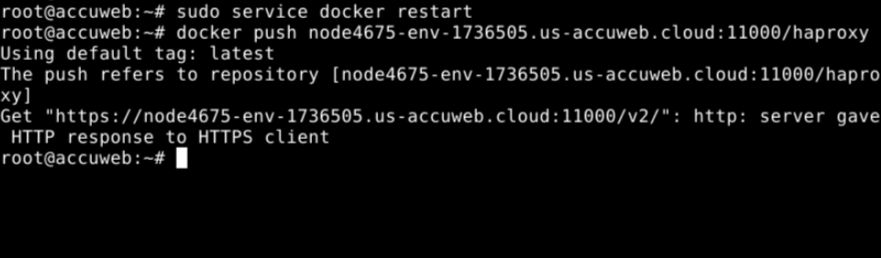
That’s all! Shortly, your image will be uploaded to the registry. The exact time depends on the image size and your internet connection speed. Once uploaded, the image will become available for use throughout the Internet.
As a result, you can easily deploy the image within the platform, following a similar process to what was done at the beginning of the instruction.