
How to install and use the TimeZone Change add-on?
All containers in the platform use the UTC timezone by default. You can easily switch to a different timezone using the TimeZone Change add-on if needed. Follow the linked section for steps on changing time zones for your instances.
You also have the option to make manual changes. For instance, Java and PHP application servers on the platform come with special timezone packages containing historical and current timezone data for different locations worldwide. This data is crucial for software running in the containers and is regularly updated in new platform versions.
Additionally, you can manually update timezone rules or change the current timezone (TZ) based on your preferred location. Here, we’ll discuss how timezone data is managed for application servers of the mentioned programming languages on the platform.
TimeZone Add-On
The TimeZone Change add-on lets you quickly change all containers’ time zones in your environments. Here are the steps:
Step 1: Check the current timezone using the date command on your target container. It’s usually set to UTC by default.
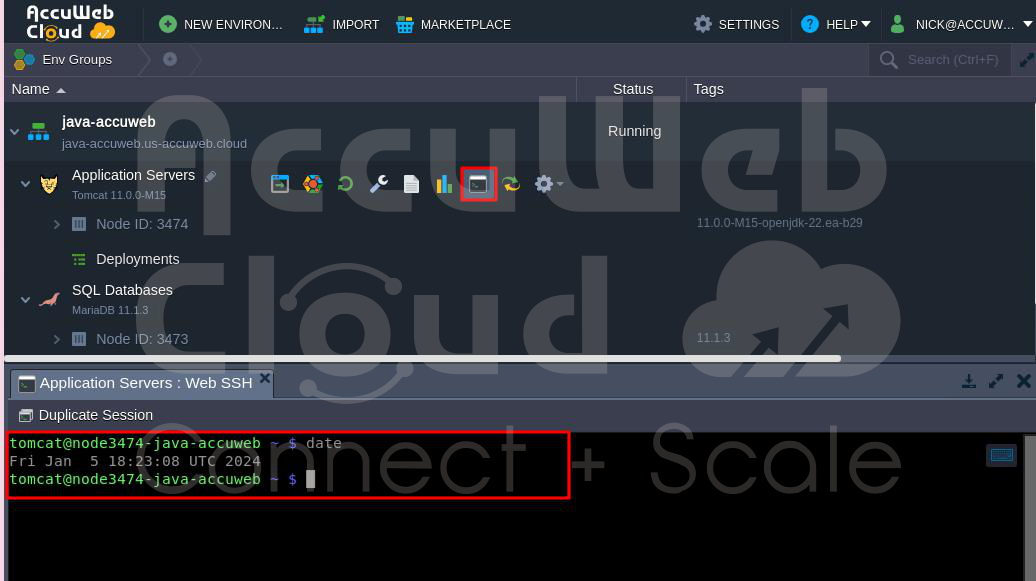
Step 2: Visit the TimeZone Change add-on repository on GitHub, copy the link to the manifest.jps file, and import it via the dashboard.

Note: The add-on might also be available in Marketplace, depending on your hosting provider settings.

Step 3: In the dashboard, select the target environment and choose your preferred timezone from the list. Click Install to apply the changes.

Step 4: After installation, recheck the timezone using the date command. You should see the updated timezone, like Mountain Time (MST).
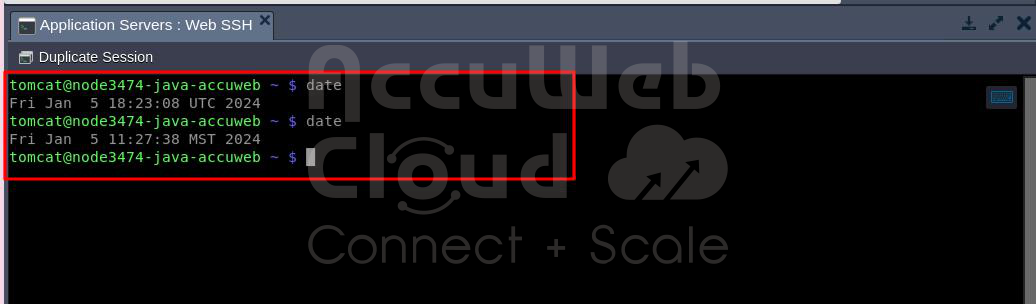
With the time zone add-on installed, businesses can ensure accurate time representation across their applications and systems, minimizing confusion and enhancing productivity for teams working across different time zones.
Java Timezone Rules
In Java, the timezone rules for compute nodes are included in the TZdata package, which is part of each appropriate container. Follow these instructions to update timezone data:
Updating Timezone Data
Even though the newest TZdata package is integrated into a node during its creation, it can become outdated over time due to changes in the intrinsic data. Old containers may need updating periodically to stay accurate. To do this, use the embedded TZUpdater tool. It’s simple to use with a single-line command:
Step 1: Connect to your Java environment via Web SSH.

Step 2: Check the currently used TZdata version: java -jar /usr/java/utils/tzupdater.jar -V

Step 3: If the package is outdated, update the timezone information: java -jar /usr/java/utils/tzupdater.jar -u
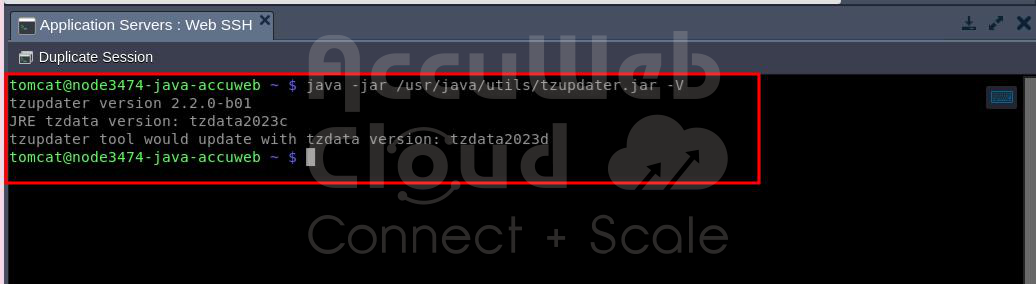
Getting the latest timezone package version for Java is a straightforward operation.
Changing Timezone in Java
Now, let’s explore how to check and change the application server’s local time, using Tomcat 9 as an example:
Step 1: Set the current timestamp to be shown at the server start page by replacing the content of /opt/tomcat/webapps/ROOT/index.jsp with the provided code.

Step 2: Save the changes and open your browser environment to see the current server time.
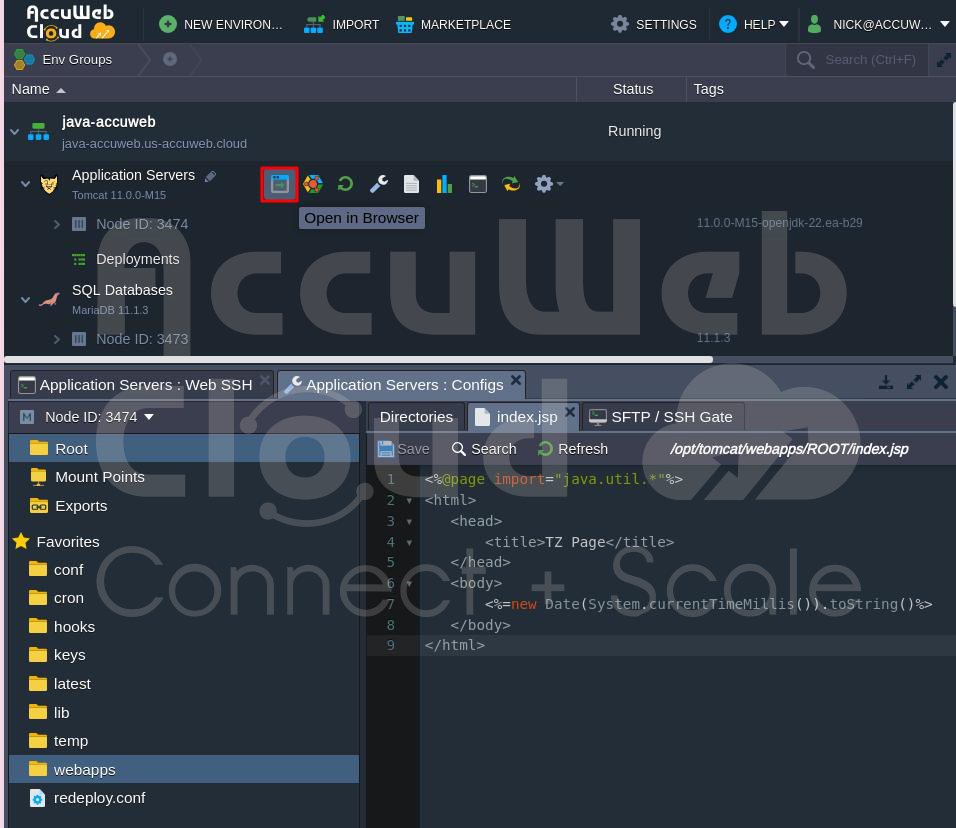
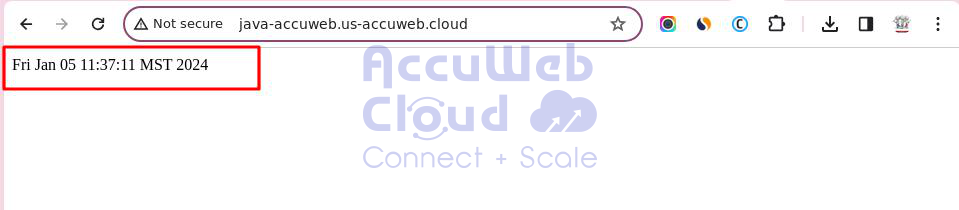
Step 3: To change the timezone for a particular server:
-> For Tomcat, TomEE, Payara, Spring Boot, and Jetty:
Edit the variables.conf configuration file and add the -Duser.timezone variable with the required zone as a value.

-> For GlassFish:
Access the GF admin panel, go to Configurations > gfcluster-config (or server-config for GF 4) > JVM Settings > JVM Options, and add the corresponding string.

-> For WildFly:
Edit the standalone.conf file and declare the variable export JAVA_OPTS=”-Duser.timezone=US/Pacific”.
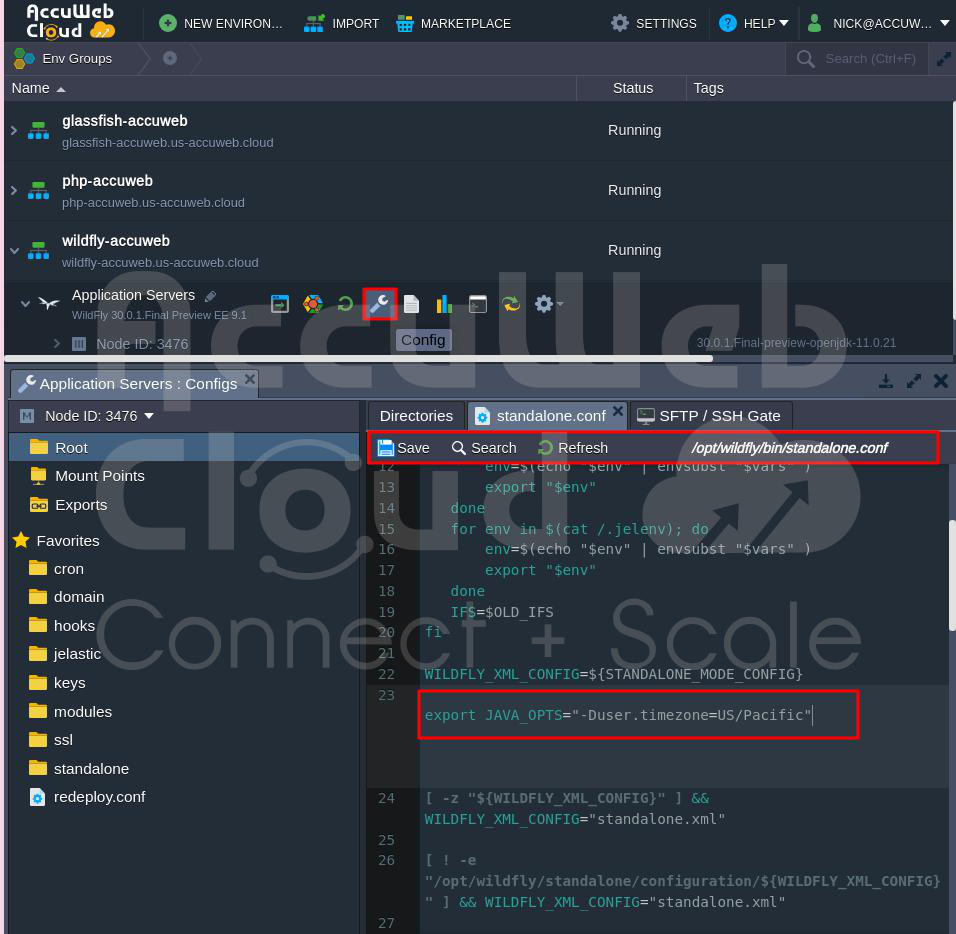
Step 4: Save the adjustments and restart your application server to apply the new settings.
Now, refresh the server start page or open it in the browser again to see the updated local time. This allows you to set any desired time location for your server in just a few minutes.
Customization for Specific Environments: Laravel, PHP, WordPress
AccuWeb.Cloud empowers businesses to customize time zone settings according to their specific application environments, whether it’s Laravel, PHP, WordPress, or any other framework. Here’s how businesses can tailor time zone configurations to suit their needs:
Gathering Data from Developers:
Work closely with developers to understand the time zone requirements of the application. Developers can provide insights into the application’s time zone handling, including any dependencies on server configurations, database settings, or environment variables like `.htaccess` and `env` files.
The initial step is understanding the application type, whether it’s Laravel, PHP, WordPress, or another platform. Different frameworks and platforms may have distinct mechanisms for handling time zones or require specific configuration approaches.
Developers can pinpoint any dependencies the application relies on regarding server configurations, database settings, or environment variables related to time zones. Key areas of exploration include server configuration adjustments to the `.htaccess` file for Apache web servers, potential modifications within the database itself, and the definition of environment variables such as `TZ` or application-specific ones. Encourage developers to provide specific recommendations for managing time zones within your application’s context.
Once configuration changes are implemented, thorough testing involving developers is crucial to ensure seamless functionality across diverse time zones. By collaborating closely with your development team and gathering this essential information, you’ll be well-prepared to customize time zones effectively for your AccuWeb.Cloud environments, ensure data accuracy and a smooth user experience.
AccuWeb.Cloud empowers businesses to customize time zone settings according to their specific application environments, whether it’s Laravel, PHP, WordPress, or any other framework. Here’s how businesses can tailor time zone configurations to suit their needs:
Configuration in Laravel:
For Laravel applications, time zone settings can be adjusted in the `config/app.php` file. Developers can specify the default time zone and adjust localization settings as needed to ensure consistency across the application.
Access the Environment:
Log in to your AccuWeb.Cloud application platform and navigate to the specific environment where your Laravel application resides.
Locate the config/app.php File:
Within the environment, locate the config directory and then the app.php file. This file contains configuration settings for your Laravel application.
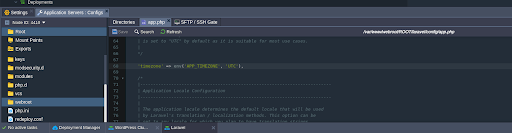
Edit the TIMEZONE Setting:
Open the app.php file for editing. Look for the line containing the ‘timezone’ => setting. It might look something like this:
‘timezone’ => ‘UTC’,
Update the Time Zone Value:
Replace the current time zone value (e.g., UTC) with the desired time zone you want to use.
Save and Restart:
Save the changes made to the app.php file. Depending on your application setup, you might need to restart your application or the web server (e.g., Apache) for the new time zone to take effect.

PHP Timezone Rules
To manage timezone settings for PHP application servers (like Apache and NGINX) on the platform, you must go to the 2026 section in the main PHP configuration file, php.ini.
Here’s how to do it:
Click the Config button next to the required node.
Find php.ini in the file tree in the opened tab or use the shortcut in the Favorites list.

In the 2026 section, there are two options:
Get the latest timezone data
Set a custom timezone
Checking Timezone Data
To use an alternative external timezone database (Olson), uncomment the appropriate extension by removing the first semicolon, save the change, and restart your app server.

If you open the phpinfo() page in your browser, you’ll see the latest timezone package version listed, indicating the use of the external database.
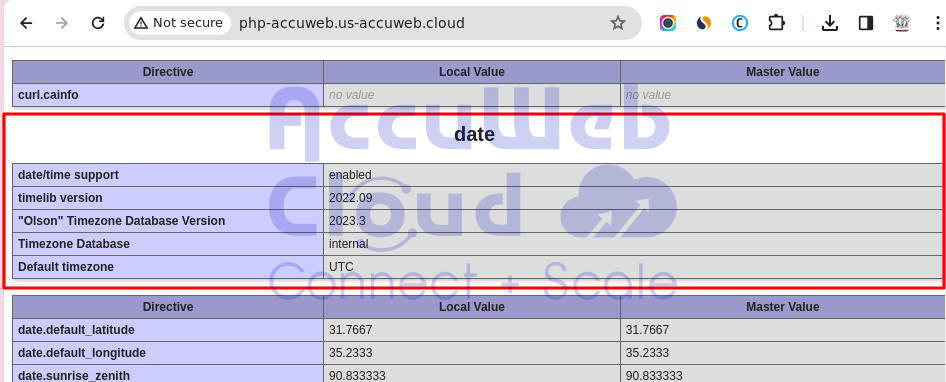
Changing Timezone in PHP
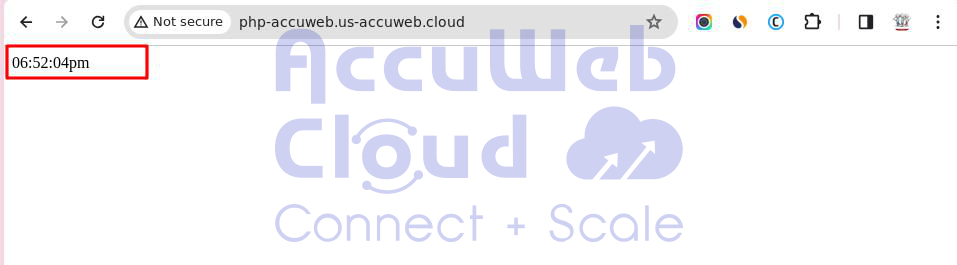
The second option in the 2026 section lets you define the current timezone location of a node. Modify the default server’s start page (index.php) with the provided PHP code to show the timestamp.
<?php
echo date(“h:i:sa”);
?>

Save the updated file, open it in the browser, and you’ll see the timestamp output.

In the platform dashboard, specify the desired timezone for the date.timezone parameter in php.ini (e.g., Australia/Sydney).

Save your new configurations, restart the PHP compute node, and refresh the page for the updated time.
Time Zone Management in WordPress:
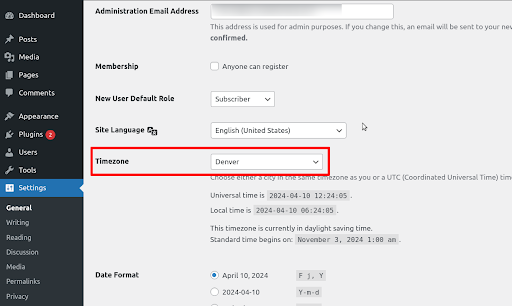
WordPress offers built-in functionality for managing time zones through the admin dashboard. Administrators can navigate to the Settings > General Setting page to set the default time zone for the website. Additionally, plugins are available for more advanced time zone management capabilities.
By customizing time zone settings according to the requirements of specific environments, businesses can ensure seamless operation of their applications and provide a consistent user experience across different regions and time zones.
That’s it! The timezone has been successfully changed to the required location.
Conclusion
AccuWeb.Cloud simplifies time zone management for businesses by offering marketplace add-ons and customizable configurations tailored to specific application environments.
Whether installing a time zone add-on from the marketplace or customizing settings for Laravel, PHP, WordPress, or other frameworks, AccuWeb.Cloud enables businesses to optimize efficiency and productivity in a globally connected world. Experience the power of AccuWeb.Cloud for seamless time zone management and unlock new possibilities for your business today.