
How to Connect to Your Instance via SSH in AccuWeb Cloud?
You can manage your instance using SSH through a terminal. This lets you connect securely and handle tasks on your server from anywhere. You can use an SSH client or connect directly from your terminal. Follow the steps in this guide to access your cloud instance safely.
Steps To Connect with SSH in Stack Console
Step 1: Log in to the AccuWeb Cloud Dashboard.
Step 2: From the dashboard, go to Instances.
This will display the list of all virtual machines.
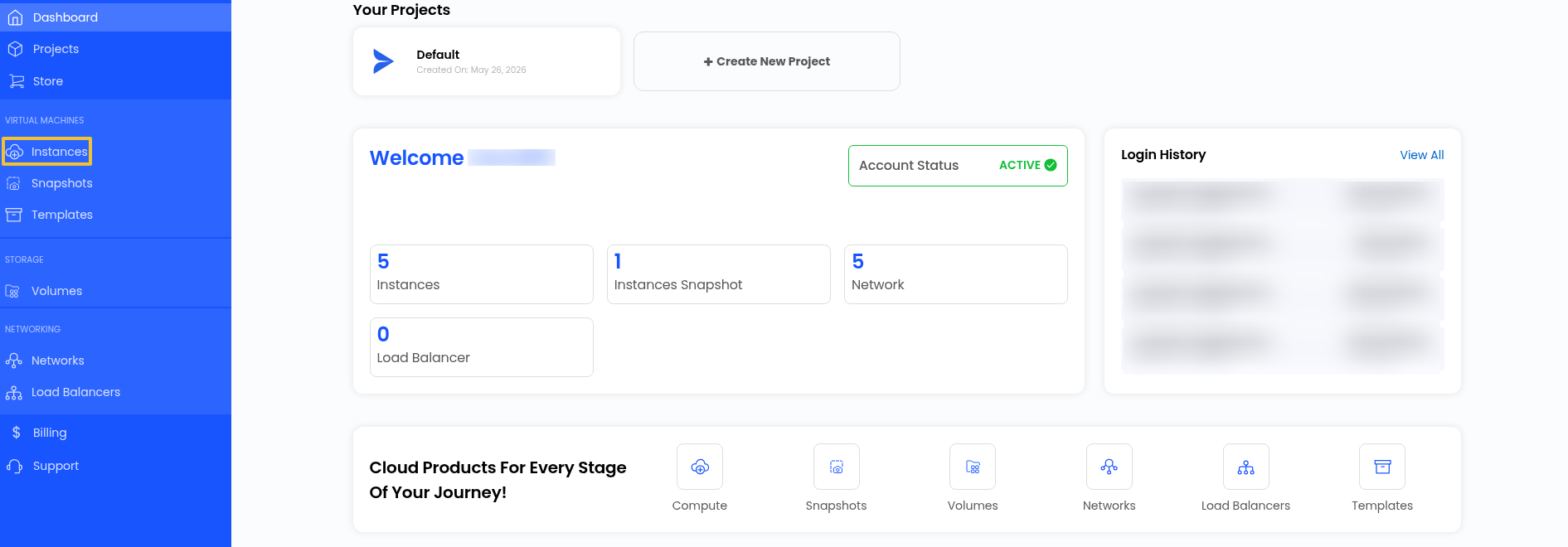
Step 3:Click on the VM where you want to connect with SSH. Step 4:Before connecting, make sure you have the following details:

Step 4:Before connecting, make sure you have the following details:
- IP Address – Available on the instance card or VM overview
- Username – Depends on OS (e.g., root, ubuntu, ec2-user)
- Authentication Method:
- SSH Key (recommended) – Make sure you have your private key file
- Password – Available in VM overview (if applicable)
You can copy the IP address directly from the instance card.
For more details, open the Virtual Machine Overview by clicking the VM name.

Step 5:Open a terminal:
- Windows: Command Prompt, PowerShell, or Git Bash
- macOS/Linux: Default Terminal
Step 6:Run the SSH command based on your authentication method:
- Using SSH Key:
ssh -i /path/to/private/key username@ip_address
- Using Password:
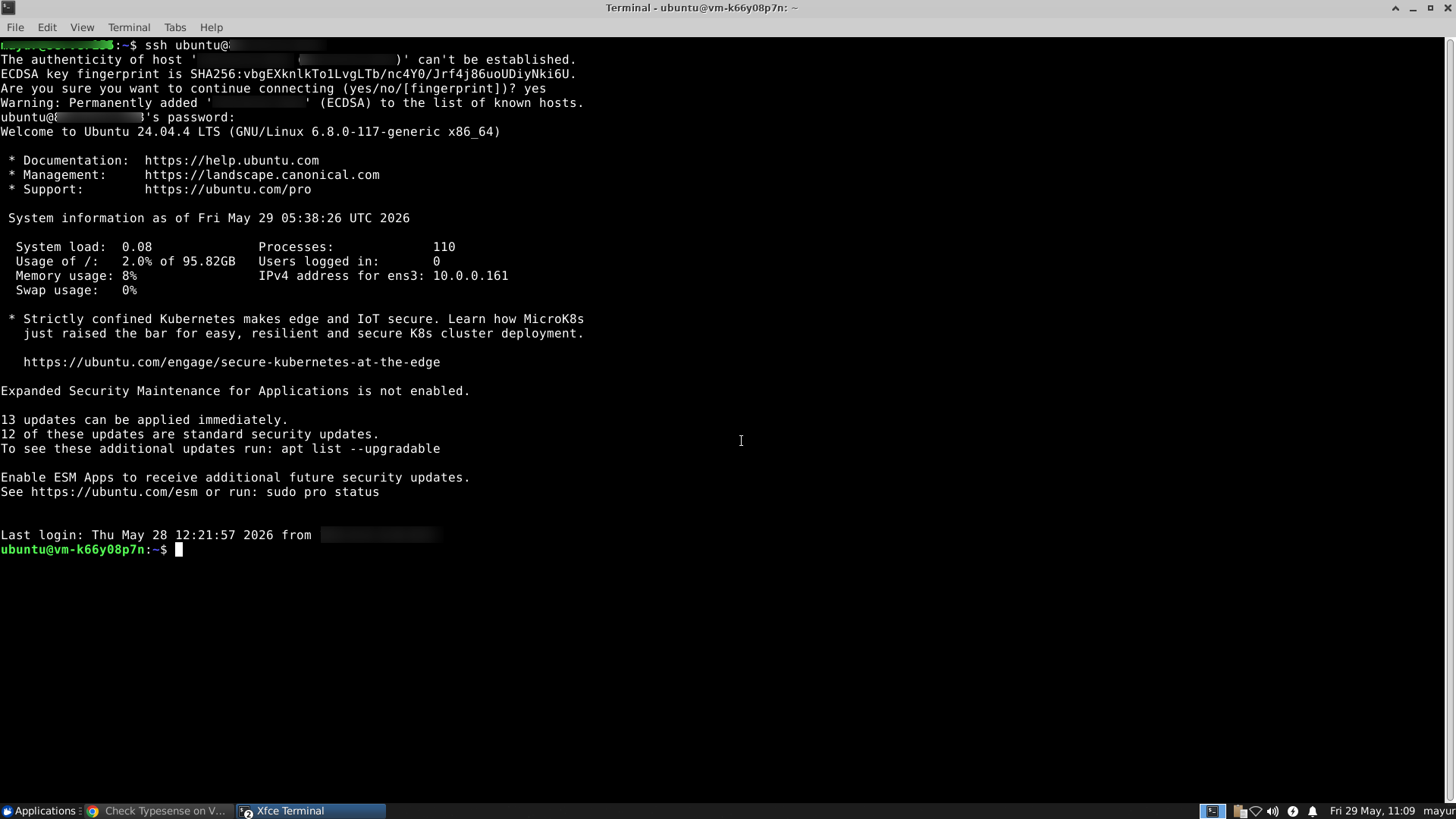
ssh username@ip_address
Example:
Conclusion
By following this guide, you can securely connect to your cloud instance using SSH. Whether you use an SSH key or a password, SSH provides a reliable and secure method for remote access and management. For further assistance, refer to the Stack Console documentation or reach out to support.
Not registered yet?