
How to Monitor VM Activity Logs in AccuWeb Cloud Dashboard?
The VM Activity Logs section in the AccuWeb Cloud Dashboard provides a detailed history of actions and events related to a virtual machine instance. These logs help track operational activities and monitor changes performed on the VM.
Step 1 : Log in to the AccuWeb Cloud Dashboard
Log in to your AccuWeb Cloud Dashboard using your account credentials.
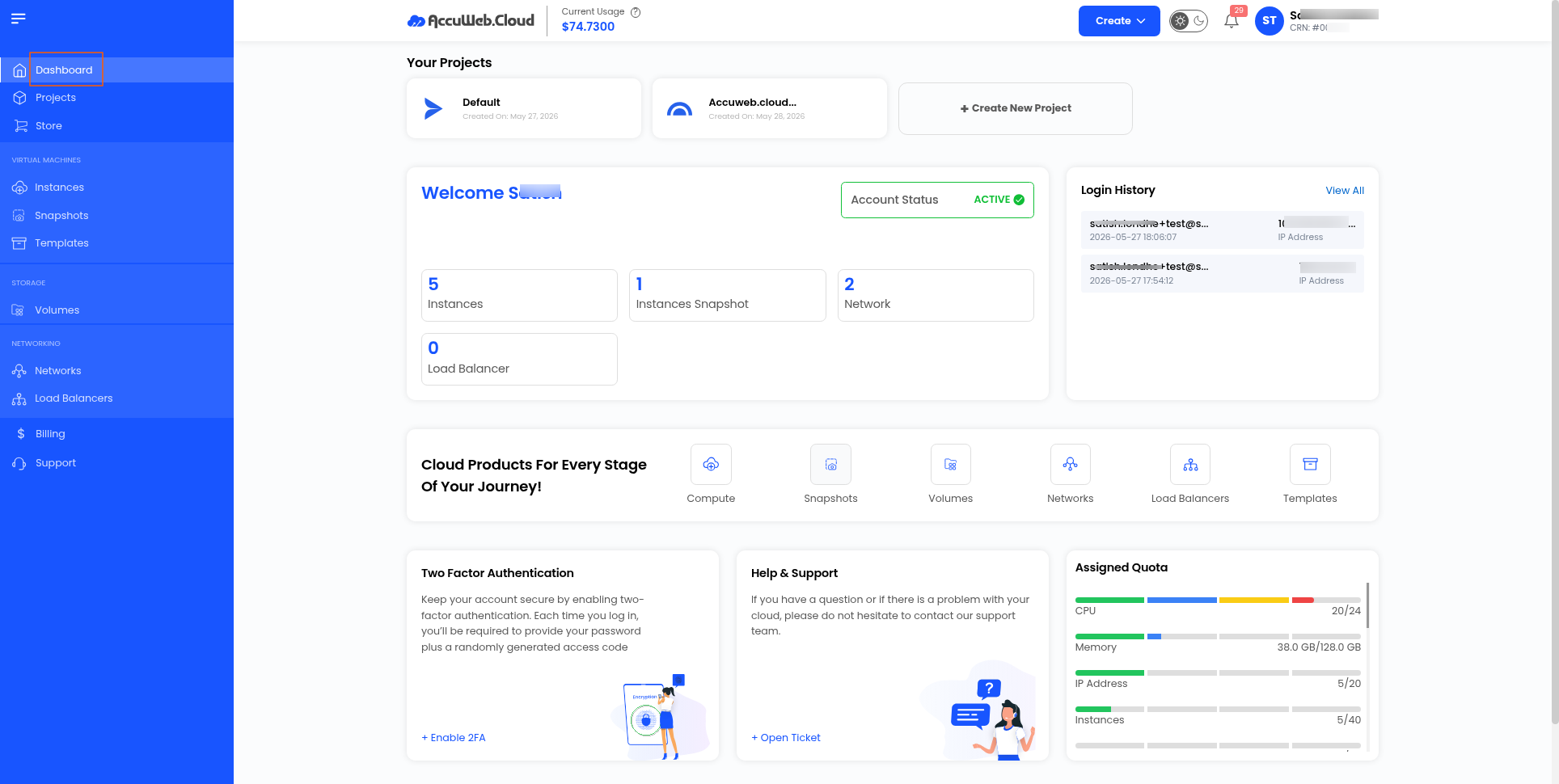
Step 2 : Navigate to the Instances Section
From the dashboard menu, navigate to the Instances section.
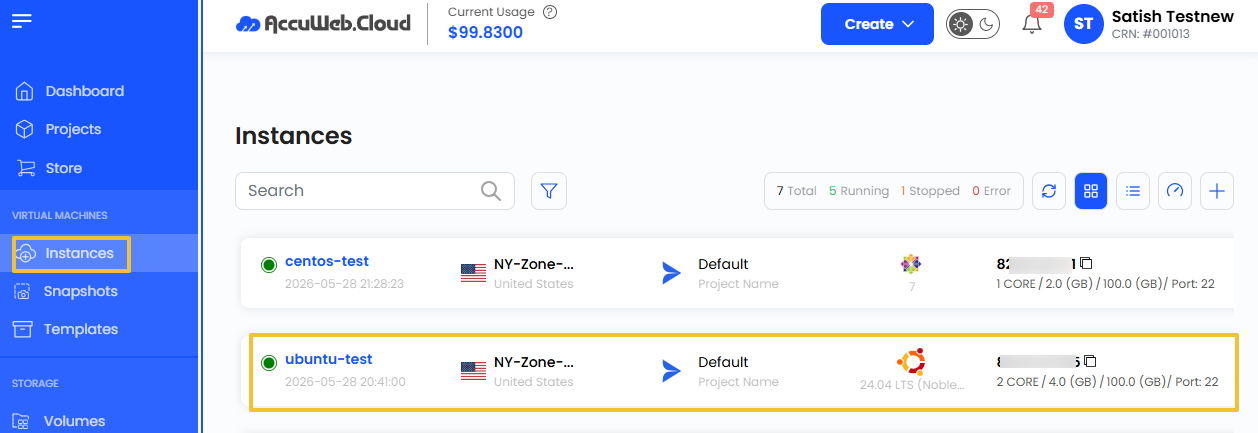
Step 3 Select the Virtual Machine Instance
Locate and select the required virtual machine instance from the list.

Step 4 : Open the VM Activity Logs Tab
Inside the VM Overview page, select the VM Activity Logs tab.

Understanding VM Activity Logs
The VM Activity Logs section provides a detailed record of activities and operations performed on the virtual machine instance.
Using the activity logs, you can monitor actions such as:
- VM Creation
- VM Reboot
- VM Shutdown
- VM Deletion
- Configuration Changes
- Other Instance-Level Activities
These logs help in monitoring, auditing, troubleshooting, and analyzing VM-related events.
Conclusion
The VM Activity Logs feature helps track all important activities related to a virtual machine instance in the AccuWeb Cloud Dashboard, making it easier to monitor operational changes and manage VM activity efficiently.
Still don’t have an account?