
Frappe Redis Connection Refused (Error 111): Causes and Fixes
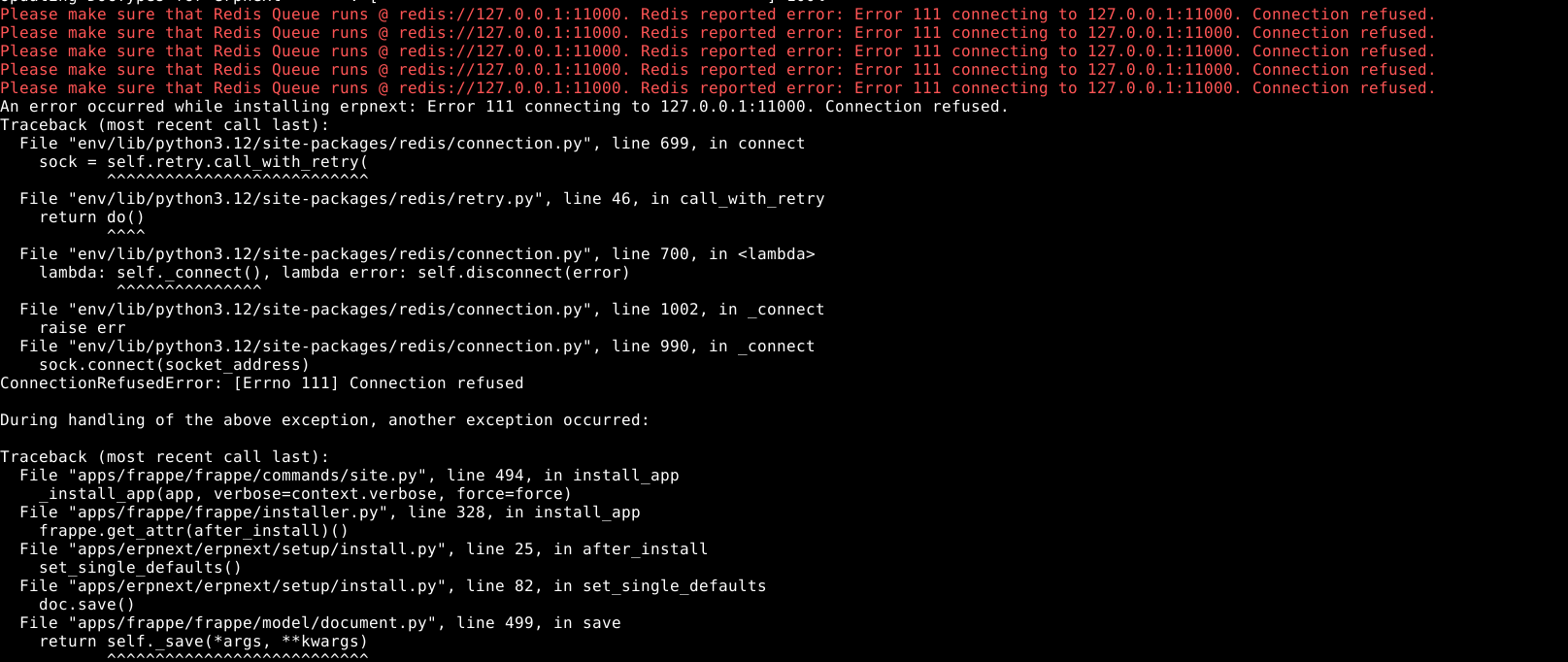
You run a Bench command, and Frappe stops with “Connection refused.” A broken Frappe Redis Connection can stall background jobs, caching, and even an app installation. Frappe uses Redis for caching and for managing background job queues, so when Redis is unavailable, some features may stop working. You may see this error:
Error 111 connecting to 127.0.0.1:11000. Connection refused.
This error usually means Redis is stopped or Frappe is connecting to the wrong IP address or port. We found two situations that caused it during testing:
- Redis port mismatch: Frappe was looking for Redis on the wrong port.
- Redis Queue not running: Redis Queue was stopped when Frappe tried to perform an operation that required it, including an application installation command.
This guide shows you how to find both problems and reconnect Redis. For a dependable place to run Frappe, try AccuWeb.Cloud’s Redis Hosting with full server control.
Step 1: Fix a Redis Port Mismatch
Frappe uses Redis Queue to manage background jobs. Wrong Redis settings can make Frappe connect to the wrong port. Say Redis Queue is running on port 11000, but Frappe is looking for it on 11001. In this situation, the connection will fail.

Step 1.1: Open the Frappe Bench Directory
cd /home/ubuntu/frappe/frappe-bench
Step 1.2: Check the Redis Queue Configuration
Use this command to see Frappe’s Redis Queue address:
grep -n '"redis_queue"' sites/common_site_config.json

Step 1.3: Check the Redis Queue Port
Next, take a look at the port in the Redis Queue config file:
grep -n '^port' config/redis_queue.confThe Redis configuration specifies port 11000, while Frappe is configured to use 11001. Next, verify which port is actually listening.
Step 1.4: Confirm Which Port Is Listening
Run:
sudo ss -lntp | grep ':11000'If Redis Queue is listening on port 11000, the command will display a LISTEN entry for that port. Now we can see the problem: Frappe is pointed at the wrong Redis Queue port.
Step 1.5: Correct the Redis Queue Configuration
Set the Redis Queue address to the correct port:
bench set-config -g redis_queue redis://127.0.0.1:11000This points Bench’s global config to the correct Redis Queue address.
Step 1.6: Verify the Updated Redis Queue Configuration
Run:
grep -n '"redis_queue"' sites/common_site_config.jsonExpected output:

The configured port should now match config/redis_queue.conf.
Step 1.7: Test the Redis Connection
For a development setup, start the Bench processes using bench start. For production, check the configured process manager instead.
bench startWait until Redis Queue is ready to accept connections. Open another terminal and run:
redis-cli -h 127.0.0.1 -p 11000 pingExpected output:
PONGPONG means Redis Queue is responding on the configured port. Running Frappe on a Cloud VPS gives you full control over these Redis ports and processes.
Step 2: Fix Redis Error 111 During Application Installation
Redis Connection Refused can also occur when you run an application installation command while Redis Queue is stopped. During our testing, we encountered this error while executing the following command, which installs ERPNext on the site (see our ERPNext Hosting page if you want a ready environment):
bench --site frappe.local install-app erpnextThe installation process attempted to enqueue a background job, but Redis Queue was not running.
Why Does This Happen?
Frappe uses Redis Queue to handle background jobs. Some installation steps may need to send jobs to Redis. In our test environment, Redis Queue used 127.0.0.1:11000. But when we stopped bench start, Redis Queue stopped as well. As a result, Frappe could not connect to Redis when the installation process tried to enqueue a background job. The traceback showed:
ConnectionRefusedError: [Errno 111] Connection refusedIt also displayed:
redis.exceptions.ConnectionError:
Error 111 connecting to 127.0.0.1:11000.
Connection refused.
So nothing was running on that port. Redis Queue wasn’t up.
Step 2.1: Start Bench in the First SSH Terminal
Move to your Bench directory:
cd /home/ubuntu/frappe/frappe-benchStart the development processes:
bench startWait until Redis Queue is ready to accept connections.
Step 2.2: Open a Second SSH Terminal
Check whether Redis Queue is responding:
redis-cli -p 11000 pingExpected output:
PONGThe PONG response confirms that Redis Queue is responding.
Step 2.3: Run the Installation Command
Only after Redis Queue responds successfully, execute:
cd /home/ubuntu/frappe/frappe-bench
bench --site frappe.local install-app erpnext
This allows the installation process to access Redis when it needs to enqueue background jobs.
Important: If the application is already listed in the output of bench --site frappe.local list-apps, do not repeat the installation command blindly. An earlier install may have registered the app but not finished. Check the app and site status first.
Step 2.4: Verify the Redis Configuration
Now go back to your Bench config and make sure the Redis settings look right. Run:
cat sites/common_site_config.jsonCheck the Redis configuration files to confirm that the configured port numbers match. For this test setup, the expected Redis settings are:
{
  "redis_queue": "redis://127.0.0.1:11000",
  "redis_cache": "redis://127.0.0.1:13000",
  "redis_socketio": "redis://127.0.0.1:13000"
}
Also check the Redis configuration files:
grep -n '^port' config/redis_queue.conf config/redis_cache.confExpected ports:
- Redis Queue: 11000
- Redis Cache: 13000
Make sure the configured addresses and listening ports match.
Conclusion
A failing Frappe Redis Connection usually means nothing was listening on the Redis port Frappe tried to use. In our testing, the cause was either a port mismatch between common_site_config.json and the Redis config files, or Redis Queue not running when a command like bench --site frappe.local install-app erpnext needed it.
To fix it, confirm that Redis is running and Frappe is using the correct port. If not, update it with bench set-config -g redis_queue, then run redis-cli -p 11000 ping. A PONG response confirms Redis is responding, so you can rerun the original command. If you get stuck, our 24/7 cloud support team is ready to help.