
Frappe Bench Migrate Failed After an Update? How to Diagnose It Safely
You update Frappe or ERPNext, run bench migrate, and the command stops with an error. Your site may look stuck, but a failed migration rarely means your data is damaged. In most cases, Bench is simply telling you that the installed code and the database patch list no longer match. In this guide, we reproduce a real Frappe Bench migrate failed error on an ERPNext v15 test server, show how to read it, and walk through a safe recovery. If you want a stable place to run and test updates, AccuWeb.Cloud offers ERPNext Hosting with full server control.
Why Does Frappe Bench Migration Fail?
The bench migrate command applies database patches, synchronizes DocTypes, and updates the site so it matches the installed application code. Migration can fail for several reasons:
- A patch is listed in
patches.txtbut its Python file is missing. - The update was interrupted and left the app code incomplete.
- Frappe and ERPNext are on incompatible versions or branches.
- A database error stops a patch halfway through.
In this guide, we troubleshoot the first case, a missing patch, using a real test environment.
Step 1: Back Up ERPNext Before Migration
Always take a VM snapshot and a complete ERPNext backup before troubleshooting.
Log in as your Bench installation user and open the Bench directory:
cd /home/frappe/frappe-bench
bench --site erpnext.local backup --with-files --verbose
Replace the example directory and site name with your installation details.
Expected output:
Backup for Site erpnext.local has been
successfully completed with files
The backup should include the database, site configuration, public files, and private files. Verify the files and keep an off-server copy before making risky changes.
Step 2: Check the Installed Application Versions
Run:
bench version --format tableOur test server reported:
| App | Version | Branch |
|---|---|---|
| erpnext | 15.123.0 | version-15 |
| frappe | 15.123.1 | version-15 |
Check that the installed applications use compatible releases, particularly after an update.
Step 3: Identify the Migration Error
Run:
bench --site erpnext.local migrateDuring testing on our ERPNext v15 server, bench migrate failed with the following error:
ModuleNotFoundError: No module named
'frappe.patches.v15_0.acs_article_missing_patch_20261016'

Migration exit code: 1
Root cause: A migration patch was referenced in Frappe’s patches.txt, but its Python module did not exist.
We reproduced this migration error on our ERPNext v15 test server using a missing patch reference. The same error can occur after an incomplete application update or when required patch files are missing.

Step 4: Fix the Missing Migration Patch
Follow these steps carefully:
- Identify the missing patch name from the error.
- Check the application’s
patches.txtfile and corresponding Python module. - Verify the application’s Git branch and installed files.
- If the patch is legitimate but its file is missing, restore the correct application code from the matching release.
- Once the problem is corrected, rerun the migration.
For example, to inspect the Frappe application’s working tree without changing anything:
git -C apps/frappe status --short
git -C apps/frappe branch --show-current
Important: Do not blindly delete legitimate patch references or use --skip-failing to bypass migration errors in production.
What we fixed during testing: We removed our deliberately introduced test reference by restoring the original patches.txt. No genuine ERPNext patch was removed.
We then ran:
bench --site erpnext.local migrateSuccessful recovery output:
Migrating erpnext.local
Updating DocTypes for frappe : 100%
Updating DocTypes for erpnext : 100%
Updating Dashboard for frappe
Updating Dashboard for erpnext
Executing `after_migrate` hooks...

Queued rebuilding of search index for erpnext.local

Migration exit code: 0
The migration finished successfully with exit code 0.

Step 5: Verify ERPNext After Migration
After the migration completes successfully, verify that ERPNext is working properly.
- Open your ERPNext website and log in.
- Confirm the dashboard loads without errors.
- Open important modules such as Accounting or Stock.
- Check that background jobs and the scheduler are running normally.
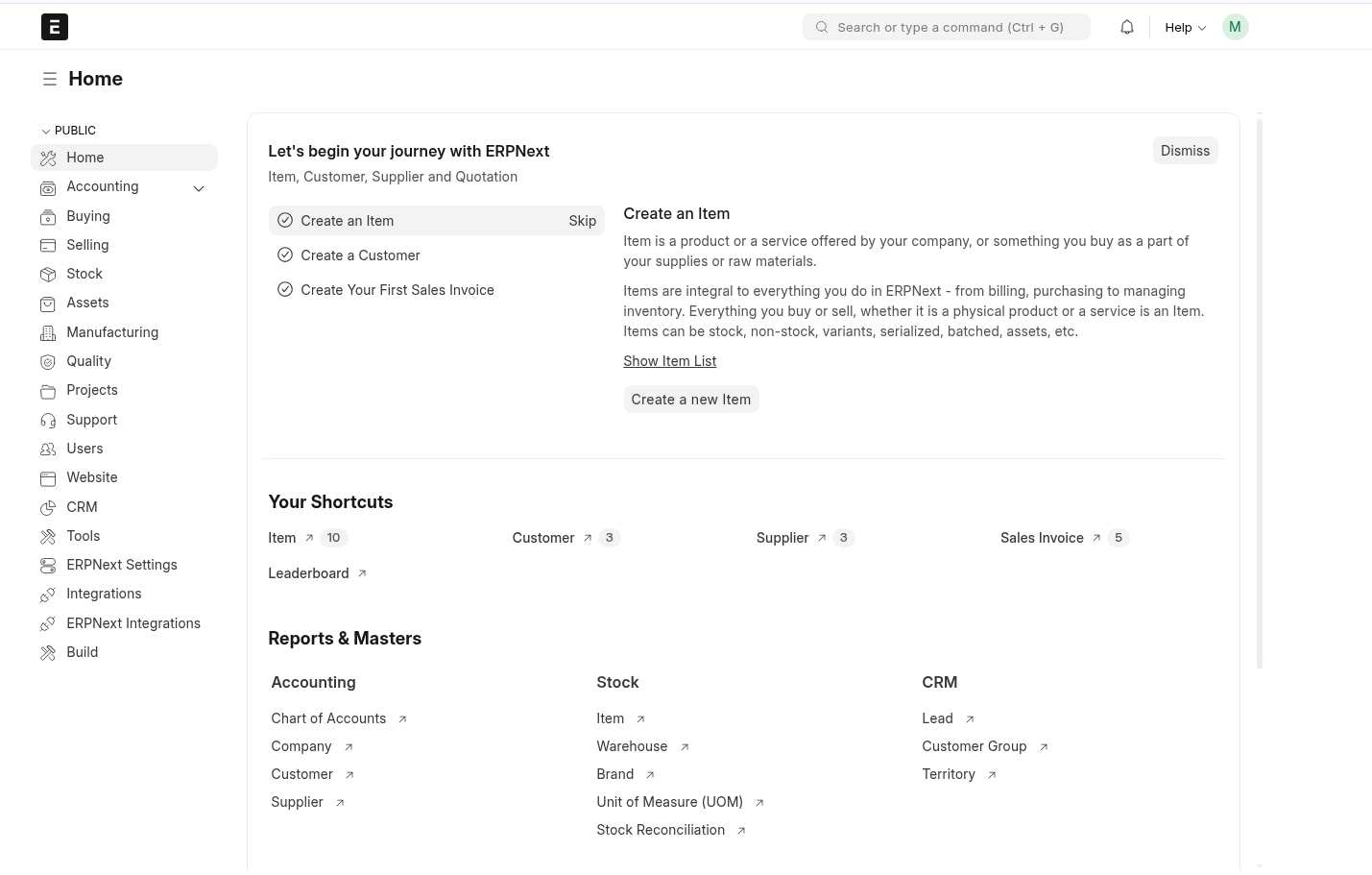
Once these checks pass, the migration recovery can be considered successful.
How to Avoid Migration Problems
Most migration failures can be prevented with a few habits:
- Take regular backups and test that you can restore them.
- Check app compatibility before every update.
- Test major updates on a staging server first.
- Take a snapshot right before running
bench update.
If you need infrastructure for ERPNext, AccuWeb.Cloud offers ERPNext Hosting and Cloud VPS Hosting. You can also use Backup Storage as a separate backup destination.
Conclusion
A failed bench migrate command does not necessarily mean your ERPNext database is corrupted. In our test, a missing migration patch caused the failure, and migration completed successfully after we restored the correct patch configuration.
The safest approach is to identify the exact error, keep verified backups, fix the root cause, and then retry the migration.