
Docker Container Keeps Restarting? How to Find the Real Cause
A Docker container that keeps restarting can interrupt your application and make troubleshooting difficult. You may see a container restart every few seconds, exit shortly after starting, or remain stuck in a restart loop.
Docker usually restarts a container because of its restart policy or another process that manages it. However, the restart itself does not explain why the application failed.
In this guide, we will use an Ubuntu 24.04 server to reproduce a Docker restart loop, identify the cause, fix the issue, and verify that the container works as expected.
1. Check the Container Status
Start by checking the status of your containers.
sudo docker ps -aThis command lists running and stopped containers. Look at the STATUS column for messages such as Restarting, Exited (1), or Exited (137).
These statuses provide useful clues:
- Restarting: The container is repeatedly starting and stopping.
- Exited (1): The main process exited with a non-zero status, often because of an application error.
- Exited (137): The process received a SIGKILL signal. This can happen because of an out-of-memory event, but it does not prove that memory was the cause.

2. Check the Docker Container Logs
Logs are often the fastest way to find an application-level failure.
Run the following command, replacing container_name with your container’s name or ID.
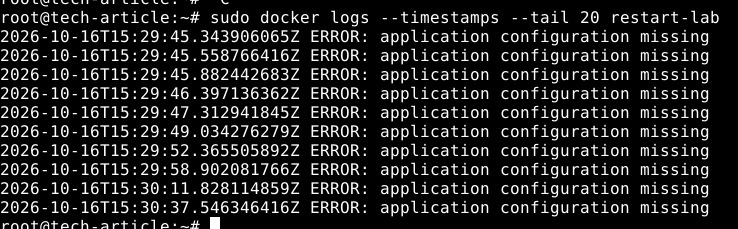
sudo docker logs --tail 100 container_nameTo include timestamps, use:
sudo docker logs --timestamps --tail 100 container_nameLook for errors such as:
- Missing configuration files or environment variables
- Database connection failures
- Permission errors
- Invalid application settings
- Failed startup checks
If the logs are empty, the application may exit before writing anything to standard output or standard error. You may need to check the application configuration or service logs as well.
3. Check the Exit Code and Restart Count
Docker provides more details about the container’s last state.
sudo docker inspect container_name \
  --format 'Status={{.State.Status}} ExitCode={{.State.ExitCode}} OOMKilled={{.State.OOMKilled}} Restarts={{.RestartCount}} Error={{.State.Error}}'
This command displays the container’s status, last exit code, out-of-memory indicator, restart count, and recorded error.
Pay attention to these values:
- ExitCode: The exit status of the last terminated process.
- OOMKilled: Whether Docker recorded the container as killed due to an out-of-memory event.
- RestartCount: The number of times Docker has restarted the container.
- Error: Any error Docker recorded for the container.
An exit code alone does not identify the root cause. Use it together with the logs and resource checks.

4. Check Whether the Container Is Running Out of Memory
Applications can fail when the host or container reaches its memory limit. Large workloads, memory leaks, and insufficient resources can contribute to these failures.
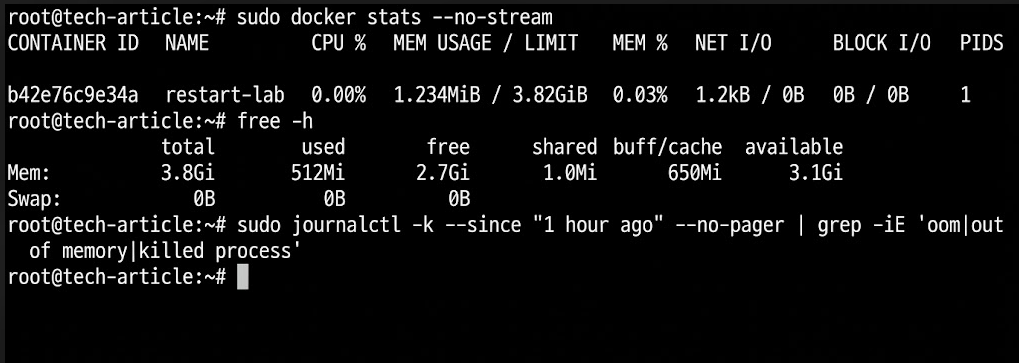
Check container resource usage:
sudo docker stats --no-streamCheck the host’s available memory:
free -hCheck whether the container has a memory limit:
sudo docker inspect container_name \
  --format 'MemoryLimit={{.HostConfig.Memory}}'
The memory limit is reported in bytes. A value of 0 generally means no explicit container memory limit is configured.
If memory exhaustion is suspected, check the kernel logs:
sudo journalctl -k --since "1 hour ago" --no-pagerLook for out-of-memory messages related to the container or its processes. Access to kernel logs may depend on your server’s permissions and logging configuration.
If memory is the confirmed cause, review the application’s memory usage, optimize its workload, or adjust the container limit and VM resources where appropriate. Increasing memory without identifying the cause may only delay the next failure.
5. Check the Docker Restart Policy
Docker supports restart policies that control what happens after a container exits.
Common policies include:
- no: Do not automatically restart the container.
- on-failure: Restart when the container exits with a non-zero status, subject to any configured retry limit.
- always: Restart the container whenever it stops, subject to Docker’s restart-policy behavior.
- unless-stopped: Restart the container unless it was explicitly stopped.
Check the current policy:
sudo docker inspect container_name \
  --format '{{.HostConfig.RestartPolicy.Name}}'
A restart policy is not necessarily the cause of the application failure. It determines what Docker does after the process exits.
For example, a container with the always policy may continue restarting even when the application has an invalid configuration.
Do not disable the restart policy as your only fix. Find out why the process exits first.
6. Reproduce and Fix a Restart Loop
To reproduce a Docker restart loop, create a test container that prints an error, waits for 12 seconds, and then exits with status code 1.
sudo docker run -d \
  --name restart-lab \
  --restart on-failure \
  alpine:3.22 \
  sh -c 'echo "ERROR: application configuration missing"; sleep 12; exit 1'
Wait at least 20–30 seconds before checking the container. This gives Docker time to restart the container and makes the behavior easier to observe.
Check its status:
sudo docker ps -a --filter name=restart-labCheck the recent logs:
sudo docker logs --timestamps --tail 20 restart-labInspect its exit code and restart count:
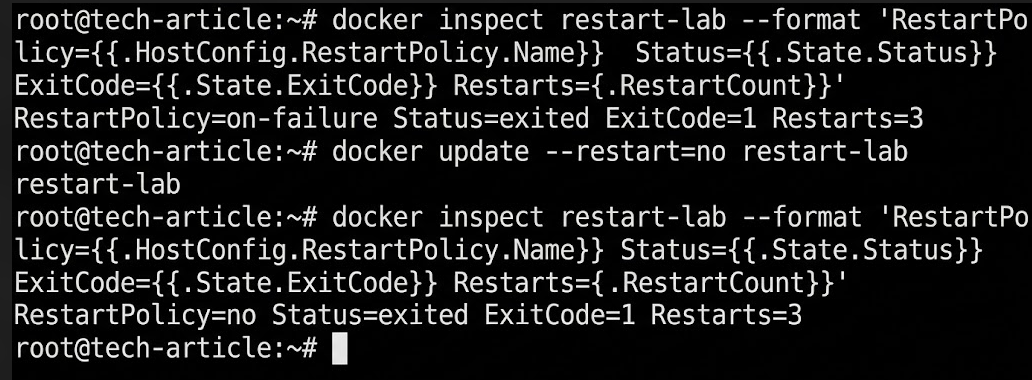
sudo docker inspect restart-lab \
  --format 'Status={{.State.Status}} ExitCode={{.State.ExitCode}} Restarts={{.RestartCount}}'
Expected result: The logs should show the configuration error. The container should exit with code 1, and the restart count should increase as Docker retries it. The exact status and restart count may vary depending on when you run the commands.
Fix the Restart Loop and Test a Working Container
The restart policy is not necessarily the root cause. In this test, the container keeps restarting because its command exits with code 1. The example error is caused by the test command itself.
First, disable the restart policy and remove the failing test container:
sudo docker update --restart=no restart-lab
sudo docker stop restart-lab
sudo docker rm restart-lab
Now create a new container with a command that runs successfully:
sudo docker run -d \
  --name restart-lab-fixed \
  --restart on-failure \
  alpine:3.22 \
  sh -c 'echo "Application started successfully"; sleep 300'
The sleep 300 command keeps the container running for approximately five minutes. This gives us enough time to check its status, logs, and restart count. After five minutes, the command exits and the container stops. Because the restart policy is set to on-failure, Docker does not restart it when the command exits successfully with code 0.
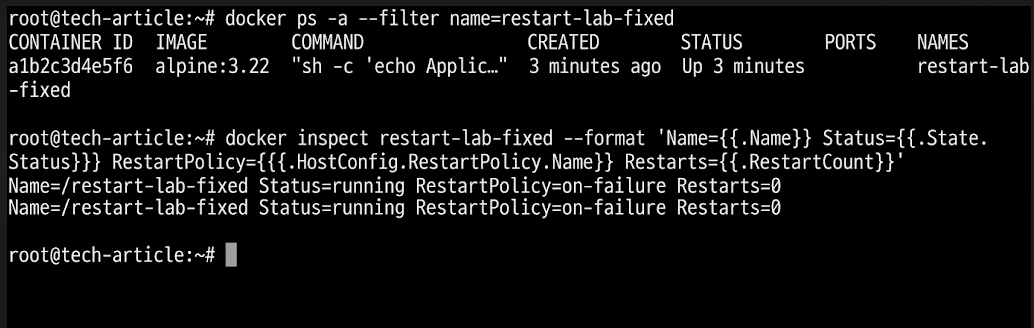
Check the container status:
sudo docker ps --filter name=restart-lab-fixedCheck its logs:
sudo docker logs restart-lab-fixedInspect its state:
sudo docker inspect restart-lab-fixed \
  --format 'Status={{.State.Status}} ExitCode={{.State.ExitCode}} Restarts={{.RestartCount}}'
Expected result: The logs should show Application started successfully. While the sleep command is active, the container should show Up, and the restart count should remain at 0. The exit code will not be available as a completed process exit code while the container is still running.
This is a temporary test, not a permanent application setup. In a real application, the container should run the actual application process and remain active for as long as the service is required. Fix the underlying issue, such as missing configuration or an incorrect startup command, rather than relying on a restart policy alone.
7. Verify That the Fix Works
After correcting the root cause, restart the affected container if needed:
sudo docker restart container_nameCheck its status:
sudo docker psReview the latest logs:
sudo docker logs --tail 50 container_nameCheck whether the restart count continues to increase:
sudo docker inspect container_name \
  --format 'Status={{.State.Status}} Restarts={{.RestartCount}}'
A successful fix should allow the application to start normally, complete its required startup tasks, and remain stable. If the application exposes a health check, verify that it reports healthy as well.
When You Need to Recreate a Container
Restarting a container does not change the configuration it was created with. If you modify environment variables, switch to a different image, or change the startup command, you may need to recreate the container with the updated settings.
Before removing a container, confirm that any required data is stored in persistent volumes or backed up. Then create a replacement using the updated image, environment variables, or command. After starting it, check its status and logs to confirm that the changes have resolved the issue.
Conclusion
A Docker container that keeps restarting is a symptom, not a diagnosis. Start with the container status and logs, inspect the exit code and restart policy, and check memory or other resource limits when the evidence points to them.
Fix the underlying problem instead of simply disabling automatic restarts. After the change, verify that the application starts correctly and remains stable.
For applications that need reliable uptime, suitable compute resources, monitoring, and regular backups are important. AccuWeb.Cloud VPS hosting can provide a server environment for running Docker-based applications, with resources selected according to your workload.