
How to Check Your VPS Public IP and Private IP?
When you create a VPS, it is assigned IP addresses that are used for different purposes. The Public IP allows access from the internet, while the Private IP is used for communication within the internal network.
Checking these IP addresses is useful when configuring DNS, firewalls, remote access, or database connections.
In this guide, we’ll show you how to check both using your cloud dashboard and the Linux command line.
Public IP vs Private IP
- Public IP Address: Used to access your VPS from the internet, such as SSH connections, websites, and public services.
- Private IP Address: Used for internal communication between servers within the same private network.
Method 1: Check IP Addresses from Cloud Dashboard
The easiest way to find both IPs is through your cloud panel.
Step 1: Log in to AccuWeb.Cloud Panel. – https://manage.accuweb.cloud/
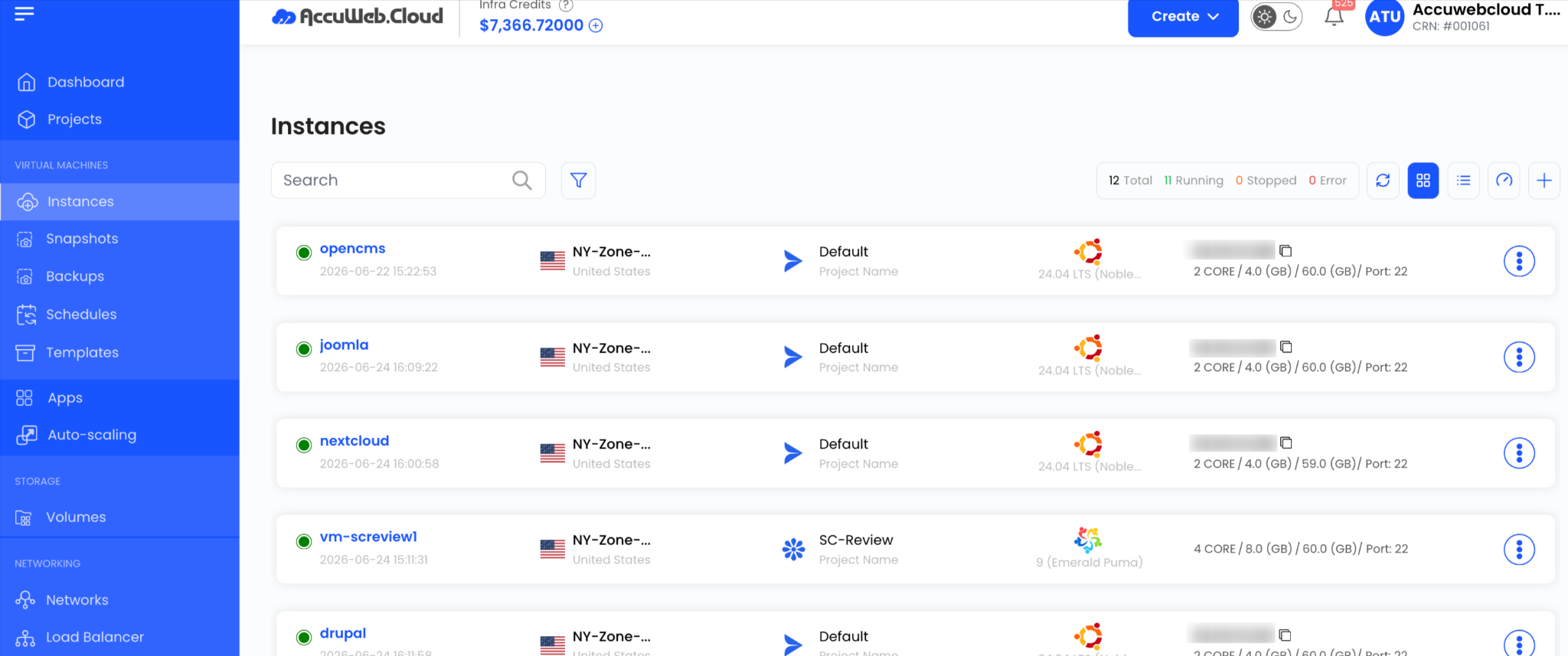
Step 2: Go to Instances and select your VPS
Step 3: Open the instance details page
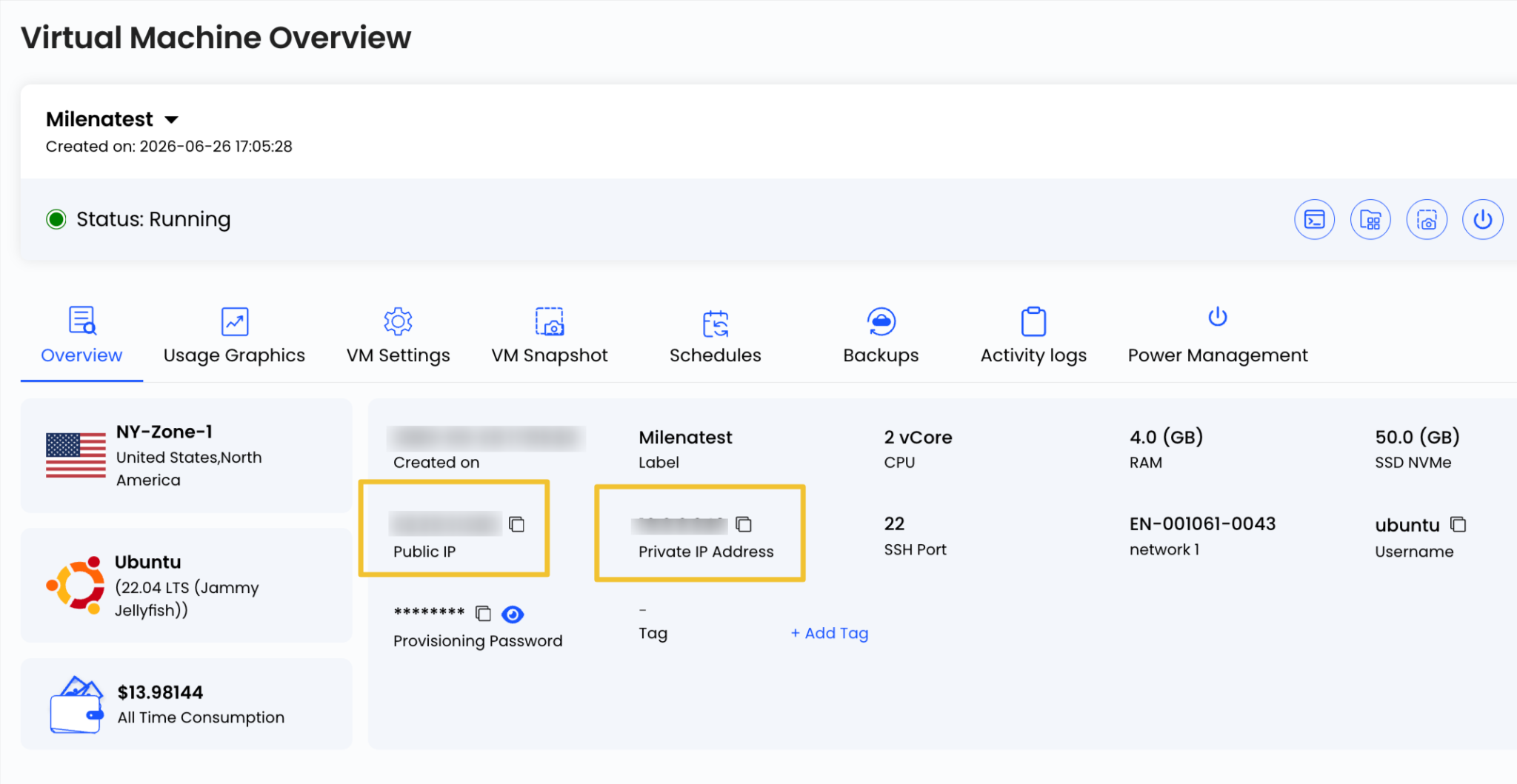
- Public IP Address – Used for external access.
- Private IP Address – Used for internal network communication.
Note: Some VPS setups include both IPs, while others may only have one depending on configuration.
Method 2: Check Private IP Using Linux Commands
Connect to your VPS through SSH and run:
ip addr show

Example: Look for an IP in ranges like 10.x.x.x. This is your private IP.
You can also use: hostname -I

This quickly lists all assigned IP addresses.
Method 3: Check Public IP Using Linux Command
To confirm your public IP from the server itself, run:
curl ifconfig.me

The returned IP address is your VPS Public IP.
Troubleshooting Tips
If you’re not seeing the expected IP:
- Make sure the VPS is running
- Check network interfaces: ip link
- Verify outbound connectivity
- Review firewall or cloud network settings
Final Thoughts
In most cases, the dashboard gives you a quick answer, while command-line checks help confirm what the server is actually using.
Keeping track of both public and private IPs makes it easier to manage access, connect services, and troubleshoot network issues without guesswork.