
Traffic Distributor Installation
Setting up the Traffic Distributor is easy with the Platform as a Service (PaaS). It’s designed specifically for the Marketplace, so you can create it in just a few clicks and have it running in no time. It’s also quite adaptable. Let’s take a look at the steps needed to install it and uncover all the features and details.
1. To access the Marketplace, simply click on the designated button located at the top of the dashboard.

2. Head to the Marketplace’s Apps section, then find your way to the Dev & Admin Tools corner. There, you’ll spot the Traffic Distributor package. If you can’t find it right away, you can always type its name into the Search bar at the top. Once you’ve found it, just hit the Install button, and you’re good to go!

3. When you first set it up, you’ll see a screen that gives you a quick look at what the solution offers and points out its main advantages.

Click OK to proceed.
4. When you come across the interactive installation screen, you’ll be able to tweak certain settings to tailor your Traffic Distributor setup and establish the routing you want for your backends.

We need to make sure to provide the following information:
- Entrypoint: Choose between using a Shared Load Balancer or a Public IP.
- Balancers: Decide how many NGINX instances you want to include in the Traffic Distributor setup.
- Routing Method: Pick three options for how you want traffic to be distributed: Round Robin, Sticky Sessions, or Failover.
- Traffic Ratio: Adjust the weight or priority of each backend to control how requests are distributed.
- HTTPS: Toggle this option if your backends use HTTPS for serving traffic.
- Backends: Select which two environments you want to balance. You can choose from a list of available environments in your account or enter the IP address/domain name for a custom host.
- Environment: This is like the special name for your place online, such as ‘traffic-distributor.’
- Display Name: If you want, you can give your environment a nickname that shows up, like ‘Traffic Distributor’ by default.
- Region: You get to pick from a list where your environment lives. Think of it like choosing the neighborhood it belongs to.
Once you’ve filled in all the necessary information, just hit the Install button. From there, the platform takes care of the rest, handling everything automatically.
5. In a few minutes, a window will pop up confirming that the installation was successful, along with some tips on how to use the Traffic Distributor.

- apply Blue-Green Deploy
- adopt Failover Protection
- perform A/B Testing
- Inject Distributor into running project
- bind Custom Domain
- enable Custom SSL
Traffic Distributor Reconfiguration
Once the Traffic Distributor is set up, you’ll have your own space outfitted with NGINX load balancers and a unique add-on. This setup makes it easy to tweak the configuration and unlocks extra features effortlessly.
1. Move your cursor over the NGINX instance in your Traffic Distributor setup, then hit the Add-Ons button to access the relevant tab.

2. To tweak your add-on settings, simply hit the Configure button at the center of the screen or choose the right option from the menu located at the top right corner.

3. Once you’ve got the form open, feel free to tweak any of the Traffic Distributor settings just like you did during installation.

You have several choices when configuring:
- Entrypoint: You can switch between using a Shared Load Balancer or a Public IP position.
- Balancers: This determines how many NGINX instances you want in your Traffic Distributor setup.
- Routing Method: Choose from three options for distributing traffic: Round Robin, Sticky Sessions, or Failover.
- Traffic Ratio: Adjust the weight or priority of your backends to control how requests are distributed.
- HTTPS: Turn on this option if your backends use HTTPS.
- Backends: Select which two environments you want to balance. You can choose from a list of available options from your account or enter the IP address/domain name manually for a custom host.
Make sure to finalize your adjustments by clicking on the Apply button.
4. In a bit, you’ll notice a success message pop up in the upper right corner of the dashboard.

5. In the log of the traffic distributor that’s been opened up, you’ll discover details about what’s been done to your add-on, along with the times these actions were taken and the current distribution figures.
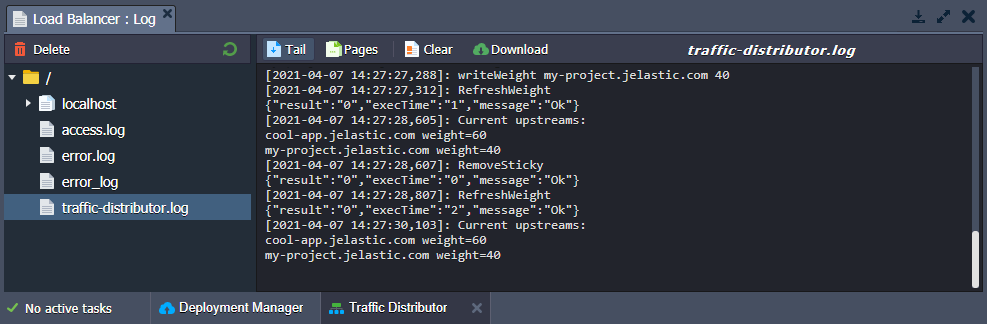
Feel free to check out this log file whenever you need to, even if it means going through it manually.
By following the steps outlined, you can make adjustments to the Traffic Distributor and conveniently monitor them through the logs.