
Accessing EJB Remotely on GlassFish
Enterprise Java Beans (EJB) is a part of the Java EE server-side architecture. EJBs have two types of client views: remote and local. Your Java application may need session and entity beans with either local or remote interfaces.
Let’s look at the differences between these interfaces and decide which one to use.
If you know that other clients and EJBs will access your bean within the same Java Virtual Machine (JVM), you should use a local client view. This is also suitable if your beans interact with each other. Local access involves direct method calls rather than remote method invocation (RMI).
However, if your client is on a different JVM and you want to use your bean in a distributed environment, you need to use the remote client view. Calls from remote interfaces are handled through this view. It is also better to use the remote client view when dealing with parameters passed by value between the client application and the bean.
Now, let’s see how to deploy a Java Bean to AccuWeb.Cloud and use the EJB remote client to work with it.
Create an Environment
Step 1. Log in to your AccuWeb.Cloud account.
Step 2. Click the “Create environment” button to open the environment setup wizard.

Choose GlassFish as your application server and set cloudlet limits based on your application’s resource needs. Enable the Public IP for GlassFish, name your environment, and click “Create.”

Wait about a minute for your environment to be created.
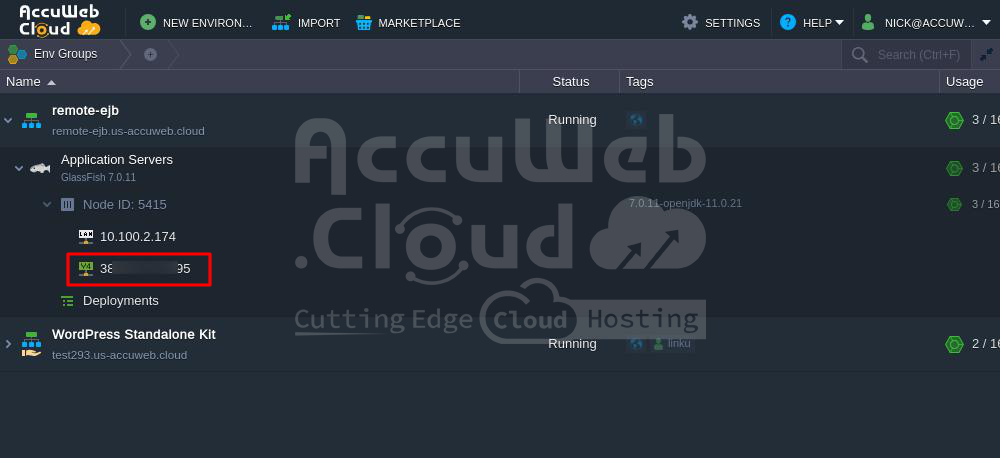
Step 3. To find the Public IP of your GlassFish server, click the arrow next to the node server.
Create the Application
Step 1. First, create a new directory to store your EJB and client application files.
Step 2. Next, create your Session Bean. This bean will be used by the remote client app to perform business tasks on the server.
package com;
import javax.ejb.Stateless;
@Stateless
public class EJBTest implements EJBTestRemote {
@Override
public String getName(String name) {
return "name is: " + name;
}
}
Step 3. Now, create the Enterprise Java Beans interface. This interface is necessary for the remote client to access the beans.
package com;
import javax.ejb.Remote;
public interface EJBTestRemote {
public String getName(String name);
}
Step 4. Build a new module and package it into a file with the .ear extension.
Step 5. Here is an example of a remote client application. This application connects to your EJB through the Public IP of the GlassFish server and calls the getName() method, which returns data to the client.
package ejbclient;
import com.EJBTestRemote;
import java.util.Properties;
import java.util.logging.Level;
import java.util.logging.Logger;
import javax.naming.InitialContext;
import javax.naming.NamingException;
public class Main {
private static InitialContext ic;
public void loadProperties(String h, String p) {
try {
Properties props = new Properties();
System.out.println("h: " + h + " p: " + p);
props.setProperty("java.naming.factory.initial",
"com.sun.enterprise.naming.SerialInitContextFactory");
props.setProperty("java.naming.factory.url.pkgs",
"com.sun.enterprise.naming");
props.setProperty("java.naming.factory.state",
"com.sun.corba.ee.impl.presentation.rmi.JNDIStateFactoryImpl");
props.setProperty("org.omg.CORBA.ORBInitialHost", h);
props.setProperty("org.omg.CORBA.ORBInitialPort", p);
ic = new InitialContext(props);
} catch (NamingException ex) {
Logger.getLogger(Main.class.getName()).log(Level.SEVERE, null, ex);
}
}
public static void main(String[] args) {
try {
new Main().loadProperties("{GlassFish_Public_IP}", "23700");
EJBTestRemote etr = (EJBTestRemote) ic.lookup("com.EJBTestRemote");
System.out.println(etr.getName("Jelastic"));
} catch (NamingException ex) {
}
}
}You can use this package as an example of a .ear file.
Deploy the Application
Step 1. Go to the Accuweb.cloud dashboard, open the Deployment Manager, and upload the .ear file you created.

Step 2. Deploy the uploaded package to the GlassFish environment you set up in Step A.

Step 3. Run your application by clicking the “Open in browser” button next to the environment and check the results.

I hope this tutorial on using remote interfaces was helpful. Enjoy!