
Introduction to Docker Swarm Cluster Package
We recently introduced the Docker Swarm Cluster package, an automated solution for creating interconnected Docker Engine nodes in swarm mode, forming a high-availability and reliable cluster.
This package offers major benefits for Docker-based application hosting, allowing you to run Docker images as swarm services and easily scale them to the desired number of replicas. This ensures high availability, failover protection, and even workload distribution between cluster members.

In this article, we will show you how to deploy a service to a Docker Swarm cluster using a predefined docker stack YAML file. We will also cover the basic actions needed to manage your project.
With the upcoming Docker Cloud shutdown, AccuWeb.Cloud’s out-of-the-box UI management panel is a key factor in choosing a new platform for swarm cluster hosting.
Setting Up and Managing Your Docker Swarm Cluster
If you don’t have a Docker Swarm cluster yet, follow the instructions to set it up in minutes and connect to your swarm using your preferred method, such as Portainer GUI or AccuWeb.Cloud SSH Gate.
Once you’re connected to the Docker Swarm manager node (we’re using AccuWeb.Cloud SSH Gate in this example), you can start managing your cluster. For instance, to see the list of nodes in your swarm cluster, run this command:
docker node ls
You should see that there are 1 manager and 2 worker nodes in the cluster. Manager nodes automatically elect a Leader to handle orchestration tasks, while any other managers are marked as Reachable to provide failover support.
Next, let’s go over how to deploy a service to the cluster, both manually and automatically.
Manual Swarm Services Deployment
You can manually run any Docker image within your cluster as a swarm service.
Step 1. Create a service using this command (refer to the linked page for additional options):
docker service create --name {name} {image}- {name}: Any preferred name for the service
- {image}: Any desired Docker image (e.g., dockersamples/static-site)
Example: docker service create –name my-accuweb-service dockersamples/static-site

Step 2. Check your services with the following command:
docker service ls
You’ll see that the added my-service process is running alongside the default Portainer service (if installed during swarm cluster setup).
Step 3. Update your service to improve reliability through replication and
publish it for internet access:
docker service update --replicas {replicas} --publish-add {ports} {service}- {replicas}: Number of replicas to create
- {ports}: Ports in the format published:target (e.g., 8080:80)
- {service}: Name of the service to update
Wait a minute for all replicas to set up.
Example: docker service update –replicas 3 –publish-add 8080:80 my-accuweb-service
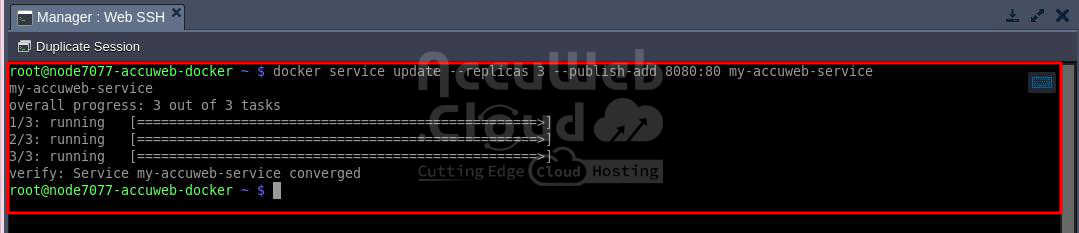
Step 4. Access your service through the specified port (8080 in this example).

Step 5. To remove a service, use this command:
docker service rm {service}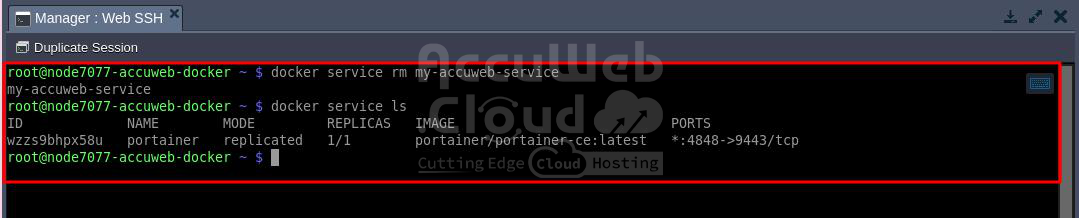
These are the basics of swarm service management. For more advanced options, refer to the official documentation.
Automated Service Deployment with Stack File
To automatically deploy your service, you’ll need a Docker Compose file listing all the required deployment actions.
Step 1. Create a stack file using any editor (e.g., vim) or fetch it from an external source (e.g., with curl).
Example: curl -o docker-stack.yml https://raw.githubusercontent.com/docker/example-voting-app/master/docker-stack.yml

For example, we downloaded stack sources for a voting application to see if point A (Cats) is more popular than point B (Dogs) based on real user votes. The results will show the percentage of votes for each option.
Step 2. Deploy your app with this command, providing the stack file:
docker stack deploy -c {compose-file} {name}- {compose-file}: The file you prepared in the previous step (e.g., docker-stack.yml)
- {name}: Any preferred name (e.g., VotingApp)
Example: docker stack deploy -c docker-stack.yml VotingApp

Step 3. Check the running services on the swarm cluster with:
docker service ls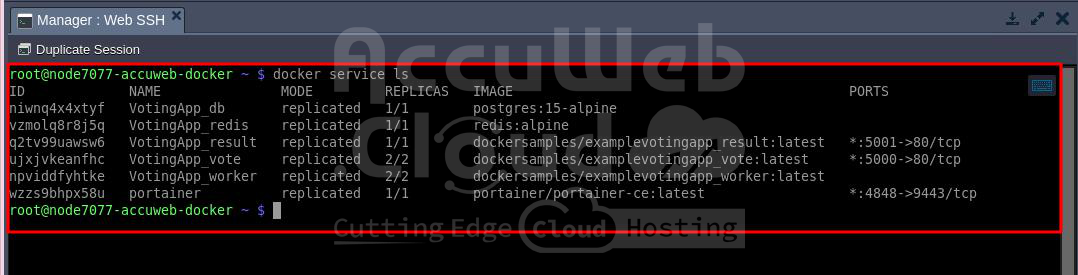
You’ll see that all the services specified in the stack file have started (wait a minute if some replicas are not up yet). The PORTS column shows the port number each service is running on (e.g., 5000 for voting and 5001 for results in our example).
Step 4. Access your service via a browser by adding the appropriate port to the address.

This method provides extra reliability with automatic failover protection and workload distribution when hosting your services in a Docker Swarm cluster. The Docker Swarm solution, pre-packaged by AccuWeb.Cloud for one-click installation, offers these benefits in just minutes.