
Connect to Custom Container
It all comes down to how seamlessly we integrate with containers. Think of containers like portable boxes for your applications – they’re easy to move around and keep everything organized. Our platform takes advantage of this portability while giving you the flexibility you need to manage everything effortlessly. The result? You can easily host and maintain any kind of application available through Docker templates, all in one place!
In this tutorial, we’ll dive into the fundamental concepts of working with Docker-based applications.

This guide will walk you through two ways to do it:
- Internal Connection: Perfect for interacting with your container directly on the platform.
- External Access: Want to reach your container from anywhere? We’ll show you how!
Plus, we’ll point you to all the essential information you need to establish a smooth connection.
Internal Connection
Upon creation, each container on the platform is assigned a unique internal domain name and internal IP address. These identifiers facilitate communication between containers within the same cloud using the platform’s internal network.
1. Consider using the built-in container linking feature when you need to establish communication between containers across different layers within the same environment. This feature ensures the secure transfer of environment variable information from the source Docker image to the recipient without exposing any ports externally.
To achieve this, simply choose the desired layer and assign an alias for the connection name. All relevant variables will automatically receive the corresponding prefix based on this alias.

Be sure to save and apply any changes you make.
Once done, navigate to the Variables section of your container settings to fine-tune individual variables as needed. Keep in mind that modifying the value of an environment variable for a linked container will automatically update it in any container connected to it.
2. If you need to establish a different type of internal connection, which involves manual adjustments via configuration files, you’ll need to know the container’s exact domain name or IP address for access through the platform’s internal network.
You can acquire the required details in two ways:
1. Via the email notification sent to you after environment creation. Look for the container admin data section in the email. The container’s domain name is provided in the Access URL string, while its internal IP address is listed under the IP line.
To find these details within the platform dashboard:
Click the “Open in Browser” button next to the container of interest to open the required node interface in a new browser tab. From there, you can copy the container’s domain from the address bar.
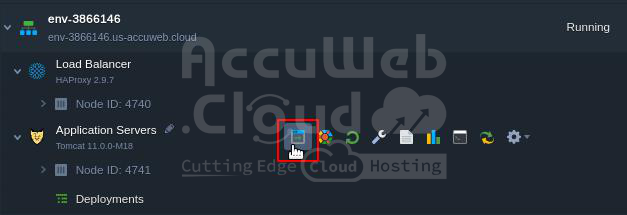
Alternatively, right-click on the domain string under the environment name and select “Copy link address.”

To locate the internal IP address of the node, expand the desired container. The internal IP address is displayed there.
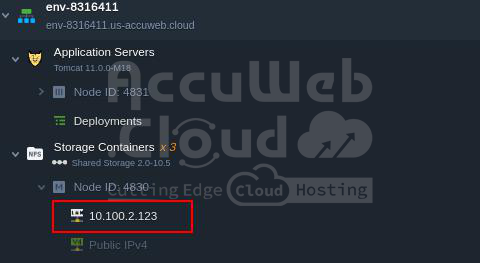
This information can then be used to establish internal connections to your containers within the platform.
External Connection
To access your container from outside the platform (i.e., from the internet), you have the following options:
1. If your service or application within the container listens on port 80, it will automatically be exposed to the external network via the platform’s Shared Load Balancer using the assigned domain name.
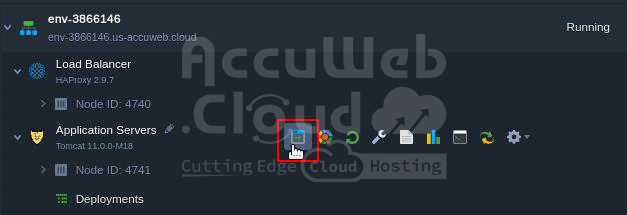
In this scenario, simply click “Open in Browser” for the relevant node to launch it. This option is suitable for HTTP connections.
2. For more intricate setups, the platform offers specialized endpoints functionality, accessible within the “Endpoints” section of any environment’s Settings.

This functionality enables you to showcase a particular private port from your container by associating it with a randomly selected public port on the platform’s Shared Load Balancer. Consequently, external access to your container is facilitated through the provided Access URL.
3. Attaching a public IP address to your container is the final option that offers the greatest degree of freedom (enabling, for instance, the use of Custom SSL to secure your connection and remove the cap on the number of simultaneous connections).

Your application can be set up to listen on any port you require, making it available via an external network.
That’s all there is to it! Now you have the flexibility to choose the best connection option for your Docker containers based on your specific needs and requirements.
Note: The Public IP option is available as a paid add-on. You can view the exact cost by hovering over the price widget in the topology wizard or by navigating to Quotas & Pricing > Pricing > Options tab.