
How to Upload Files to Your Linux VPS?
Managing files on a Linux VPS is an essential part of website deployment, application hosting, and server administration. While files can be uploaded using command-line tools such as SCP or SFTP, many users prefer a graphical solution that simplifies the process.
FileZilla is one of the most popular FTP/SFTP clients available. It provides a user-friendly interface that allows you to securely transfer files between your local computer and your VPS using simple drag-and-drop actions. Its dual-pane layout makes it easy to view both local and remote files side by side, helping you manage uploads efficiently without requiring advanced Linux commands.
In this guide, we’ll use FileZilla to securely upload files to your Linux VPS using the SFTP protocol.
Step 1: Download and Install FileZilla
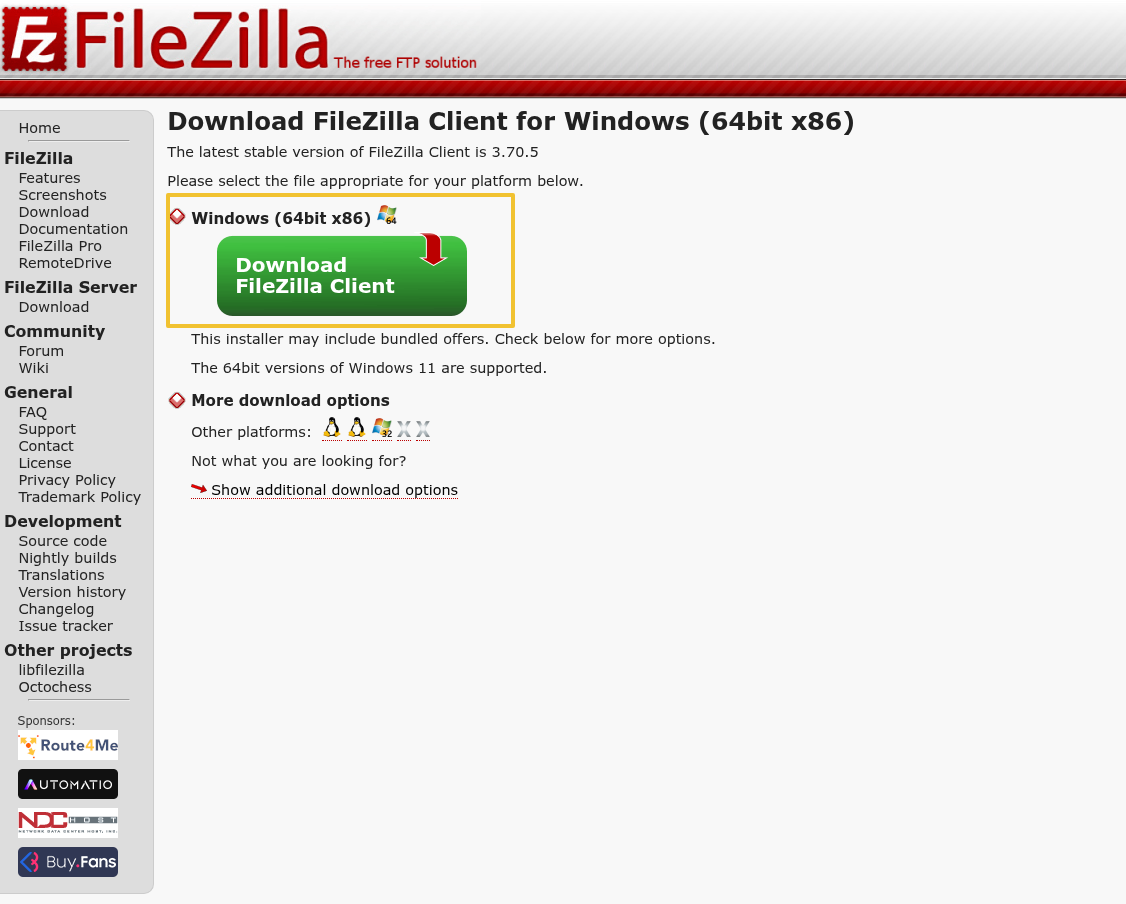
- Visit the FileZilla download page:
https://filezilla-project.org/download.php?platform=win64 - Download the FileZilla Client suitable for your operating system.
- Install the application by following the on-screen instructions.
Step 2: Connect to Your VPS Using FileZilla
- Launch FileZilla after installation.
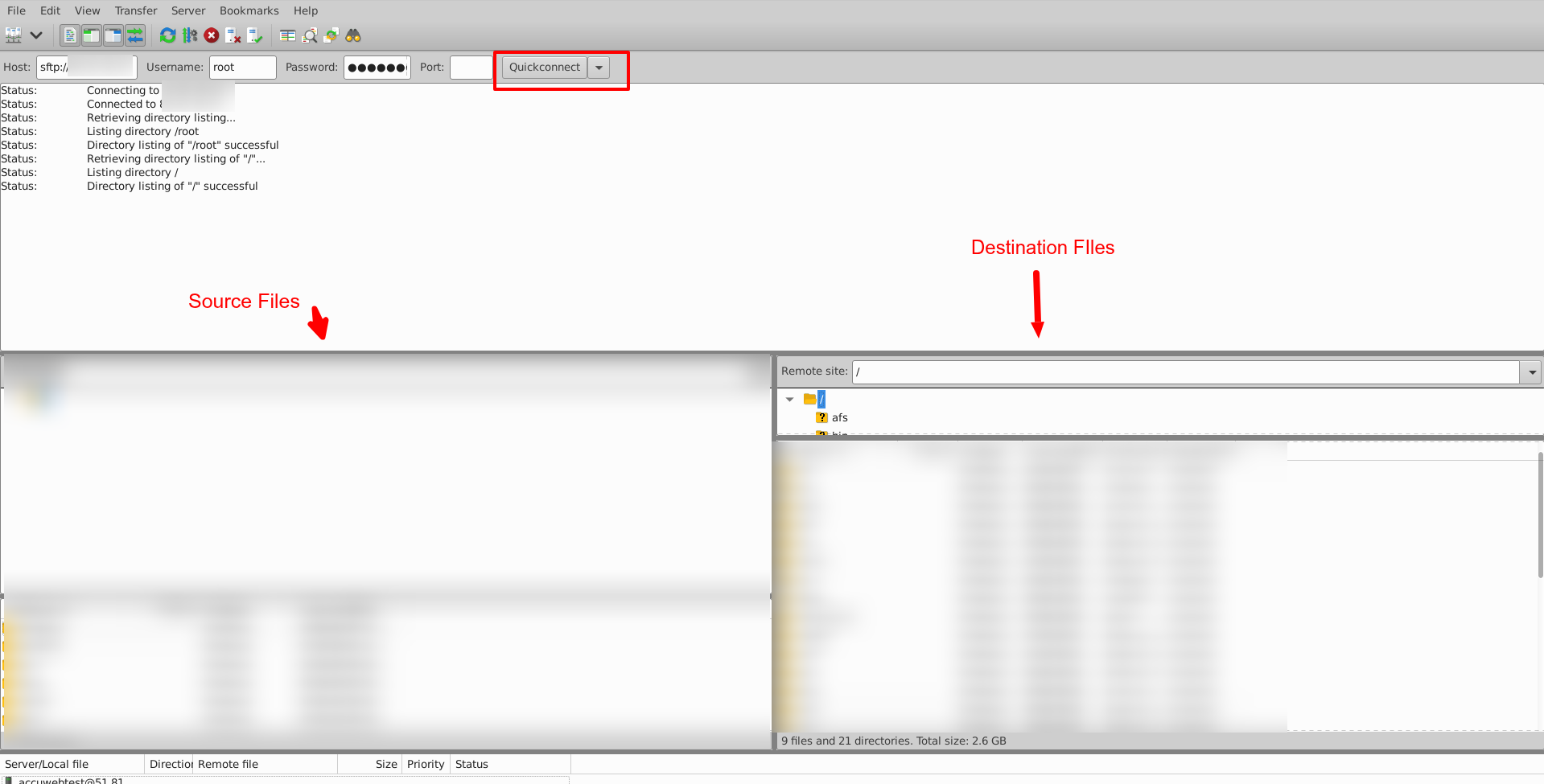
- Enter your VPS connection details in the Quick Connect bar:
- Host: Your VPS Public IP Address
- Username: root (or any other valid VPS user)
- Password: Your VPS password
- Port: 22
- Click Quickconnect to establish the connection.
- Once connected, FileZilla will display connection logs and two file panels:
- Local Site (Left Panel): Files and folders available on your computer.
- Remote Site (Right Panel): Files and directories available on your VPS.
Step 3: Transfer Files to Your VPS
- In the Remote Site panel, navigate to the destination directory where you want to upload your files.
- In the Local Site panel, locate the files or folders you wish to transfer.
- Upload the files by simply dragging and dropping them from the Local Site panel to the Remote Site panel.
- FileZilla will begin the upload process automatically.
Step 4: Verify the File Transfer
- Connect to your VPS using SSH.
- Navigate to the directory where the files were uploaded.
- Confirm that all files and folders have been transferred successfully.
Your files are now available on your Linux VPS and ready for use.
Still don’t have an account?