
How to Add Funds to Your New AccuWeb.Cloud Dashboard?
Adding infrastructure credits to your AccuWeb.Cloud account is a simple process. Follow the steps below to fund your account and start using cloud services.
Step 1: Log In to Your Dashboard
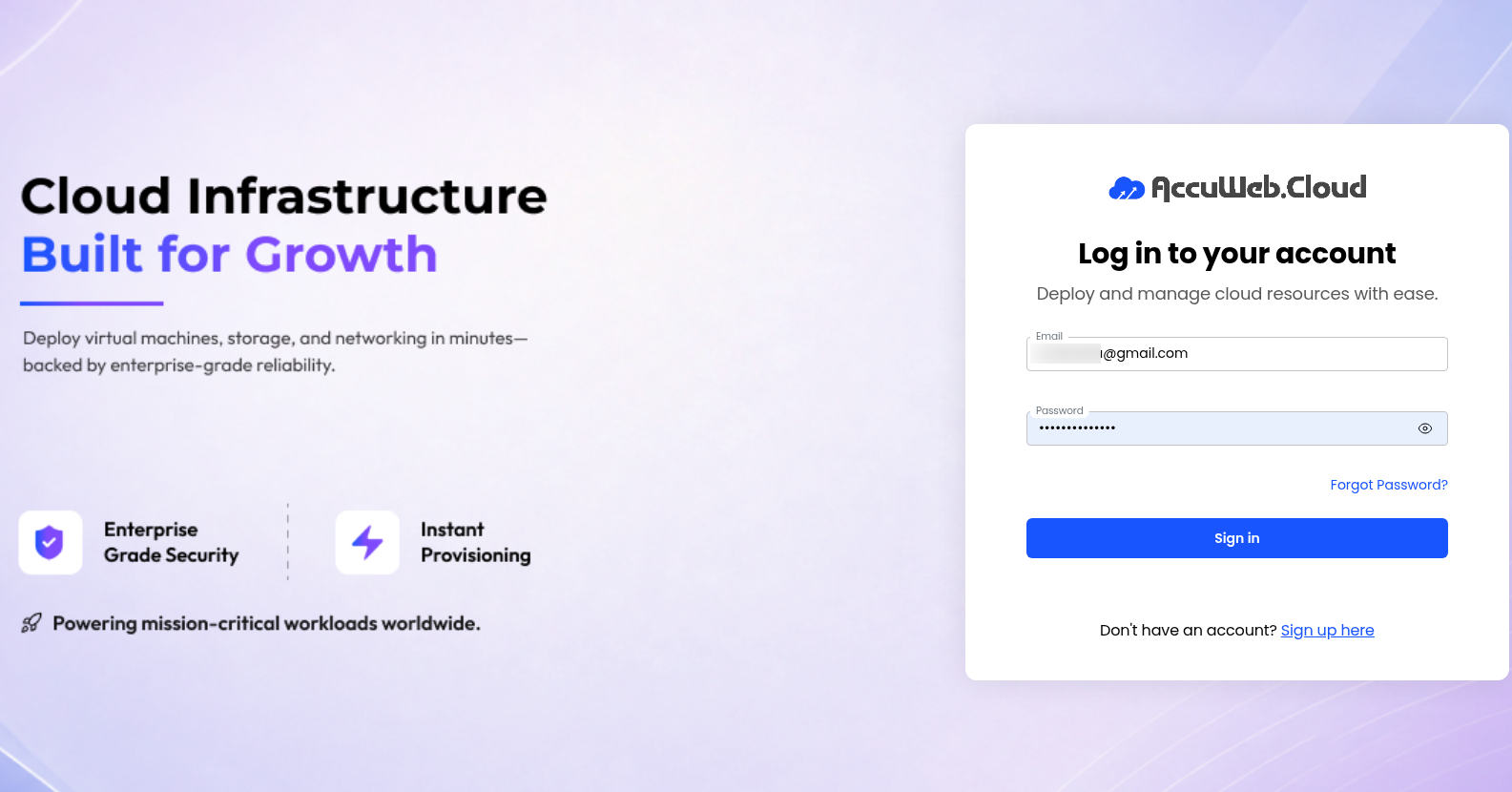
Visit the AccuWeb.Cloud management portal at:
manage.accuweb.cloud
Log in using your registered email address and password.
Step 2: Navigate to the Billing Section
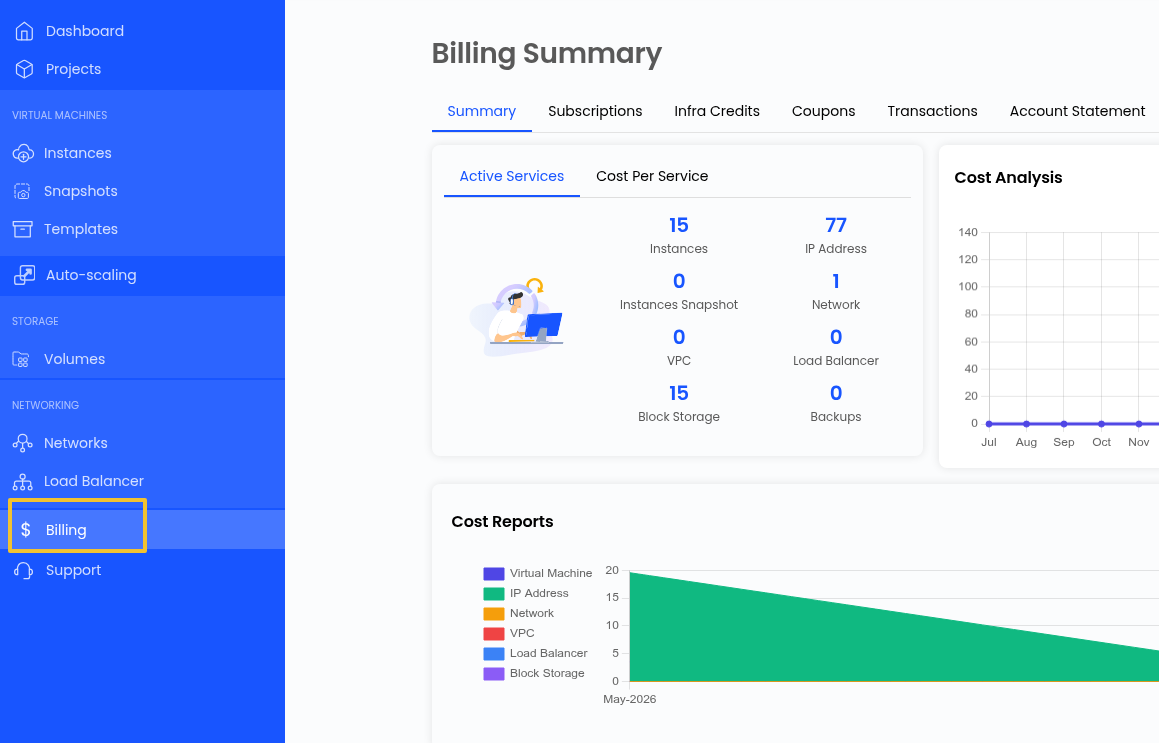
After successfully logging in, locate the Billing option in the left-hand navigation panel and click on it.
Step 3: Open Infra Credits
Within the Billing section, click on Infra Credits to access the credit management page.

Step 4: Select the Amount and Payment Method
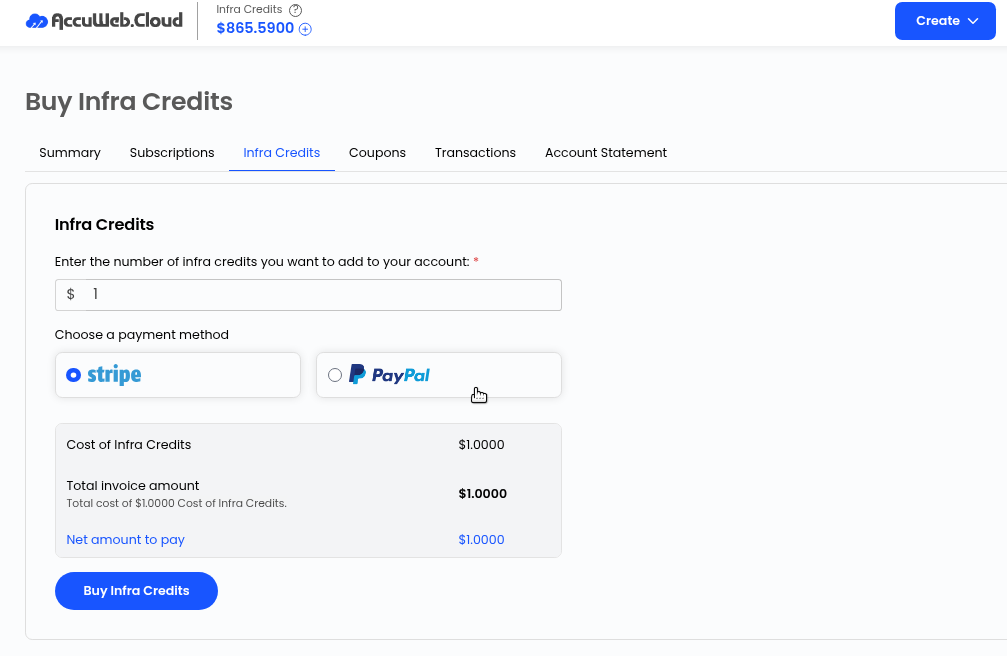
Choose the amount of infrastructure credits you would like to add to your account. Then, select your preferred payment method from the available options.
After entering the desired amount and selecting a payment method, click Buy Infra Credits.
Step 5: Complete the Purchase
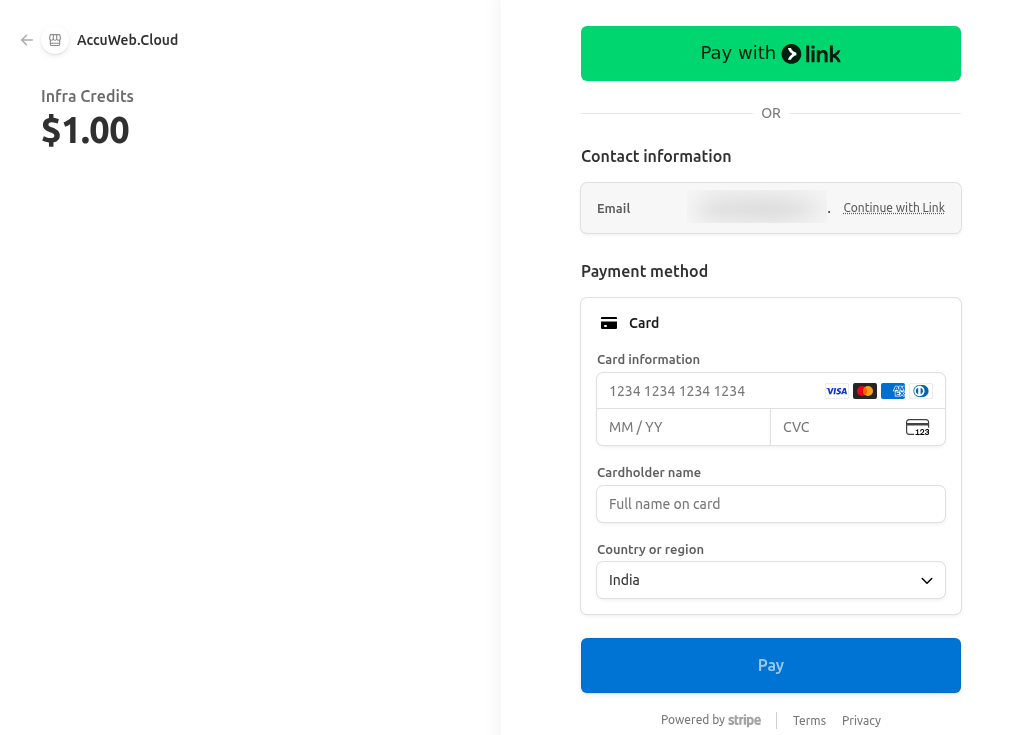
You will be redirected to the payment gateway page, where you can complete your transaction securely.
Here you will see two methods to complete the payment.
1. You will receive a six-digit code on your registered email address, which you have to add here.

2. You can also select the option of Pay without a link. In this method, you need to enter your card details to complete the transaction
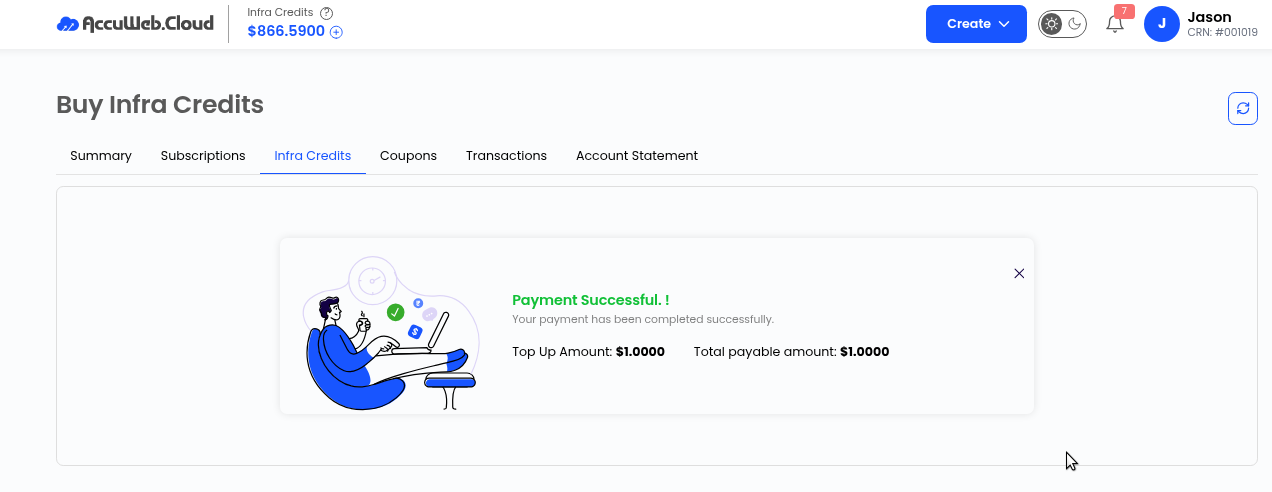
Step 6: Payment Successful
After completion of the payment, you will see the Payment Successful message.
Summary
To add funds to your AccuWeb.Cloud account, log in to the dashboard, navigate to Billing > Infra Credits, select the amount you wish to add, choose a payment method, and click Buy Infra Credits. Once the payment is successfully processed, the purchased credits will be added to your account and will be available for use immediately.
Not registered yet?