
How to Configure Firewall Rules for a Virtual Machine?
Quick Overview
Firewall rules help control which network traffic can access your virtual machine. Using the AccuWeb.Cloud dashboard, you can allow or restrict access to specific ports and protocols such as TCP, UDP, and ICMP.
This guide explains how to add a firewall rule to a VM from the Stack Console portal.
Step 1: Open the Instances Section
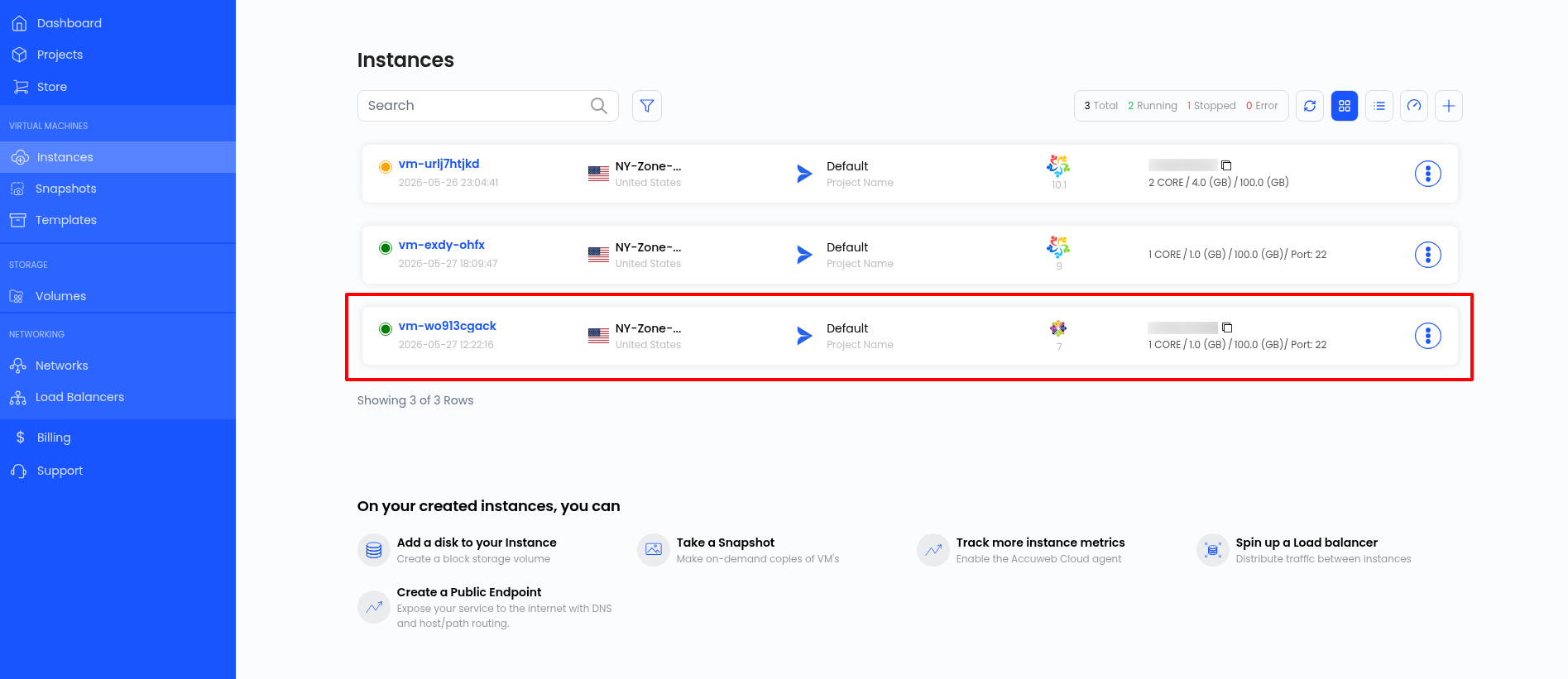
Log in to your AccuWeb.Cloud Stack Console dashboard and click Instances from the left-side menu.
The Instances page lists all virtual machines available in your account.
Step 2: Open the Virtual Machine
Click the virtual machine for which you want to configure the firewall.

Step 3: Open VM Settings
Click VM Settings from the top menu.

Step 4: Open Firewall Settings
Click Firewall from the left-side panel and then click Manage.

Step 5: Open the Firewall Tab
After clicking Manage, the network details page will open.
From the left-side menu, click Firewall to view existing firewall rules.

Step 6: Add a Firewall Rule
Click Add A Firewall Rule from the top-right corner.

A popup window will appear.
Enter the required details and click Add Firewall Rule.

Step 7: Verify the Firewall Rule
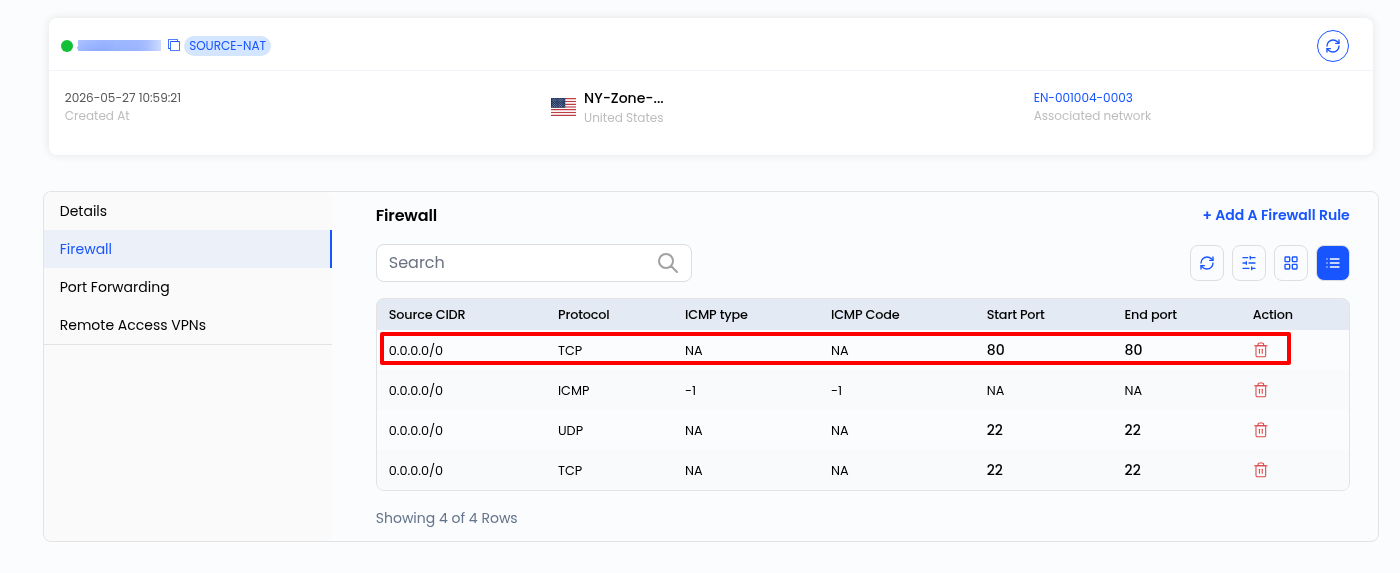
After clicking Add Firewall Rule, the newly created rule will appear in the firewall rules table.
Conclusion
Proper firewall configuration helps protect your virtual machine by allowing only the required network traffic. Review firewall rules regularly and keep only the necessary ports open.
Still don’t have an account?