
How to Configure Port Forwarding for a Virtual Machine?
Quick Overview
Port forwarding allows incoming traffic from a public port to be redirected to a specific port on your virtual machine. This is commonly used to make applications and services accessible from outside the network.
This guide explains how to configure port forwarding rules from the Stack Console panel.
Step 1: Open the Instances Section
Log in to your AccuWeb.Cloud Stack Console dashboard and click Instances from the left-side menu.
The Instances page lists all virtual machines available in your account.

Step 2: Open the Virtual Machine
Click the virtual machine for which you want to configure the port forwarding.

Step 3: Open VM Settings
Click VM Settings from the top menu and then select Port Forwarding from the left-side panel.
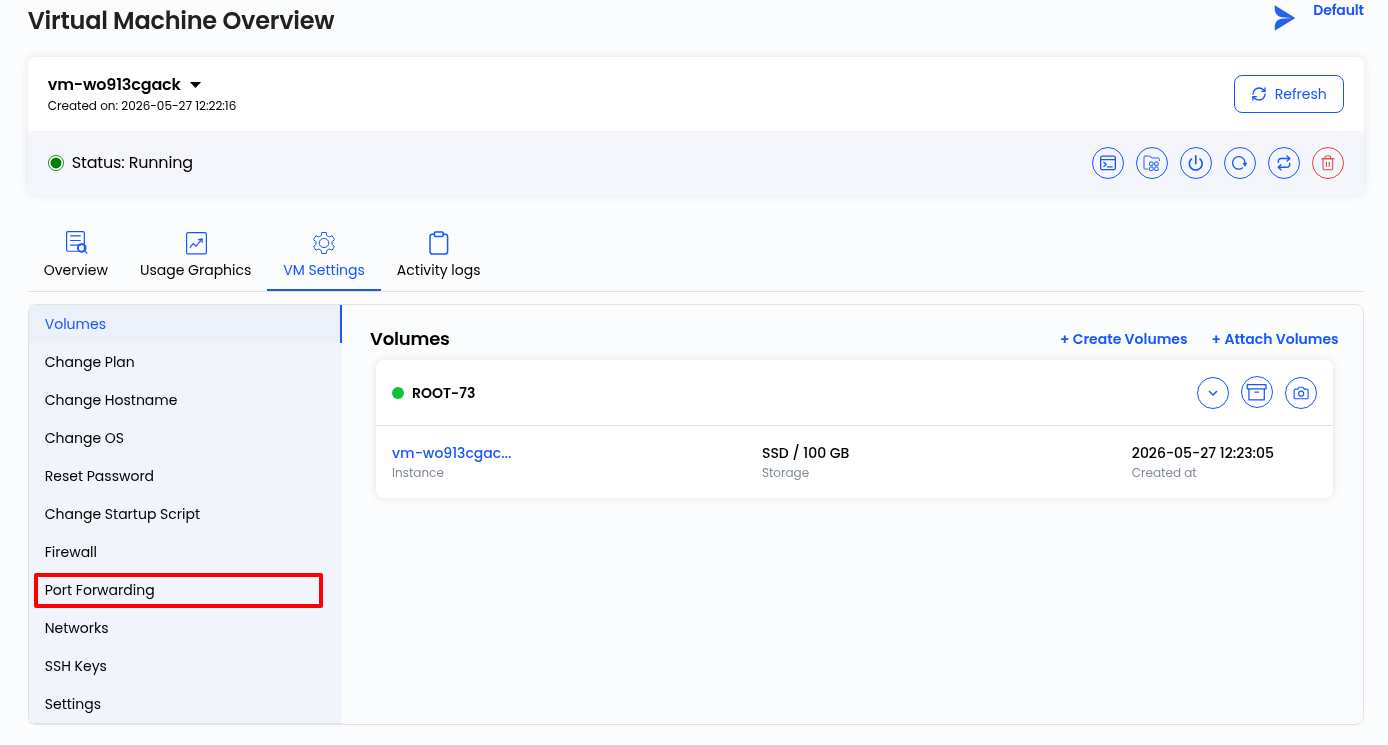
Step 4: Open Port Forwarding Settings
Click Manage.

Step 5: Open the Port Forwarding Tab
After clicking Manage, the network details page will open.
From the left-side menu, click Port Forwarding.
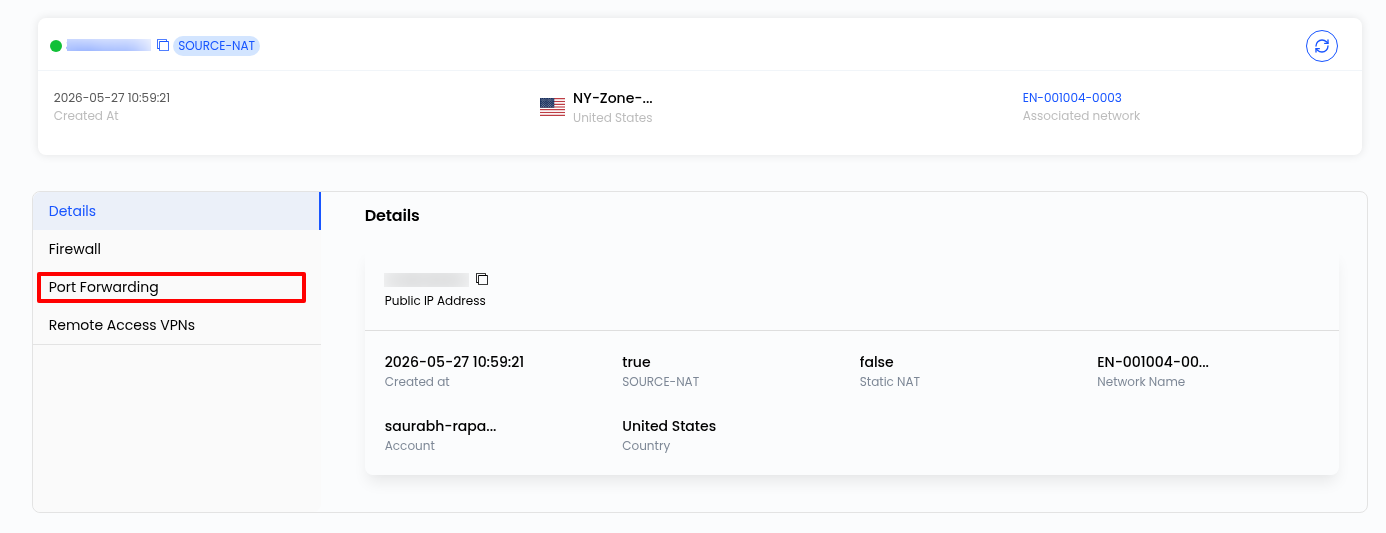
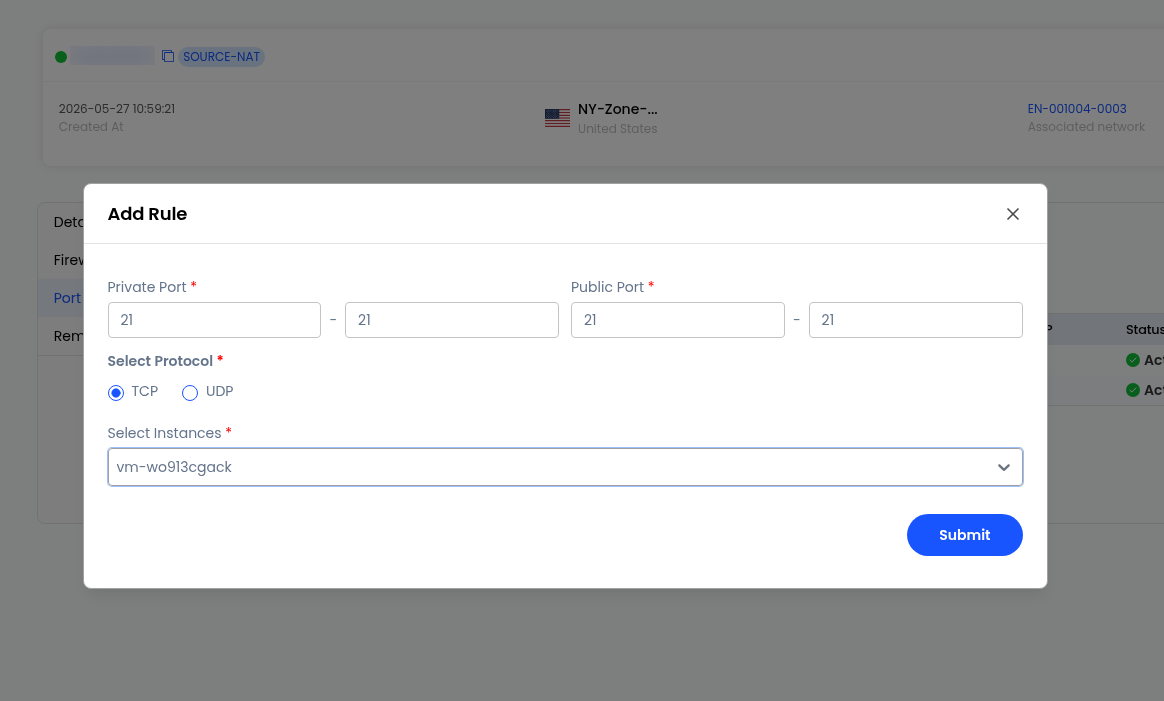
Step 6: Add a Port Forwarding Rule
Click Add Rule from the top-right corner.
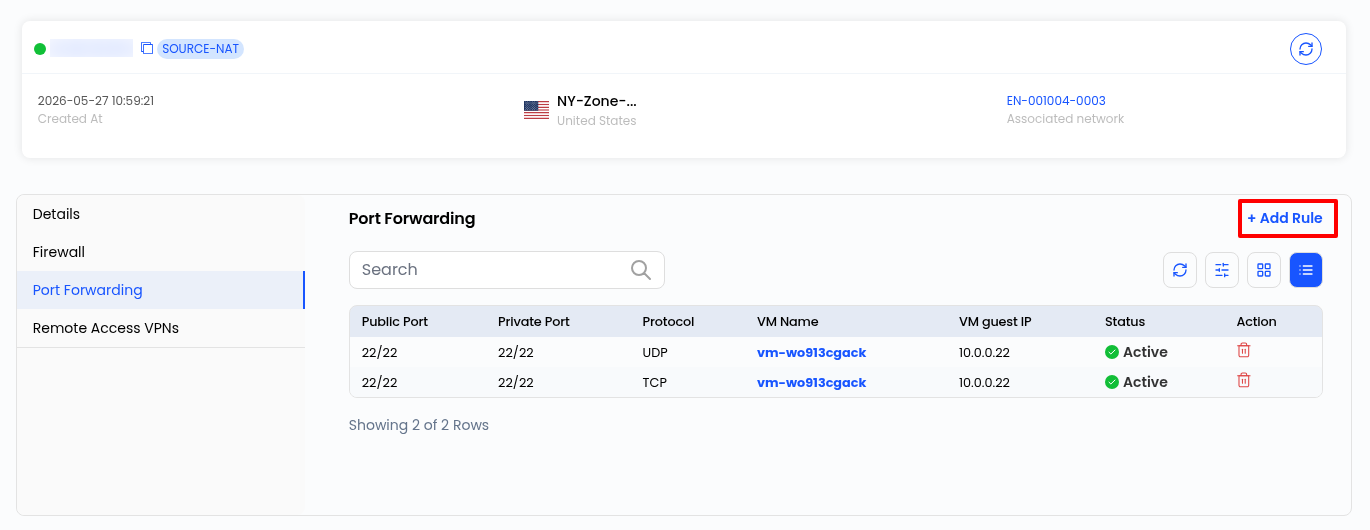
A popup window will appear.
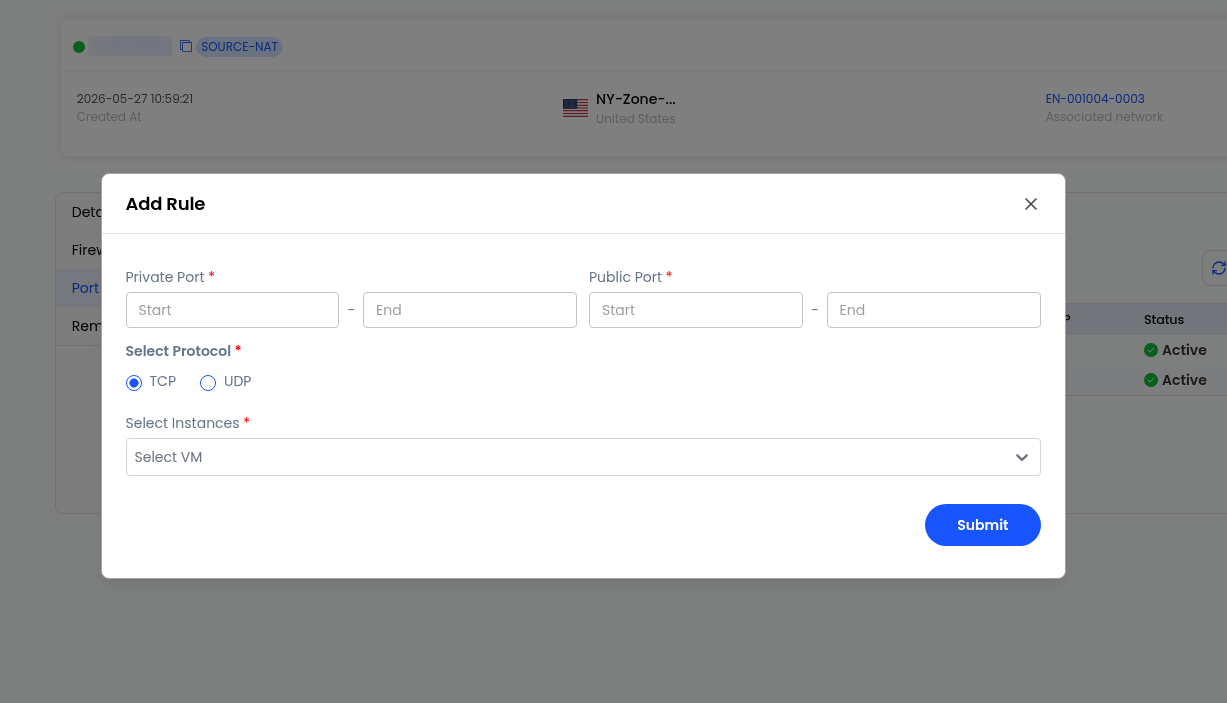
Enter the required details and click Submit.
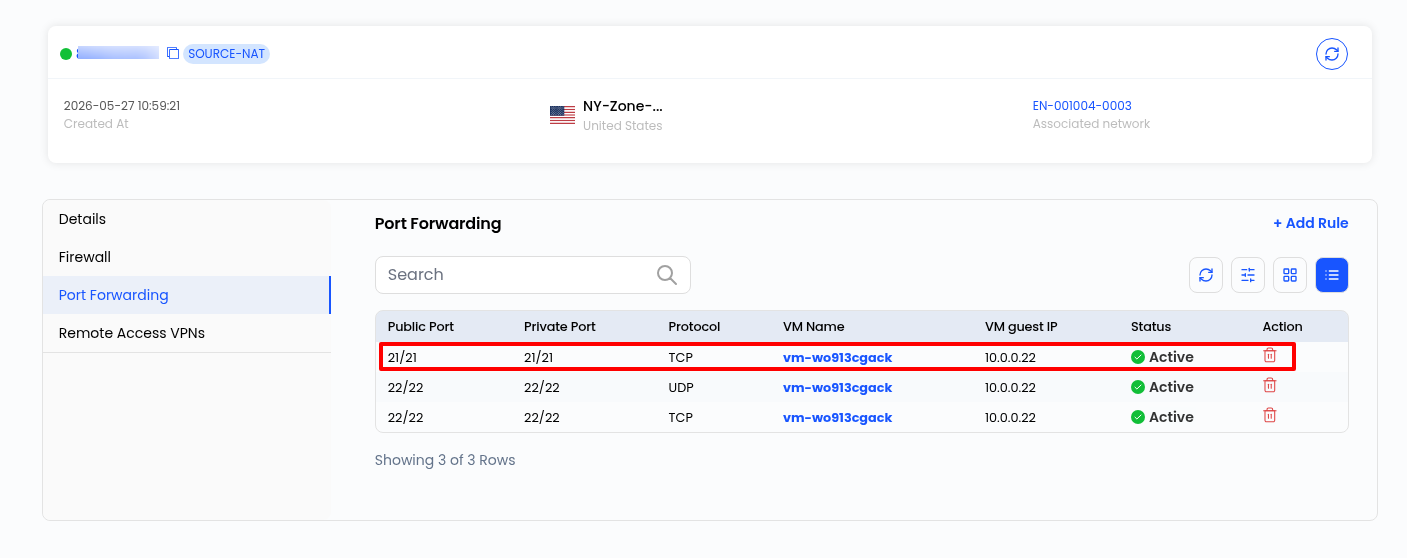
Step 7: Verify the Port Forwarding Rule
After the rule is added successfully, it will appear in the port forwarding table.
Conclusion
Port forwarding allows external traffic to reach services running inside your virtual machine. Review the configured rules regularly and keep only the required ports open.
Still don’t have an account?