
Enhancing Docker Swarm Auto-Clustering and Scaling with PaaS Power Armor on AccuWeb.cloud
A Docker Swarm cluster is a group of Docker Engine nodes operating in swarm mode, forming a fault-tolerant platform for application hosting.
This cluster incorporates built-in management features, ensuring your dockerized services remain consistently operational and accessible by balancing workloads across multiple servers and data centers.
Docker Swarm offers significant advantages, including automatic disaster recovery and zero-downtime updates. However, managing a cluster of Docker nodes can be Managing a Docker Swarm cluster can be challenging due to the newness of the technology, often requiring substantial effort from system administrators.
To address this, AccuWeb.cloud’s PaaS Power Armor enhances Docker Swarm auto-clustering and scaling capabilities, simplifying management and optimizing performance.
In this article, we’ll explore how to simplify the process of creating and maintaining a Docker Swarm cluster using a dedicated Docker Swarm Cluster package for one-click installation.
This solution lets you set up a fully functional dockerized cluster of any desired size within minutes. Let’s delve into the specifics of its implementation and usage.
Understanding the Topology of Docker Swarm Clusters
The original implementation of a Docker Swarm cluster features a two-layer node structure with distinct roles:
- Manager: Maintains the desired state of the swarm and manages all services running within it.
- Worker: Executes tasks dispatched from the Manager nodes.
During installation, you can specify the number of containers for each layer (known as “replicas”) and choose from two available installation types:
- Bare Cluster Setup: Set up a basic cluster to manually deploy the required Docker image later.
- Pre-Deployed Image: Create a swarm with a pre-deployed image based on a provided compose file.
Each node is pre-configured with resources to accommodate growth as needed, up to 8 GB of RAM per container. With AccuWeb.Cloud’s pay-per-use pricing model, you only pay for the resources you actually use.
During periods of inactivity, each container within the cluster consumes less than 128 MiB (equivalent to 1 cloudlet) of memory.
Billing is calculated according to the rates established by your hosting provider.rates. This means you can host a reliable Docker Swarm cluster with 8 nodes for just 8 cloudlets!
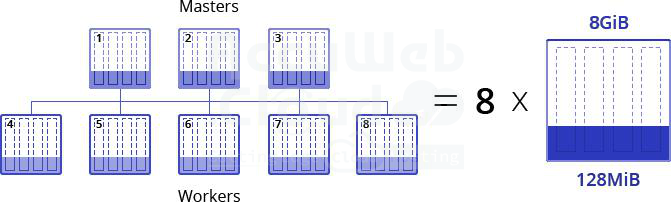
Another advantage of hosting your swarm cluster on AccuWeb.Cloud PaaS is the automatic and even distribution of all containers across the available host nodes (physical servers) on the platform. This guarantees exceptionally high availability for your application.

Before proceeding with the installation of this package, please note the following:
- Ensure that the selected platform includes environment region(s) with native Docker container support enabled. You can verify the list of supported providers through the provided link.
- The option to attach public IPs to manager nodes is available exclusively for billing users.
Swarm Cluster Load Alerts & Scaling with AccuWeb.Cloud
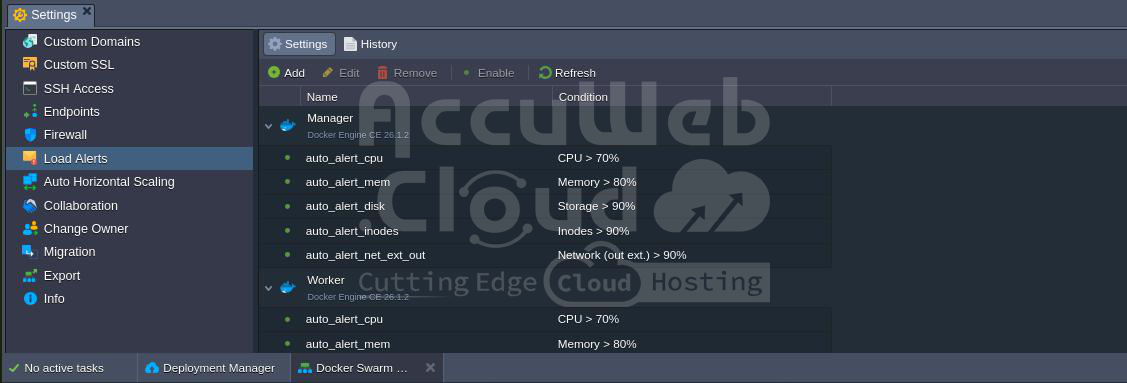
A key benefit of the Docker Swarm Cluster package by AccuWeb.Cloud is its ability to effectively monitor resource consumption statistics and provide automatic notifications for load spikes or drops.
Load Alerts: By default, the cluster is equipped with load alerts that notify you via email about high consumption of resources such as CPU, RAM, or network bandwidth.
Ensure that the selected platform includes environment region(s) with native Docker container support enabled. You can verify the list of supported providers through the provided link.
The option to attach public IPs to manager nodes is available exclusively for.
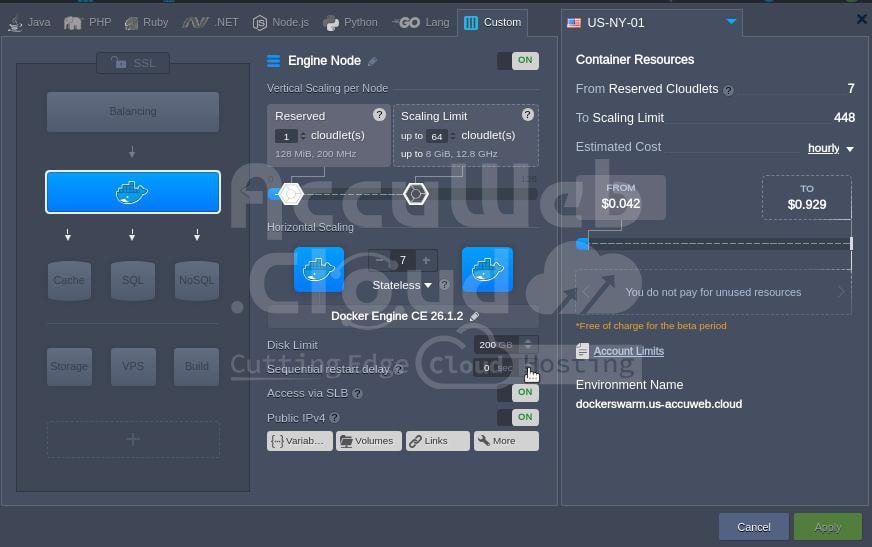
To take advantage of swarm mode’s fault-tolerance features, Docker recommends using an odd number of manager nodes based on your organization’s high-availability requirements.
Automatic Horizontal Scaling
You can pre-configure the automatic horizontal scaling of both manager and worker nodes based on the cluster’s current load. For example, scaling can be performed under the following conditions:
- Add node(s) if RAM or CPU usage exceeds 70% for at least 5 minutes.
- Remove node(s) if RAM or CPU usage falls below 40% for at least 5 minutes.
To maintain an odd number of managers, it is advisable to scale the layer in pairs of nodes.
Enhanced High Availability and Failover Protection
To further improve high availability and failover protection for your Docker services, you can manually attach nodes from different environment regions or installations to your swarm cluster.
The necessary information for this setup was provided in the email sent to you after the cluster installation.

Automated Docker Swarm Installation
Setting up Docker Swarm from the AccuWeb.Cloud Marketplace is a straightforward and automated process that takes just a few simple steps.
You can initiate a free trial installation of Docker Swarm with AccuWeb.Cloud service providers in Switzerland, such as Flow App Engine and Hidora. Follow the link to start your trial with either provider.
If you are already a registered user with one of the mentioned AccuWeb.Cloud service providers, you can start the installation directly from your dashboard.
Navigate to the Marketplace section by clicking on the corresponding button at the top of your dashboard. Look for the Docker Swarm Cluster solution within the Marketplace window that appears.

Hover over the suitable tile and click “Install” to proceed.
Shortly after, the installation frame will appear.
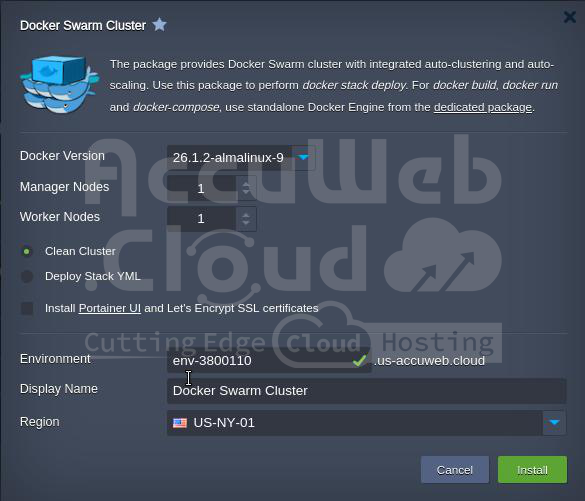
Here, you have the option to customize specific details to configure your preferred cluster setup:
- Docker Version: Choose the Docker Engine CE image version you prefer.
- Manager Nodes: Select an odd number of manager nodes for the cluster, each automatically assigned a public IP.
- Worker Nodes: Specify the number of worker nodes to include in the cluster.
- Deployment Type: Choose the deployment type that best fits your requirements.
- Clean Cluster: Set up a minimal cluster configuration. Optionally, you can install the Portainer management U along with Let’s Encrypt SSL certificates for easier management of cluster nodes.

Deploy Stack YML: This option enables you to immediately execute the docker stack deploy operation right after creating the cluster. It installs the required dockerized services defined in the respective compose YML file.

- Environment: Name your environment.
- Display Name: (Optional) Provide an alias to display for the environment.
- Region: Choose your preferred environment region from available options.
For example, we’ll configure a foundational Docker Swarm cluster comprising 3 manager nodes, 5 worker nodes, and include the Portainer UI with Let’s Encrypt SSL deployment.
Once you’ve configured all settings, click “Install,” and AccuWeb.Cloud PaaS will automatically perform all necessary actions within minutes.
Once your cluster is deployed, it will appear on the dashboard under the corresponding environment name.
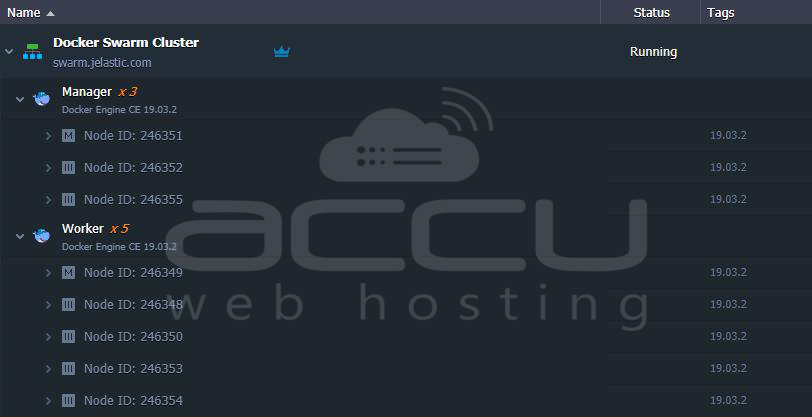
Next, to begin working with your cluster, you’ll need to access one of its manager nodes. Below, we’ll explore the methods to achieve this.
Docker Swarm Connection
Portainer UI
If you’ve configured a new cluster with Portainer UI and Let’s Encrypt SSL, you can access the management panel by accessing your environment via HTTPS on port 443 in a web browser.

You can find the necessary authentication credentials to access Portainer itself in the email notification you received after creating the Docker Swarm.
SSH Gate
To manage your Docker Swarm cluster, utilize the AccuWeb.Cloud SSH Gate to connect to one of the Manager nodes. You can establish an SSH connection directly to your desired container from the dashboard by clicking on the Web SSH button.

Alternatively, you can connect using your preferred SSH client by uploading your public key to the dashboard.
Custom Domain & SSL Protection
Before deploying your Docker Swarm cluster to production, it’s essential to associate a custom domain name with your application and secure it with a trusted SSL certificate.
Step 1. You can review and meet the criteria for adding SSL protection by clicking the “Change Environment Topology” button for the relevant environment (i.e., your Docker Swarm cluster).
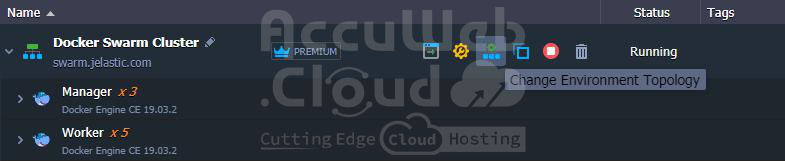 Step 2. Within the opened wizard, switch to the SSL section. Below are the prerequisites for configuring custom SSL for your environment.

Click the “Enable” button to apply the necessary adjustments automatically.
Within a minute, a load balancer node with an external IP address will be added to your environment, allowing you to configure a custom domain name. Follow the provided guide for instructions on:
- Purchasing a custom domain for your application
- Configuring DNS records to point from this domain to your AccuWeb.Cloud environment
Next, proceed with SSL configuration. You have two options:
- Automatically configure using the Let’s Encrypt SSL add-on
- Manually upload custom SSL certificates
After completing these steps, your Docker Swarm cluster will be ready for production. If you’re new to deploying services and applications to a swarm cluster, refer to the linked guide for basic instructions.
This concludes our tutorial. Setting up and managing a swarm cluster with AccuWeb.Cloud PaaS is simple and efficient! Give it a try now to establish a robust and highly scalable cluster leveraging native Docker capabilities.