
One-Click Nextcloud Deployment on AccuWeb.Cloud
Nextcloud deployment is now simple, fast, and hassle-free. With our one-click Nextcloud deployment on AccuWeb.Cloud, you can set up your own secure and fully functional cloud storage platform in just a few minutes no complex technical setup required.
Our automated solution handles everything for you, including server configuration, database setup, and Nextcloud installation. Whether you’re looking to securely store and manage files, collaborate with your team, or provide private cloud storage for your clients, our one-click service ensures a fast, reliable, and hassle-free experience.
Deploy Nextcloud on One-click
Step 1: Log in to your AccuWeb Cloud Dashboard using your credentials.
Step 2: From the dashboard, go to Apps.
This will display a list of all available applications.
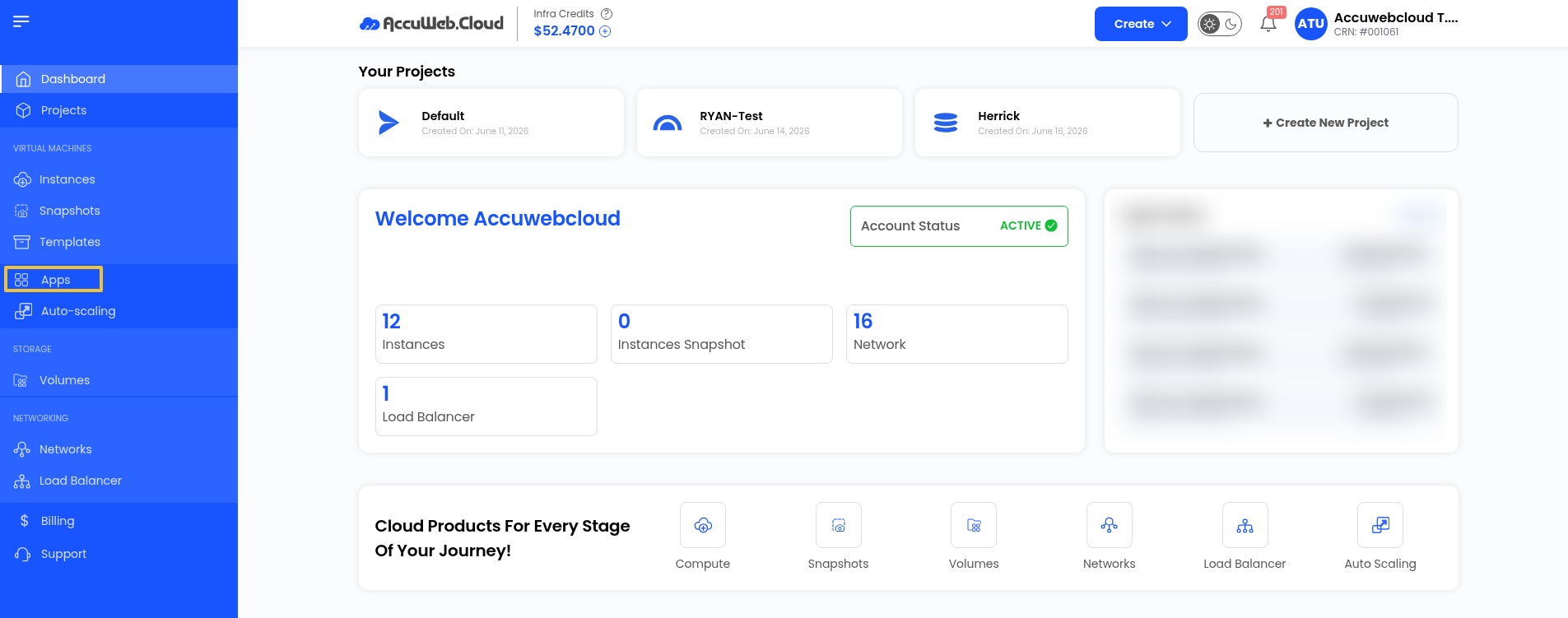
Step 3: In the Apps tab, locate and click on Marketplace.
You will now see the list of all existing applications in the Marketplace.
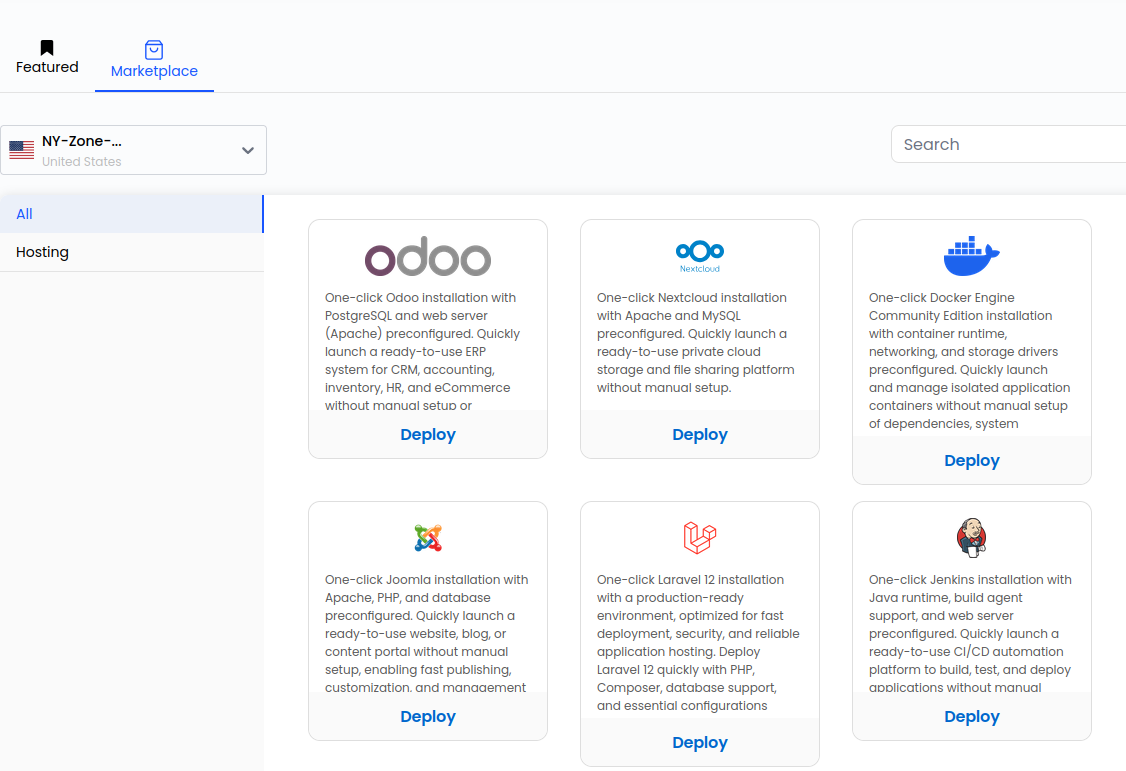
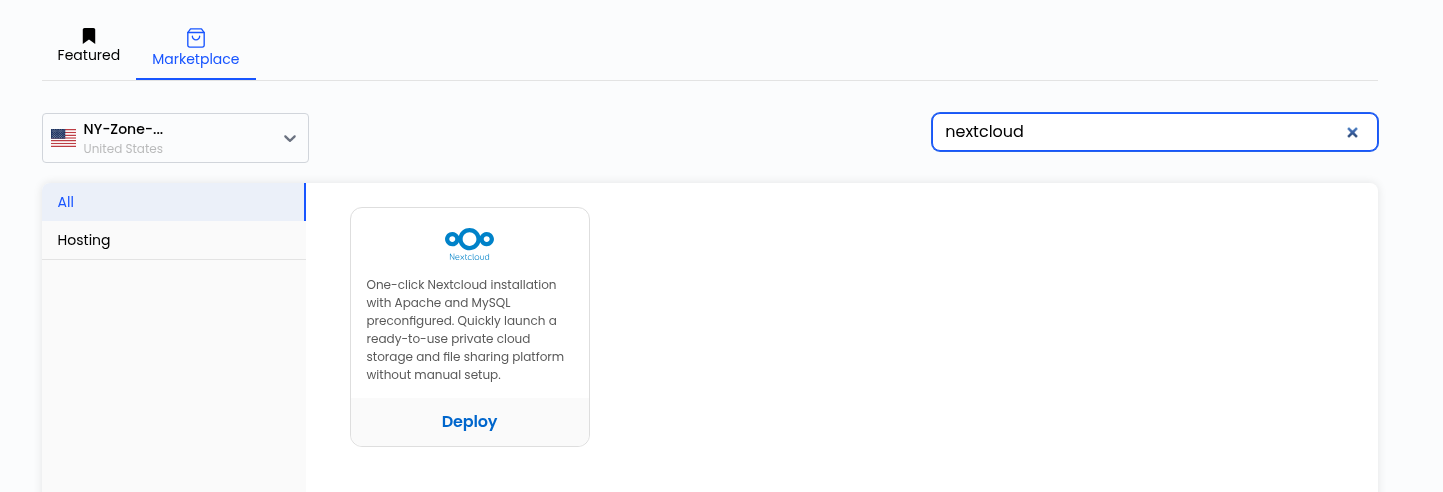
Step 4: Select the Nextcloud App, then click the Deploy button.
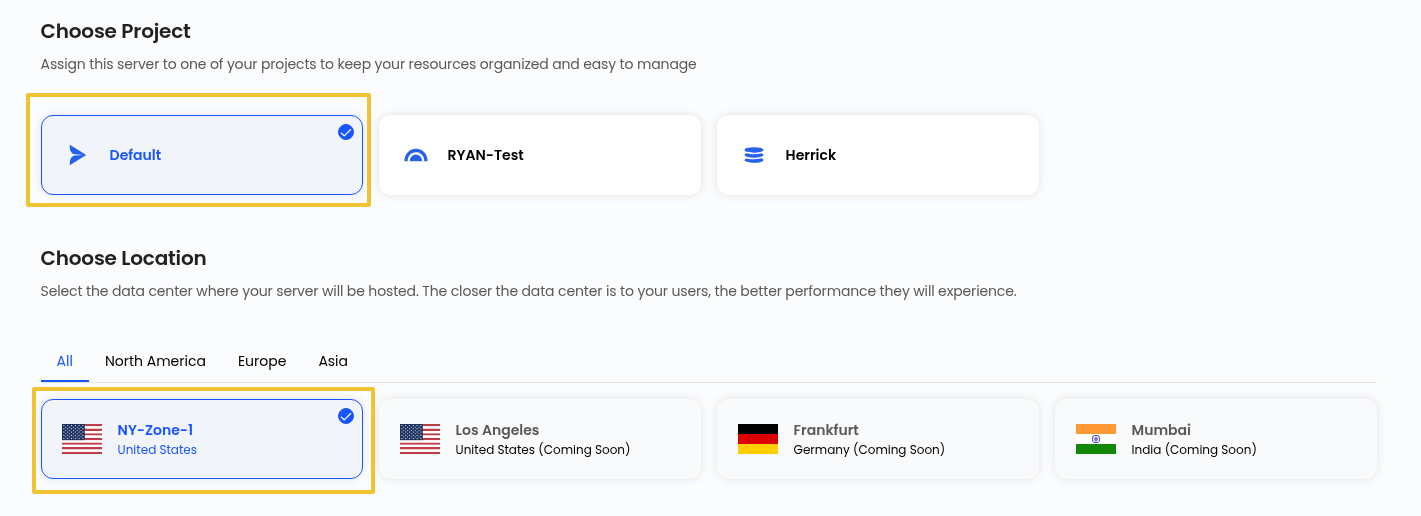
Step 5: Select your Project and Location to Deploy
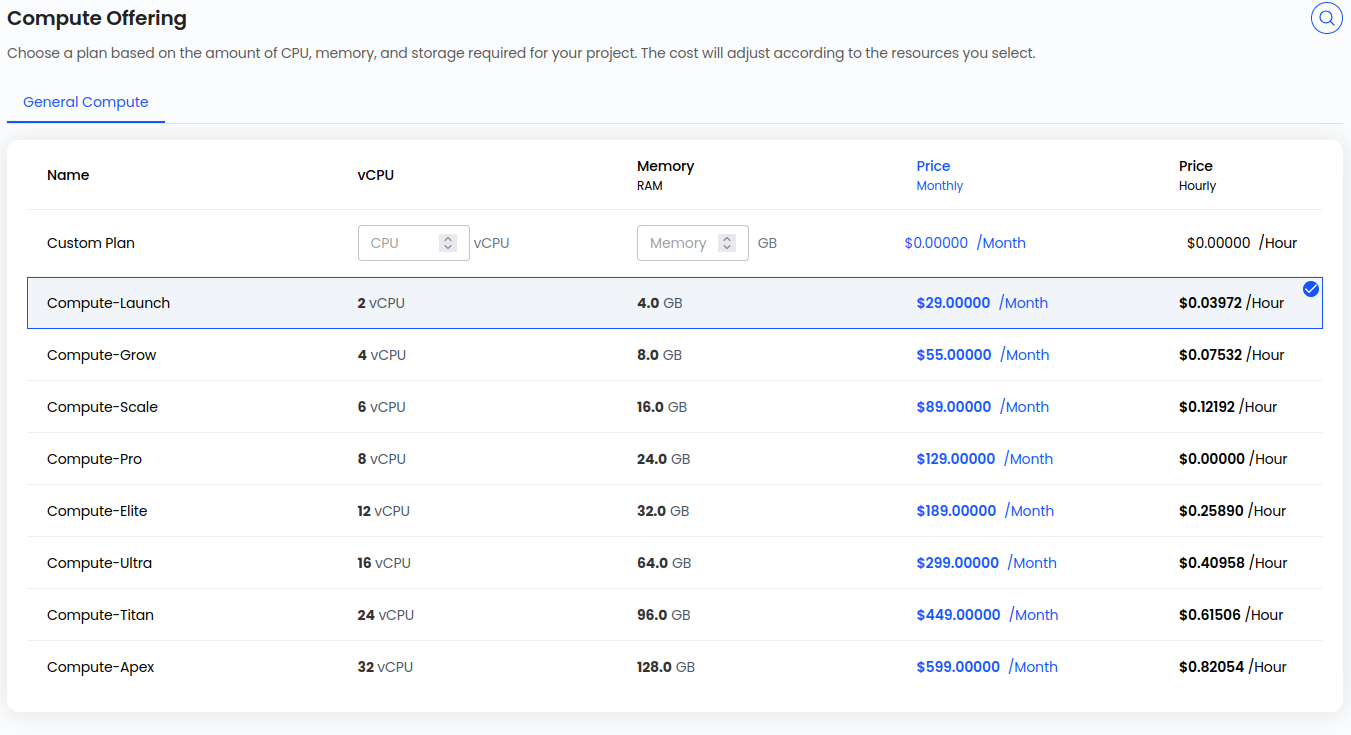
Step 6: Choose Compute Offerings
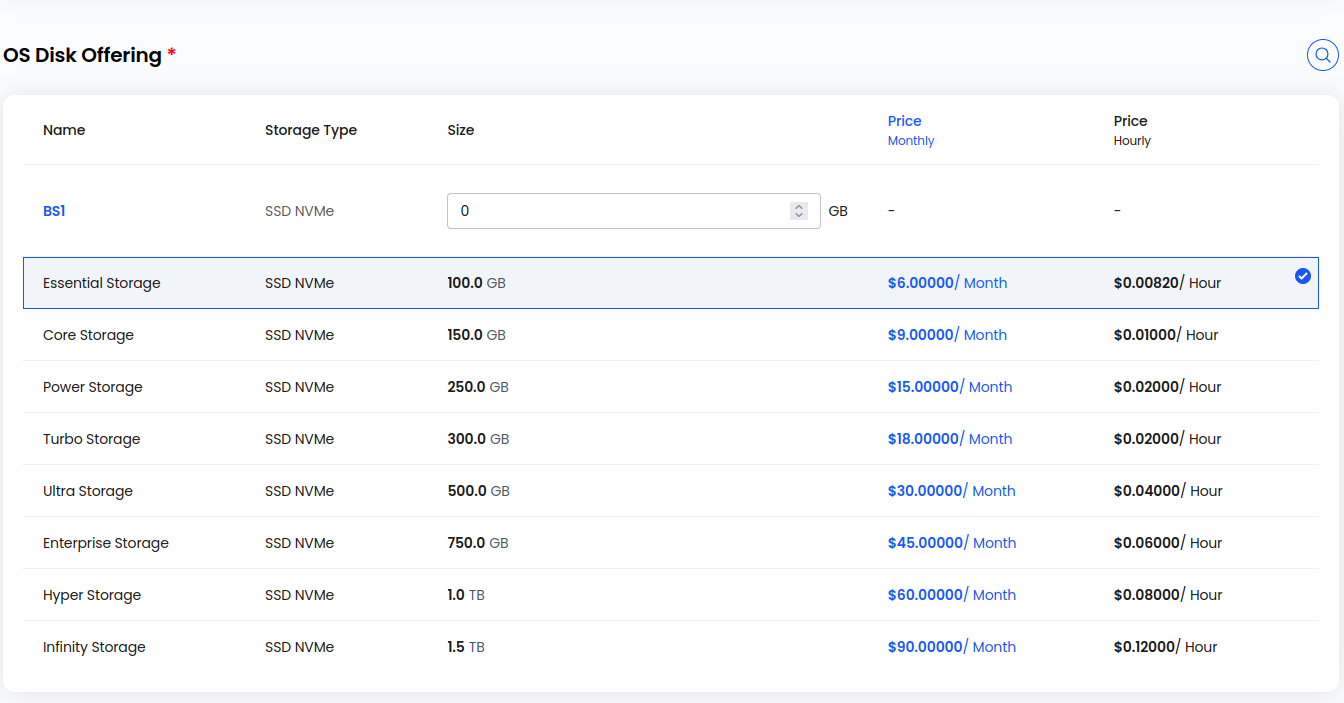
Step 7: Select an OS disk offering for your VM, and select Network.
Step 8: Choose Server Name and Server Hostname.

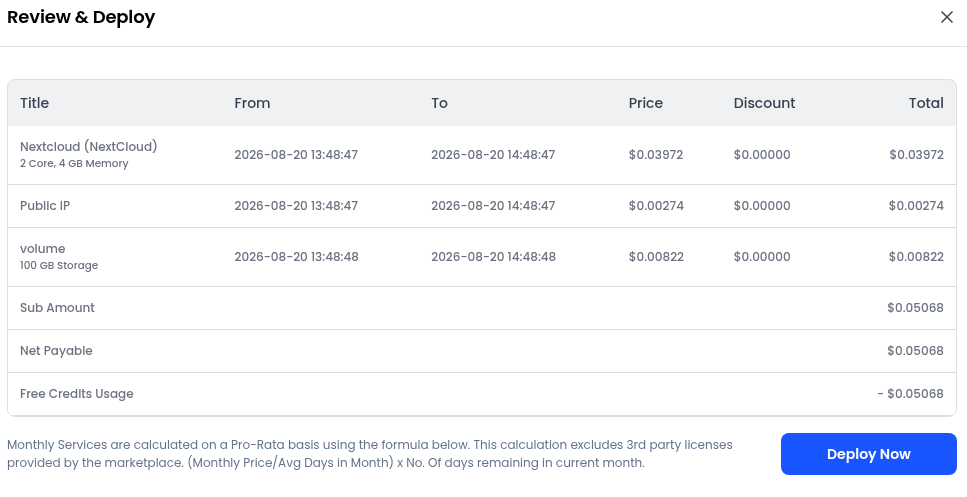
Step 9: Select the billing cycle (Hourly or Monthly), then click ‘Review & Deploy’.

Step 10: Click on Deploy Now
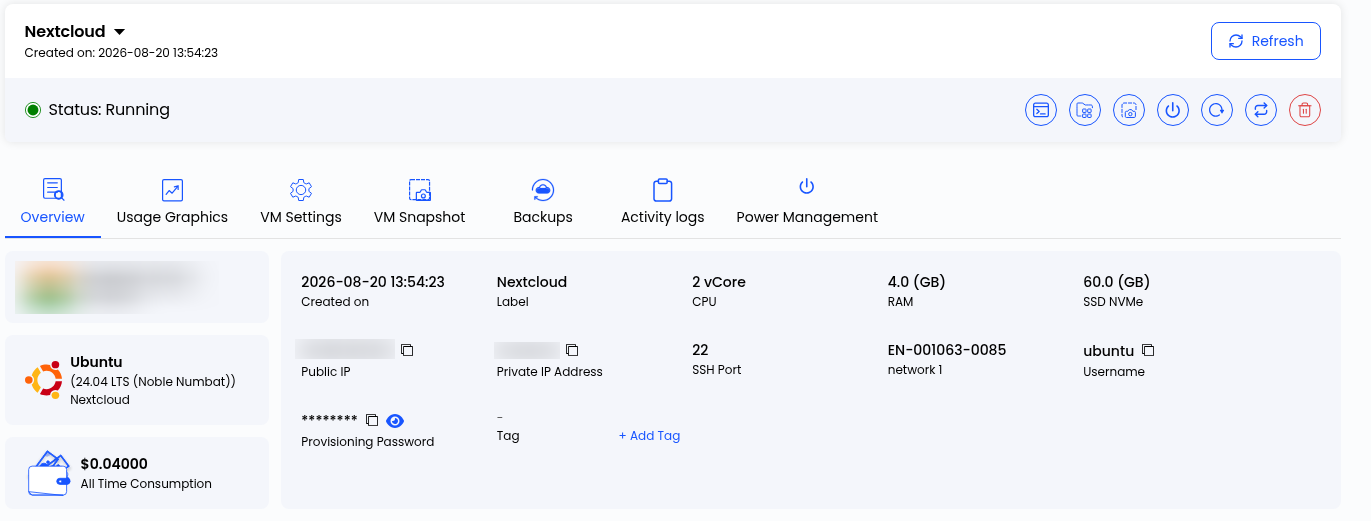
Step 11: It will take 2-5 minutes to deploy the Nextcloud application. Once the app is successfully deployed, you will see the status of your instance as running.
Step 12: You will also receive the confirmation email and access details of your application at your registered email address. Due to security concerns, your Nextcloud credentials are stored in a file inside your VM.
File path: /root/logindetails.txt
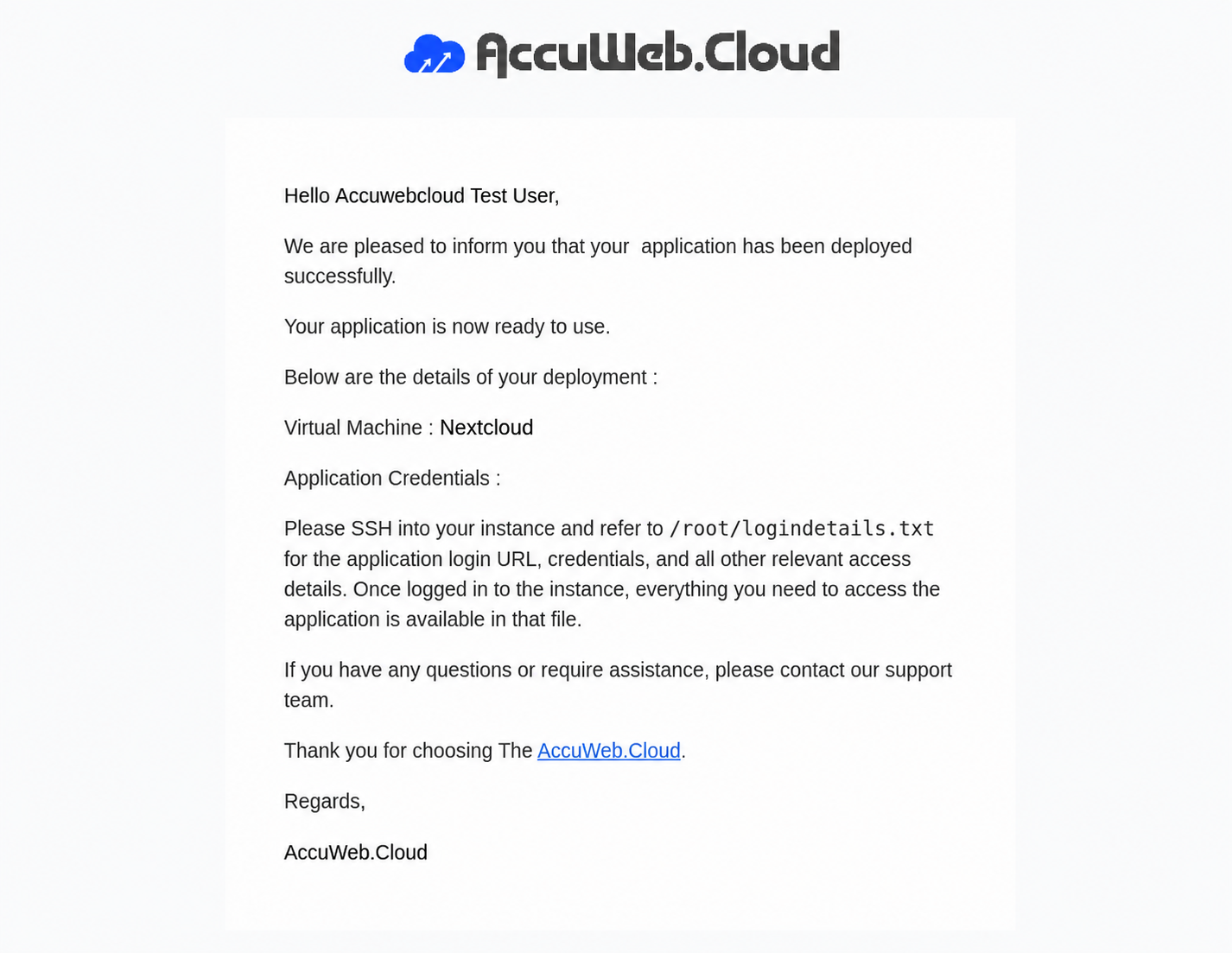
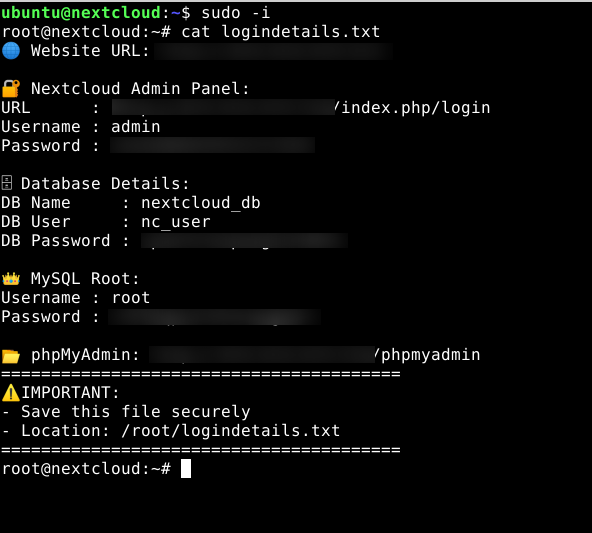
Step 13: Now log in to your VM with the credentials visible on your instance overview page. Visit the path shared in the confirmation email and get the credentials from the mentioned file. You can use the commands to get the details of your Nextcloud app.
ssh user@IP
sudo -i
cat logindetails.txt
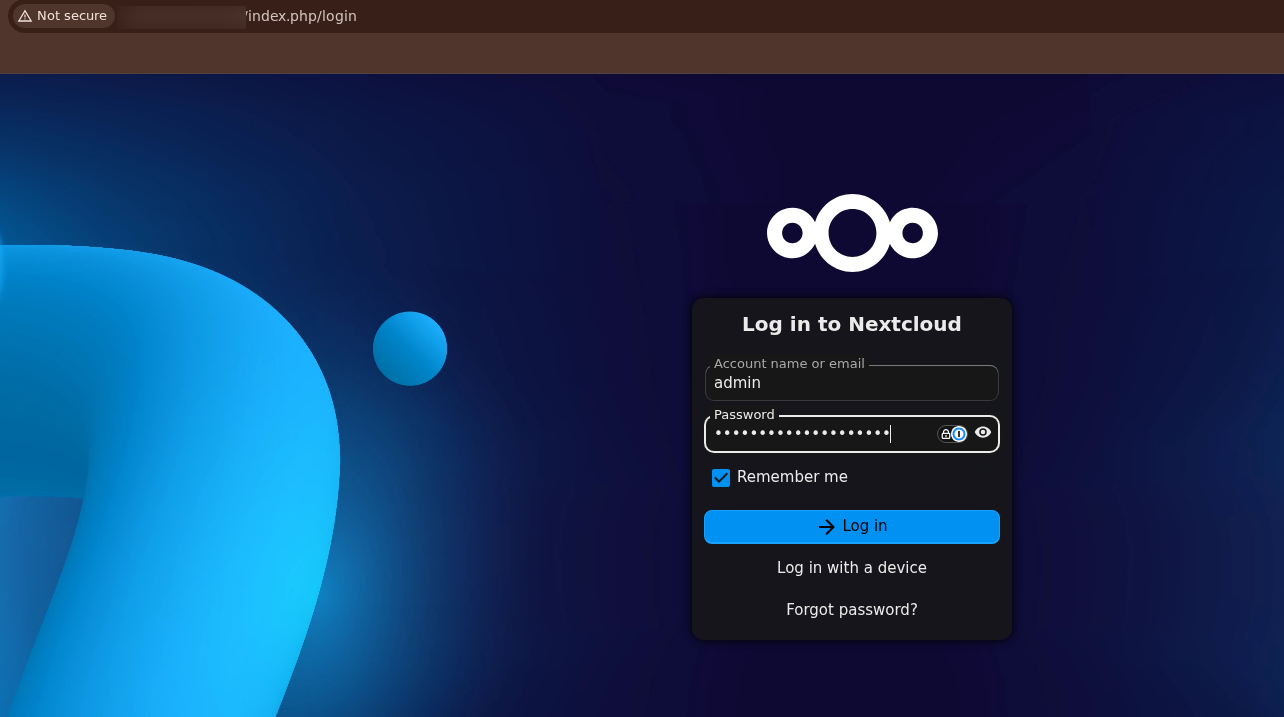
Step 14: Now open your browser and go to the admin dashboard URL provided in the file. Enter the login details, and you will be logged into your Nextcloud admin dashboard.
Conclusion
By following the above steps, you can easily deploy a Nextcloud website using a one-click setup on AccuWeb.Cloud. This method eliminates complex manual configurations and allows you to launch your website quickly and efficiently.