
How to manage Rate Cards?
Rate Cards
Define and manage pricing models associated with different account types. Rate cards standardize pricing for customers, vendors, and resellers, and can be marked as defaults for system-wide use.
From Billing Setup, click Rate Cards to view the list, then click Add Rate Card to create a new one.
Steps :
-
- Login to your Admin Reseller Dashboard
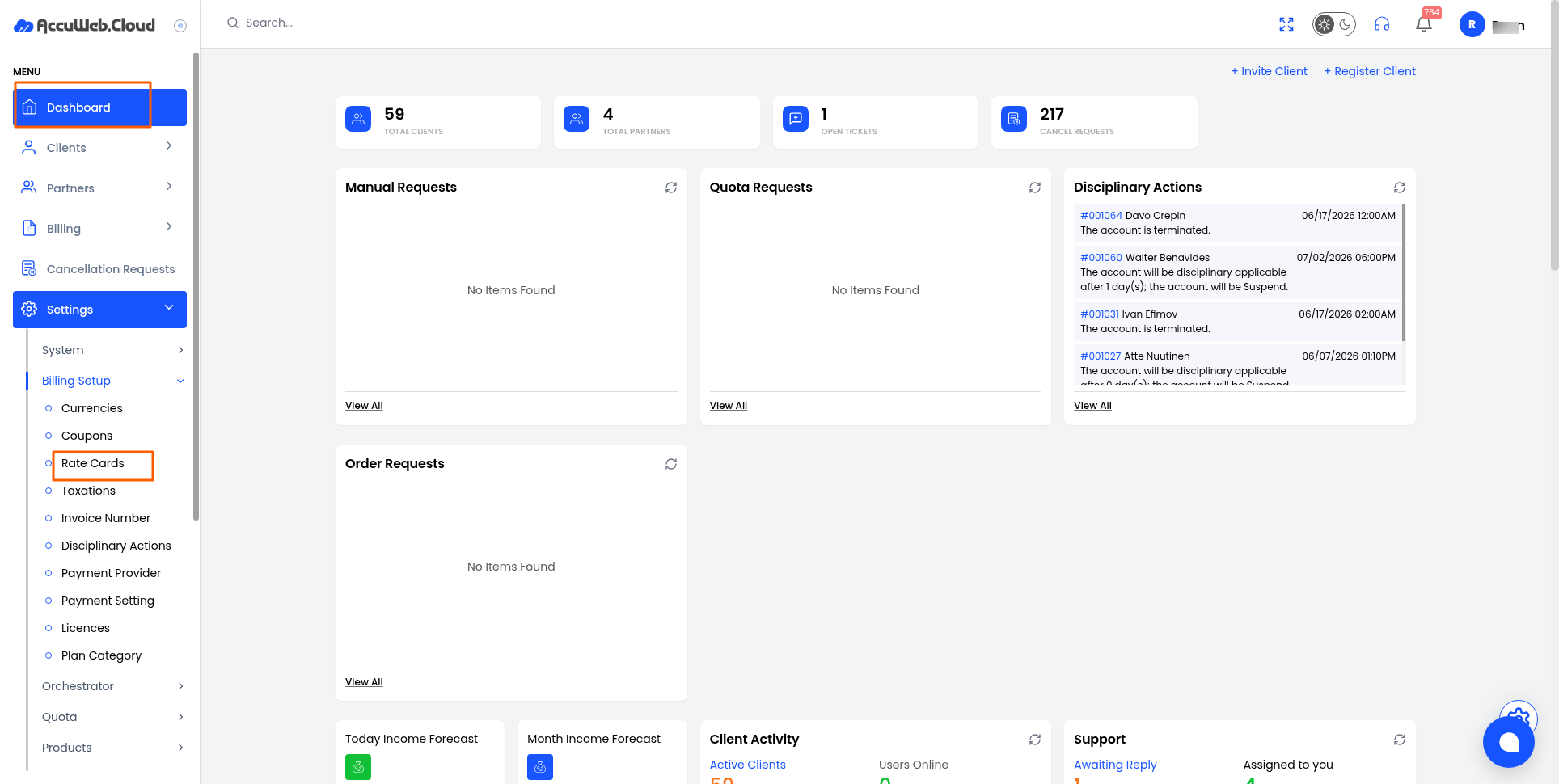
2. Hover to Setting -> BIlling Setup and click on Rate Cards
- Login to your Admin Reseller Dashboard
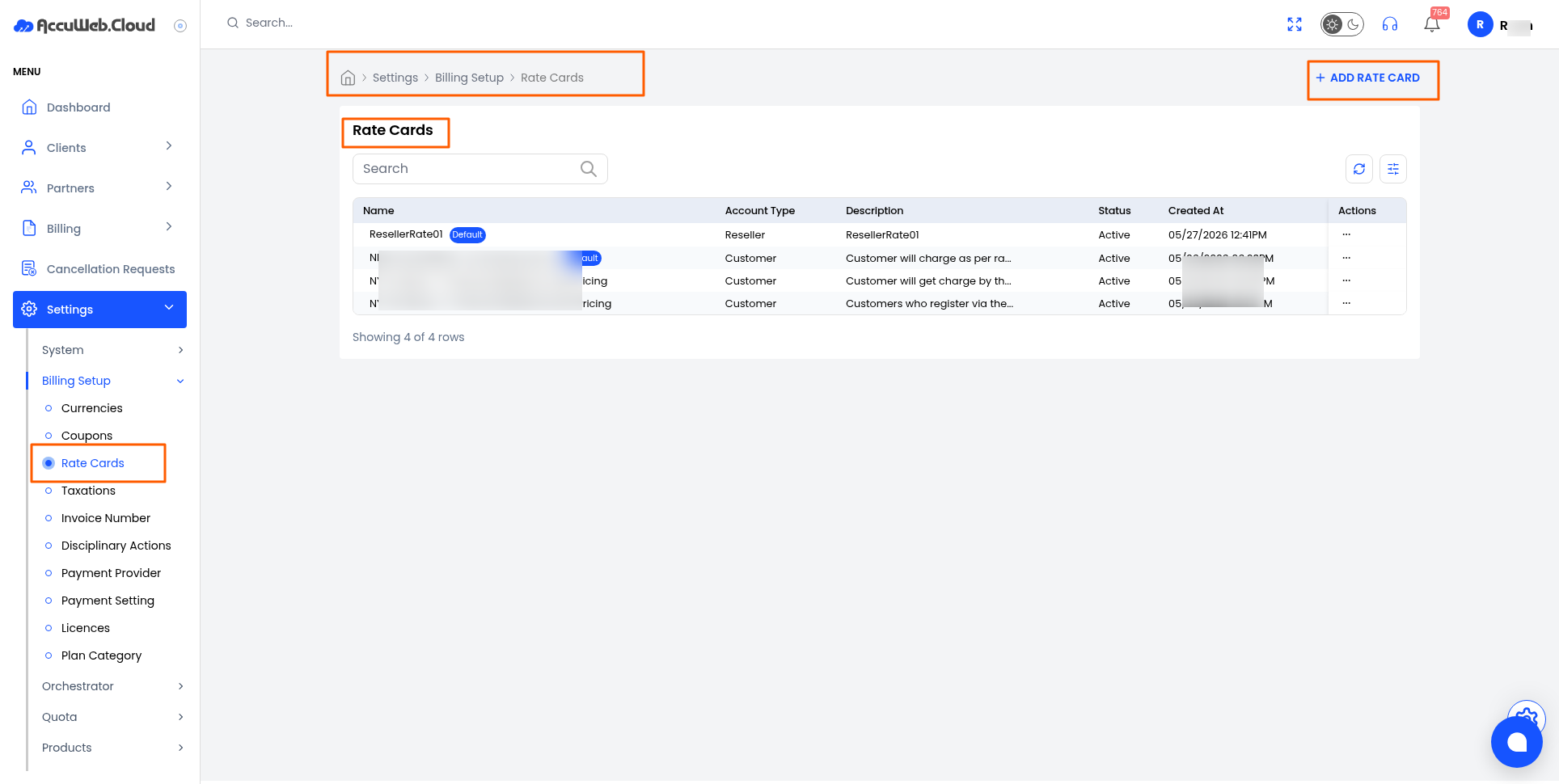
- Name — a clear, unique name for the rate card.
- Description — a short summary of its purpose or scope.
- Account Type — Customer, Vendor, or Reseller.
- Status — Active/Inactive.
- Mark as Default — sets this as the default rate card for new accounts of the selected type.
Note: Once a rate card has been selected and a virtual machine (VM) has been created using that rate card, it cannot be changed later. Please ensure you select the appropriate rate card before provisioning the VM.
Review the details, then click Submit to save and activate.
Reseller cannot add new Rate Cards.
Not registered yet?