
Instance Overview in the AccuWeb Cloud Dashboard
Introduction
The Instance Overview page in the AccuWeb Cloud Dashboard provides a centralized view of your virtual machine (VM) instance. It allows you to monitor the instance status, review configuration details, track resource usage, and perform common management tasks from a single interface.
This page is designed to simplify day-to-day VM administration by providing quick access to operational controls and performance metrics.
Accessing the Instance Overview Page
-
- Log in to the AccuWeb Cloud Dashboard.
- Navigate to the Instances section.
- Select the required virtual machine instance.

Once selected, the system redirects you to the Virtual Machine Overview page, where you can view detailed instance information and management options.
Action Buttons
The Action Buttons section provides quick access to common VM management tasks.
For quick actions from the instance listing page:
- Locate the required instance.
- Click the three-dot menu on the right side of the instance entry.
- Select the desired action.
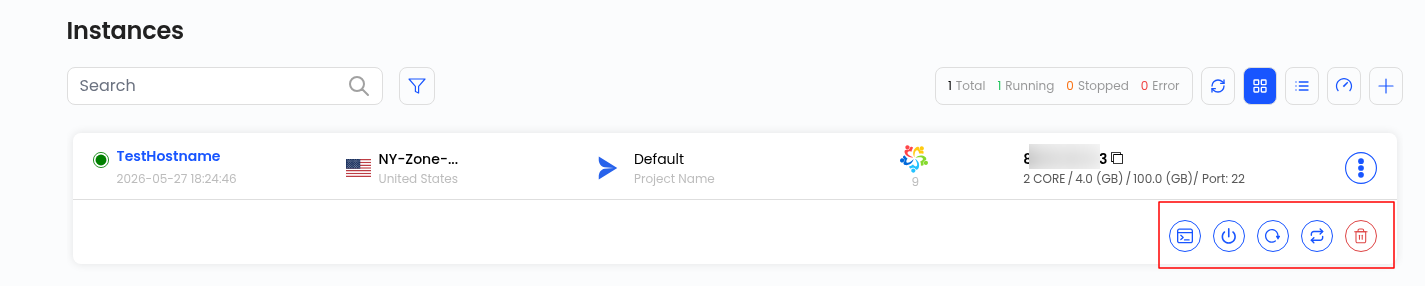
You can also click directly on the instance name to access the full Virtual Machine Overview page for additional management options.

Available Actions
| Action | Description |
| Refresh | Updates the instance status and refreshes page information. |
| Console Access | Opens the VM console for direct interaction with the instance. |
| VM Volume Snapshots | Displays existing snapshots or allows creation of a new VM snapshot for backup or recovery purposes. |
| Power Off | Shuts down the virtual machine. |
| Reboot | Restarts the VM instance. |
| Attach ISO for VM | Mounts an ISO image to the VM for installation, troubleshooting, or recovery operations. |
| Delete | Permanently deletes the virtual machine instance. |
Important: Deleting an instance is irreversible unless a backup or snapshot is available.
Instance Information

The Instance Information section displays the primary details of the virtual machine.
| Field | Description |
| Instance Name | Displays the assigned VM name. |
| Created On | Shows the date and time when the instance was created. |
| Status | Indicates the current operational state of the VM, such as Running or Stopped. |
Instance Details
The Instance Details section provides additional information about the VM environment and deployment.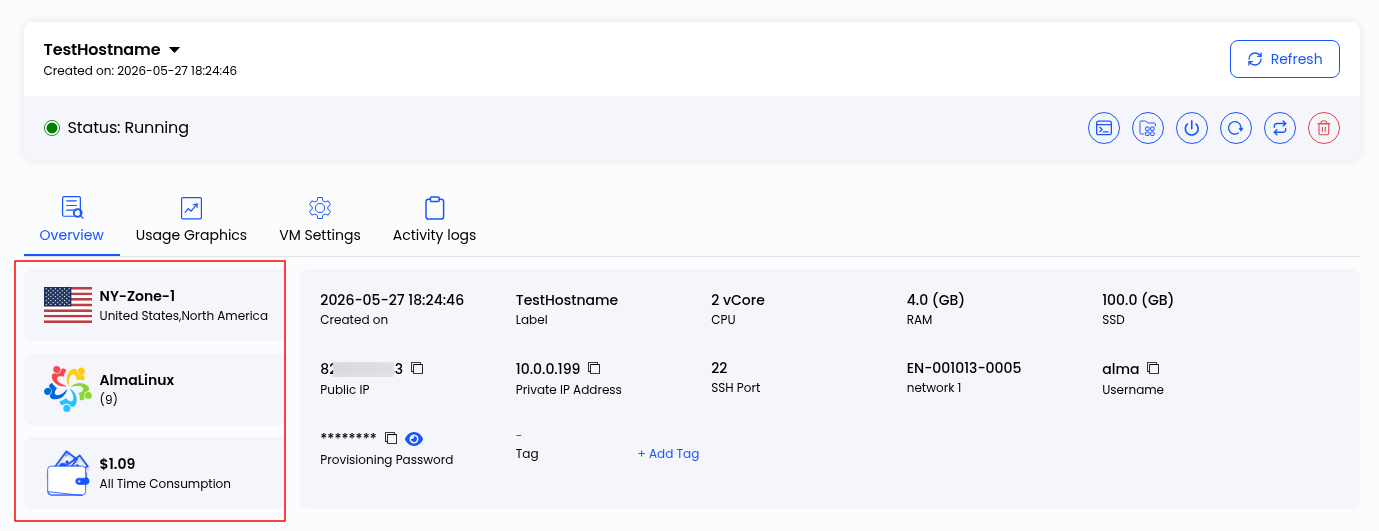
| Field | Description |
| Location | Displays the datacenter region where the VM is hosted. |
| Operating System | Shows the operating system installed on the instance. |
| Cost | Displays the total accumulated usage cost for the VM. |
Resource Specifications
The Resource Specifications section provides configuration details and network information associated with the virtual machine.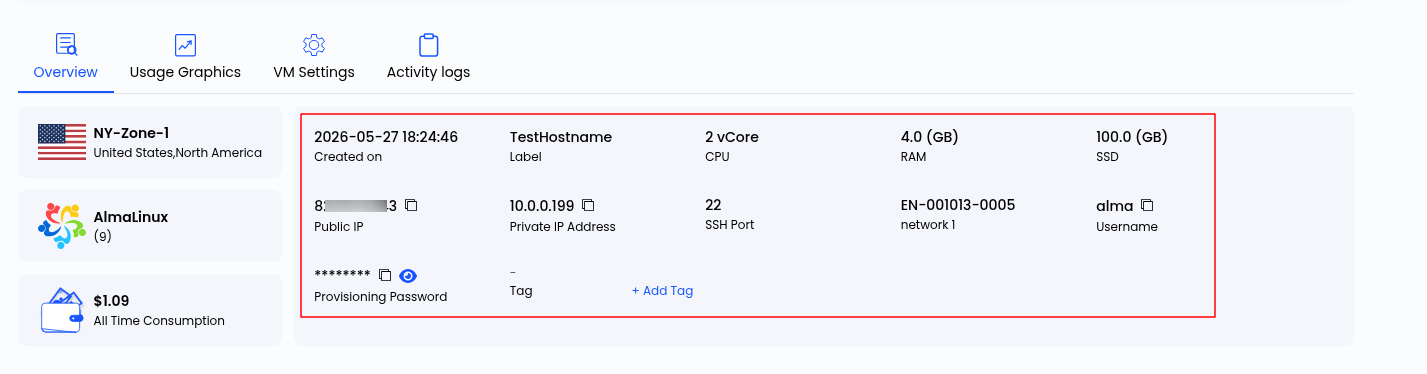
| Field | Description |
| Label | Custom label assigned to the VM for identification purposes. |
| CPU | Number of virtual CPUs allocated to the instance. |
| RAM | Total memory allocated to the VM. |
| Disk Size | Allocated storage capacity for the instance. |
| Public IP Address | Publicly accessible IP address assigned to the VM. |
| Private IP Address | Internal network IP address used for private communication. |
| Network | Displays the associated network configuration. |
| Username | Default login username for the virtual machine. |
| Password | Password configured for VM access. |
| Affinity Group | Defines VM placement rules for workload distribution and optimized performance. |
| Tag | Labels used for organization and resource categorization. |
Adding a Tag
To add a tag to the instance:
- Click Add Tag.
- Enter the required Key and Value.
- Click Submit.
Tags help organize and identify resources efficiently, especially in multi-instance environments.
Resource Usage
The Resource Usage section provides performance metrics and usage statistics for the virtual machine.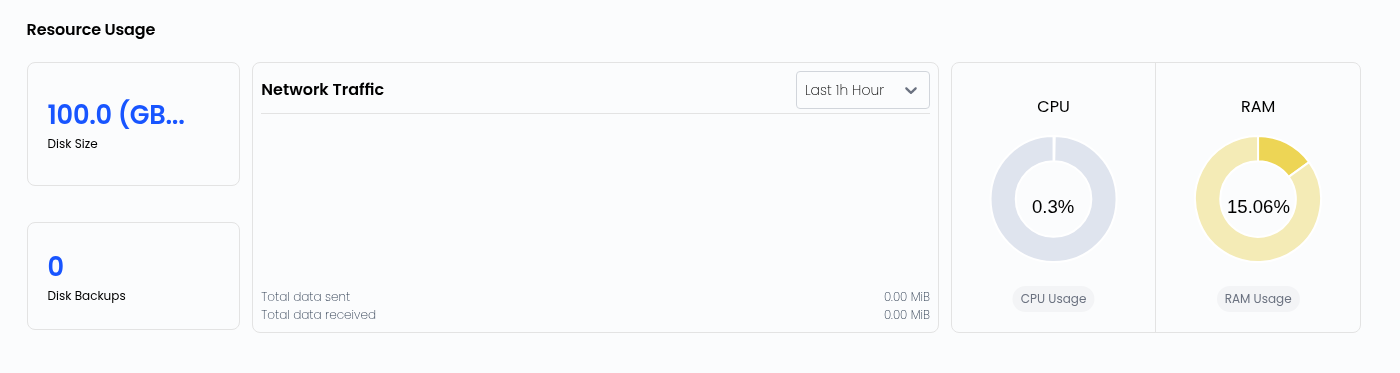 These metrics help monitor system health, identify resource bottlenecks, and analyze VM activity over time.
Available Metrics
| Metric | Description |
| Disk Size | Displays current disk usage capacity. |
| Network Traffic | Shows network activity metrics over a selected time range. By default, data is displayed for the last 24 hours. |
| CPU Usage | Displays the current percentage of CPU utilization. |
| RAM Usage | Shows current memory consumption by the instance. |
Monitoring these metrics regularly can help maintain optimal VM performance and resource allocation.
Best Practices
- Monitor CPU and RAM usage regularly to avoid resource exhaustion.
- Use snapshots before performing major system changes or upgrades.
- Apply tags to organize instances by project, environment, or workload type.
- Reboot the VM after significant configuration changes when required.
- Restrict console and credential access to authorized users only.
Conclusion
The Instance Overview page provides a centralized and efficient way to manage virtual machine instances within the AccuWeb Cloud Dashboard. It combines operational controls, configuration details, and real-time resource monitoring into a single interface, helping users manage VM environments more effectively and efficiently.
Still don’t have an account?