
How to Change VM Plan in AccuWeb.Cloud Dashboard?
Introduction
The Change Plan feature allows you to modify your virtual machine’s resource allocation based on changing workload requirements.
Using this option, you can adjust resources such as:
- CPU cores
- RAM
- Storage capacity
This helps optimize your infrastructure for either higher performance or reduced operational costs, depending on your usage requirements.
Accessing the Change Plan Option
To modify your VM plan:
1. Log in to the AccuWeb Cloud Dashboard.
2. Navigate to the required virtual machine.
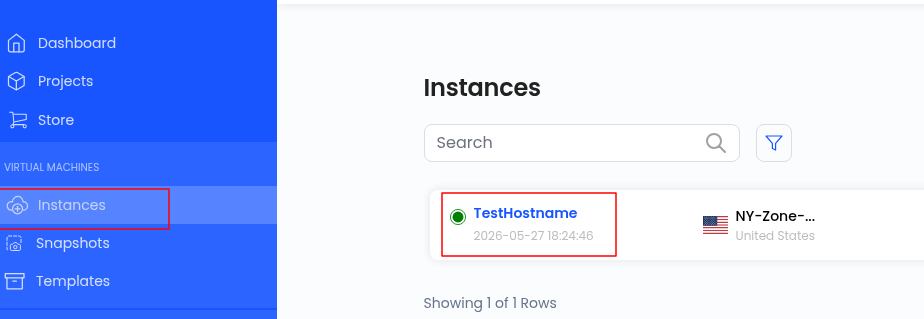
3. Open the VM Settings section.
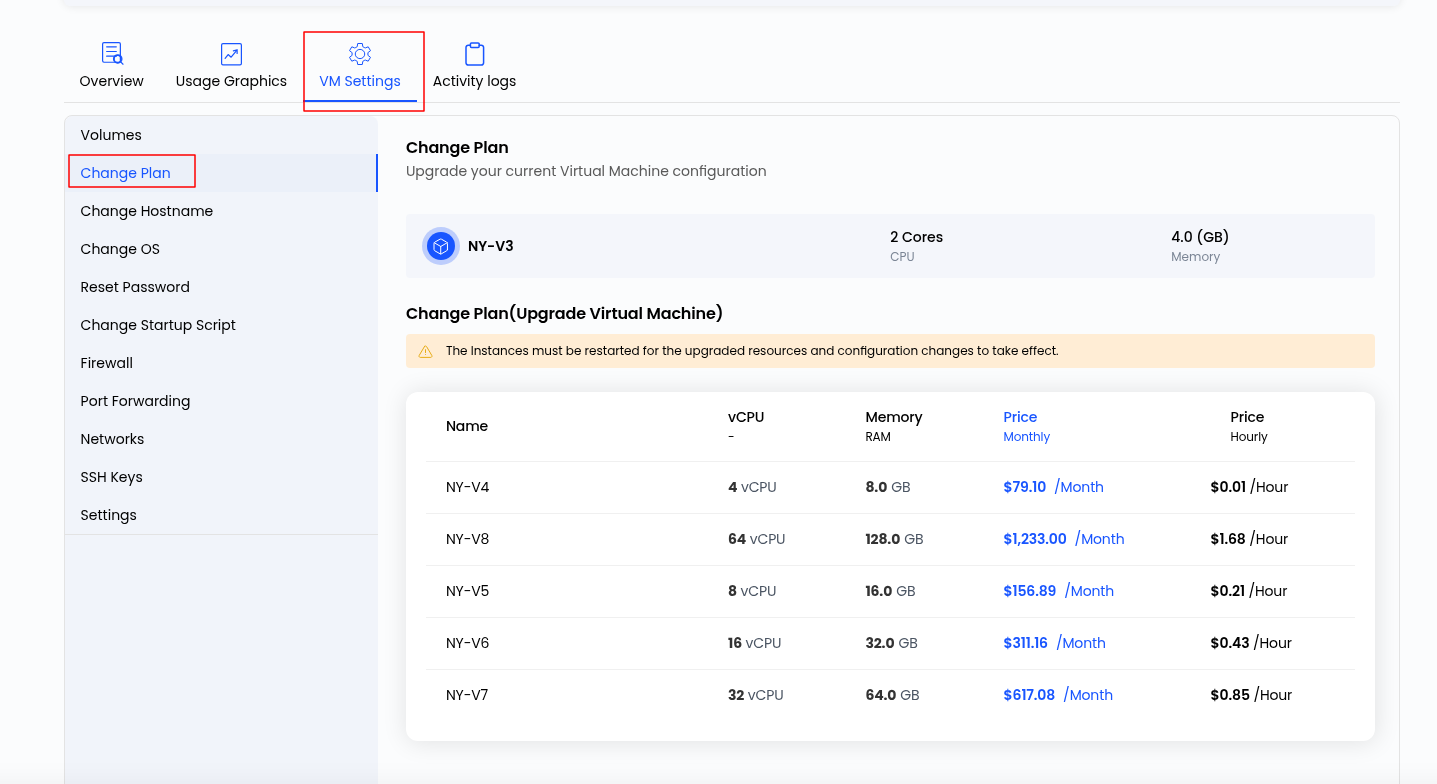
4. Select Change Plan.
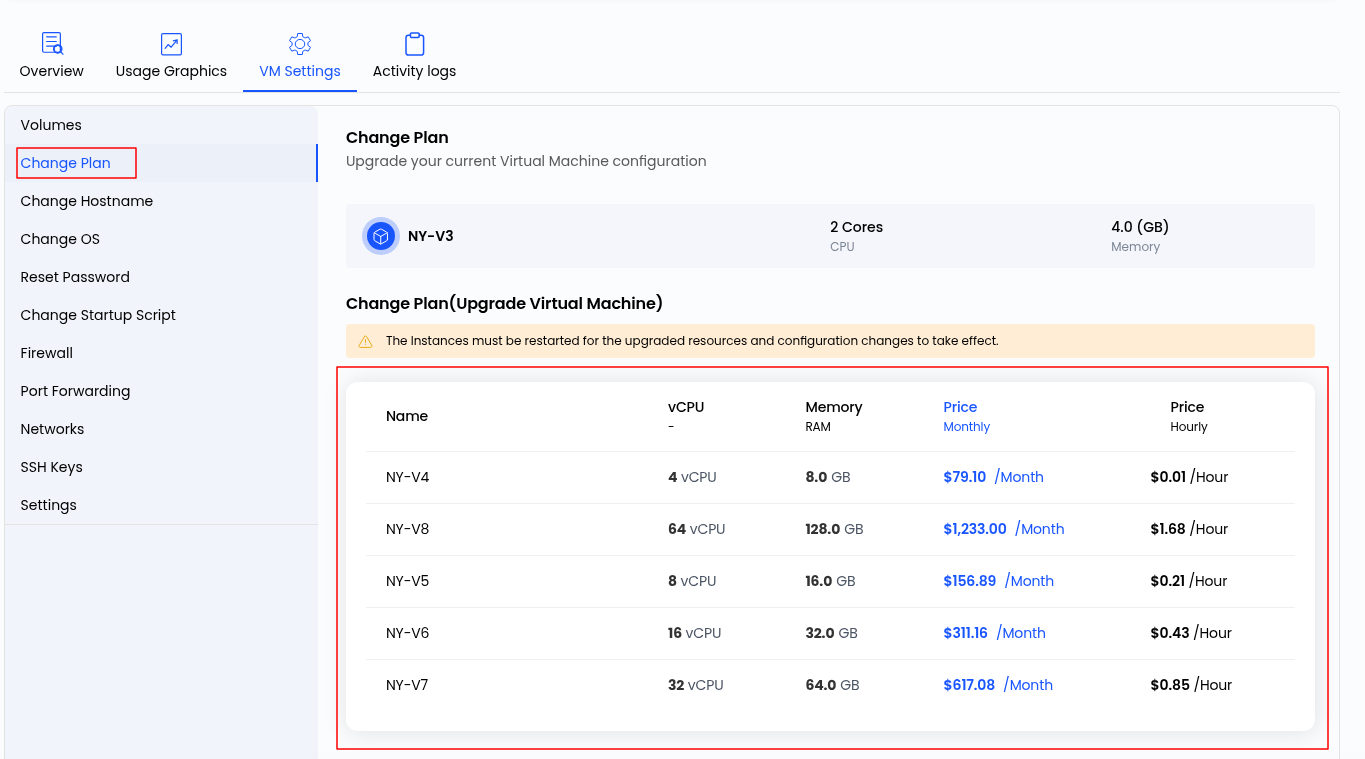
Selecting and Changing the VM Plan
Follow the steps below to update the VM configuration:
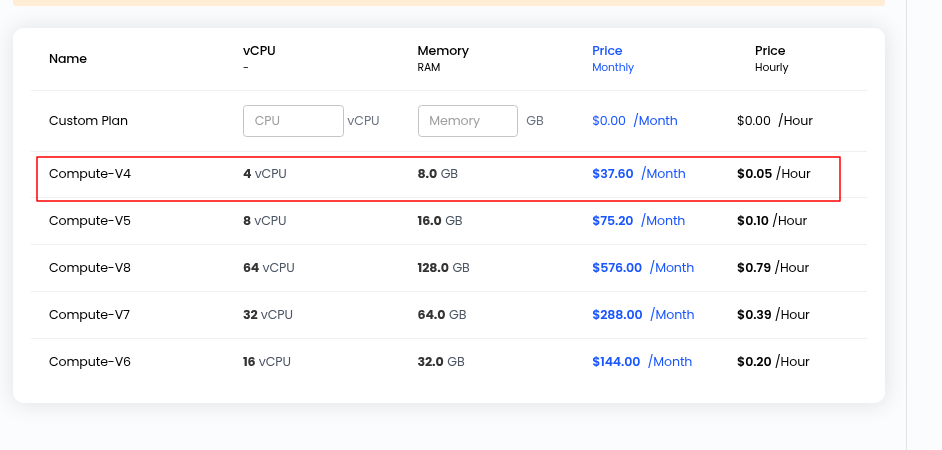
- Review the available predefined plans and Select a suitable plan based on your resource requirements.
- Review the updated resource allocation and pricing details.
- Click Review and Change Plan to apply the changes.
Important Notes
Warning: Downgrading VM resources is currently not supported.
Shrinking the virtual hard disk may lead to data loss and is therefore restricted.
Additional considerations:
- Some plan changes may require a VM reboot.
- Temporary downtime may occur during resource reallocation.
- Ensure sufficient backups or snapshots are available before making major infrastructure changes.
Conclusion
The Change Plan feature provides a flexible way to scale VM resources based on operational requirements. Whether optimizing for performance or managing infrastructure costs, adjusting the VM plan helps ensure your environment remains aligned with workload demands and business needs.