
How to Set Up Auto Pay?
Auto Pay helps keep your account funded automatically by purchasing infra credits whenever your balance reaches or falls below a specified threshold.
Why Use Auto Pay?
Auto Pay helps prevent service interruptions caused by insufficient infra credits and reduces the need to manually monitor and replenish your account balance.
For example, if you set the Balance Threshold to $10 and the Top-Up Amount to $50, Auto Pay will automatically purchase $50 worth of infra credits whenever your balance falls to $10 or below.
How to Set Up Auto Pay?
- Log in to your MyAccount: https://manage.accuweb.cloud/
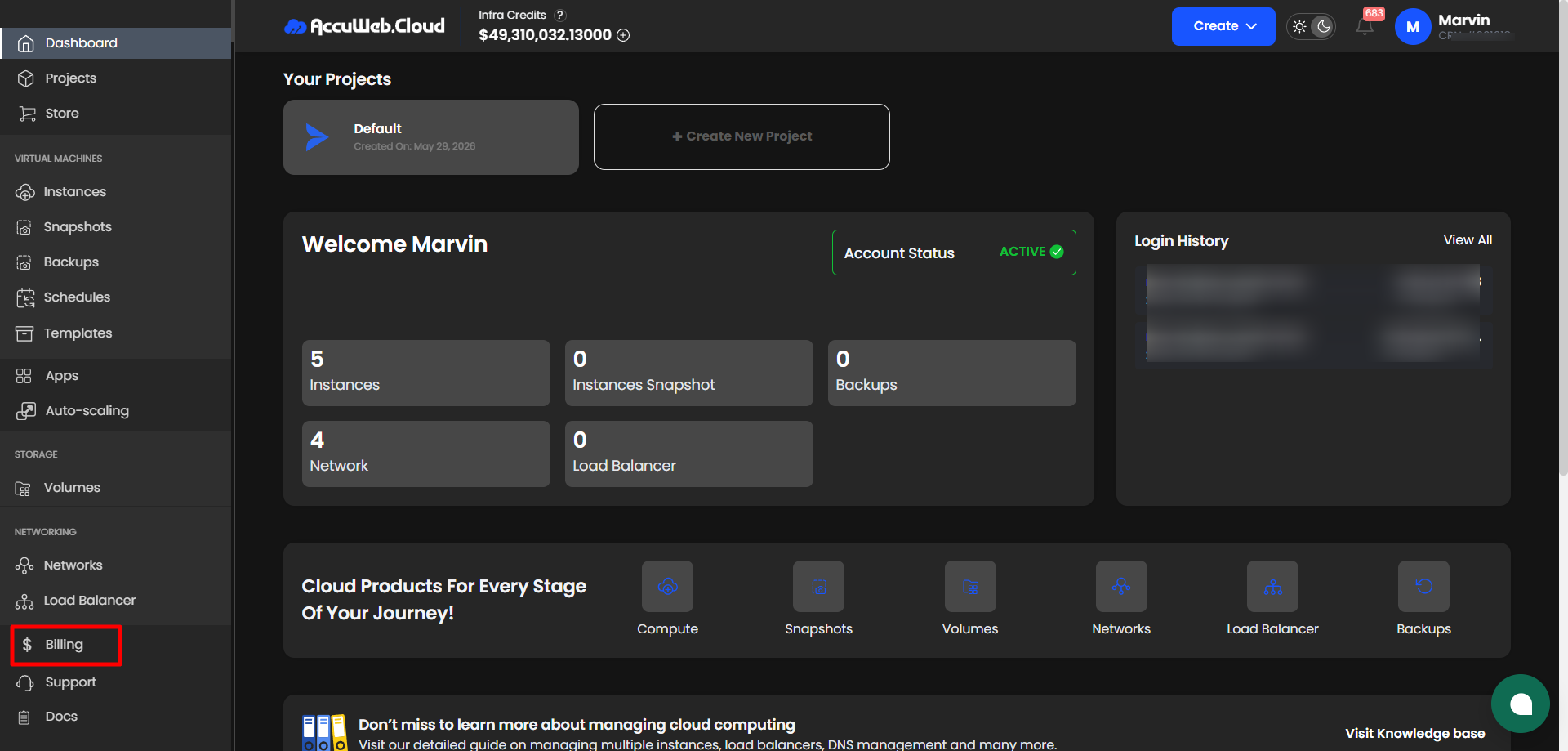
2. Go to Billing → Auto Pay.
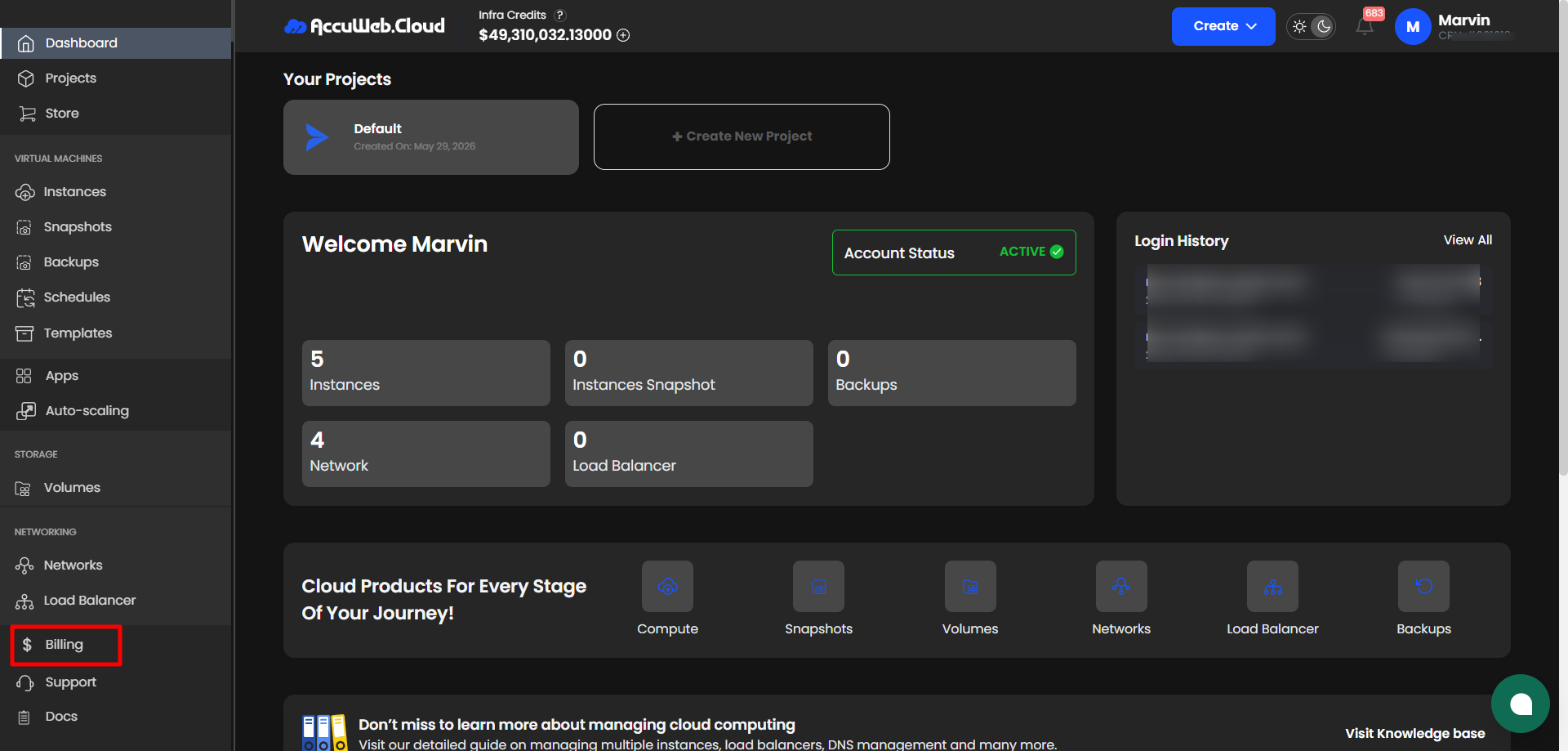
3. Enter your desired Balance Threshold: The minimum balance at which Auto Pay should be triggered
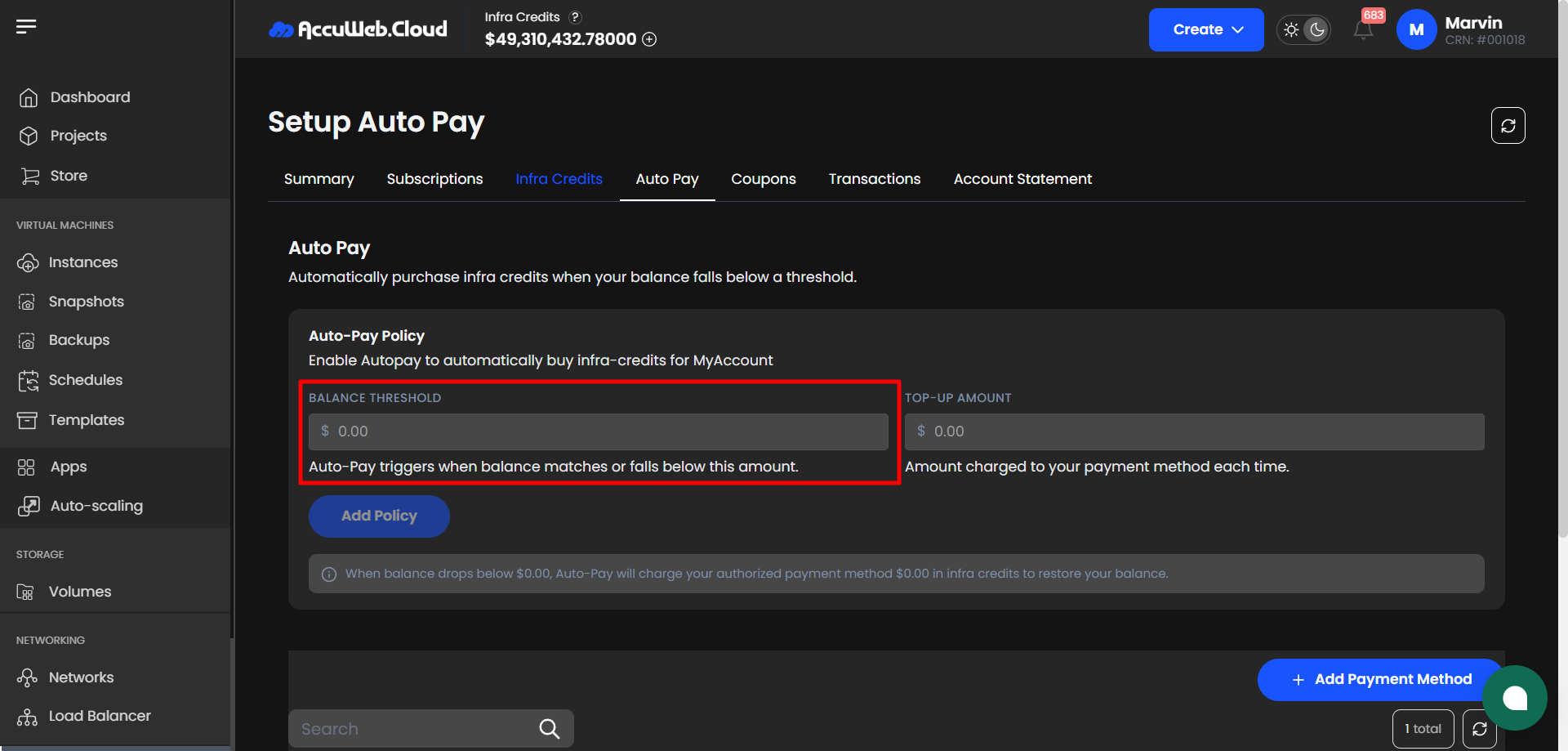
4. Enter the Top-Up Amount: The amount automatically charged to your authorized payment method to purchase infra credits.
For example, if you set the Balance Threshold to $10 and the Top-Up Amount to $50, Auto Pay will automatically purchase $50 worth of infra credits whenever your balance falls to $10 or below.
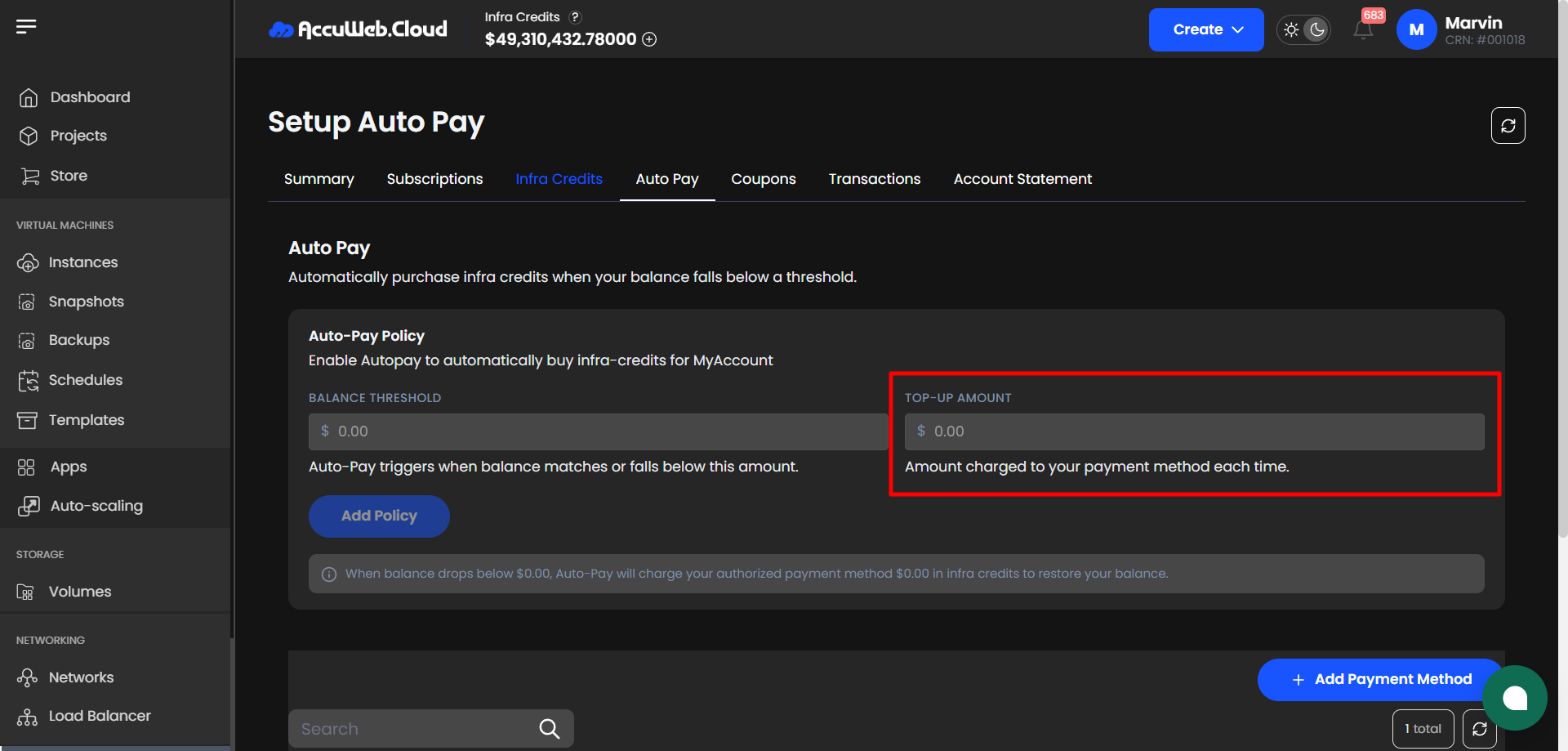
5. Click Add Policy.
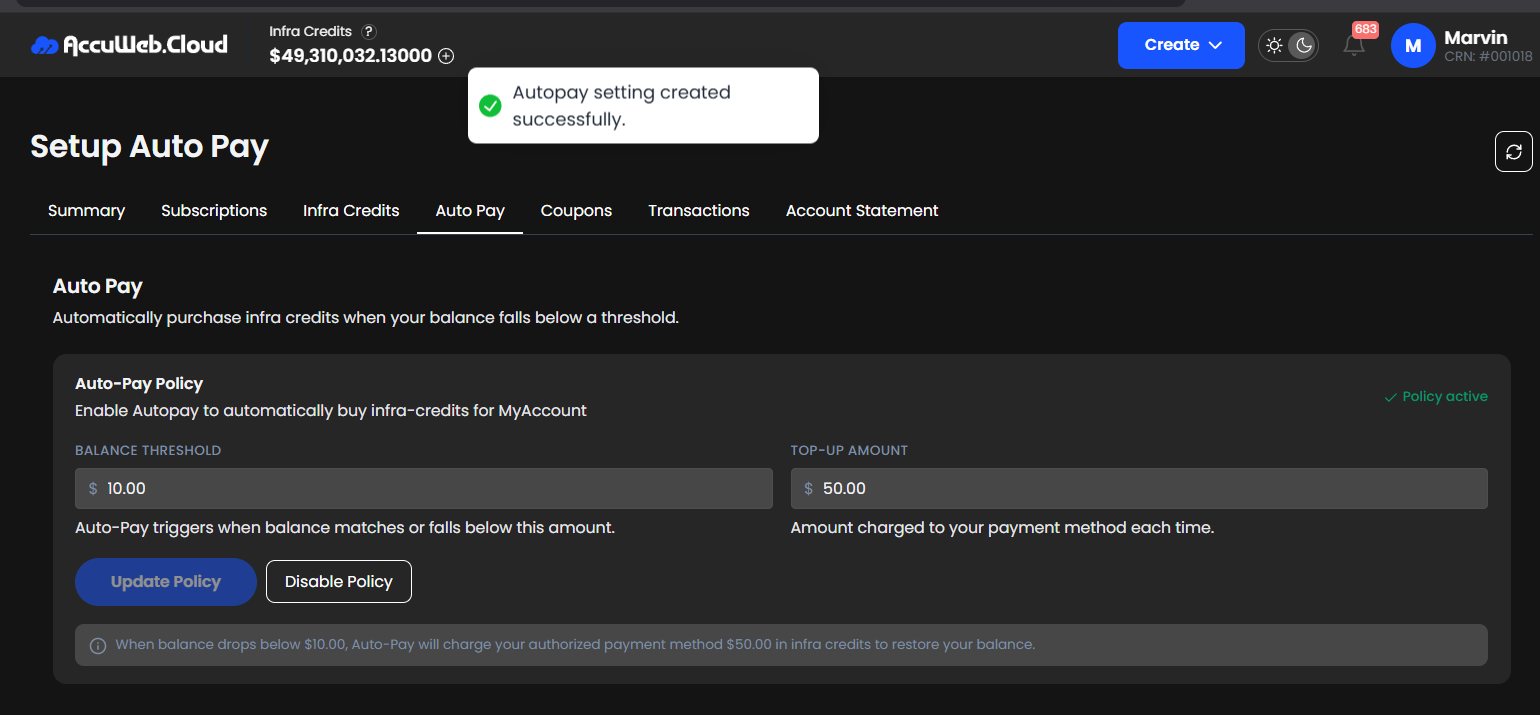
6. Confirm that the Auto Pay policy is enabled.
Once configured, your account will automatically purchase infra credits using your authorized payment method whenever the balance reaches or falls below the specified threshold.
Note: Auto Pay charges your authorized payment method according to the policy you configure. Make sure your payment method is valid and has sufficient funds.