
How to Create an Auto Scaling in AccuWeb.Cloud?
Auto Scaling helps automatically increase or decrease the number of virtual machine instances based on resource utilization and workload demand. This ensures your applications maintain optimal performance during traffic spikes while reducing costs during low-usage periods.
With Auto Scaling, you can define scaling policies, resource limits, and trigger conditions that automatically adjust your infrastructure without manual intervention.
Accessing Auto Scaling
Step 1: Log in to AccuWeb.Cloud Panel. – https://manage.accuweb.cloud/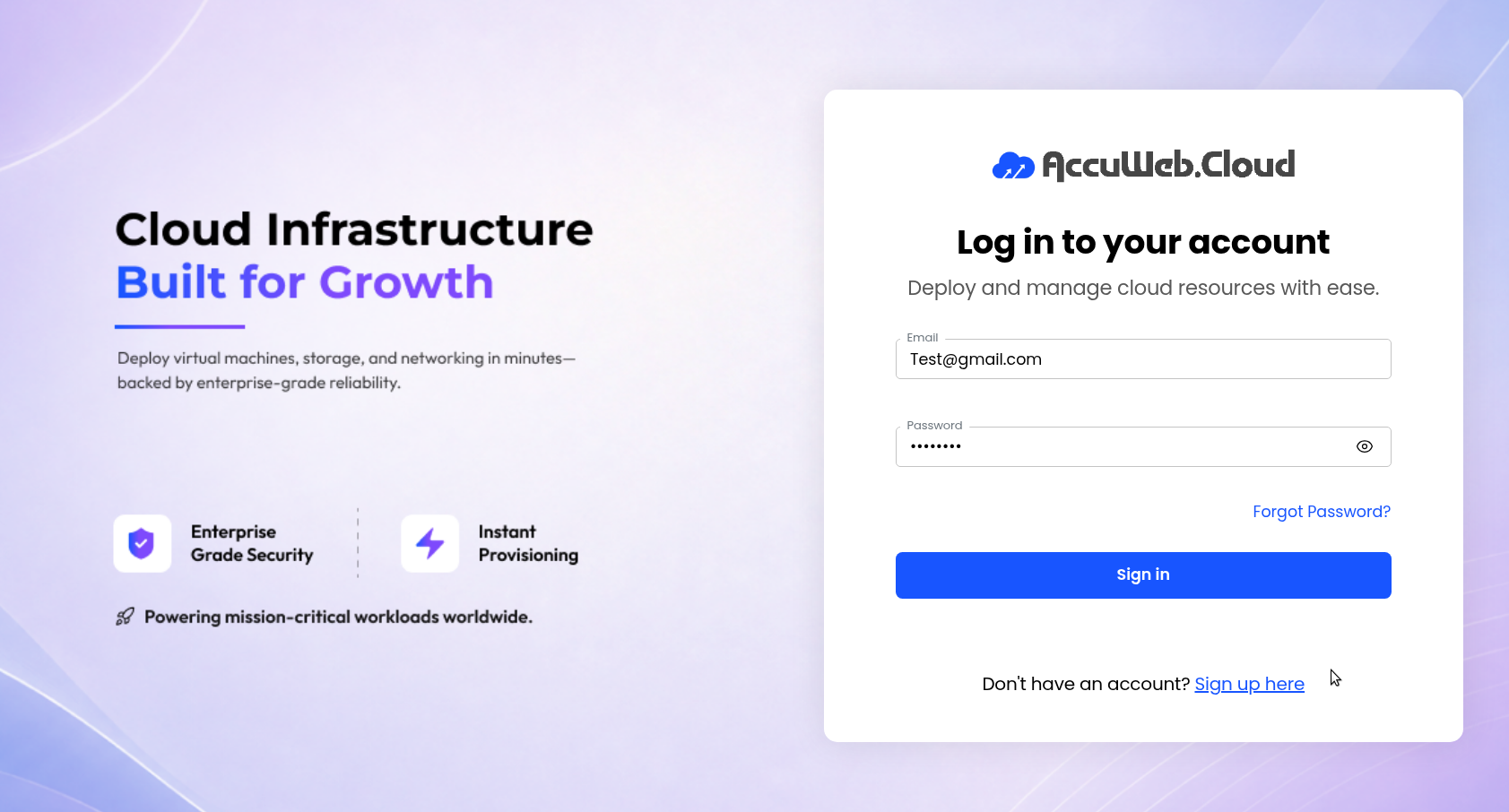
Step 2: Navigate to Auto Scaling from the left-side menu.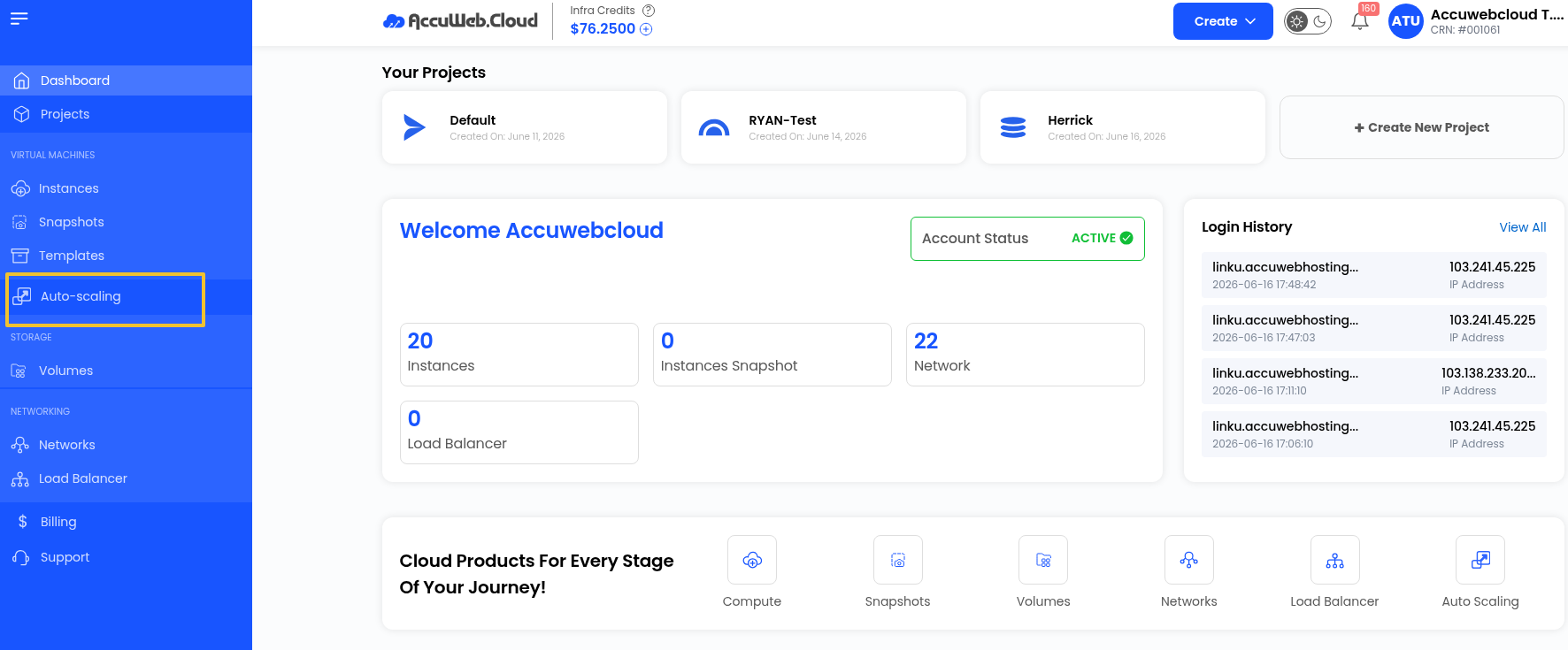
Step 3: Click Create Auto Scaling.
Configure Basic Information
The first step is to define the basic settings for your Auto Scaling Group.
Select the Project where the scaling group will be created. 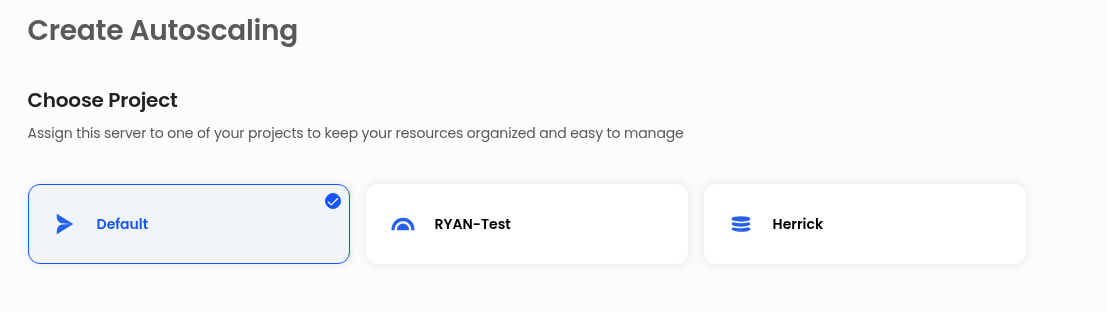
Choose the Region/Zone where the instances will be deployed.
These settings determine where and how your instances will be managed.
Choose Network
Select an existing network for the Auto Scaling group.
You can choose:
- An isolated network
- An existing virtual network
- VPC Network
Alternatively, click Create New Network to create a new network during deployment.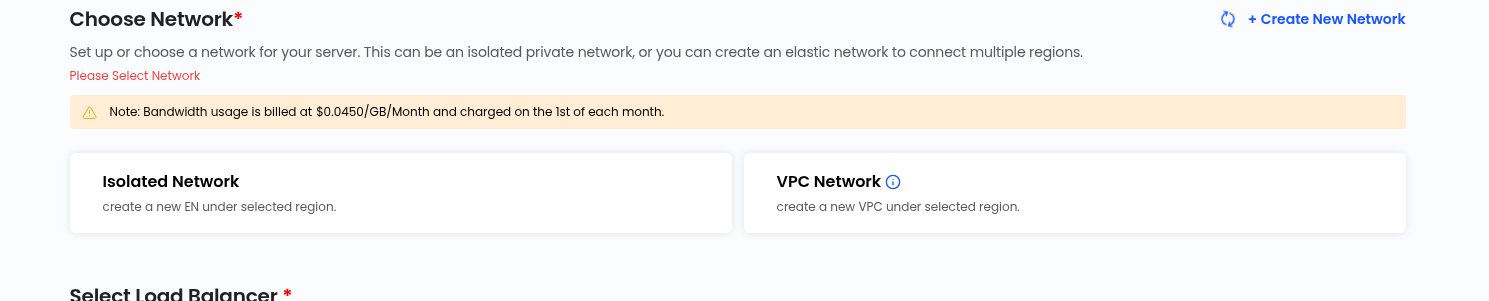
Select Load Balancer
Choose the Load Balancer that will distribute incoming traffic across all instances created by the Auto Scaling group.
The Load Balancer helps improve availability and ensures requests are evenly distributed across instances.
Select Rule
Rules define how traffic is distributed from the load balancer to backend instances.
When you click Select Rule, you will see available forwarding rules configured for the load balancer.
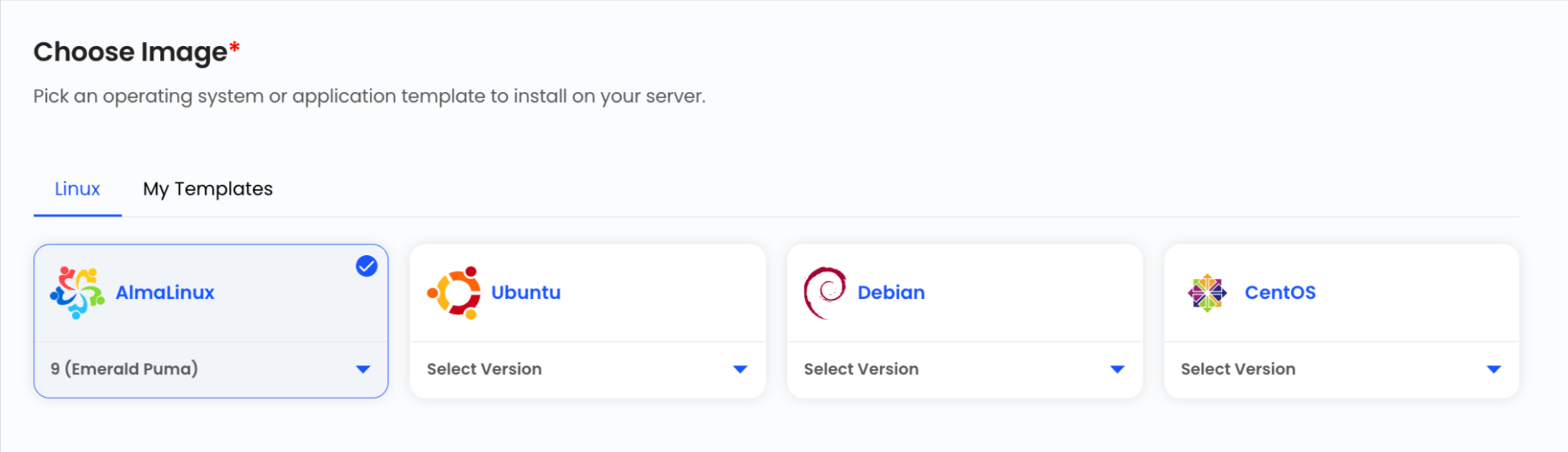
Choose Image
Pick an operating system or application template that will be installed on every new server created by Auto Scaling.
Each instance launched by Auto Scaling will automatically use the selected image.
Compute Offering
Choose a compute plan based on CPU, memory, and performance requirements.
This determines the power and cost of each instance created by Auto Scaling.

Each plan shows pricing in both monthly and hourly formats.
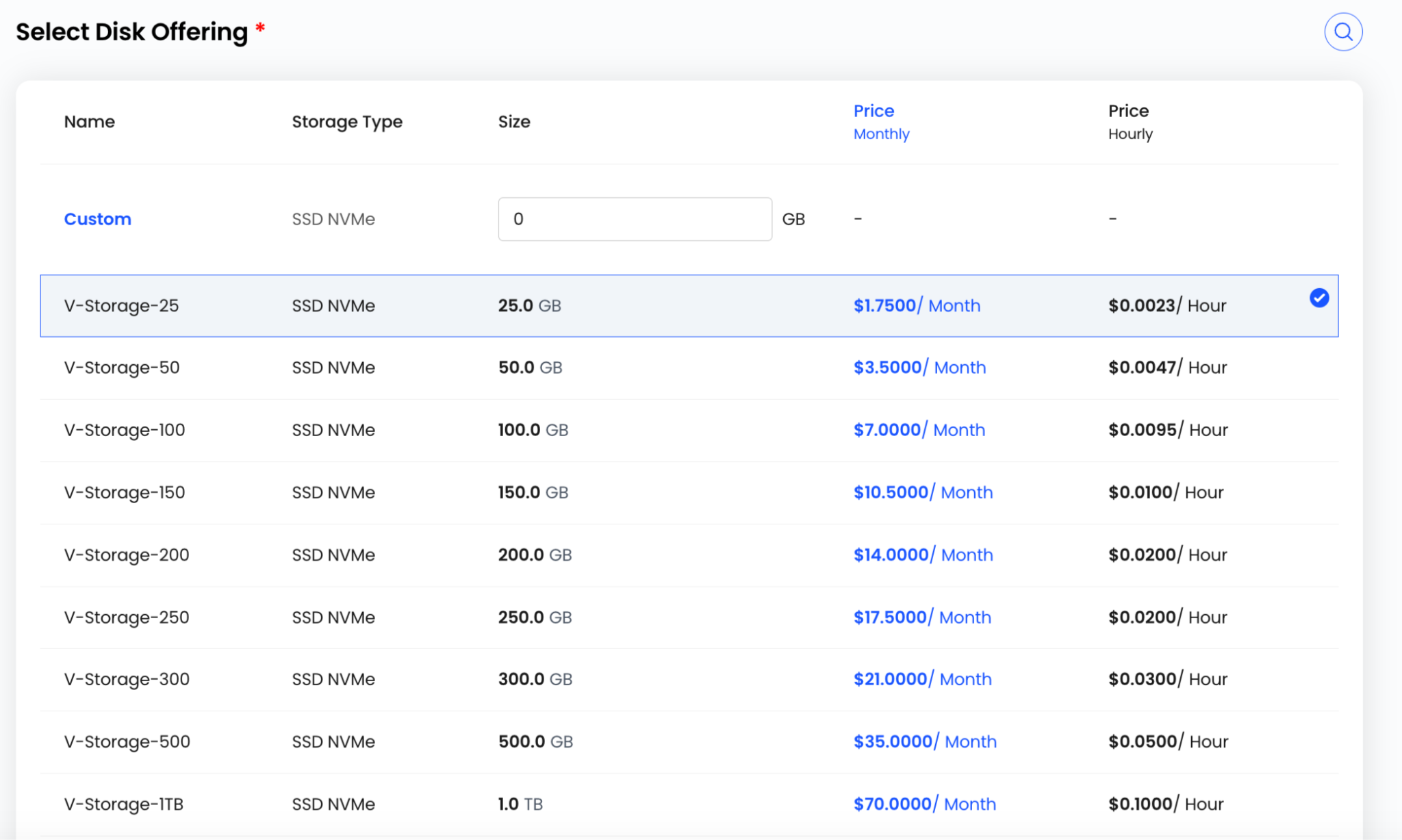
Select Disk Offering
Choose the storage type and size for the instance.
Disk options define how much storage each VM will have.
Server Settings
Server settings allow you to secure and automate instance configuration.

You can configure:
Add SSH Key to Your Instance
- Click Add Now
- Attach an existing SSH key for secure login access

Add Startup Script to Your Instance
-
- Click Add Now
- Add scripts to automatically configure the server after deployment
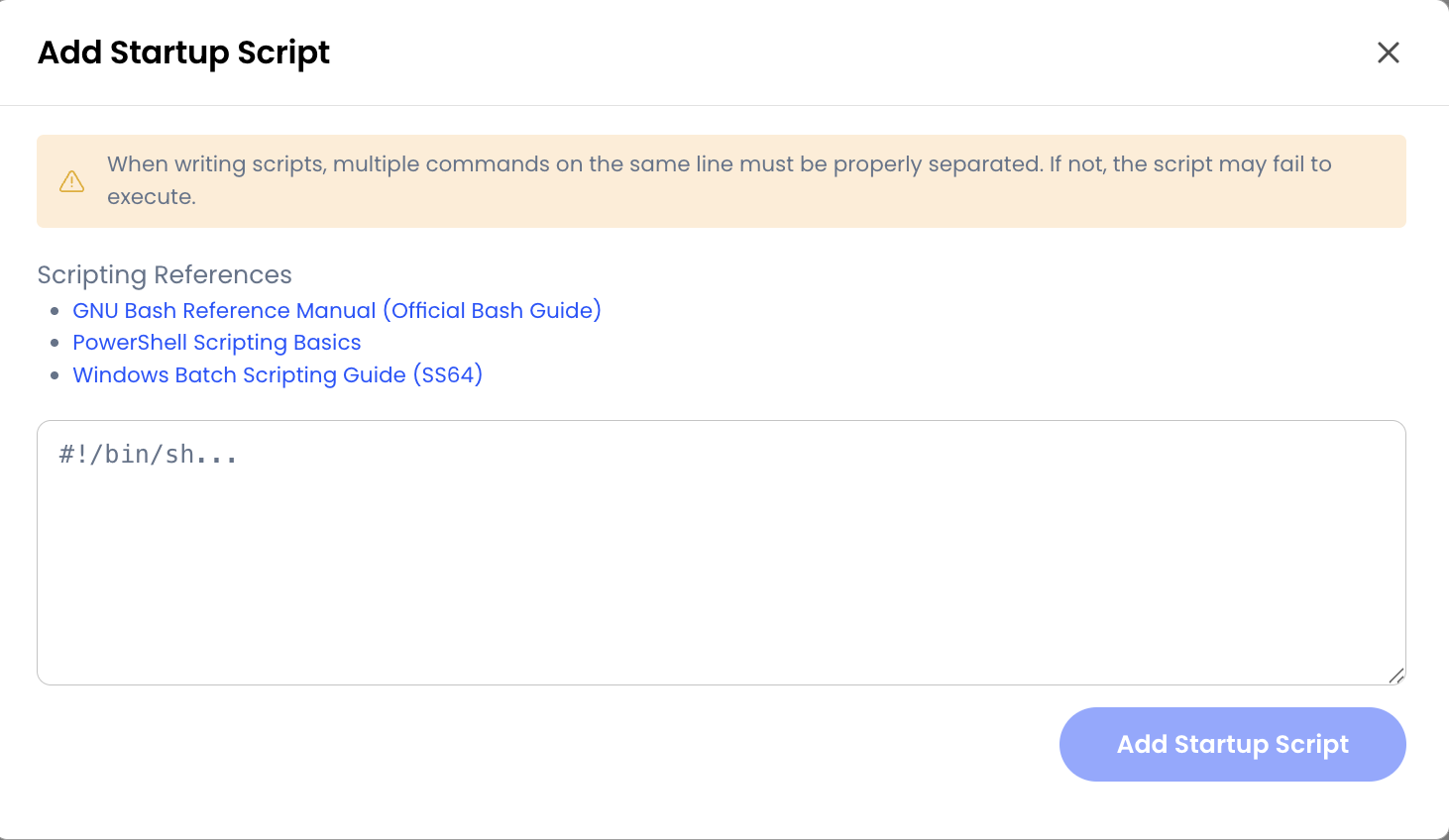 These settings ensure better security and automation for each instance.
Capacity Planner
The Capacity Planner controls how Auto Scaling behaves in terms of instance limits and performance timing.
Minimum Instances
Set the minimum number of instances that must always remain active.
Example: Minimum Instances: 2
Maximum Instances
Set the maximum number of instances Auto Scaling is allowed to create.
Example: Maximum Instances: 5
Expunge VM Grace Period (In Seconds)
Defines the time before a terminated VM is permanently removed.
Example: 300 seconds
This helps prevent accidental permanent deletion.
Polling Interval (In Seconds)
Defines how often Auto Scaling checks system metrics.
Example: 60 seconds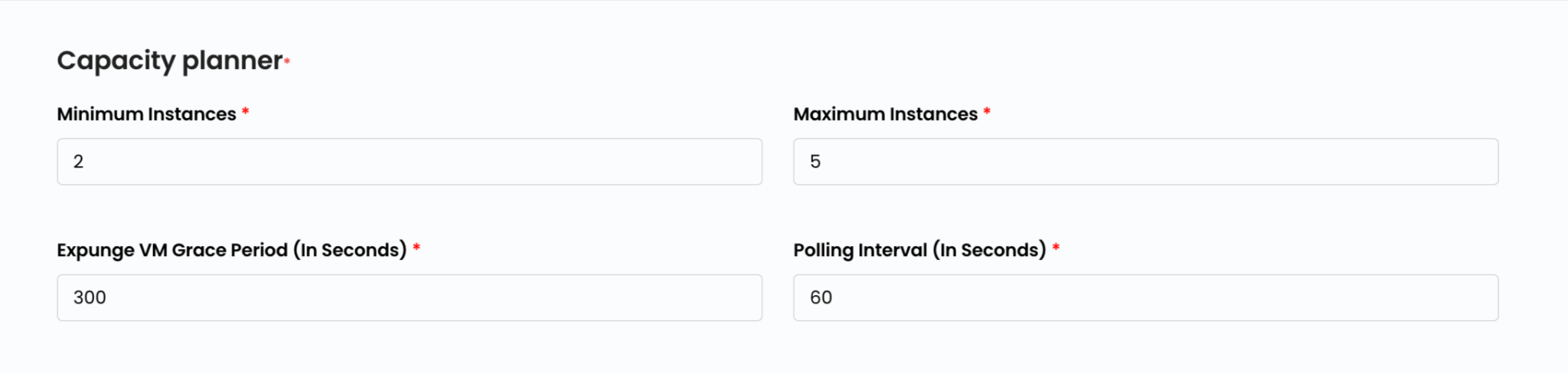
Scale Up Policy
Scale Up Policies define when new instances should be added.
You must add at least one policy.
Fields include:
-
-
- Name – Name of the policy
- Duration (In Sec) – How long the condition must persist
- Quiet Time (In Sec) – Cooldown time before next scaling action
- + Add Policy – Add rules if needed
-
Example behaviour: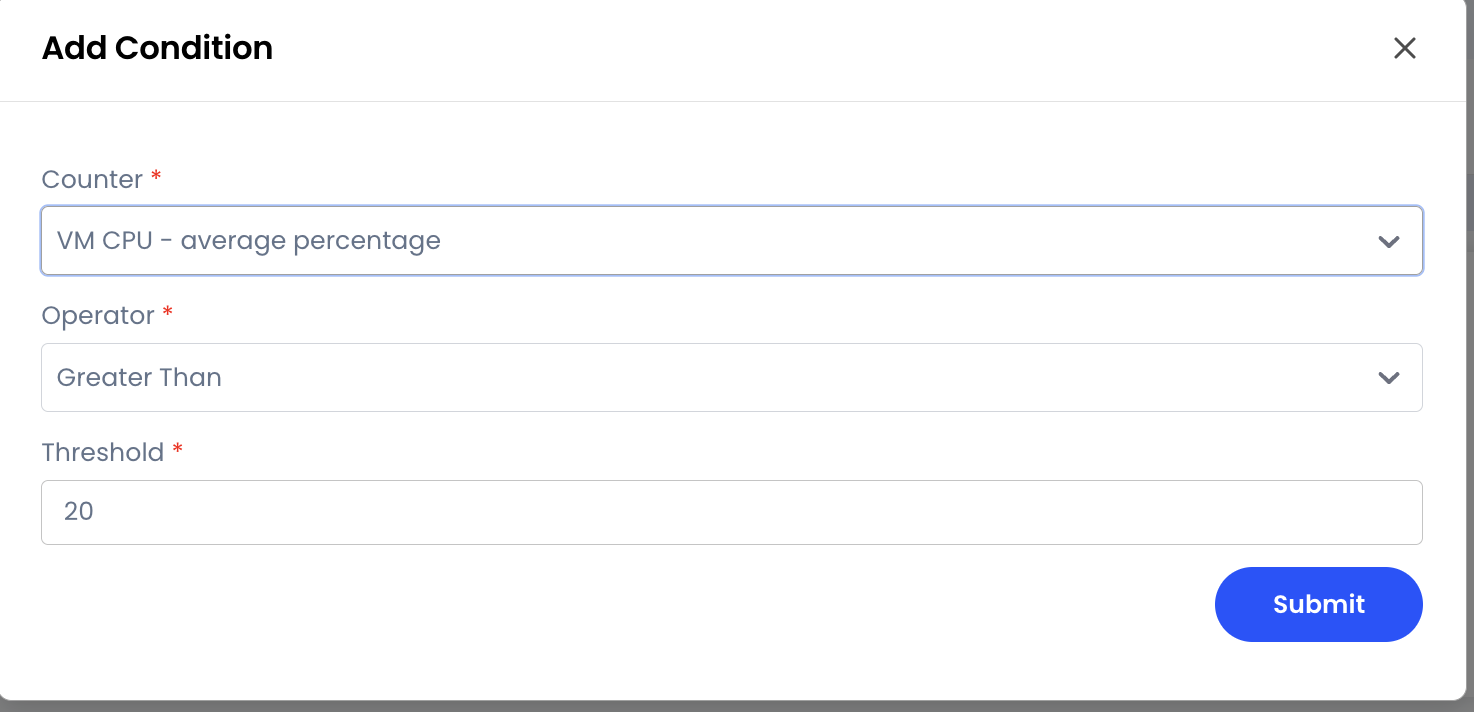
Scale Down Policy
Scale Down Policies define when instances should be removed to reduce cost.
At least one policy is required.

Fields include:
-
-
- Name – Name of the policy
- Duration (In Sec) – How long must low usage persist
- Quiet Time (In Sec) – Prevents frequent scaling actions
- + Add Policy – Add multiple rules if needed
-
Example behaviour:
Auto Scaling Name
Enter a unique name for the Auto Scaling group.
This name helps identify the scaling configuration in your dashboard.
Select Billing Cycle
Choose the desired Billing Cycle for your Auto-scaling. Autoscaling supports hourly and monthly billing cycles.
Review And Create
Conclusion
By correctly configuring each field in the Auto Scaling setup, you ensure that your infrastructure automatically adapts to workload changes while maintaining performance, security, and cost efficiency.
Still don’t have an account?