
Platform API
The Platform API allows developers to automate actions for an application’s lifecycle and extend platform features by integrating other services. With our API, you can create environments, deploy apps, and perform other tasks programmatically that were previously only possible through the platform’s dashboard.
The Platform API follows REST principles, allowing developers to request functions and receive responses via HTTPS. This method’s advantage is its compatibility with almost any programming language due to the widespread use of the HTTPS protocol.
Platform API Request
All API method requests are either GET or POST HTTPS requests with parameters to this URL:
https://{hoster-api-host}/1.0/The URL type to use is specified in each method’s description (REST field).

For GET requests, send parameters in the query string (after “?”), ensuring they are percent encoded (URL encoded). For POST requests, include parameters in the request body.
Note: For security reasons, the GET method is not supported for the following requests:
- Signin: https://{hoster-api-host}/1.0/users/authentication/rest/signin?login=[string]&password=[string]
- Signup: https://reg.{hoster-domain}/signup?email=[string]
- Change password: https://{hoster-api-host}/1.0/users/account/rest/changepassword?oldPassword=[string]&newPassword=[string]&session=[string]
Remember, URL requests have a 2048-character limit. Use GET for short data retrieval and POST for actions like creating environments or changing config files to avoid length restrictions and adhere to HTTPS protocol specifications.
All platform API methods require authentication and action target details, provided through the session and envName parameters. If no envName is specified, the action applies to the entire account/platform. Ignore the deprecated appid parameter.
Provide parameter text values in UTF-8 encoding. The order of parameters in the request does not matter.
Platform API Response
API responses are UTF-8 encoded and provided in JSON format. Examples of responses are in the method documentation.
Platform API in Action
To automate processes using the Platform API, you need:
- An account with an AccuWeb.Cloud.
- The appropriate Platform Client Library for your platform version added to your classpath.
If you use Maven, add this dependency to your pom.xml:
<dependency>
<groupId>com.jelastic</groupId>
<artifactId>jelastic-public-j2se</artifactId>
<version>3.1</version>
</dependency>
To call any API function, you must be authenticated. Use the “session” parameter for authentication, obtained by calling the Users > Authentication > Signin method:
https://{hoster-api-host}/1.0/users/authentication/rest/signin?login=[string]&password=[string]Replace login and password with your AccuWeb.Cloud account credentials.
Subsequent API calls should use the received session value. To end the session, call the Users > Authentication > Signout method:
https://{hoster-api-host}/1.0/users/authentication/rest/signout?session=[string]Using the Platform Java Client Library, you can automate tasks like creating environments, changing statuses, deleting, restarting nodes, and deploying applications.
Here’s how to create an environment with custom settings using the Platform Client Library.
Create Environment
You can find a detailed example of environment creation in the platform API documentation under the PHP Sample tab. Here’s a step-by-step explanation:
1. First, create a new PHP file with the name createenvironment.php. This file will include all the blocks and parameters needed. The initial parameters block should contain the following:
<?php

$environment = array(
"displayName" => "Test-env-accuweb",
"engine" => "PAAS(0)",
"ishaenabled" => false,
"shortdomain" => "staging-accuweb",
"sslstate" => true
);- Replace “displayName” with the name that you want to display in your environment.
- Replace the short domain with the domain name you set for your environment. This will be used to browse your application.

2. Next, The next section covers the custom settings and configurations for your new environment and its servers.
Enter the details of the application server you want to set up in your environment. Here, we have set up Apache as an application server for an environment.
$environment_json = json_encode($environment);

$node = array(
"count" => 1,
"displayName" => "Application Server",
"extip" => 0,
"fixedCloudlets" => 6,
"flexibleCloudlets" => 42,
"nodeType" => "apache"
);

$node_json = json_encode($node);
Note:
- Replace “displayName” with the name that you want to display for your application server.
- Enter the cloudlets which you want to set as a reserve in the fixedCloudlets field.
- Enter the cloudlets which you want to set as scaling to in the flexibleCloudlets field.
- Select the application server which you want to setup for your environment in the nodeType.

3. Next, configure authentication using the session (token key) which you have created in your AccuWeb.Cloud.
$session = 'b44a7ef2142140c485e77f20e49d7348e58c00cf';
This session will be used for all operations within your account. All further API function calls should be made within this session, which remains valid until you sign out.
4. Then, use the curl function to connect to your AccuWeb.Cloud account through API and create the environment.
$curl = curl_init();
curl_setopt_array($curl, array(
CURLOPT_URL => "https://app.cp-accuweb.cloud/1.0/environment/control/rest/createenvironment?",
CURLOPT_RETURNTRANSFER => true,
CURLOPT_ENCODING => "",
CURLOPT_MAXREDIRS => 10,
CURLOPT_TIMEOUT => 30,
CURLOPT_HTTP_VERSION => CURL_HTTP_VERSION_1_1,
CURLOPT_CUSTOMREQUEST => "POST",
CURLOPT_POSTFIELDS => "nodes=".$node_json."&session=".$session."&env=".$environment_json,
CURLOPT_HTTPHEADER => array(
"cache-control: no-cache",
"content-type: application/x-www-form-urlencoded"
),
));

$response = curl_exec($curl);
$returnData = json_decode($response);

echo "<pre>";
print_r($response);
exit;
6. Finally, initiate the creation of a new environment by running the PHP file you have created (http://accuwebtraining.com/createenvironment.php).

If you receive a blank page after running the PHP file, your environment is created successfully. You can see that the environment is successfully created.
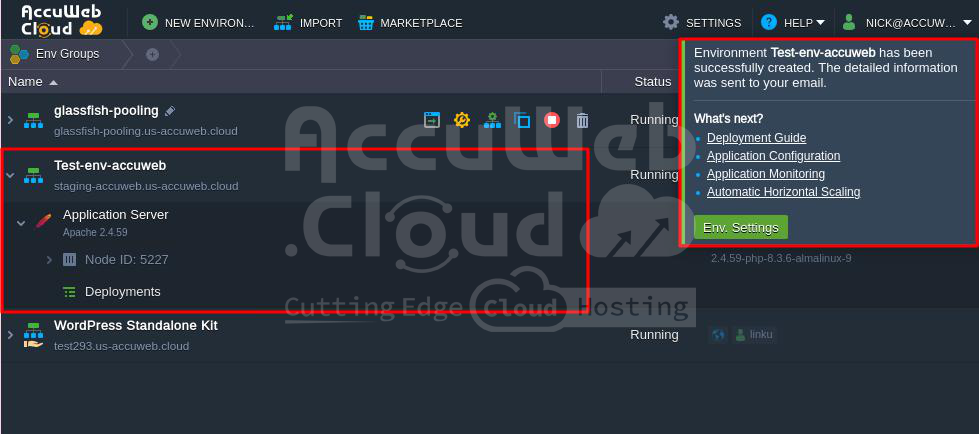
If you receive an output after running the PHP file, it means that there is an error in the PHP code you created. You need to check and fix the error.
Following these steps, you can automate the creation of various environments. Additionally, you can explore other examples of Platform Client Library usage for automating different actions related to your application lifecycle management. Enjoy!