
PHP Sessions Clustering
To ensure your PHP application remains highly available, you can implement PHP session clustering in the cloud. This setup helps manage application server failovers effectively by using Memcached, multiple Apache servers, and an NGINX load balancer:
Step 1. Log in to your AccuWeb.Cloud account.
Step 2. Click on the Create Environment button.
Learn how you can mount data at AccuWeb.Cloud platform

Step 3. Select two or more servers (e.g., Apache instances) in the Environment topology window and add a Memcached node. Enter the environment name and click Create.

The Memcached node acts as a distributed caching engine across multiple nodes in the environment. Specifically, it stores web sessions with sticky sessions running on various application servers. If one server goes down, sessions are backed up on the Memcached node. Other servers can retrieve these sessions from Memcached to continue serving them.
How does Memcache Work?
After each session request is finished, the session is backed up to the Memcached node. This means the session remains available on the original application server and can be used for the next request. After the second request is completed, the session is updated in Memcached.
If the original server fails, the next request is sent to another application server. This new server doesn’t have the session information initially, so it retrieves the necessary session from the Memcached node. Sessions are identified by an ID added to the session ID during creation.
When the server responds to the request, it also updates the session in Memcached. This ensures there’s no interruption to the application when the original server fails—failover is managed smoothly.
Meanwhile, the NGINX load balancer evenly distributes traffic across the cluster of HTTP resources. You can monitor and adjust the load balancing using various tools available on the platform.
How to Configure Memcache?
Step 1. Go to your environment on the dashboard and click the Config button for Apache.

Step 2. In the tab that opens, navigate to etc -> php.ini. The php.ini file is also available in the Favorites section located on the right side of the screen.

Step 3. Add the following line under Dynamic Extensions:
extension=memcached.so

Step 4. Modify the [Session] section as follows:
session.save_handler = memcached
session.save_path = "<memcached_server>:11211"

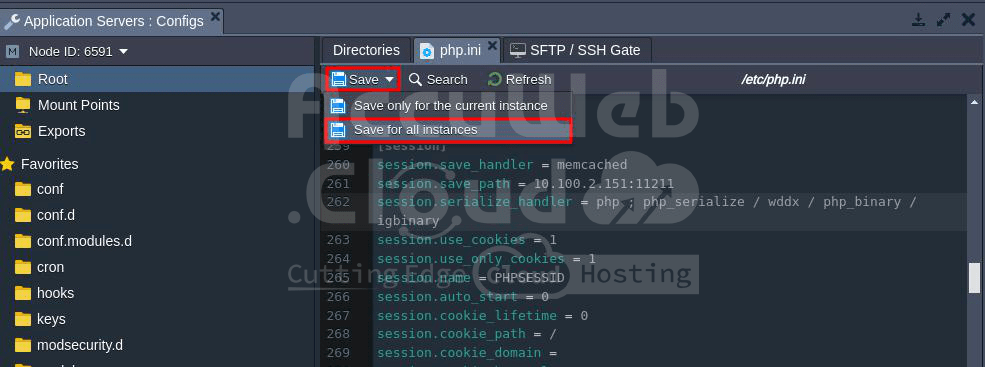
Step 5. Save your changes by clicking the Save button. Choose “Save for all instances” to apply the changes to all instances in the Apache application server.
Step 6. Next, restart the Apache service. Click on “Restart Nodes” next to the Application Server.
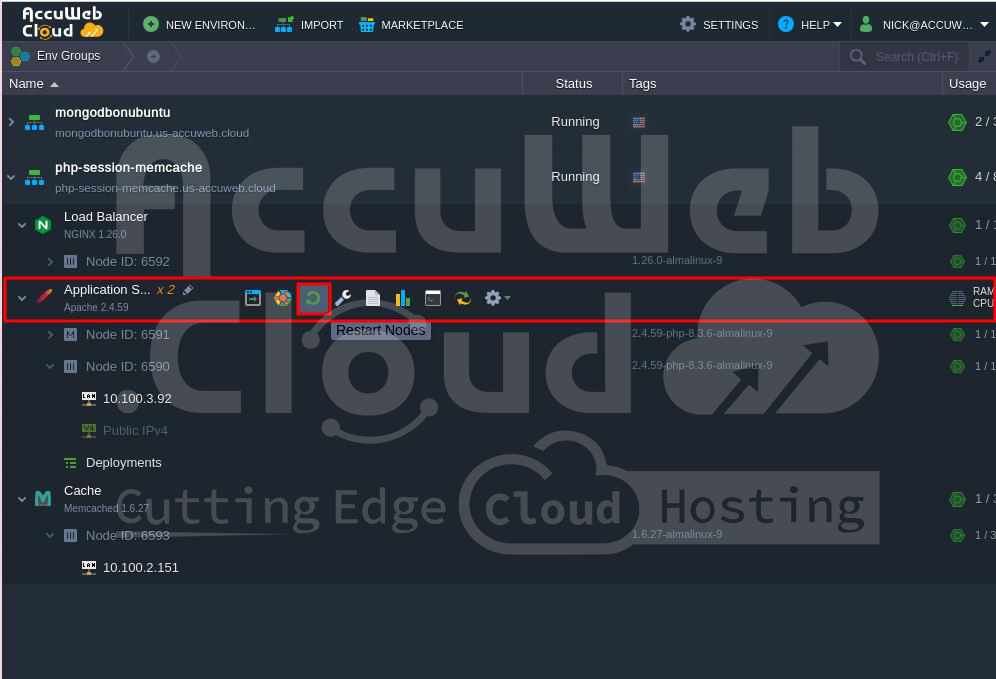
Step 7. In the Restart Apache nodes window, select your preferred option and click Restart to proceed.

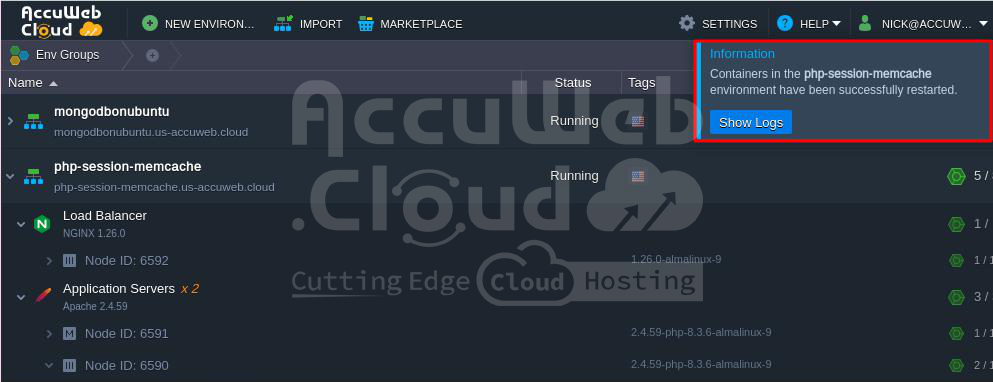
Step 8. Once the application node servers restart successfully, you will receive a notification on the dashboard confirming that the containers in the environment have been restarted.
That’s it! Now if one of the instances fails, users will automatically switch to another instance in the cluster without noticing any disruption.