
How To Install and Use the Yarn Package Manager for Node.js?
Yarn is a fast, secure package manager for Node.js that solves common npm issues like slow installs and dependency conflicts.
In this guide, you will learn:
- How to install Yarn on Ubuntu, Debian, and cloud servers
- How to verify and use Yarn with Node.js projects
- Common Yarn errors and how to fix them
This guide is written for developers and server users running Node.js in production.

What is Yarn Package Manager for Node.js?
Yarn is a JavaScript package manager that aims to address some of the shortcomings of npm, the default package manager for Node.js. Thus, Facebook developed Yarn to be faster, more reliable, and more secure than npm.
Here are some of the key advantages of Yarn:
Performance: Yarn is known for its speed, especially when installing packages. It can install dependencies in parallel, which significantly reduces the time it takes to set up a project.
Deterministic Dependency Resolution: Yarn ensures that your project’s dependency tree is always the same across all environments. This is achieved by using a ‘yarn.lock’ file, which locks the exact version of every dependency.
Offline Mode: Once a package is installed, Yarn stores it in a local cache. It means you can install all packages using Yarn even if you are offline.
Security: Yarn verifies the integrity of each package by using checksums, hence ensuring that the package hasn’t been tampered with.
Setting Up a Node.js Server on AccuWeb.Cloud (Optional)
Before installing Yarn, you require an up-and-running cloud environment where you can host your Node.js application. You can create an instance using the following procedure:
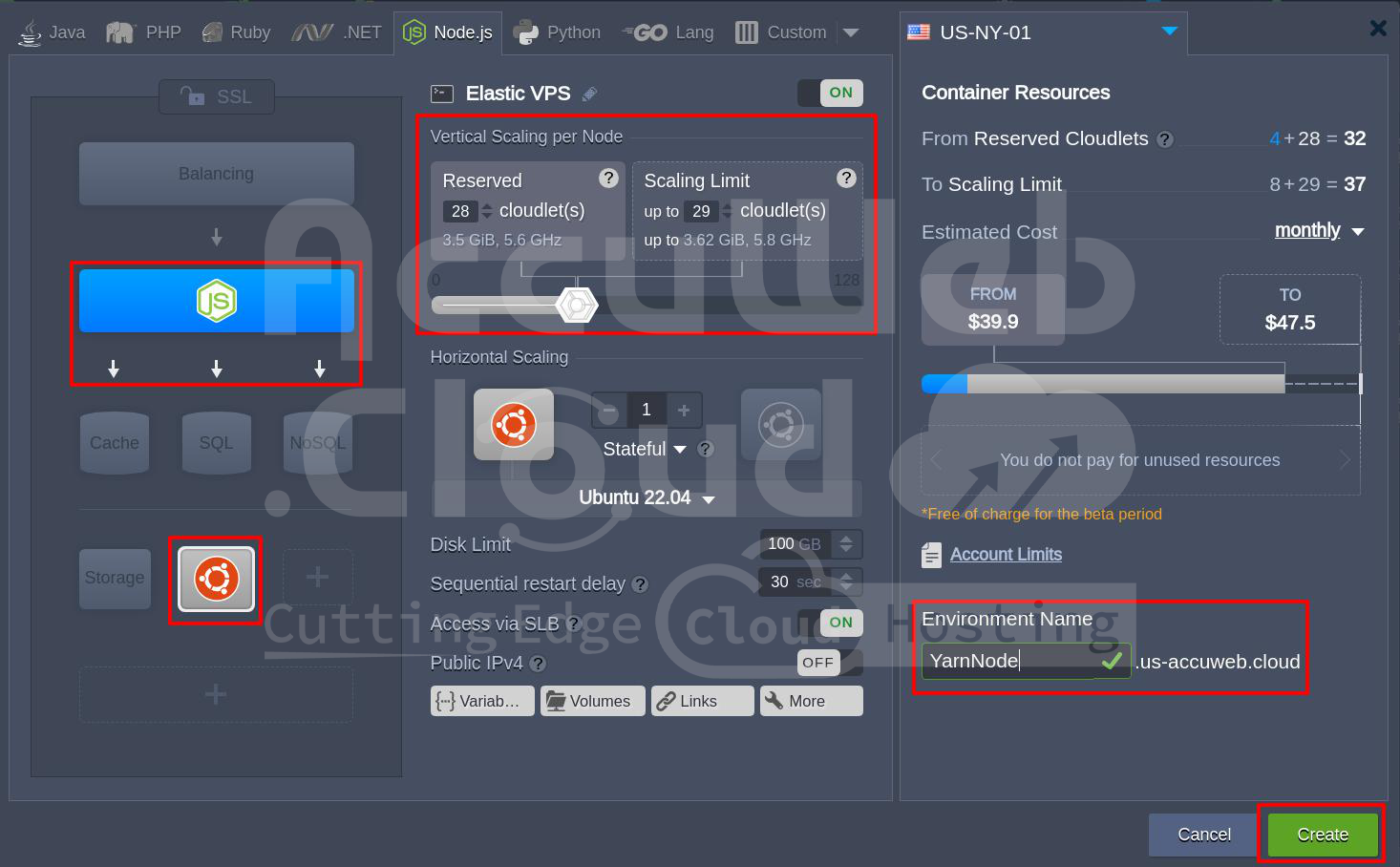
Step 1. Login into Accuweb.Cloud Dashboard and click the New Environment button from the top left area of the Environments Dashboard.
 Step 2. The Topology Wizard will pop up, from where you can configure the settings of your environment. After setting everything as desired, set the name of your environment and click the **Create** button.
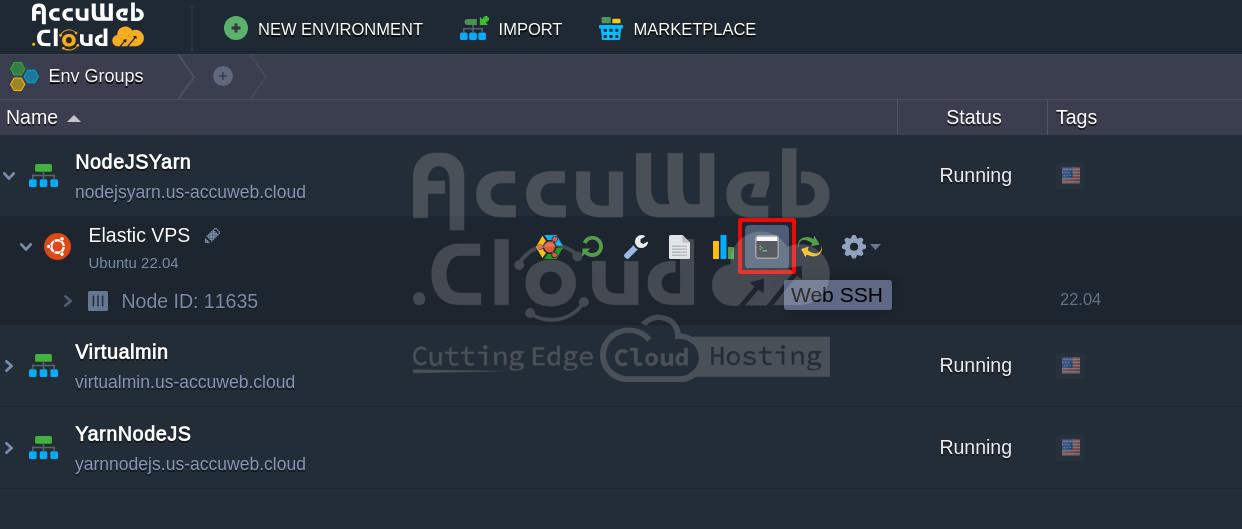
 Step 3. When created, all the environments will appear on the dashboard’s central panel.
Step 4. Connect to your Node.js application server within the AccuWeb.Cloud environment using Web SSH. After that, you can proceed to install Yarn.
Prerequisites: Node.js and npm Required for Yarn
To install Yarn, the following are the pre-requisites:
1. Node.js Installed: Yarn depends on Node.js, so you must have it installed on your server.
2. A Non-root User: It’s recommended to install Yarn as a non-root user with sudo privileges to maintain security.
To check if Node.js is installed, use:
node -v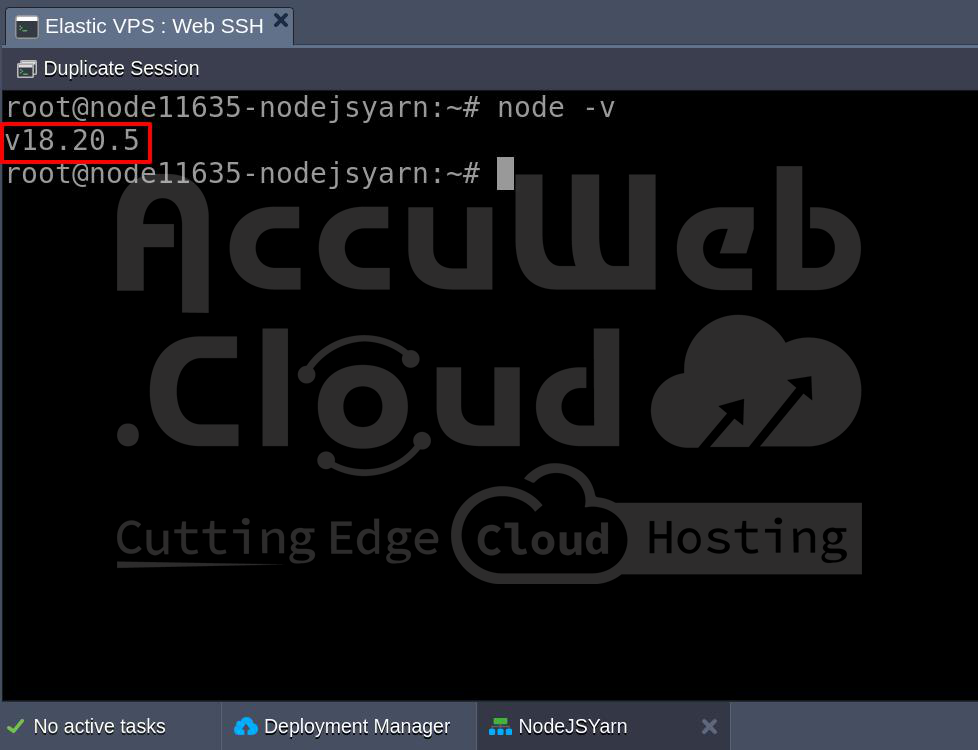 If Node.JS is not installed on the server, you can install using the below command,
curl -fsSL https://deb.nodesource.com/setup_18.x | sudo -E bash - && sudo apt-get install -y nodejs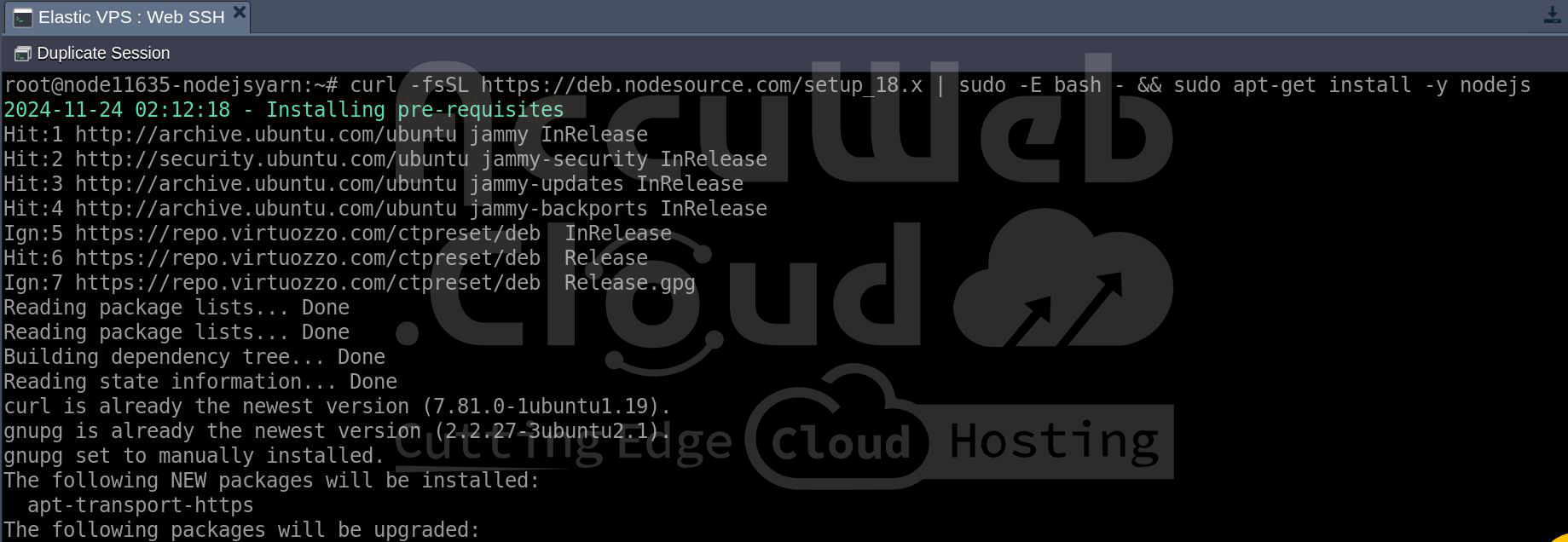
Install Yarn on Ubuntu and Debian Servers
There are several ways of installing Yarn on your AccuWeb.Cloud server, but we will look into two major ways of installation.
Install Yarn on Ubuntu and Debian Using Official Repository You can install Yarn using the official Yarn repository. This ensures that one has the latest stable version of Yarn installed.
Step 1. Add the Yarn APT Repository: First, add the Yarn package repository to your system. You also need to install ‘curl’ to fetch the repository signing key.
sudo apt install curl
curl -sS https://dl.yarnpkg.com/debian/pubkey.gpg | sudo apt-key add -Step 2. Add Repository to Your System: Now, add the Yarn repository to your system’s package list.
echo "deb https://dl.yarnpkg.com/debian/ stable main" | sudo tee /etc/apt/sources.list.d/yarn.list Step 3. Installing Yarn: After adding the repository, update your local package list and install Yarn.
sudo apt update
sudo apt install yarn Step 4. Verify Installation: You can check the version of Yarn installed to verify the installation:
yarn --version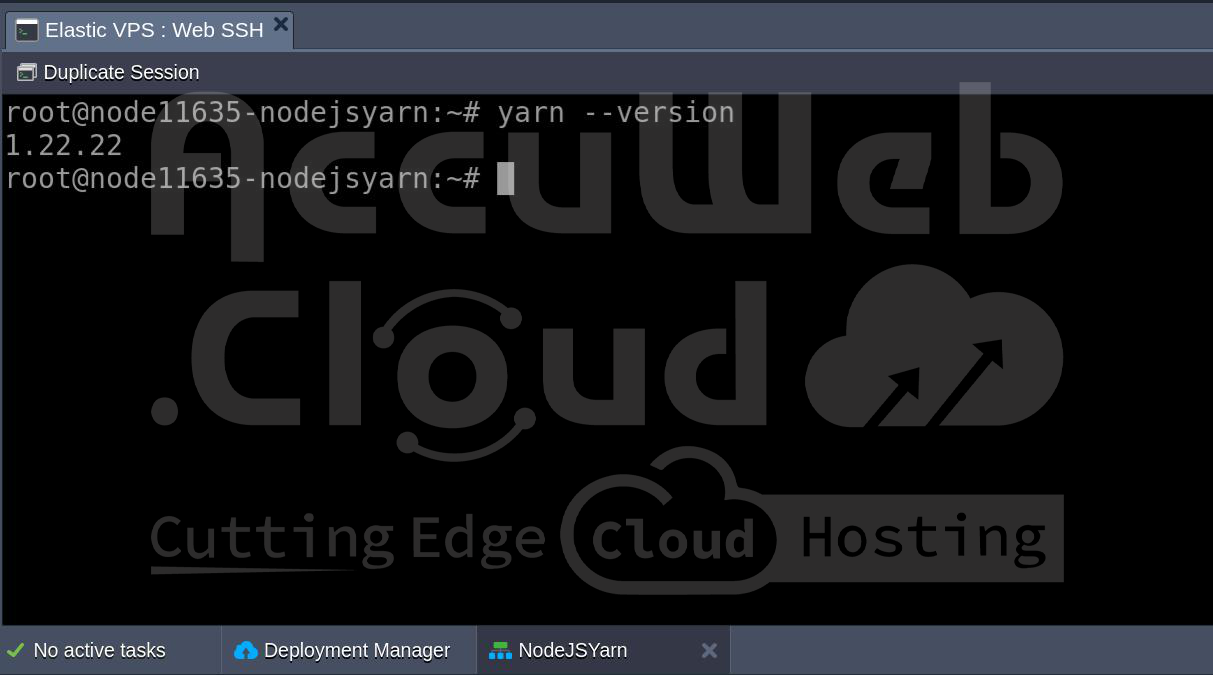
Install Yarn Using npm (Quick Method) With npm already installed, you can install Yarn globally using npm.
sudo npm install -g yarn –force After that, verify the installation using: yarn –version
Both ways, you should have Yarn installed on your AccuWeb.Cloud server.
How to Verify Yarn Installation
After the installation of Yarn is complete, it is very important to check that everything is installed correctly. You will use the following command to check on the version of Yarn installed:
yarn –version
If everything is set up right, you will see in your terminal the version number of the Yarn installed.
How to Use Yarn in Your Node.js Projects?
Now that you have installed Yarn, the next thing is to see how you can use it in your Node.js project. Below are some common tasks you are most likely going to want to do with Yarn.
1. Initialising a New Node.js Project: If you are starting a new Node.js project, you can initialize it with Yarn.
yarn initThis command will prompt you to fill in details like the project name, version, description, entry point, and more. It will generate a ‘package.json’ file that will track your project’s dependencies.
Alternatively, you can initialize the project with default values using:
yarn init -y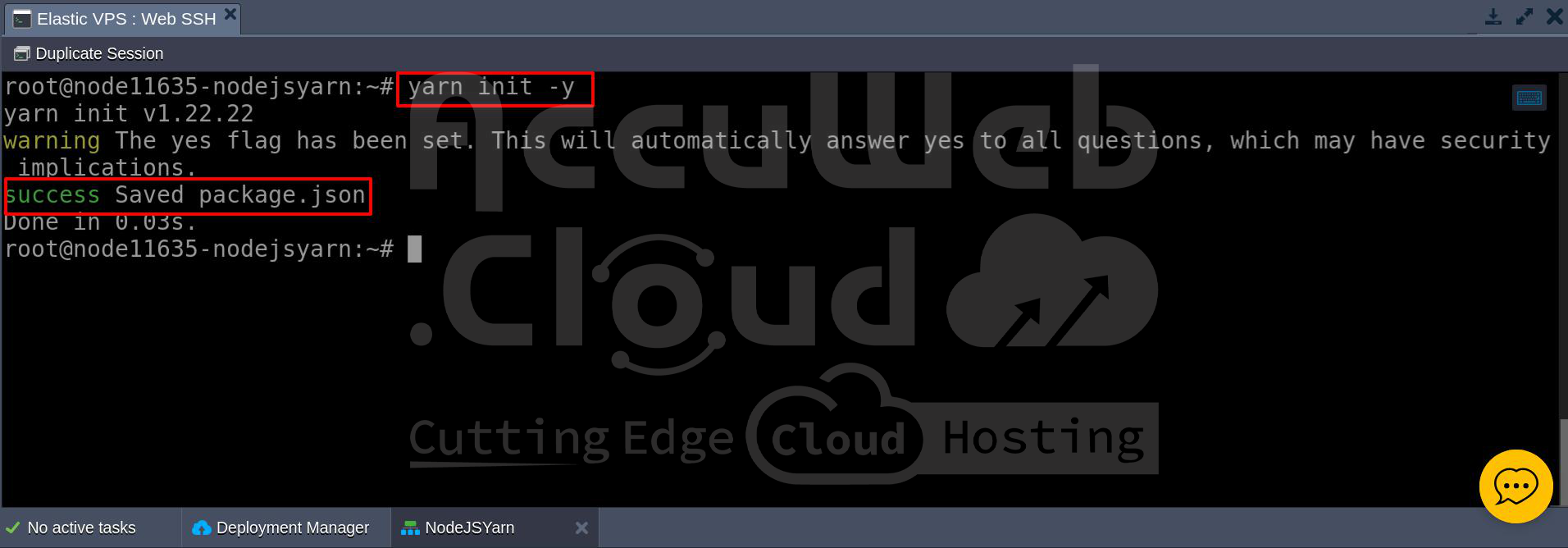 2. Add Dependencies Using Yarn One of the core features of Yarn is managing your project’s dependencies.
To add a new dependency: yarn add [package-name]
For instance, to include Express, you can execute:
yarn add express Add Dev Dependencies Using Yarn: yarn add [package-name] –dev
For example, to install Nodemon as a development dependency:
yarn add nodemon --dev To install dependencies from a ‘package.json’ file: yarn install
3. Run npm Scripts Using Yarn: You can execute scripts defined in your ‘package.json’ using Yarn. Suppose you have a script for starting up your Node.js application; you can execute:
yarn startThis will execute the ‘start’ script in your ‘package.json’.
 4. Updating and Removing Packages:
Upgrade a specific package: yarn upgrade [package-name]
Remove a package: yarn remove [package-name]
Managing Node.js Versions with nvm
If you are working on many Node.js versions, using ‘nvm’ is the right way to manage different Node.js versions on your AccuWeb.Cloud server.
1. Install nvm: curl -o- https://raw.githubusercontent.com/nvm-sh/nvm/v0.39.3/install.sh | bash
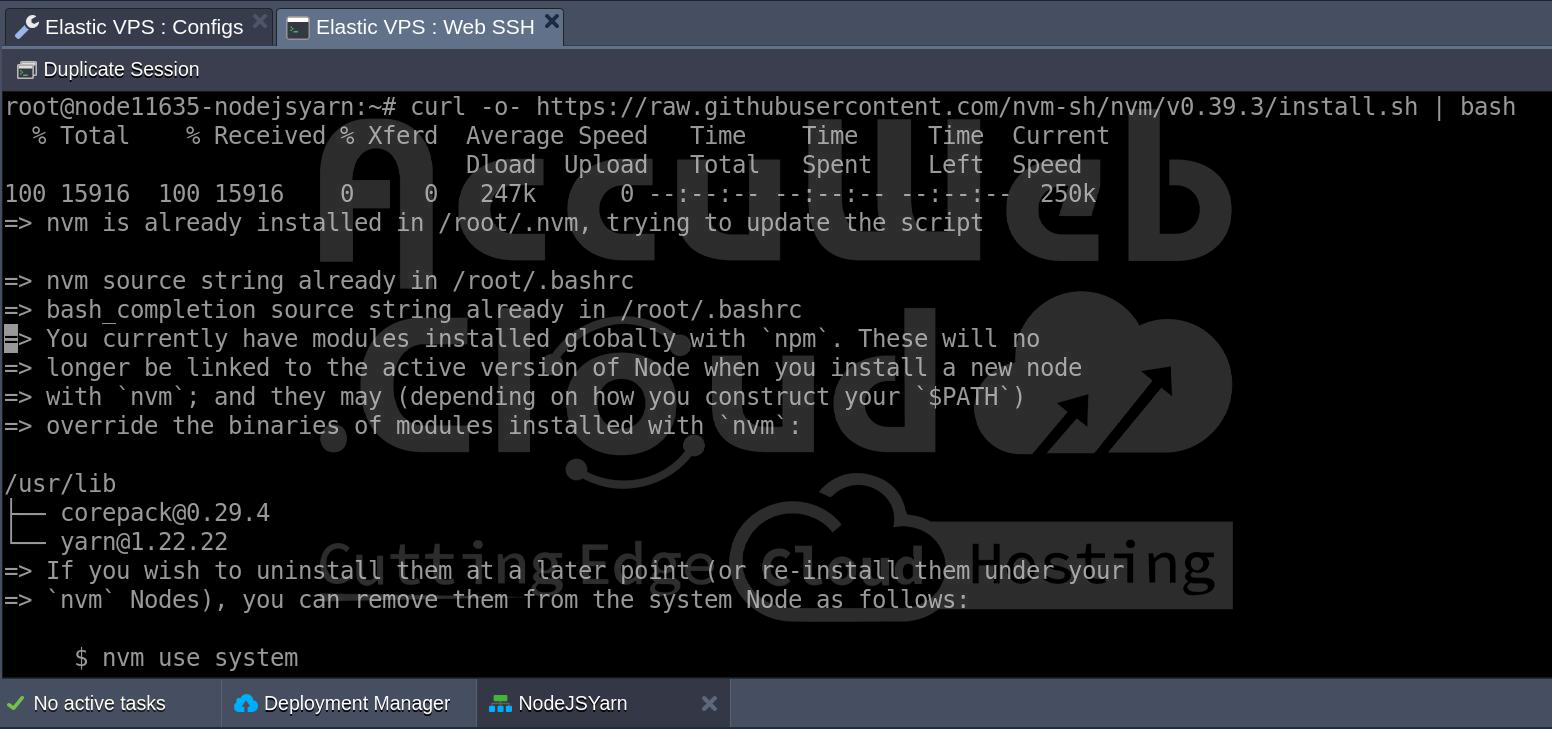 2. Install Node.js via nvm: Once you have installed nvm, it becomes easy to install and switch between Node.js versions:
nvm install 16
nvm use 16
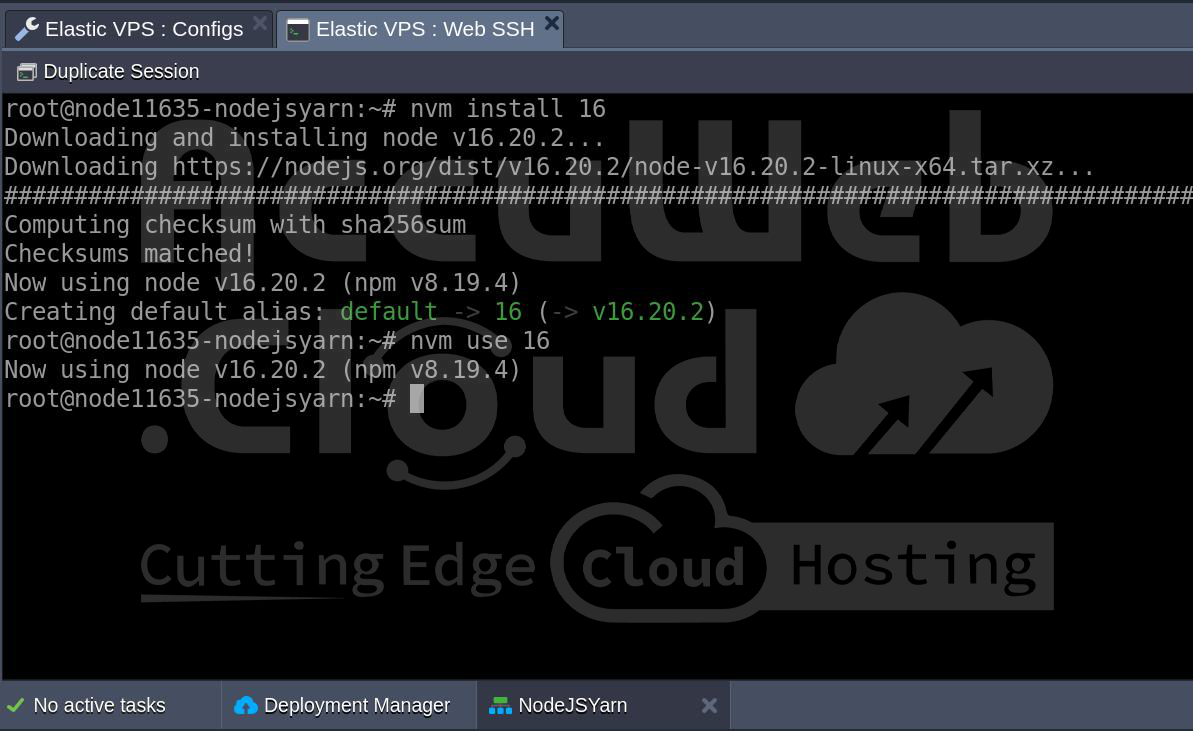 In this way, you will be able to work on different projects requiring different Node.js versions.
FAQs
Q) What is Yarn in Node.js?
A) Yarn is a package manager for Node.js used to install, update, and manage project dependencies with faster performance and consistent results using a lock file.
Q) How do I install Yarn for Node.js?
A) You can install Yarn using npm or the official Yarn repository. For servers and production systems, the repository method is recommended.
Q) How do I install Yarn on Ubuntu or Debian?
A) You can install Yarn on Ubuntu or Debian either using npm or by adding the official Yarn repository. The repository method is recommended for servers and production systems.
Q) Do I need Node.js installed before Yarn?
A) Yes. Node.js and npm must be installed before you can install and use Yarn.
Q) How do I check if Yarn is installed correctly?
A) Run the following command in your terminal:
yarn --versionIf Yarn is installed, it will display the installed version number.
Q) Can I use Yarn on cloud servers or VPS?
A) Yes. Yarn works perfectly on cloud servers and VPS environments, including Ubuntu and Debian based systems used in cloud hosting platforms like AccuWeb.Cloud.
Q) How do I add dependencies using Yarn?
A) To install a dependency in your Node.js project, run:
yarn add package-nameFor development dependencies, use:
yarn add package-name --devQ) What are common Yarn errors?
A) Common Yarn errors include:
- yarn: command not found
- Permission denied errors
- Node.js version incompatibility
Most issues are resolved by reinstalling Yarn, fixing permissions, or upgrading Node.js.
Q) How do I uninstall Yarn completely?
A) To remove Yarn installed via apt:
sudo apt remove yarnIf installed using npm:
npm uninstall -g yarnVerify removal using:
yarn --versionConclusion
Yarn simplifies dependency management for Node.js by delivering faster installs, consistent builds, and better reliability across development and production environments. By following this guide, you now know how to install Yarn, verify the setup, and use it effectively on a server or cloud instance.
Whether you are working on a small application or a large-scale Node.js project, Yarn helps reduce dependency conflicts and improves workflow efficiency. With features like lock files, workspaces, and offline caching, Yarn is well-suited for modern Node.js development.
Now that Yarn is installed, you can confidently manage your Node.js projects, automate workflows, and scale applications more efficiently on your server.