
How to Install WordPress Cluster With Built-in Kit?
WordPress is a viral tool for making websites, blogs, and apps anyone can use. This guide will teach you how to set up WordPress to make it reliable and always available for your users.
A WordPress cluster helps handle many people using your site and can make it faster and cheaper to maintain. To make your WordPress Cluster work best, you can:
- Set up a WordPress cluster with LightSpeed and a MariaDB Galera cluster that’s always available.
- Use a swift Premium CDN that supports HTTP/3 (QUIC).
- Get a free SSL certificate from Let’s Encrypt that renews itself automatically.
- Connect your website to a custom domain and update the certificate.
- Adjust your website to how many people use it so it’s always fast.
Automatic Installation of WordPress Cluster
Usually, setting up a WordPress cluster can be pretty complicated and time-consuming. However, with PaaS (Platform as a Service), most of the hard work is done for you. You only need to make a few selections.
Step 1. Log in to your AccuWeb.Cloud account.
Step 2. Click “MarketPlace” at the top of the screen.

Step 3. In the Marketplace window, find “Applications” and click “Clusters.” Then, select “WordPress Cluster Kit v2.”

Step 4. Click the “Install” button to install the WordPress Cluster.
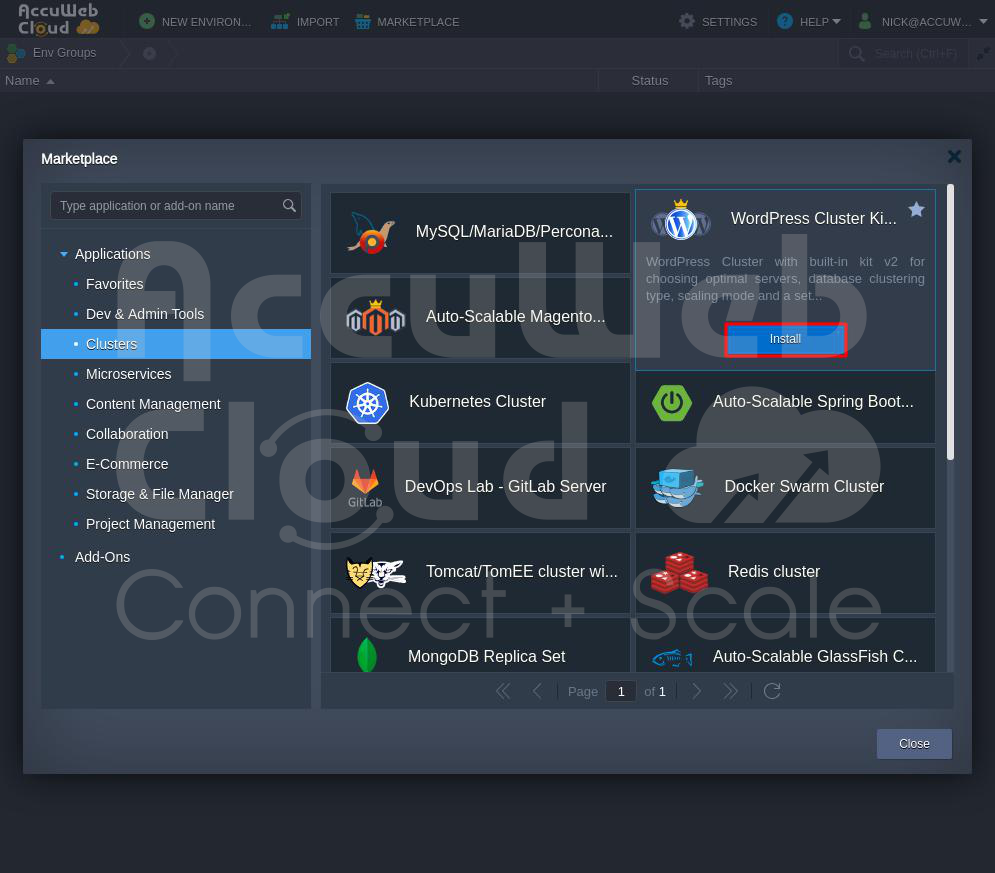
Step 5. In the installation window, you can customize your WordPress Cluster, starting with the scaling mode.

The scaling strategy helps predict if your WordPress site will have more visitors and adds more servers to handle it without downtime. We have three standard settings to prevent overloading:
- Low Load: It adds an extra server if the workload goes above 70% and removes one if it goes below 20%.
- Medium Load: It adds an extra server if the workload goes above 50% and removes one if it goes below 20%.
- High Load: It adds two extra servers if the workload goes above 30% and removes one if it goes below 10%.
Step 6. In the “Environment” field, you can choose a name for your WordPress site, like “WordPress-test” (this is just an example). In “Display name,” enter a name for your AccuWeb.Cloud environment. Then, click “Install” to start the installation process.

Step 7. Wait for a few minutes until the installation is complete.

Step 8. You’ll see a confirmation message when it’s done. Save the login details displayed on the screen and check your email for more login information.

Step 9. Click on the Close button to close the Login window.
Step 10. In the Marketplace, click on the Close button to close the window.
Step 11. You’ll see that WordPress Cluster Kit v2 is now successfully installed with necessary components like Load Balancer, application servers, SQL server, and storage containers.

Step 12. Go to WordPress Cluster Kit v2 and click the “Settings” icon.
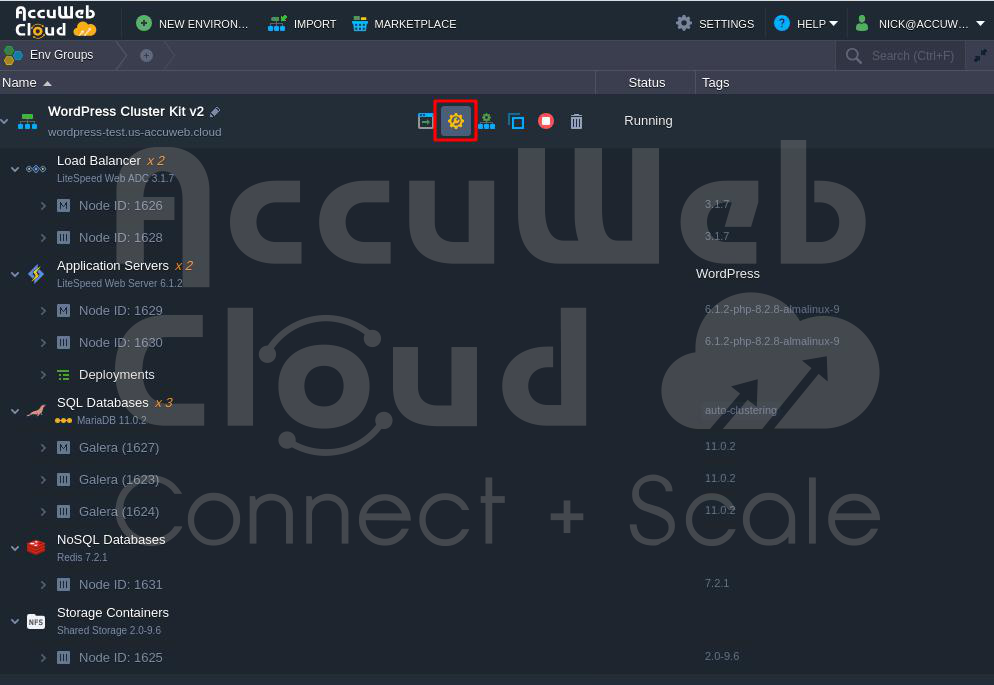
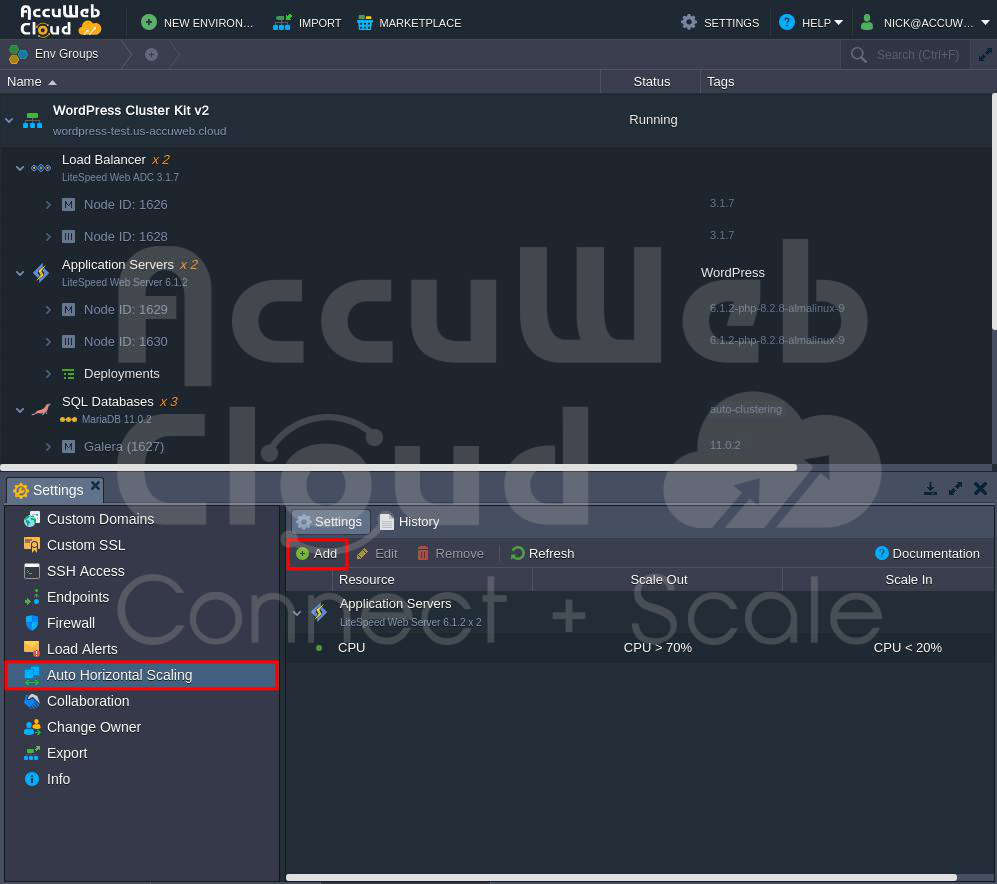
Step 13. The “Settings” tab will appear at the bottom of the screen.
Step 14. In the “Settings” tab, find “Auto Horizontal Scaling” and click on it. Then, click “Add” on the left side of the screen.
Step 15. Choose the application for which you want to adjust horizontal scaling. For example, select “Load Balancer.”
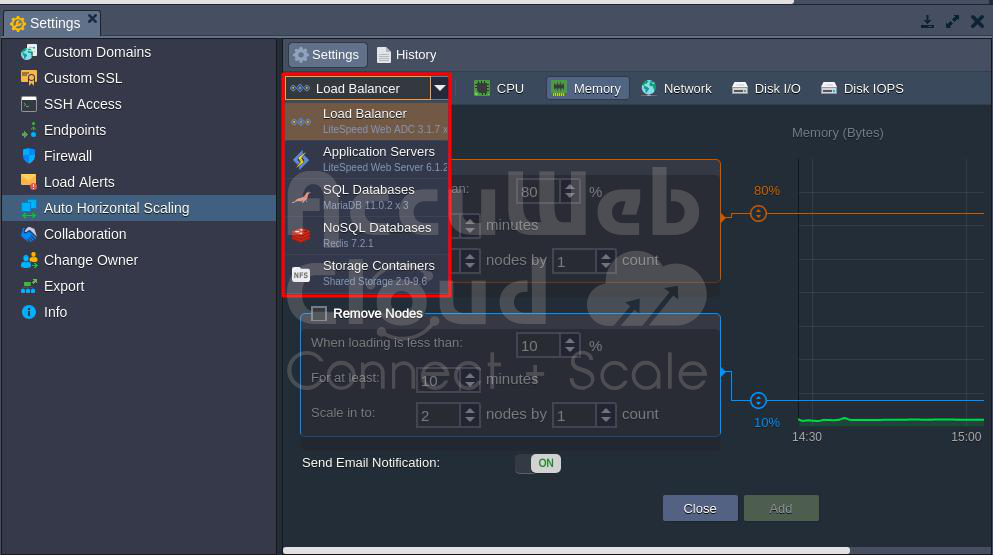
Step 16. The current settings add a node when the load exceeds 80% and can scale up to 3 nodes. You can increase or decrease these values as needed.
To increase, adjust the numbers. To decrease, adjust the numbers accordingly.
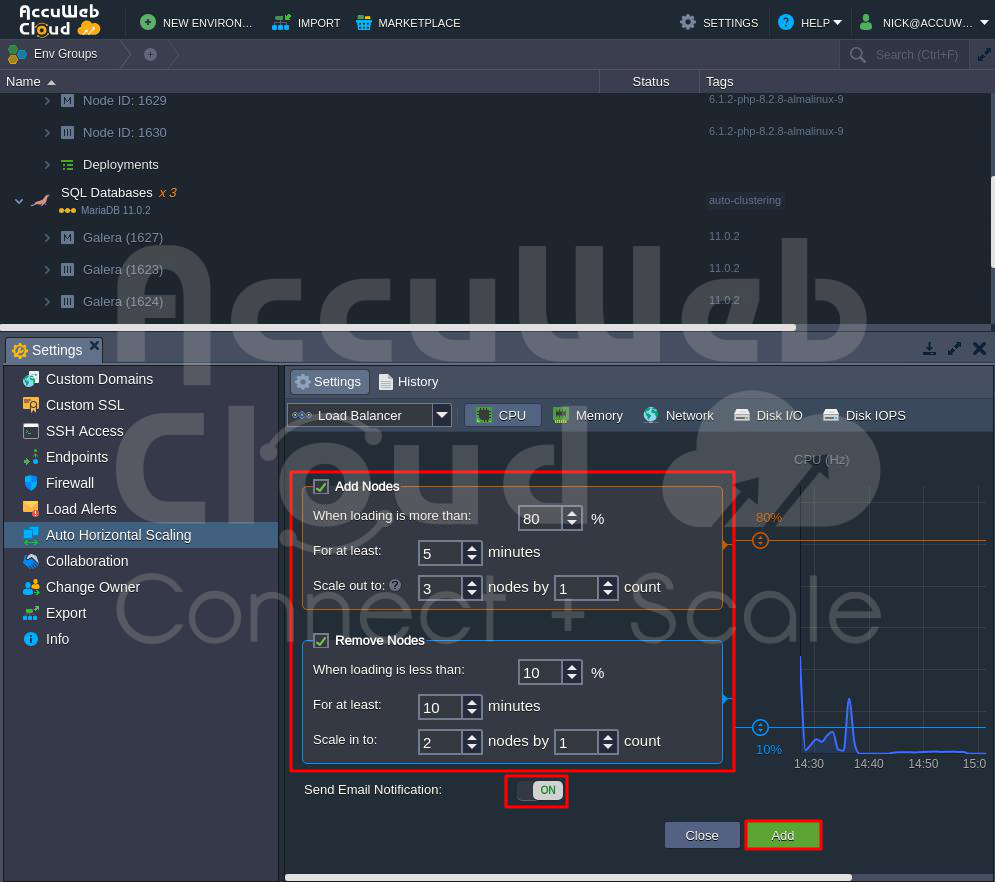
Step 17. If you don’t want email notifications for these changes, turn off “Send Email Notification.” It’s usually turned on by default. Then, click “Add” to apply the settings.
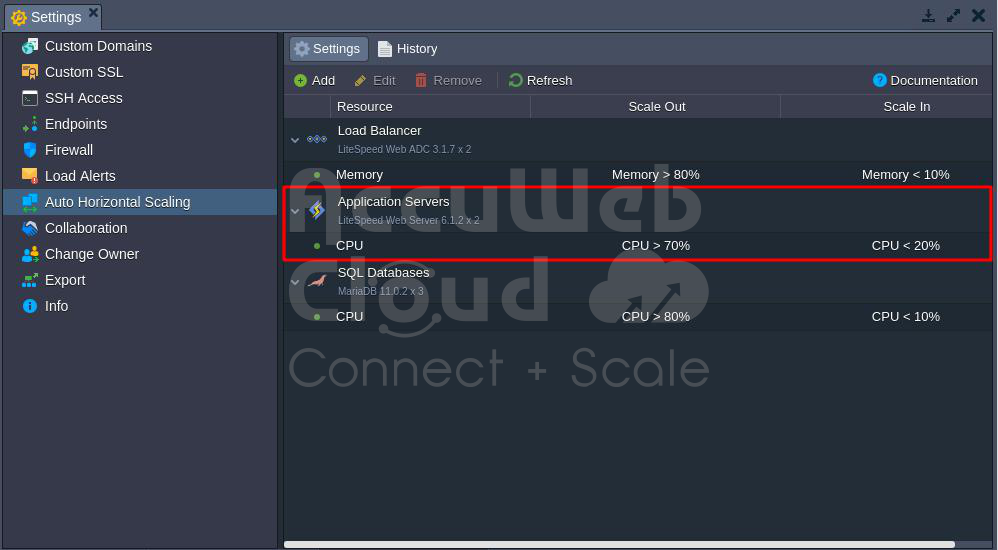
Step 18. Once you click “Add,” the settings will be saved and displayed under the resources section.
Advanced Features for WordPress Cluster Installation
- LiteSpeed High-Performance Web Server: This option installs your cluster using LiteSpeed Web Server and Web Application Delivery Controller. It makes your website super fast using the modern HTTP/3 protocol. If you don’t choose this, your cluster will use the NGINX web server and load balancer instead.
- Web Application Firewall (WAF): This feature can be turned on or off but only works with the LiteSpeed Web Server.
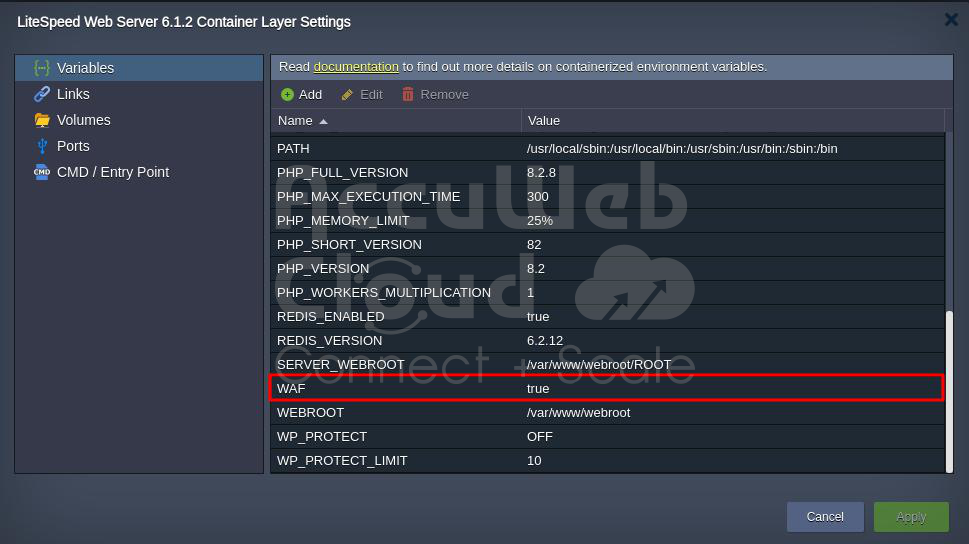
Remember to restart the nodes in the application server layer after changing the variable.
MariaDB Galera Cluster: This is a special kind of reliable database cluster. It lets you read and write data on any node, and if one node goes down, the cluster keeps working without any complicated fixes.
If you don’t choose this option, a regular MariaDB database will be installed, and your cluster won’t be as reliable.
- All tables must be of the InnoDB/XtraDB type.
- All tables must have a PRIMARY index.
Click here to check How to Setup MariaDB Galera Cluster?
Lightning-Fast Premium CDN with 130+ PoPs: This adds Verizon Edgecast CDN to your WordPress application, making it super fast.
Let’s Encrypt SSL with Auto-Renewal: This lets you get a trusted SSL certificate for your custom domain for free. It automatically renews the certificate to keep your site secure and sends you email notifications when needed.
WordPress Multisite Network: This feature lets your application work as a network hub for multiple websites. Thanks to the platform’s automation, you can create a network of websites, and others can join it, even for commercial use.
Setting Up Your Domain and SSL Certificate
To make your website accessible to everyone on the internet, you need a public IP address and a custom domain for your production environment.
If you used Let’s Encrypt SSL Add-On when installing WordPress, it automatically added your public IP address to the Load Balancer node.
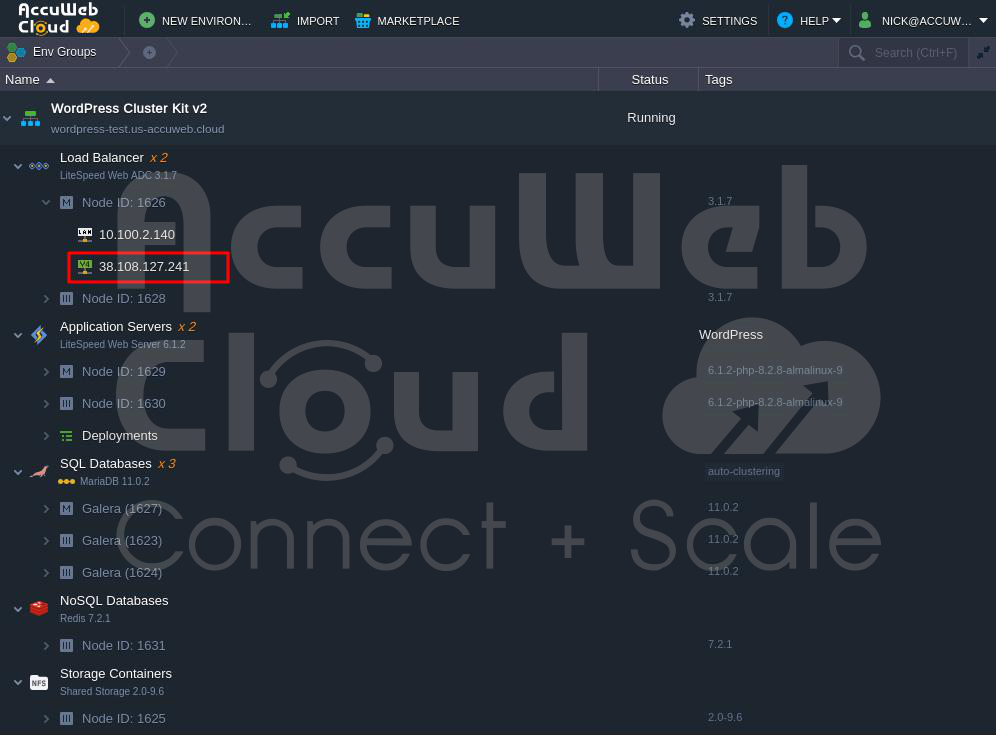
The next steps are to connect your custom domain and get a trusted SSL certificate.
Step 1. Create an A record for your custom domain, linking it to the public IP address connected to the Load Balancer.
Step 2. Look for the Let’s Encrypt Free SSL option in the Load Balancer Add-Ons and click “Configure.”
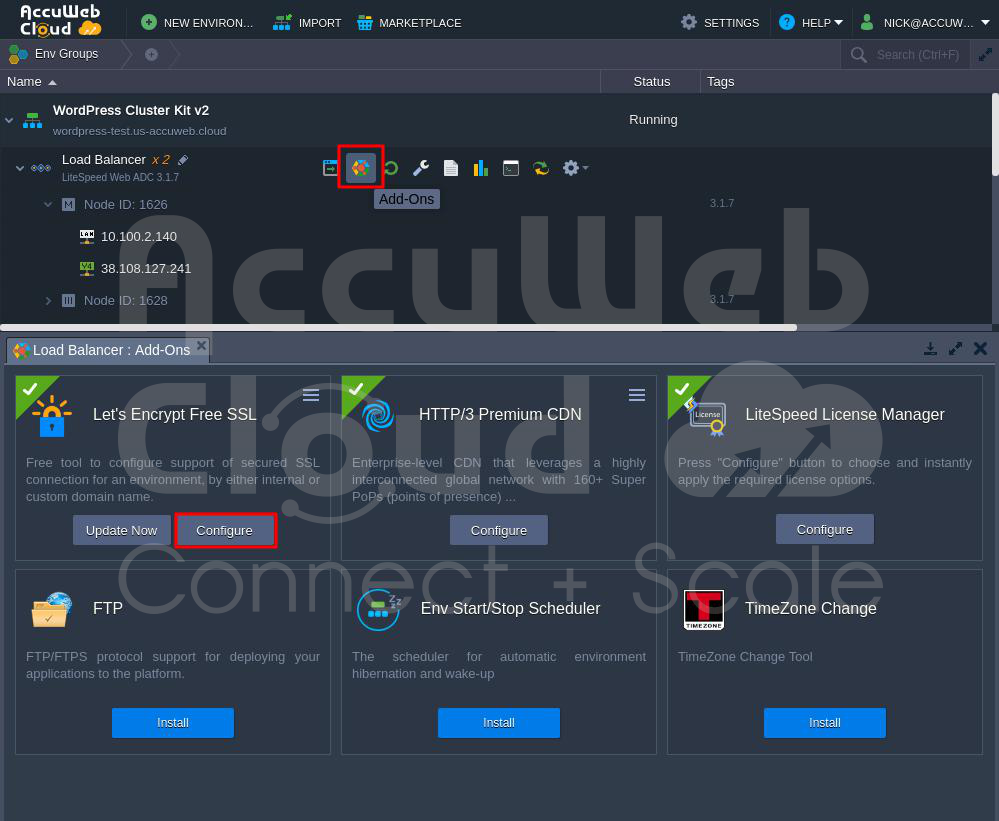

Step 3. Enter your custom domain (for example, accuwebtraining.com) in the field provided and click “Apply.”

Step 4. You’ll be notified once the SSL certificate is issued through a popup or email.
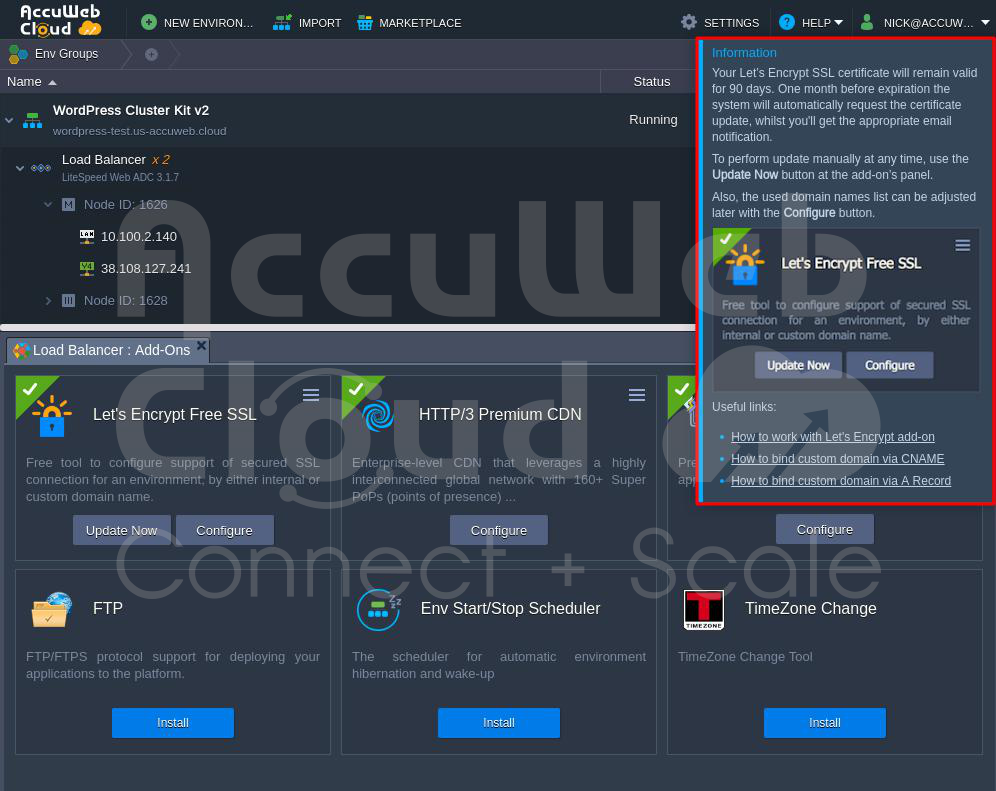
Step 5. Ensure that all the links in your WordPress application point to your custom domain. Check the WordPress Address (URL) and Site Address (URL) fields in the admin panel. If they need to be changed, do so.

Step 6. Finally, save your changes by clicking the “Save Changes” button in the Settings section and access your application with the new address.
In Conclusion
You’ve now set up a production-ready WordPress cluster with high availability and protection against web application security threats. Thanks to advanced LiteSpeed application servers, a load balancer with speedy HTTP/3 support, dependable MariaDB Galera, an integrated CDN, and Let’s Encrypt SSL for security, it’s super fast.
#AccuWeb.Cloud no longer offers its Premium CDN service. The instructions below apply to the legacy CDN offering and are retained for historical/reference purposes.