
How to Fix WordPress Not Sending Emails
After launching the website, we always have to ensure the website user receives all the newsletters and notifications via Email without any error. Sending emails from different contact forms and newsletters related to all the eCommerce shop discounts and the latest offers to subscribers from a WordPress site is a great way to increase engagement.
Sometimes, when we launch our staging from local to live or due to the wrong SMTP configuration, this email functionality stops working. Most of the time, the common issue behind this error is the wrong SMPT configuration. Sometimes, the SMTP details we use to send the email have delivery issues, like blocking from different receivers due to a spammed IP or Domain.
Before fixing the problem, let’s learn more about the possible issue and why WordPress is not sending emails.
<span data-mce-type=”bookmark” style=”display: inline-block; width: 0px; overflow: hidden; line-height: 0;” class=”mce_SELRES_start”></span>
It is crucial first to understand how WordPress generally sends emails to any user and, if it stops, which functions you need to verify. In the core code of WordPress, a PHP function called wp_mail sends emails to the system. This function is a key route for the site’s web server to deliver messages.
Once we understand the functionality process, it becomes easier to identify why WordPress is not sending emails and at which step it is broken.
Server Configuration Issue:
Many hosting companies do not have their default servers ready to send PHP emails, and some require a request from the client side to enable it. As mentioned above, WordPress uses the default PHP Mail Function, and if it’s not set up on your server, WordPress won’t be able to send emails.
Sender Reputation:
If you are using shared hosting with a shared IP, and other users on the server have already spammed a lot, this may impact your WordPress email deliverability. Conversely, sending spam emails and receiving high bounce rates will negatively affect your domain’s email delivery reputation.
Spam Box Issue:
WordPress may send emails, but they might be in the spam folder. WordPress emails are often identified as spam since they are automated. Additionally, the PHP mail function is easily exploited by spammers and is less secure.
Plugin Settings:
If you use any contact form plugin like WPForms or ContactForm 7, ensure you have provided the correct details in the plugin’s configuration settings.
Host Limitations:
Your SMTP host may limit your daily email quota. If your daily email quota has already been exceeded, WordPress may not send emails to the user.
Now, the question is how to confirm if WordPress is sending users emails. The easiest way to check the email functionality is to:
Try to reset the Password. Check whether you receive an email after resetting the Password.
Use the provided form in the contact form WordPress plugin to send a test email to yourself. You should receive the test email instantly if your server and website configurations are correct.
Additionally, you can verify if PHP Mail is enabled by running a test on your WordPress site using the free Check & Log Email plugin.
SMTP Configuration on WordPress with the WP Mail SMTP Plugin:
The best way to resolve WordPress email issues is by reconfiguring your SMTP server. Numerous free and paid plugins are available, and we recommend using the WP Mail SMTP plugin. It is easy to manage for any WordPress beginner and can significantly improve email deliverability.
This method helps authenticate your WordPress email address. In today’s world, with billions of emails sent and received globally every day, most email clients look for authentication to avoid malicious messages. This plugin assists in helping emails bypass spam tests and firewalls.
The WP Mail SMTP plugin supports a variety of email servers, and you can easily configure them from the settings. Each email provider has its own set of requirements for different options.
From this below-step tutorial, we will understand how to configure a mail server using a custom email Via a Plugin :
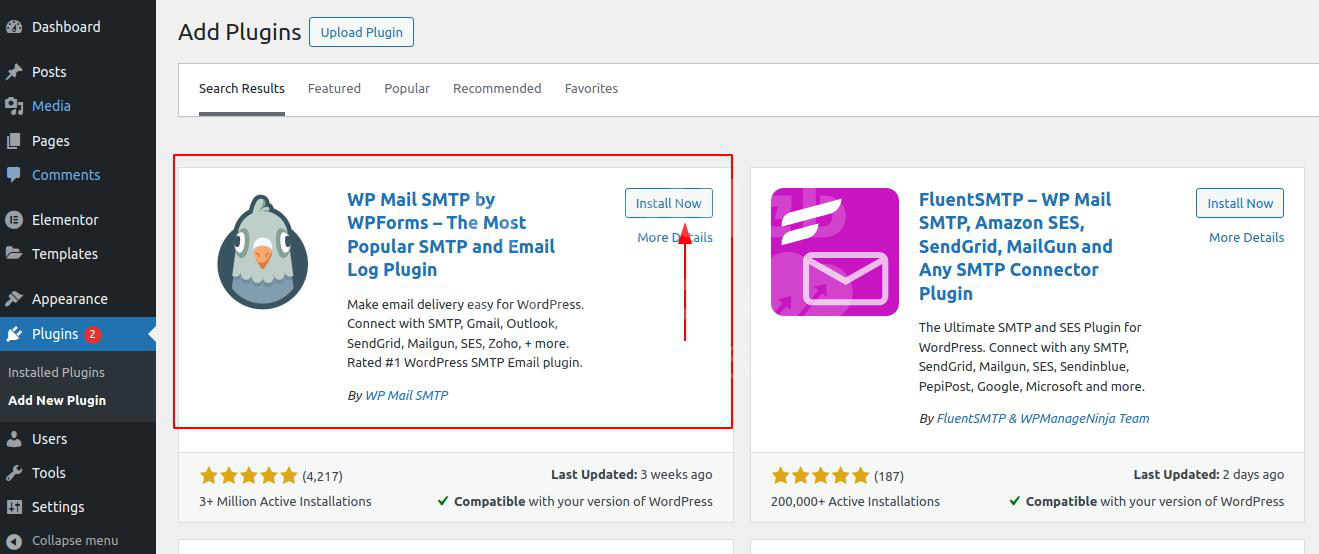
1 ) Install the WordPress WP Mail SMTP plugin and click the Activate button.
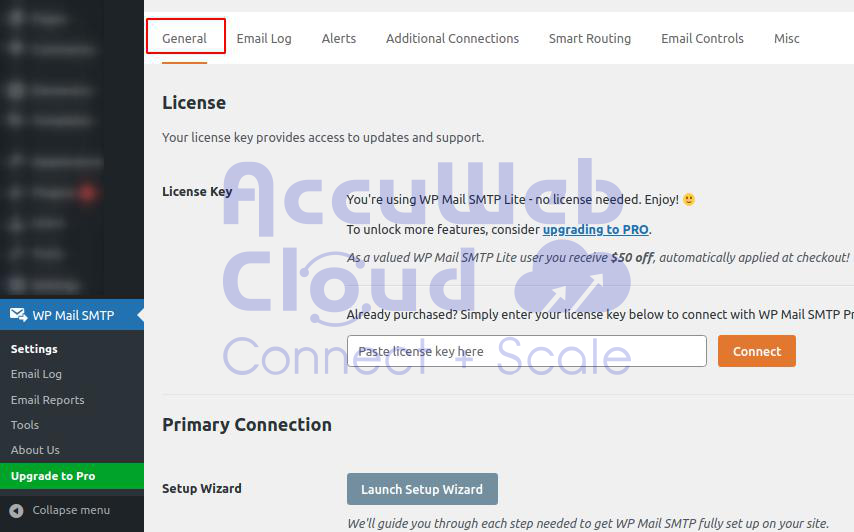
2) Access the WordPress dashboard and proceed to the plugin Settings. Choose the General option to proceed.
3) Go to the Mail section and fill out the following information:
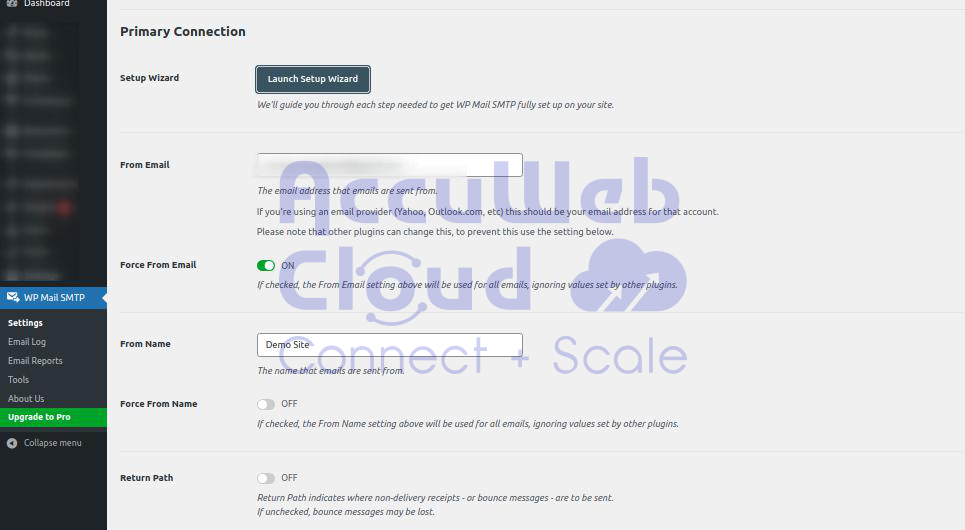
From Email – insert an existing admin email address that represents your website.
Force From Email – keep it checked to prevent other plugins, such as contact forms, from changing this email setup.
From Name – use a name that represents your website, such as its title.
Force From Name – stop other plugins from changing the Name by checking the box.
Return Path – indicates that non-delivery receipts or bounce messages will return to the same Email as From Email. We recommend checking this box to know when WordPress is not sending emails.
4) For the Mailer, select Other SMTP and continue with the section below it. Use the information from the email client’s configuration settings:
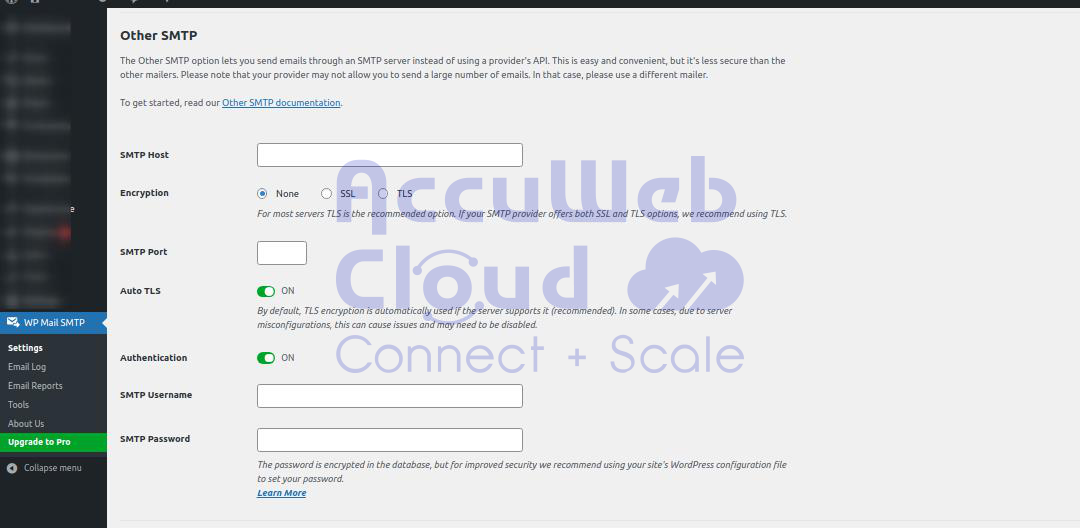
SMTP Host – copy and paste the outgoing SMTP server information of the email host.
Encryption – use the information of the SMTP server. If the server provides Secure Sockets Layer (SSL) info, then select SSL. If the server gives details on Transport Layer Security (TLS), choose this option.
SMTP Port – insert 465 for SSL and 587 for TLS.
Authentication – keep it on to authenticate your Email.
SMTP Username – check the SMTP username from the server.
SMTP Password – use the Password from the SMTP server.
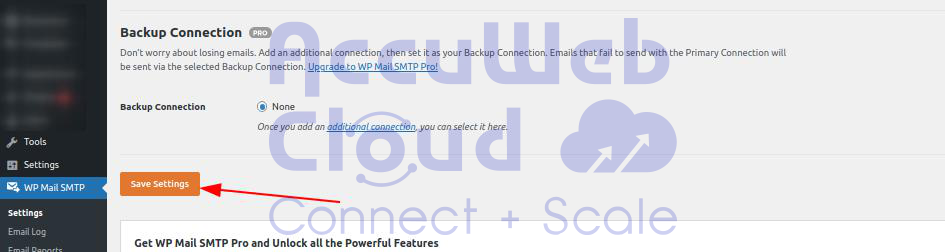
Click Save Settings to finish the setup.
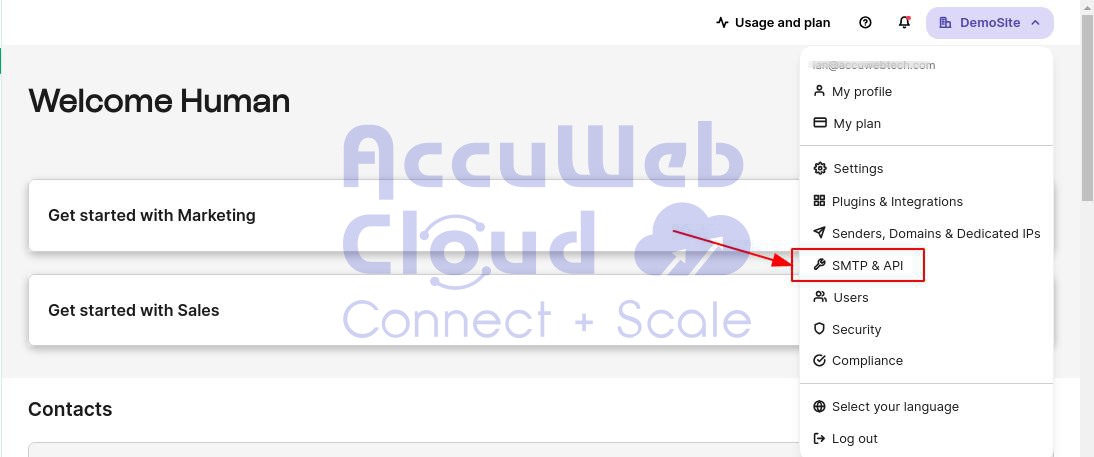
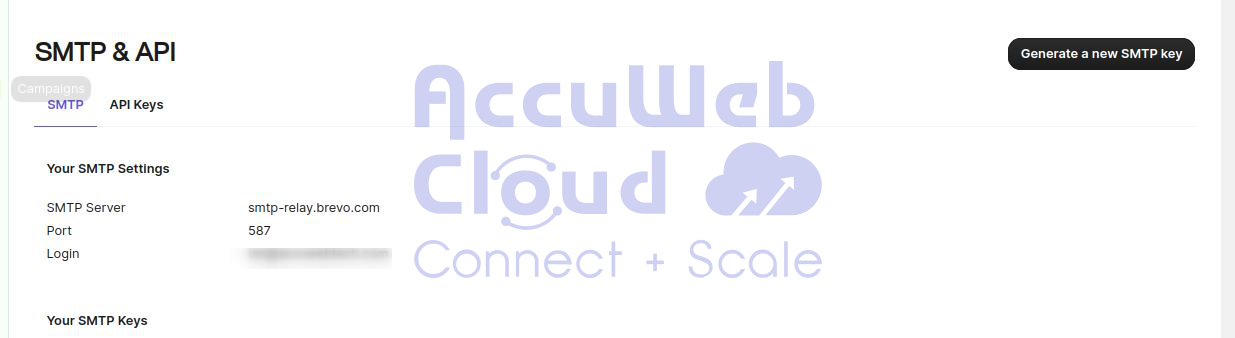
Get Free SMTP from Brevo.com
Brevo.com offers a free service for sending emails using SMTP protocol, which is an affordable way to communicate effectively through Email.
Brevo free plan features:
Get a daily limit of 300 plus email credits on the Free Plan.
Great for small businesses and people who want accessible, dependable email-sending services.
Start with Brevo.com’s Free SMTP service today and enjoy a simple, low-cost way to send emails. Try it now!
Conclusion :
In the end, fixing WordPress problems with emails requires a step-by-step method to find and fix possible issues. Understanding what the wp_mail PHP function does in WordPress helps find where communication might not work. Troubleshooting starts by checking if the Email is working right now.
This could be due to server problems, worries about sender reputation, spam box issues, plugin mistakes, or host restrictions. Using the WP Mail SMTP plugin can help fix email problems. It’s easy to use and helps ensure your emails go through correctly. By utilizing the steps mentioned and thinking about things like who sent it securely, WordPress users can face email problems.
This ensures their subscribers have smooth talking with them.