
Capistrano
Capistrano is a free tool for running scripts on servers from the remote server. Usually, it’s used to put apps onto servers using a secure connection called SSH. Capistrano is made in Ruby and is a part of the Ruby on Rails system, so it’s often used to put Ruby apps on servers. But it can also work with other languages, like PHP.
So, in this guide, we’ll learn how to put a PHP app on a server using Capistrano. First, you’ll need:
- A place where PHP can run, like an Apache server.
- A special key for connecting securely called an SSH public key. You make this and add it to your system.
- Your PHP app is stored in a place called a GIT repository. Right now, Capistrano 3 only works with GIT.
- A copy of your PHP project on your computer.
Let’s start!
Install Capistrano
To install Capistrano, follow these steps:
Step 1: First, make sure you have Ruby installed on your computer. You can do this by running this command:
# apt-get install ruby rubygems
Step 2: Next, install Capistrano itself. Just type this command:
# gem install capistrano
Step 3: Check if you have a folder named “config” in the directory where your project is stored. This folder is usually there by default for Ruby on Rails projects. If it’s not there, create it using this command:
# mkdir {path_to_your_project}/config
That’s it! Now you’re ready to use Capistrano.
Prepare Your Application for Capistrano
Once you’ve installed Capistrano, you’ll need to set it up for your application. This process is called “capifying” your app. To do this, go to the main folder of your PHP project on your computer and run this command:
# cap install
This will add some new files and folders to your project:
- Capfile: This is the main file for Capistrano. It handles important settings and tasks for deployment.
- config/deploy/: This folder contains two files, “staging.rb” and “production.rb,” which are used for configuring deployment settings for different environments.
- config/deploy.rb: This is a Ruby script that holds your application’s configurations and instructions for Capistrano.
- lib/capistrano/tasks/: Here, you can add your own custom tasks for Capistrano.
Customize Your Settings
To make your Capistrano setup work for your project, you’ll need to adjust some configurations. Here’s what you need to do:
1. Go to the “config/deploy.rb” file in your project folder. Edit the file according to your project’s specifics. Initially, it will look something like this:

You can change settings like the application name, repository URL, deployment directory, and more to fit your project’s needs.
Make these changes in the file:
- Give your application a name:
set :application, "my_app_name"- Tell where your PHP code is stored in the repository:
set :repo_url, "[email protected]:me/my_repo.git"Remember: Make sure your GIT account has an SSH public key attached to it. This is the same key you added to your platform dashboard. If you don’t have this, you’ll see a “Permission denied” error when deploying your app.Alternatively, you can use an HTTPS link like this:
set :repo_url, "https://example.net/GIT_user_name/repo_name.git"With HTTPS, you don’t need to authenticate, so you can use it to link to any PHP open-source repository you want to deploy.
- Uncomment and set the deployment directory:
# set :deploy_to, '/var/www/webroot'- Uncomment and set these lines as well:
set :scm, :git
set :format, :pretty
set :pty, true
- Replace the tasks at the end of the file with these:
namespace :deploy do
desc 'Restart Apache'
task :apache do
on roles(:app) do
execute :sudo, "service httpd restart"
end
end

desc 'Creating symlink'
task :symlink do
on roles(:app) do
execute :rm, "-rf /var/www/webroot/ROOT"
execute :ln, "-s /var/www/webroot/current /var/www/webroot/ROOT"
end
end

desc 'Restart Apache and create symlink'
task :restart do
before :restart, :symlink
before :restart, :apache
end
end

after 'deploy:publishing', 'deploy:restart'
You can also adjust other settings in this file if needed, like specifying a branch or linking more files or folders.
Remember to save your changes once you’re done.
2. Next, go to the “config/deploy/staging.rb” file.

First, change three lines in the Simple Role Syntax section by replacing {[email protected]} with {[email protected]}. Here’s what to do:
- For “nodeid,” use the node ID of your Apache application server container.
- For “uid,” use the number before the @ symbol in your SSH connection string.
After that, update the server settings line in the Extended Server Syntax section. Here are the steps:
- Specify your SSH host, like “gate.cp-accuweb.cloud”.
- Set the user parameter to {nodeid}_{uid}, for example, user: ‘190403-136’.
This way, your server settings line will look like this:
# server 'gate.cp-accuweb.cloud', user: '190403-136', roles: %w{web app}, my_property: :my_valueLastly, define the server port to be used for the SSH connection.
set :ssh_options, {
port: 3022
}
Save your changes.

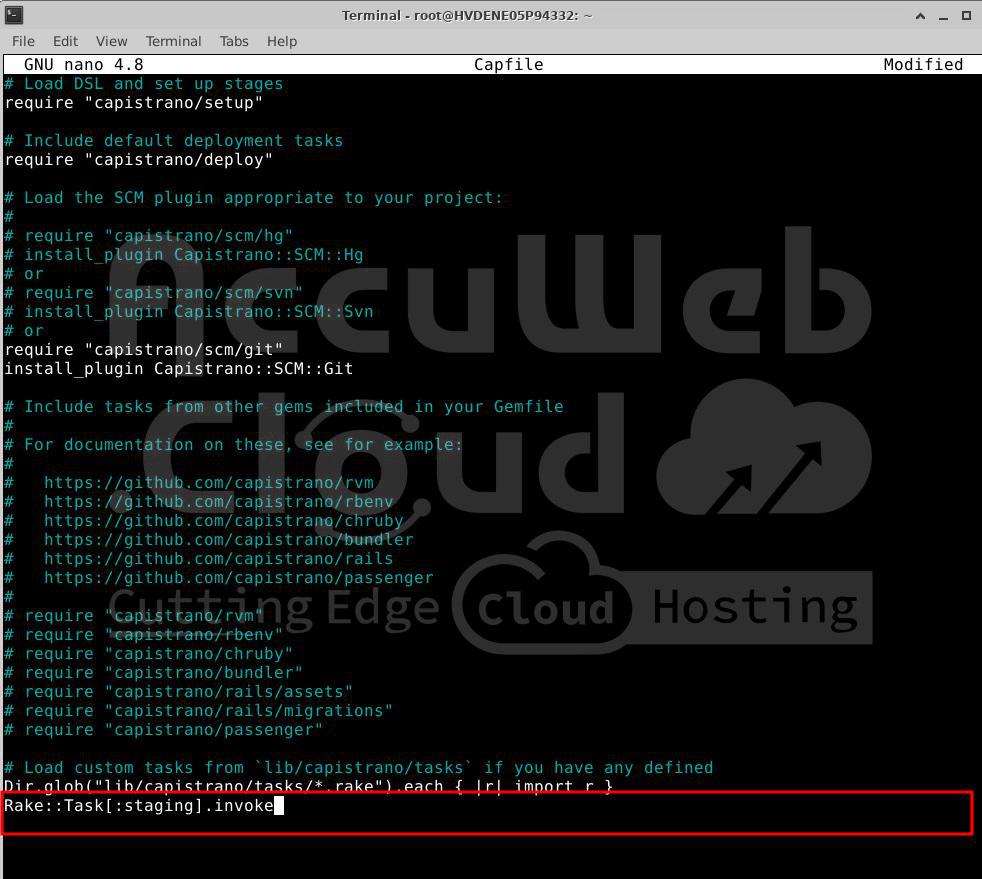
3. In the “Capfile” located in your project’s root folder, add this line:
Rake::Task[:staging].invokeSave the “Capfile” after making this addition.
Set Up SSH Agent
1. Make sure your ssh-agent is active on your computer.
2. Add your private SSH key to the agent. It must match the public key you added to the dashboard.
# ssh-add {full_path_to_the_private_SSH_key}
3. You can double-check if the correct key was added by typing:
# ssh-add -lCheck Your Settings
Now, let’s verify if everything is set correctly.
Go to the main folder of your project on your computer and run this command:
cap staging deploy:check
Capistrano will connect to your server, create necessary folders, and check for all required files and permissions. If anything is missing, you’ll get an error message.
Deploy Your App
Finally, deploy your application by running this command in your project’s main folder:
cap staging deploy
Once it’s done, visit your app’s URL to confirm that it’s been successfully deployed.