
Building Custom Container
Using this platform, you can speed up the creation of your Docker image by using an existing one, specifically the platform’s CentOS 7 base template. This eliminates the need to repeat actions already accomplished in the parent template, allowing you to focus entirely on making necessary revisions.
We will demonstrate this method by creating a custom WildFly image, a versatile and lightweight Java application server that is the successor to the well-known JBoss.

The conventional way for creating Docker images is to use a Dockerfile, which serves as a specialized blueprint for automation by specifying required commands in a text file. This file is then interpreted and processed by the Docker daemon, which generates a new template based on the instructions. By eliminating the need to manually perform each operation, this method streamlined the process.
We will detail the particular procedures required in generating a custom image of the WildFly server on our platform, resulting in a fully operating Dockerized version that is ready for use within the platform.
Let’s proceed with the following operations, detailing each step:
Composing Dockerfile
First, create a new empty text file in which we will explain all of the essential operations. Then, continue with the instructions below.
Step 1. First, we need to specify the base template for our image building. We will use the jelasticdocker/jelastic-centos7-base template, which comes pre-configured with the CentOS 7 operating system. To do this in the Dockerfile, use the FROM instruction as follows:
FROM jelasticdocker/jelastic-centos7-base:latestStep 2. Following that, you can give generic image information, such as metadata or internal variables, which will be required for future settings. Refer to the example below to correctly set these values:
LABEL maintainer="Accuweb"
ENV WILDFLY_VERSION 13.0.0.Final
ENV ADMIN_USER jelastic
ENV ADMIN_PASSWORD jelastic
where
- LABEL: This allows you to define image metadata with key-value pairs, such as the Docker image’s author and version.
- ENV: Use this to set essential environmental variables:
- WILDFLY_VERSION: This defines which version of WildFly to build. You can modify this to another release if necessary.
- ADMIN_USER: Enter an arbitrary administrator name to access the WildFly admin interface.
- ADMIN_PASSWORD: Set the password for the given administrator user.
Step 3. You are now ready to specify the appropriate configurations via shell commands. Use the ‘RUN‘ operator to effectively run these commands.
First, install the Java Development Kit (particularly, OpenJDK version 8) and the tar archiver, which will be needed to decompress downloaded files.
RUN yum -y install java-1.8.0-openjdk-devel tar && yum -y update;Following this command, make sure the installed packages are up to date.
Step 4. Next, specify additional procedures to download and extract the WildFly source code from the official website to the /opt folder.
RUN cd /opt && curl -O https://download.jboss.org/wildfly/${WILDFLY_VERSION}/wildfly-${WILDFLY_VERSION}.tar.gz \
&& $(which tar) xf wildfly-${WILDFLY_VERSION}.tar.gz \
&& rm wildfly-${WILDFLY_VERSION}.tar.gz
Step 5. Create a symlink to shorten the path to the main WildFly directory, making it more accessible and navigable.
RUN ln -s /opt/wildfly-$WILDFLY_VERSION /opt/wildflyStep 6. Now, let’s create the primary configuration file for our WildFly server and add all of the relevant settings to it.
RUN echo -en "JAVA_HOME=\"/usr/lib/jvm/java\""'\n'\
"JBOSS_HOME=\"/opt/wildfly\""'\n'\
"JBOSS_USER=wildfly"'\n'\
"JBOSS_MODE=standalone"'\n'\
"JBOSS_CONFIG=standalone.xml"'\n'\
"STARTUP_WAIT=60"'\n'\
"SHUTDOWN_WAIT=60"'\n'\
"JBOSS_CONSOLE_LOG=\"/var/log/wildfly/console.log\""'\n'\
"JBOSS_OPTS=\"-b 0.0.0.0 -bmanagement=0.0.0.0 -Djboss.management.http.port=4949 -Djboss.management.https.port=4848\"" >> /etc/default/wildfly
Step 7. CentOS 7 defaults to the Systemd initiation script; however, the WildFly server requires the more classic SystemV Init script. To avoid the Systemd redirect, you must copy the default initscript to the /etc/init.d folder and configure it accordingly.
RUN wget https://raw.githubusercontent.com/wildfly/wildfly-core/master/core-feature-pack/src/main/resources/content/docs/contrib/scripts/init.d/wildfly-init-redhat.sh -O /etc/rc.d/init.d/wildfly;
sed -i "/# Source function library/a\SYSTEMCTL_SKIP_REDIRECT=1" /etc/init.d/wildfly; chmod +x /etc/init.d/wildfly;
Step 8. Next, we’ll set up WildFly to run on container startup by creating the appropriate system user and setting file ownership accordingly.
RUN chkconfig --add wildfly; chkconfig wildfly on; mkdir -p /var/log/wildfly; adduser wildfly;
chown -R wildfly:wildfly /opt/wildfly-$WILDFLY_VERSION /opt/wildfly /var/log/wildfly;
Step 9. In addition, we will enter the user credentials defined in the first instruction step for accessing the server’s admin panel.
RUN /opt/wildfly/bin/add-user.sh --user $ADMIN_USER --password $ADMIN_PASSWORD --silent --enableStep 10. We can now adjust the URL to the admin panel on the default index.html page by specifying the proper redirect. This ensures that the admin panel may be accessed properly, especially if our image is deployed to a container without an external IP address, via port 4949 and an HTTP connection.
RUN sed -i "s/<a href=\"\/console\">/<a href=\"\/console\" onclick=\"javascript:event.target.port=4949;event.target.protocol=\'http:\';\">/" /opt/wildfly/welcome-content/index.htmlStep 11. Add the English locale settings to the container.
RUN localedef -i en_US -f UTF-8 en_US.UTF-8Step 12. Another step is to configure our Docker image to listen on the specified ports during runtime. This can be achieved using the ‘EXPOSE’ command.
EXPOSE 22 80 443 8080 8743 9990 9993 8009 4848 4949Step 13. Finally, specify ‘ENTRYPOINT’ to define the container’s executable. In this scenario, we’ll specify the bash shell.
ENTRYPOINT ["/bin/bash"]That is it! Remember to save all of the required settings to complete the dockerfile and make it ready for use.
Adding Image to Repository
Once you’ve created the required dockerfile, you can build your WildFly image and push it to the repository.
To proceed, follow these steps:
Step 1. Execute the `docker build` command with the necessary parameters to create a new image locally.
sudo docker build -t {image_name} {dockerfile_location}Here are the details:
- {image_name}: This refers to the name of the image repository. Optionally, you can add a version tag after the colon separator (e.g., `jelastic/wildfly:latest`).
- {dockerfile_location}: This can be either a local path or a URL to your dockerfile. If the file is in the current directory, you can set this as `”.”`.
Next steps:
Step 2. After running the ‘docker build’ command, you should see a build success message with the ID of your new image. To ensure that it is available on your workstation, you can obtain a list of all local photos with:
sudo docker imagesStep 3. Finally, upload your image to a registry using the proper command.
sudo docker push {image_name}For this step, specify the `{image_name}` identically to the one used during the image-building process in the first step.
By additionally authenticating your account ownership by entering the correct username password and email you can complete the procedure.
Deploying Image at Platform
Once your image has been successfully stored in the repository, it will be available for use on the platform and may be added to an environment using the specific Docker board embedded into the topology wizard dashboard.
To proceed, select the “New Environment” button at the top of the dashboard, then navigate to the Docker tab under the environment wizard, and finally click the “Select Image” button.
1. In this section, you have two options:
- Use the Search tab to add an image from the Docker Hub repository.
- Switch to the Custom section, where you can work with images of any type, including private ones, and store your templates for easy access.

Let us focus on the second alternative. Once inside, navigate to the required environment layer on the left (in this case, “App. Servers”) and click the “Add New Image” button.
In the opened “Add New Image” frame, enter your image identifier in the “Name” field following this format:
{registry_hostname} (can be skipped for official Hub Registry) / {account} / {image_name}If you are using a private repository, make sure to provide the appropriate Username and Password credentials.

We’re utilizing the public Docker Hub repository, which is part of the main Registry Hub, so only the short repository name is required. When you are ready, click the “Add” button.
Once added, your image will appear on the list. From here, you may add it to the topology with a single click. Furthermore, this template will be preserved and placed here for future use, making it easier to access during subsequent container selections (unless manually removed from the Custom list).

Complete the remaining configurations based on your requirements (see the attached guide for more information on available options) and finish the environment creation.
Once your environment with the appropriate image shows on the dashboard, click the “Open in Browser” option connected with it.

As a consequence, you will be taken to the usual WildFly start page, which confirms that everything is properly configured and that your freshly created container is completely operational.
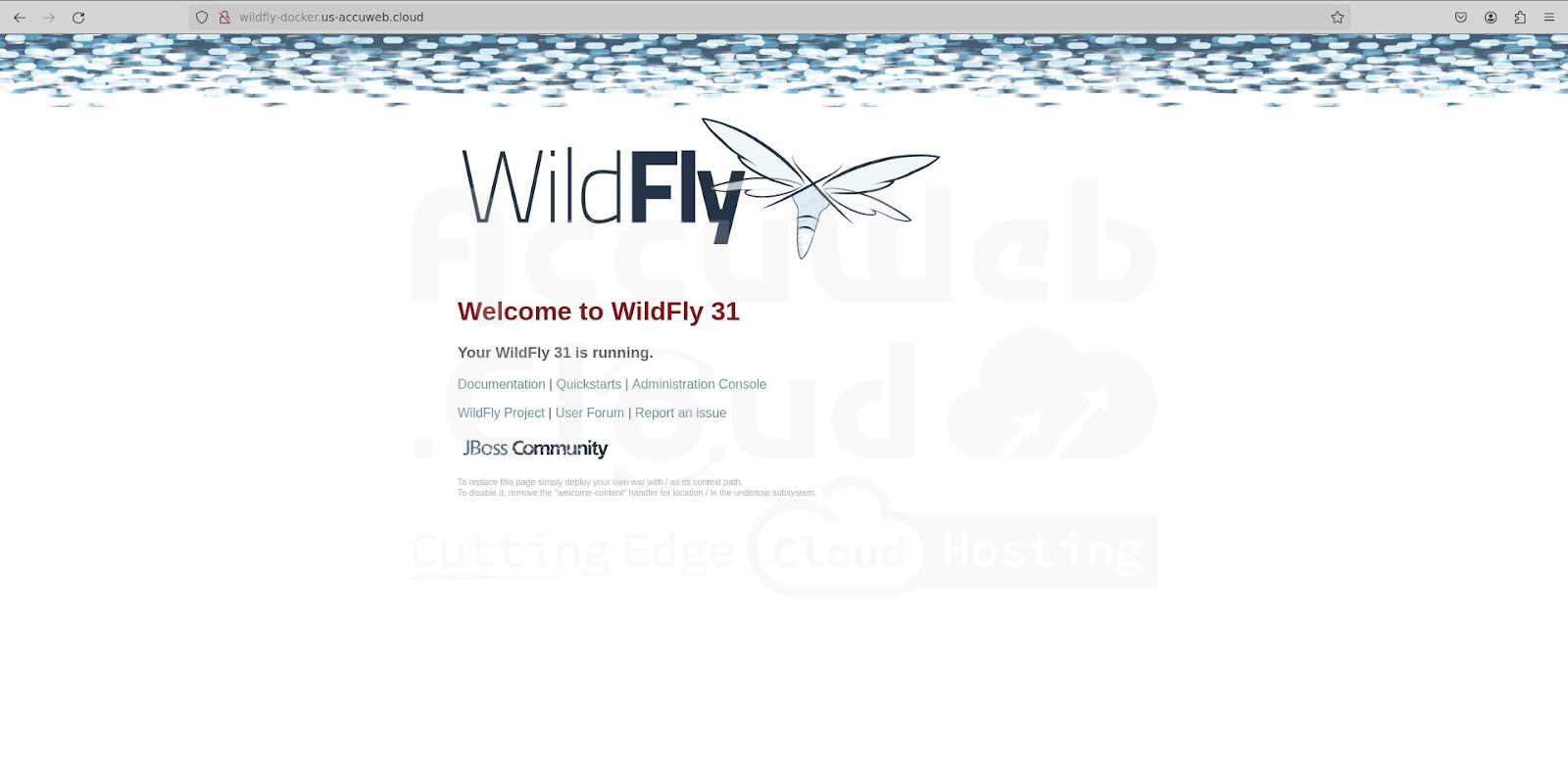
Using the procedures outlined above, you may generate any other preloaded image adapted to your individual requirements and execute it seamlessly within the platform!