
Docker Container Exited with Code 137: Is It Really Out of Memory?
You run docker ps -a and see Exited (137) next to your container. Most guides say it is an out of memory problem and stop there. That is only one of the possible causes. If you raise the memory limit when memory was not the problem, the container will keep dying.
This guide shows how to find the real cause in a few minutes and how to fix it.
What Does Exit Code 137 Mean?
Exit code 137 is 128 + 9. The 9 is the SIGKILL signal, which stops a process at once and cannot be ignored. So 137 only tells you that something killed the main process of the container. Docker reports the result, not who did it.
| Cause | What to check |
| The container reached its own memory limit | OOMKilled=true and a “Memory cgroup out of memory” line in the kernel log |
| The whole server ran out of memory | An “Out of memory: Killed process” line in the kernel log |
| docker stop timed out, or docker kill was used | OOMKilled=false and no memory lines in the kernel log |
| Someone or something ran kill -9, such as a script or an orchestrator | Your shell history, scripts and health checks |
The steps below go from the quickest check to the slowest. Replace oom-demo with your own container name.
Step 1: Confirm the Exit Code
List the container and its status:
docker ps -a –filter name=oom-demo –format “table {{.Names}}\t{{.Status}}”
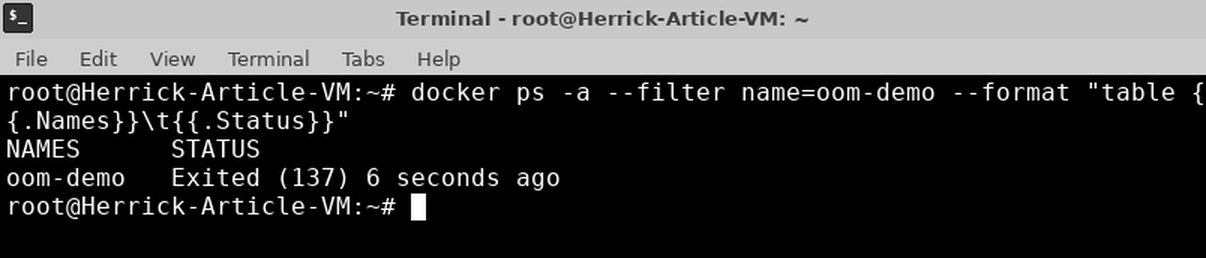
Expected result: the Status column shows Exited (137).
Step 2: Check the OOMKilled Flag
Ask Docker whether the kernel killed the container for memory:
docker inspect -f ‘ExitCode={{.State.ExitCode}} OOMKilled={{.State.OOMKilled}}’ oom-demo

Expected result: ExitCode=137 OOMKilled=true confirms that the kernel’s out of memory killer ended the main process of the container. It does not yet tell you why memory ran out. The container may have reached its own limit, or the whole server may have run short of memory. Go to Step 3 to find out which. If it says OOMKilled=false, do not stop here. Go to Step 3 as well.
Step 3: Read the Kernel Log
The kernel writes a line every time it kills a process for memory:
dmesg -T | grep -i -E “out of memory|killed process” | tail -n 3
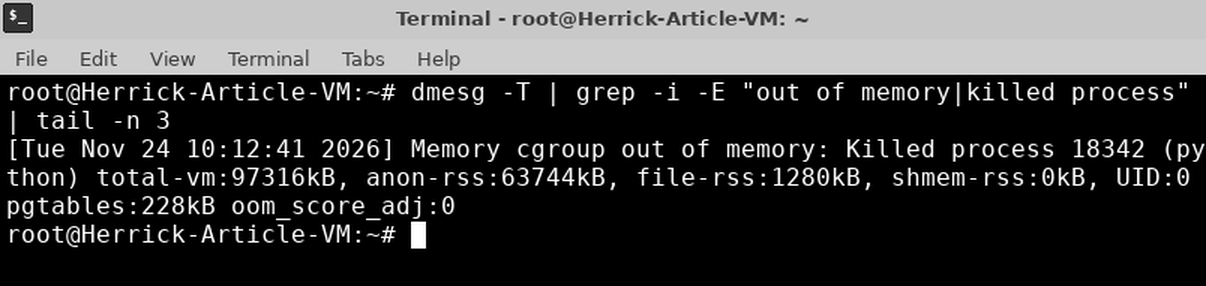
Two messages matter:
- Memory cgroup out of memory: the container reached its own limit. Go to Fix 1.
- Out of memory: Killed process: the whole server ran out of memory and the kernel picked a victim, which may have been your container. The container limit is not the cause. Go to Fix 2.
If you see no lines, do not rule out memory yet. The kernel log is cleared after a reboot, old lines are pushed out as new messages arrive, and some systems keep kernel messages only in the system journal, so check there too. If the OOMKilled flag from Step 2 or the Docker event from Step 4 shows an out of memory kill, treat it as one even when the kernel log is empty. Only when all three show nothing, go to Step 5.
Step 4: Check Docker Events (Optional)
Docker keeps its own record of out of memory kills:
docker events –since 15m –until “$(date +%s)” –filter event=oom
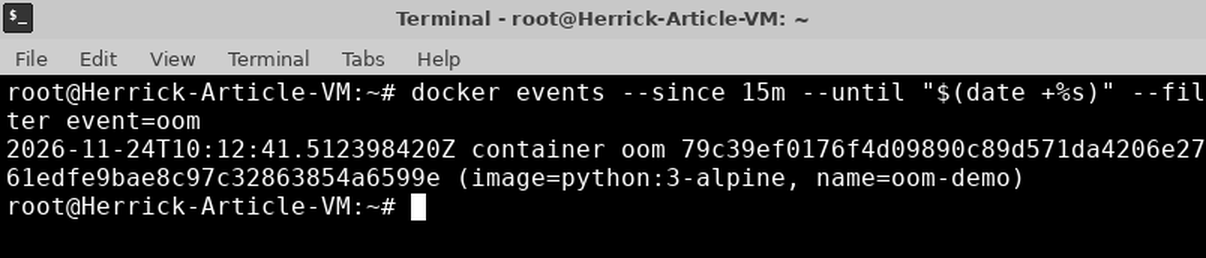
Expected result: one container oom line with your container name and a time. It confirms the Step 2 and Step 3 findings.
Step 5: Rule Out a Stop or a Kill
If OOMKilled is false and the kernel log is clean, the main process was killed on purpose or by a timeout. docker stop sends SIGTERM, waits 10 seconds, then sends SIGKILL. If your app ignores SIGTERM, the container always ends with 137 after about 10 seconds. This example container ignores SIGTERM:
docker run -d –name stubborn alpine sh -c ‘trap “” TERM; while true; do sleep 1; done’
time docker stop stubborn
docker inspect -f ‘ExitCode={{.State.ExitCode}} OOMKilled={{.State.OOMKilled}}’ stubborn
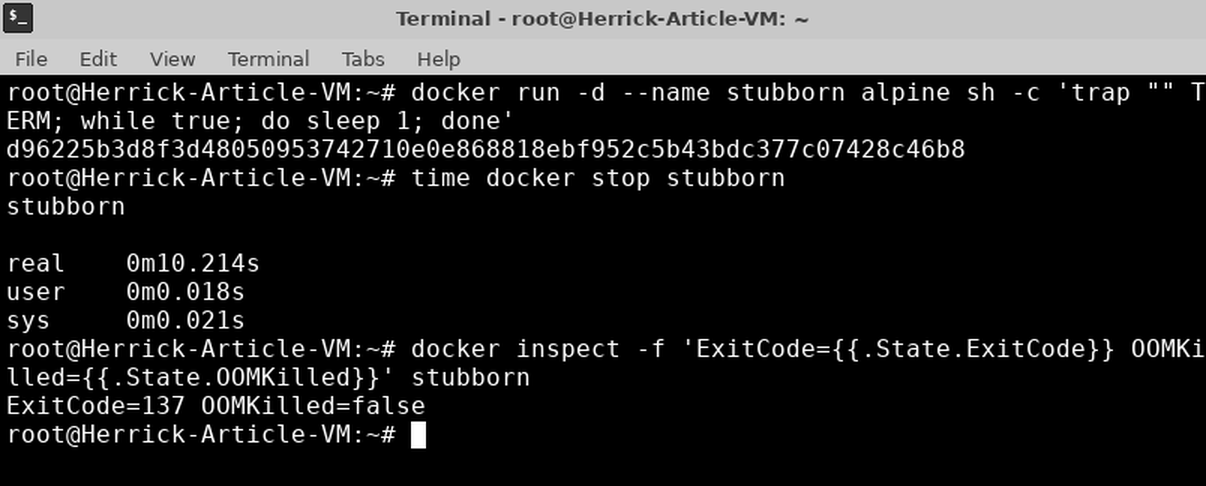
Expected result: docker stop takes about 10 seconds, then you see ExitCode=137 OOMKilled=false. The command docker kill gives the same result right away:
docker run -d –name killed alpine sleep 600
docker kill killed
docker inspect -f ‘ExitCode={{.State.ExitCode}} OOMKilled={{.State.OOMKilled}}’ killed
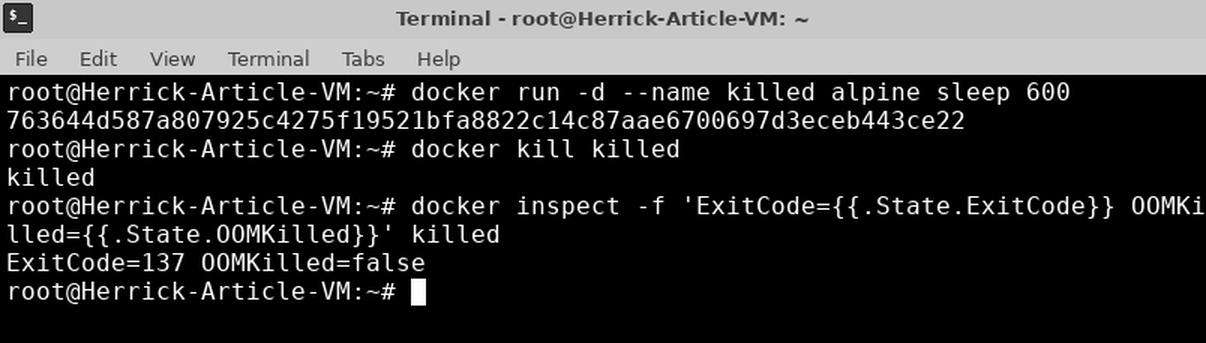
If nobody ran docker stop or docker kill, check your scripts, CI jobs and any orchestrator health checks that restart containers.
How to Fix It
Fix 1: The Container Hit Its Memory Limit
- Watch the real usage with docker stats and compare it with the limit.
- Raise the limit: docker run -m 256m …, or mem_limit: 256m in a Compose file.
- If memory keeps growing, look for a leak or a large cache in the app. Set the app’s own cap below the container limit, for example -XX:MaxRAMPercentage for Java or –max-old-space-size for Node.js.
Fix 2: The Whole Server Ran Out of Memory
A container without a limit can use all the memory of the host. Set a memory limit on every container so one of them cannot starve the others, and check the host with free -h. If the server is simply too small, move to a plan with more RAM. On an AccuWeb.Cloud VPS the vCPU and RAM are dedicated, and you can scale up later by adding RAM.
Fix 3: The Container Ignores SIGTERM
Make the app handle SIGTERM and shut down cleanly. If you cannot change the app, you can start the container with Docker’s init option. It runs a small init process that passes signals on to your app, which helps when the app misses SIGTERM only because of how it is started. The init option cannot fix an application that receives SIGTERM and deliberately ignores it. An app like the one in Step 5 would still be killed after the 10 second timeout. For that case, change the app, or give the stop request more time.
docker run -d –name polite –init alpine sleep 600
time docker stop polite
docker inspect -f ‘ExitCode={{.State.ExitCode}} OOMKilled={{.State.OOMKilled}}’ polite
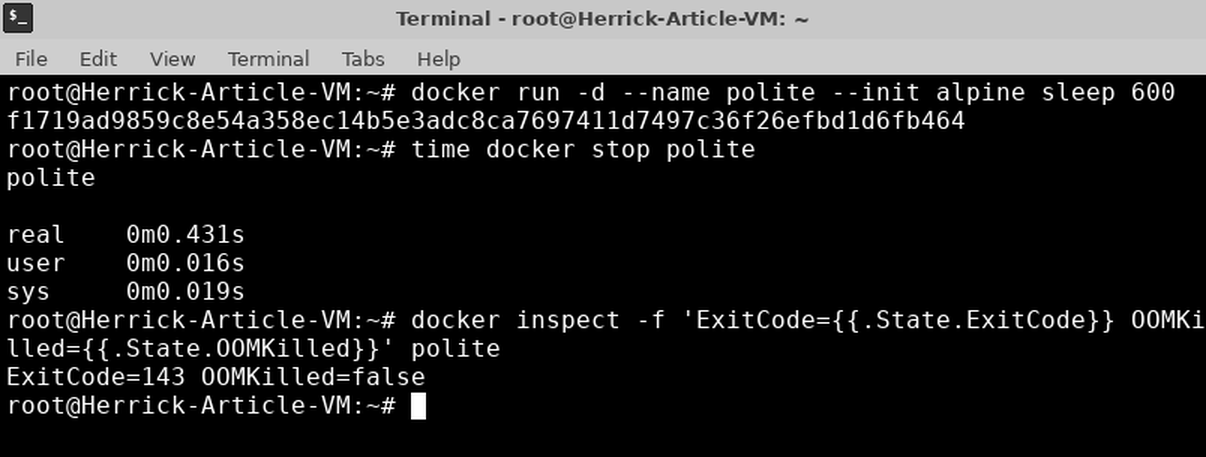
Expected result: this test container does not handle SIGTERM itself. With the init option it stops in about a second, and the exit code is 143 (128 plus 15, SIGTERM) instead of 137.
Verify the Fix
Run the same workload that crashed with a bigger limit, and check that it stays up:
docker run -d –name ok-demo -m 256m python:3-alpine python -c “import time; a=[chr(32)*10**6 for _ in range(100)]; time.sleep(600)”
docker stats –no-stream ok-demo
docker ps –filter name=ok-demo –format “table {{.Names}}\t{{.Status}}”
docker inspect -f ‘ExitCode={{.State.ExitCode}} OOMKilled={{.State.OOMKilled}}’ ok-demo
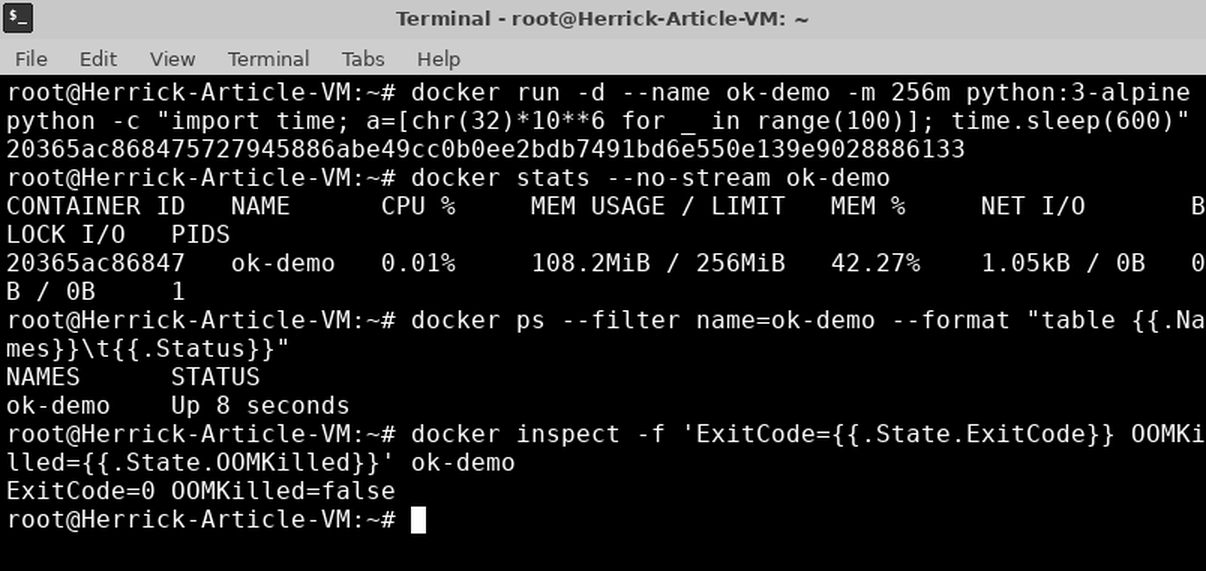
Expected result: the container shows Up, memory use is well below the 256 MiB limit, and the last line shows OOMKilled=false.
Conclusion
Exit code 137 means SIGKILL, not always out of memory. Check the OOMKilled flag first, then the kernel log, and only then look at stops and kills. Fix the cause you actually found, and set a memory limit on every container.
Before you change limits on a production server, take a snapshot or backup so you can roll back. AccuWeb.Cloud backup services can do this for your VPS. For more on managing Docker, read our guide on connecting to Docker Engine and managing it.