
ERPNext “Site Not Found”: How to Fix DNS, Nginx, Frappe Site Configuration and SSL
Introduction
When you open your ERPNext website and see a Site Not Found message, it does not always mean the ERPNext server is down. The server may be reachable, but Frappe cannot identify which site should handle the incoming request.
ERPNext runs on the Frappe Framework. A single Frappe Bench can host multiple sites, and Frappe uses the incoming hostname to select the correct site. If DNS points to the wrong server, Nginx loads an outdated configuration, or the public domain is not mapped to the correct Frappe site, visitors may see a Site Not Found page.
This guide covers the checks in a practical troubleshooting order: DNS, Nginx, site directories, domain mapping, application processes and SSL.
The examples use:
- Actual Frappe site name: erpnext.local
- Public website domain: erp.example.com
- Bench owner: frappe
- Bench directory: /home/frappe/frappe-bench
The Frappe site name and public domain can be different. Replace the public domain with your own domain when following the examples.
1. Check Whether DNS Points to the Correct Server
Start with DNS. If the domain points to an old server or an incorrect IP address, changing Nginx or restarting ERPNext will not fix the problem.
Run these commands from your local system or another machine outside the ERPNext server:
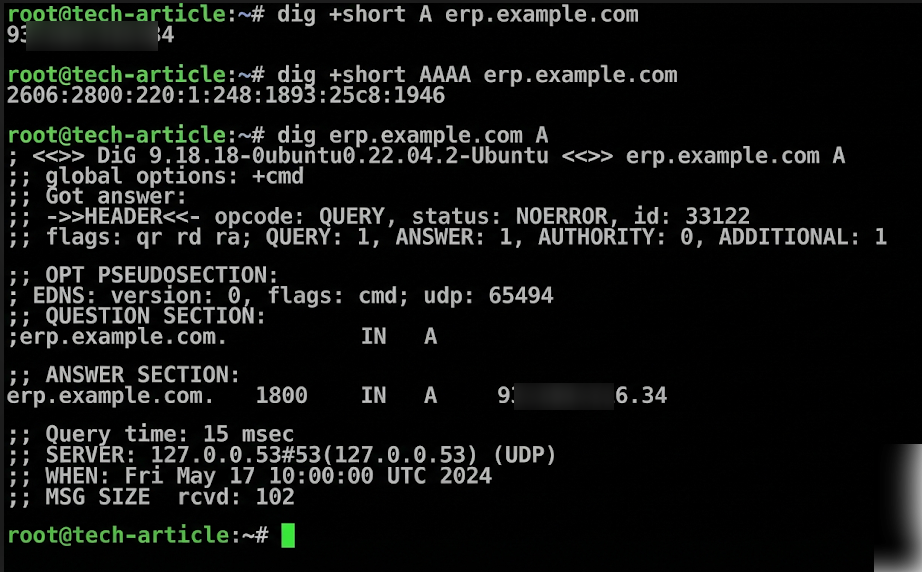
dig +short A erp.example.com
dig +short AAAA erp.example.com
The A record should return the public IPv4 address of the server hosting ERPNext. If an AAAA record exists, confirm that it points to the correct IPv6 address and that the server accepts traffic over IPv6.
For more detail, inspect the DNS response:
dig erp.example.com A
Check the answer section and compare the returned address with your server’s public IP.
If you are unsure which IP belongs to the server, connect to it and run:
hostname -I
This displays the server’s configured IP addresses. Remember that a server may have private and public addresses. If it uses NAT, hostname -I may not show the public IP.
Check the following:
- The A record points to the correct public IPv4 address.
- Any configured AAAA record points to a working IPv6 address.
- No old DNS record is directing visitors to a previous server.
- The DNS provider has the intended records configured.
DNS changes may take time to appear across different resolvers because of caching and TTL settings. Check from more than one network before assuming that the server configuration is wrong.
2. Check Nginx and Its Active Configuration
Nginx receives incoming HTTP and HTTPS requests and passes them to the appropriate Frappe site. If its configuration is missing, invalid or outdated, requests may reach the wrong server block.
On the ERPNext server, check the Nginx service:
sudo systemctl status nginx
If it is inactive or failing, inspect the logs:
sudo journalctl -u nginx -n 50 –no-pager
In this example, the Bench owner is frappe:
sudo -iu frappe
cd /home/frappe/frappe-bench
Verify the user and directory:
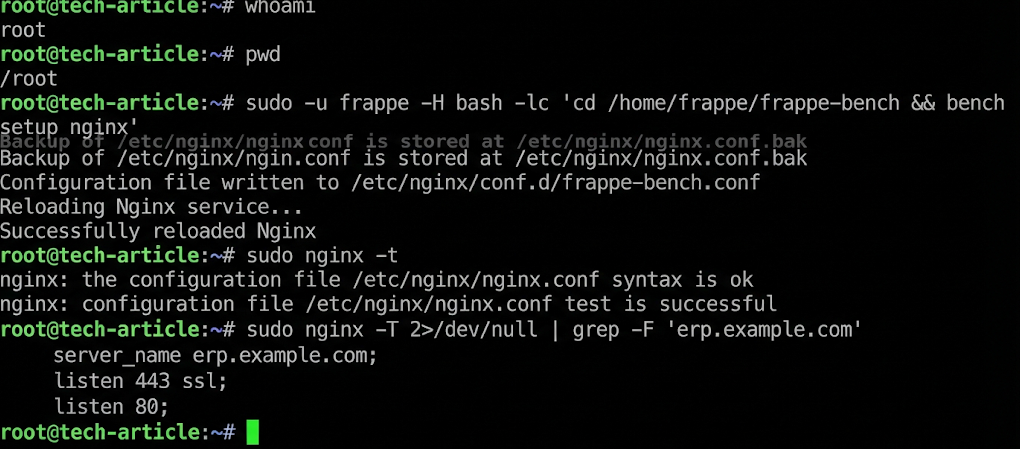
whoami
pwd
ls -lah
The output should show the frappe user and /home/frappe/frappe-bench.
Generate the Nginx configuration from the current Bench settings:
bench setup nginx
This generates the configuration at:
/home/frappe/frappe-bench/config/nginx.conf
Important: Generating this file does not automatically mean that the system Nginx service is loading it. Frappe’s production setup requires the generated configuration to be linked or included in the active Nginx configuration.
Now check whether the public domain appears in the configuration currently loaded by Nginx. Run this command with an account that has sudo privileges:
sudo nginx -T 2>/dev/null | grep -F ‘erp.example.com’
If the domain appears, it is present in the configuration loaded by Nginx. If there is no output, check whether the generated Bench configuration is linked or included in the active Nginx configuration.
Validate the configuration before reloading:
sudo nginx -t
sudo systemctl reload nginx
If the syntax test fails, read the error carefully. It may identify a duplicate server block, a missing certificate file or an invalid directive. Fix the reported problem before reloading Nginx.
For the official production setup procedure, see Frappe – Setup Production.
3. Confirm That the Correct Frappe Site Exists
A working DNS record and Nginx service are not enough. The requested Frappe site must exist inside the Bench installation.
From the Bench directory, list the available sites:
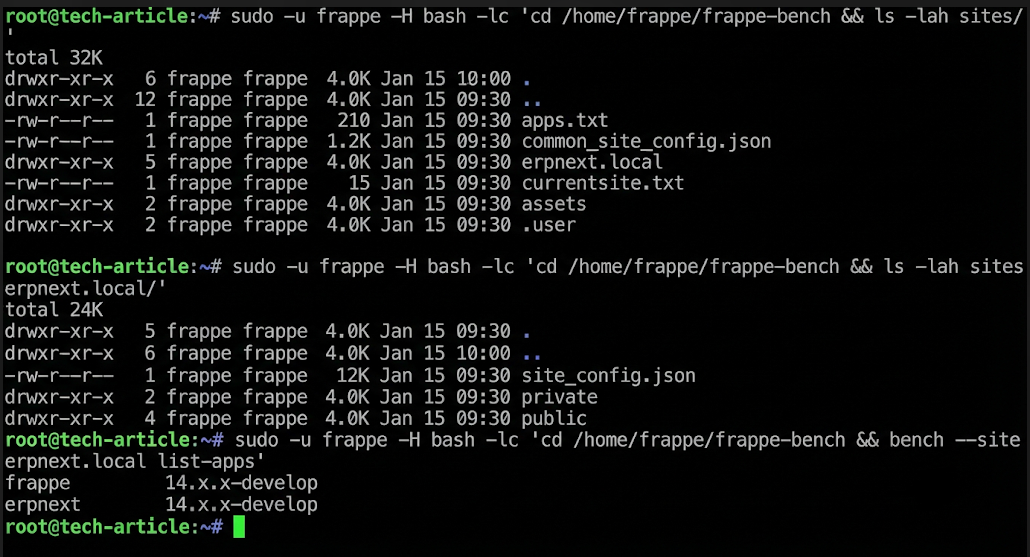
ls -lah sites/
For this example, the actual site directory is erpnext.local, not erp.example.com.
Check that directory:
ls -lah sites/erpnext.local/
A typical Frappe site directory contains:
site_config.json
private/
public/
The site_config.json file contains site-specific settings, including database connection details. Do not publish its contents or share them in an unsecured support ticket because they may contain sensitive credentials.
Next, confirm that ERPNext is installed on this site:
bench –site erpnext.local list-apps
The output should include frappe and erpnext for an ERPNext installation.
If the expected site directory is missing, confirm that you are checking the correct Bench installation. A server can contain multiple Bench directories, and inspecting the wrong one can lead to incorrect conclusions.
If the site exists but ERPNext is missing from the application list, investigate the site’s application installation instead of changing DNS records.
4. Check How Frappe Maps the Public Domain to the Site
This is one of the most important checks when the server responds but displays Site Not Found.
Frappe selects a site based on the incoming request hostname or the X-Frappe-Site-Name header. The public domain must therefore be recognised and mapped to the intended site.
In this example:
- erpnext.local is the actual Frappe site name.
- erp.example.com is the public domain visitors use.
These names do not have to match.
Check DNS-based multitenancy
From the Bench directory, run:
grep ‘”dns_multitenant”‘ sites/common_site_config.json
If the command returns no output, the setting is not explicitly configured in common_site_config.json.
If DNS-based multitenancy is required and the existing Bench configuration confirms it should be enabled, run:
bench config dns_multitenant on
To disable it when required, run:
bench config dns_multitenant off
After changing the setting, regenerate and validate the Nginx configuration:
bench setup nginx
sudo nginx -t
sudo systemctl reload nginx
Enabling DNS-based multitenancy is not a universal fix. It should match the way the Bench and its sites are designed. Do not change this setting on a multi-site production server without understanding the existing configuration.
Check custom domain mapping
If the site already exists as erpnext.local and visitors should access it through erp.example.com, add the public domain to that existing site.
Run this command as the Bench owner:
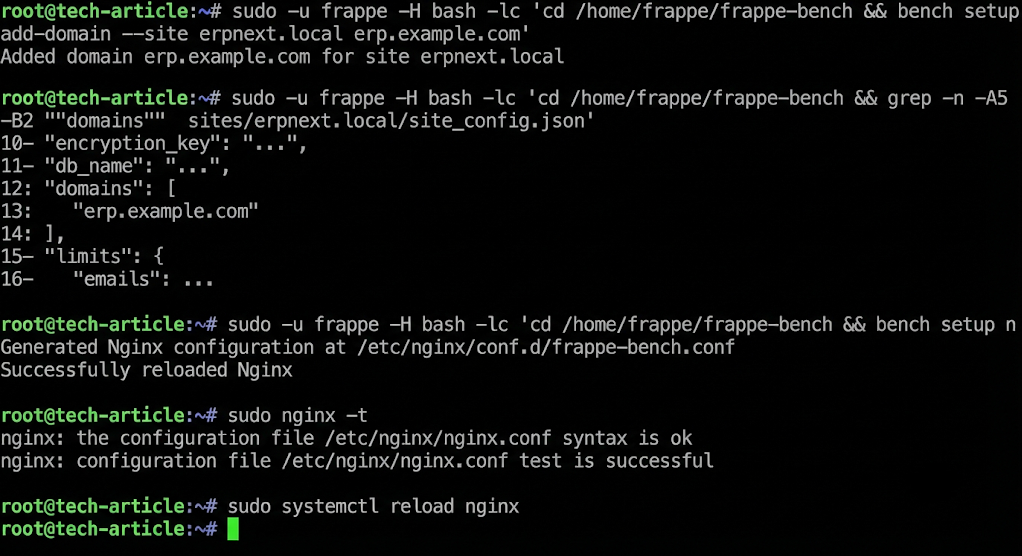
bench setup add-domain –site erpnext.local erp.example.com
This maps the public domain to the existing Frappe site. The –site option identifies the actual site, while the final argument is the custom domain.
Verify the domain entry:
grep -n -A5 -B2 ‘”domains”‘ sites/erpnext.local/site_config.json
Regenerate the Nginx configuration after adding the domain:
bench setup nginx
sudo nginx -t
sudo systemctl reload nginx
Then repeat the active Nginx configuration check from Section 2.
Do not confuse bench use with domain mapping. The bench use command sets the default site for Bench commands. It does not, by itself, map an external domain to that site.
For more details, see Frappe – Adding Custom Domains to Your Site.
5. Check the ERPNext Application Processes
If DNS, Nginx and site mapping look correct, check whether the processes serving the application are running.
For a production Bench using Supervisor, run:
sudo supervisorctl status
Review the status of the Frappe web, worker, scheduler and other configured processes. The exact process names depend on the Bench configuration.
If a required process is stopped or repeatedly restarting, inspect its logs before taking action. A database connection issue, configuration error or resource shortage can prevent the application from starting correctly.
You can also inspect the database and Redis services if they are installed locally:
sudo systemctl status mariadb
sudo systemctl status redis-server
Service names can differ between operating systems and installation methods. Redis may also run as separate cache and queue services or be hosted on another server.
After identifying and correcting the underlying issue, restart the Bench processes using the appropriate production procedure:
bench restart
Run this as the Bench owner with the required permissions. Avoid repeatedly restarting every service when the logs already identify a specific failure.
6. Test the Actual ERPNext Page Over HTTP and HTTPS
Testing the server through its IP address alone can be misleading. Nginx and Frappe use the HTTP hostname to select the correct site.
First, test the local Nginx endpoint while sending the intended hostname:
curl -sS -D /tmp/erpnext-headers.txt \
-o /tmp/erpnext-page.html \
-H “Host: erp.example.com” \
http://127.0.0.1/
Check the response headers:
cat /tmp/erpnext-headers.txt
Then inspect the returned page:
grep -i ‘<title>’ /tmp/erpnext-page.html | head -1
This checks the actual response body instead of relying only on HTTP headers.
Next, test the public HTTPS address:
curl -fsSL https://erp.example.com \
-o /tmp/erpnext-https-page.html
Check the page title:
grep -i ‘<title>’ /tmp/erpnext-https-page.html | head -1
You can also inspect the HTTP status, final URL and downloaded response size:
curl -sS -L -o /tmp/erpnext-https-page.html \
-w ‘HTTP status: %{http_code}\nFinal URL: %{url_effective}\nContent type: %{content_type}\nDownloaded bytes: %{size_download}\n’ \
https://erp.example.com
A successful HTTP response does not automatically prove that the correct ERPNext site was selected. Open https://erp.example.com in a browser and confirm that the expected ERPNext login page appears.
If the local hostname test works but the public request fails, investigate DNS, firewall rules and network routing. If both requests reach the server but show the wrong site, focus on Frappe domain mapping and the active Nginx configuration.
If you need to test the server before DNS has updated, you can use curl –resolve:
curl -sS -L \
–resolve erp.example.com:443:93.28.106.68 \
-o /tmp/erpnext-test.html \
-w ‘HTTP status: %{http_code}\nFinal URL: %{url_effective}\n’ \
https://erp.example.com
7. Verify SSL Certificates and Firewall Access
If the site works over HTTP but fails over HTTPS, check the SSL certificate and port configuration.
Confirm that the server allows incoming connections on ports 80 and 443. On systems using UFW, run:
sudo ufw status
If the firewall is enabled and these ports are not allowed, configure the required rules according to your server’s security policy.
Next, inspect certificates managed by Certbot:
sudo certbot certificates
Check that the certificate covers erp.example.com and that the certificate and private-key files exist at the paths referenced by the active Nginx configuration.
Test the HTTPS connection:
curl -Iv https://erp.example.com
Look for certificate validation errors, hostname mismatches, expired certificates or connection failures.
If the certificate is missing or expired, renew or issue it using the certificate management method configured on the server. Do not disable certificate verification as a permanent fix. Correct the certificate or Nginx configuration so browsers can validate the connection normally.
8. When Manual ERPNext Troubleshooting Becomes Too Much Work
Running ERPNext involves more than installing the application. The server also needs a working database, Redis, background workers, Nginx, SSL, firewall rules and ongoing maintenance.
For businesses that do not want to manage every infrastructure component manually, AccuWeb.Cloud offers ERPNext as a one-click marketplace application.
The deployment option helps simplify the initial application setup. Businesses can choose their cloud resources and deployment location, then manage their ERPNext environment through the platform.
Explore the AccuWeb.Cloud ERPNext Hosting option or browse the One-Click App Hosting platform.
For an existing ERPNext installation, the troubleshooting steps in this guide still apply. The required work depends on the server configuration and the issue affecting the site.
Frequently Asked Questions
Why does ERPNext show Site Not Found even when the server is online?
The server may be reachable, but Frappe may not recognise the requested hostname or map it to the correct site. Check DNS, Nginx and the site’s domain configuration.
Can an incorrect DNS record cause an ERPNext Site Not Found error?
Yes. If the domain points to the wrong server, the request may reach an Nginx or Frappe installation that does not contain the requested site.
Can the Frappe site name be different from the public domain?
Yes. A Frappe site can have an internal site name such as erpnext.local and a public domain such as erp.example.com. Add the public domain to the correct site using Bench’s custom-domain configuration.
Does bench use fix a custom-domain problem?
No. bench use sets the default site for Bench commands. It does not automatically map an external domain to that site.
Why does ERPNext work over HTTP but not HTTPS?
Common causes include an expired or incorrect SSL certificate, a missing certificate file, an Nginx SSL configuration issue or a firewall rule blocking port 443.
How can I confirm that Nginx has loaded the ERPNext domain?
Run:
sudo nginx -T 2>/dev/null | grep -F ‘erp.example.com’
If the domain does not appear, check whether the generated Bench Nginx configuration is linked or included in the active Nginx configuration.
Can I deploy ERPNext without installing all its dependencies manually?
Yes. AccuWeb.Cloud offers ERPNext as a one-click marketplace application, simplifying the initial deployment process.
Conclusion
Next, switch to the user who owns the Bench installation. Bench commands should run as the Bench owner, not as root.
An ERPNext Site Not Found error often comes from a mismatch between the requested domain and the site configured in Frappe. Start by checking DNS, confirm that Nginx is loading the correct configuration, verify the actual site directory and inspect how the public domain maps to that site.
Then check the application processes, test the actual page response and verify HTTPS. Follow these checks in order instead of restarting services blindly. This makes it easier to identify the real cause and avoid unnecessary changes to a working production environment.
If you prefer not to manage the initial infrastructure setup manually, AccuWeb.Cloud’s ERPNext one-click deployment is another option.