
ERPNext Background Workers Not Running? Check Redis, Scheduler and Supervisor
If ERPNext background jobs are not running, the problem may be related to Redis, Supervisor, or the scheduler. This guide explains how to identify these issues and fix them using Linux commands.
Move the SSH login instruction to the beginning of the troubleshooting steps.
Troubleshooting Redis, Scheduler, and Supervisor in ERPNext
Check that Supervisor is running correctly
sudo supervisorctl status
After setup ERPNext, check Redis, Scheduler, Background Workers, and Supervisor are running properly. These services help ERPNext handle task in the background.
In our ERPNext test environment, we found two issues: incorrect directory permissions prevented a Supervisor-managed process from starting, and a Redis port conflict stopped the Redis Queue service. After implementing the solution, the site worked fine, and all seven processes managed by Supervisor worked.
This guide walks through checking Redis, scheduler, and background workers, and fixing common service errors, using our ERPNext test setup.
Step 1: Troubleshoot Supervisor Startup Failure
During our testing, the Supervisor service failed to start and repeatedly restarted. We checked the service logs to identify the cause.
The Supervisor service showed the following status:

Active: activating (auto-restart) (Result: exit-code)
Main PID: 88401 (code=exited, status=1/FAILURE)
Step 1.1: Check the Supervisor Logs
Run the command below to see why it failed.
journalctl -u supervisor -n 50 --no-pagerError found:
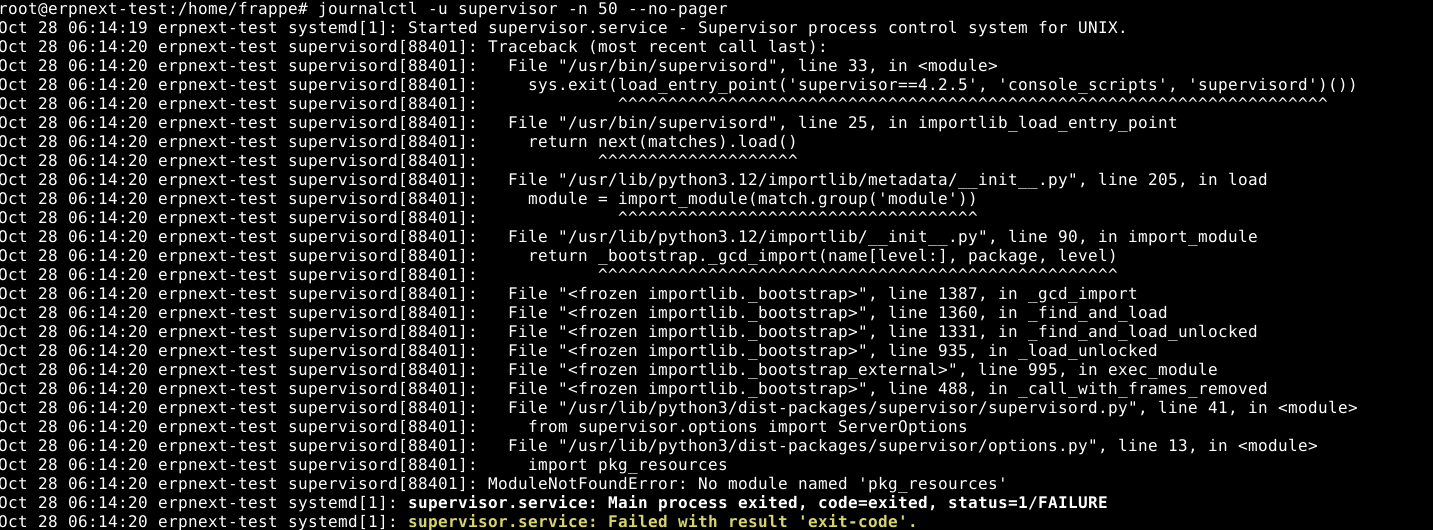
ModuleNotFoundError: No module named 'pkg_resources'The message meant that there was no such module named pkg_resources available to the Supervisor Python installation.
Step 1.2: Check the Installed Packages
Verify the status of the Python and Supervisor packages:
dpkg -l python3-setuptools python3-pkg-resources supervisorStep 1.3: Resolve the Issue
On our Ubuntu test server, reinstalling these packages resolved the missing pkg_resources module error. This solution applies when Supervisor uses the system Python installation and the logs confirm this specific error.
Reinstall the required Python packages:
apt install --reinstall python3-setuptools python3-pkg-resourcesRestart Supervisor:
systemctl restart supervisorVerify the service status:
systemctl status supervisor --no-pager
Step 2: Fix ERPNext Supervisor Processes in BACKOFF State
ERPNext website, scheduler, and background jobs are not running. The application was crashing because several Supervisor-managed services were crashing over and over and not starting up correctly.
Step 2.1: Check the Process Status

sudo supervisorctl status(BACKOFF means a Supervisor-managed process failed during startup. Supervisor retries starting the process, but repeated failures can eventually move it to the FATAL state.)
Step 2.2: Check the Supervisor Error Log
Check the web process error log to find out what went wrong.
sudo supervisorctl tail -2000 frappe-bench-web:frappe-bench-frappe-web stderrReason: The -100 option displays only the last 100 bytes, which may not show the complete error. The replacement displays the last 2,000 bytes.
The log showed an error similar to:

couldn't chdir to /home/frappe/frappe-bench/sites: EACCES
supervisor: child process was not spawned
EACCES simply indicates a file permission issue with the target directory. This points to a permission problem. The service is running as the wrong user, or it simply does not have permission to access that folder.
Step 2.3: Check the Supervisor Process User Configuration
Check which user is configured for each process.
grep -nE '^\[program:|^user=|^directory=' /etc/supervisor/conf.d/frappe-bench.conf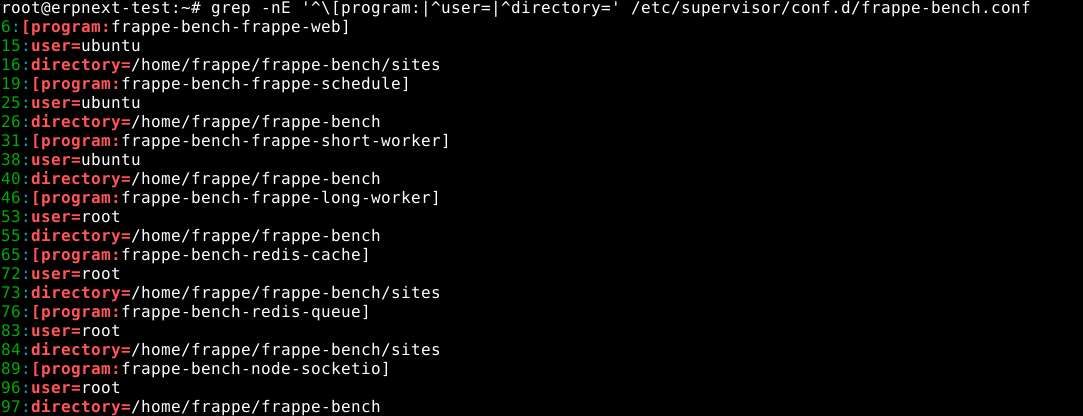
Some processes were running as ubuntu or root, but the Bench directory was owned by frappe.
Check the directory permissions:

namei -l /home/frappe/frappe-bench/sites/home/frappe has strict permissions; processes running under the wrong user could not reach that path.
Step 2.4: Correct the Supervisor Configuration
Edit the Supervisor configuration file:
sudo nano /etc/supervisor/conf.d/frappe-bench.confFind the user= line inside the [program:...] section in your config file. For this installation, all seven ERPNext Bench processes needed to run as frappe.
Replace incorrect entries such as:
user=ubuntuor:
user=rootwith:
user=frappeCheck the user setting for each affected process. Change it to user=frappe only if frappe is the correct service account for that process in your installation. Do not change every process without checking its requirements.
Save the file and exit the editor.
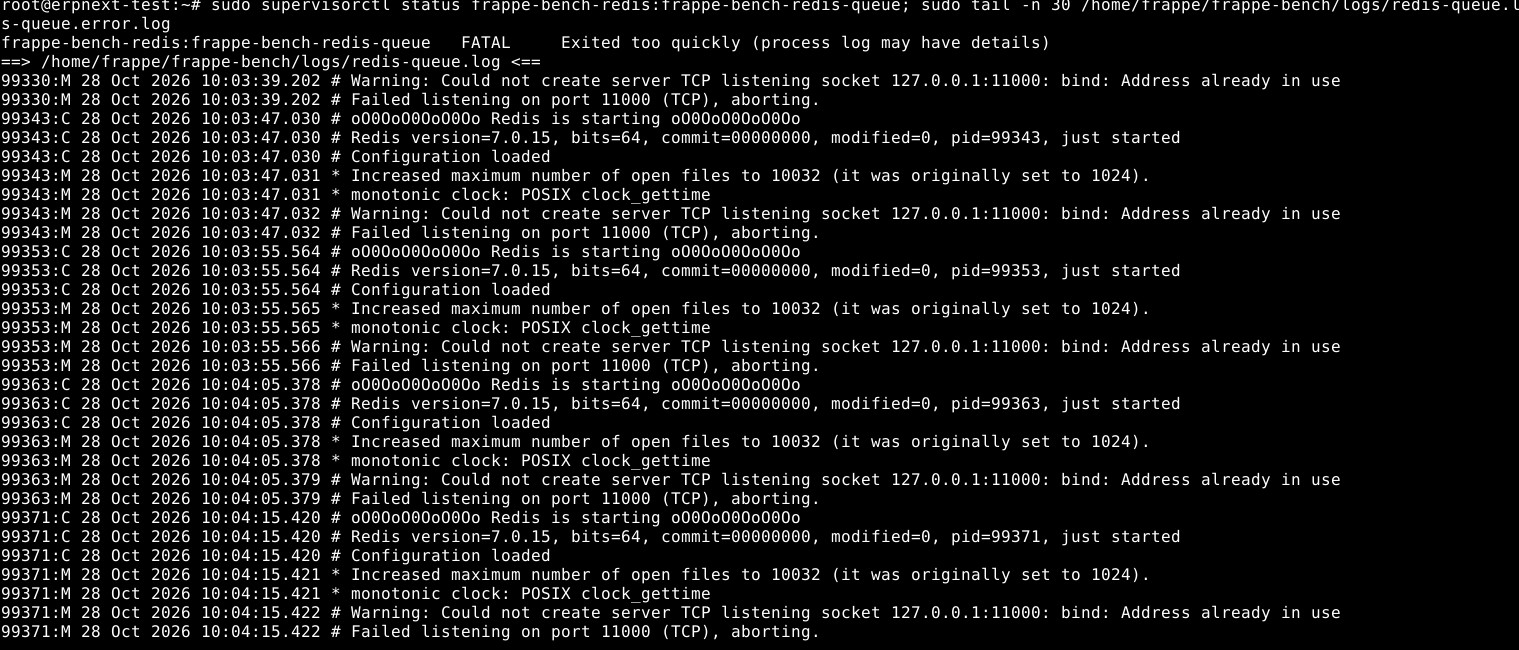
Make sure you set the right user for your environment. It’s much safer to fix the Supervisor config than to force things to work by changing folder ownership or granting loose permissions.
Step 2.5: Reload the Supervisor Configuration
Check the config with Supervisor for differences.

sudo supervisorctl rereadIn this case, Supervisor saw changes to the Redis, web, and worker process groups.
Apply the updated configuration:
sudo supervisorctl update
The supervisorctl update command applied the configuration changes and restarted the affected process groups where required.
Step 2.6: Verify All Supervisor Processes
Check the status again:
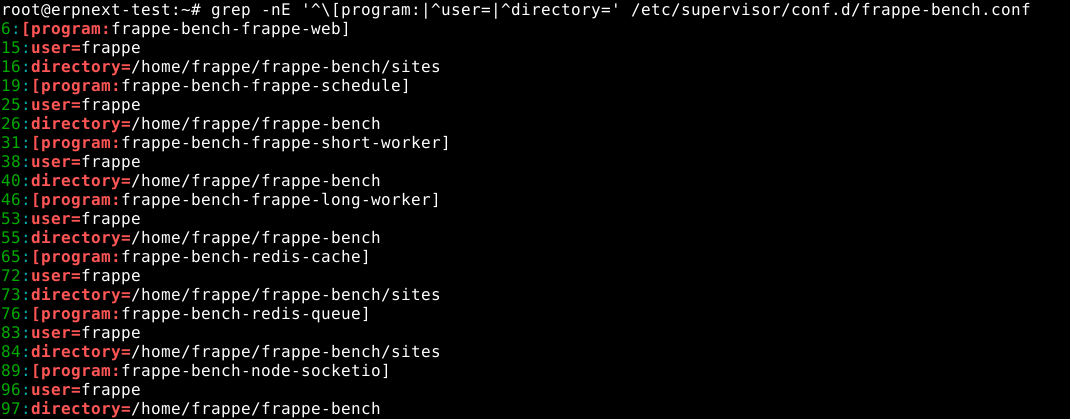
sudo supervisorctl statusOnce the fix was applied, all seven processes started up and ran without any issues:
Step 3: Troubleshoot Redis Queue Service Failure in ERPNext
ERPNext uses Redis Queue to store background jobs. Frappe workers process these jobs, including scheduled tasks and queued emails. If Redis Queue is unavailable, background job processing can be affected.
If another process is already using port 11000, Redis Queue cannot start. Supervisor will keep trying to restart it until the process is marked as FATAL.
Step 3.1: Redis Queue Service Failure
Supervisor was managing the Redis Queue service, but it failed to start and went into a failed state.
The service was checked with the following command:
sudo supervisorctl status frappe-bench-redis:frappe-bench-redis-queue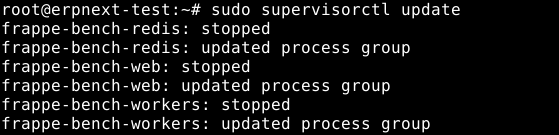
The service crashed right after starting. Check the log to see why.
Step 3.2: Check the Redis Queue Port
In our test environment, Redis Queue was configured to use port 11000. The configured port may differ on other ERPNext installations, so check the Redis configuration before running the port-related commands. We checked whether another process was using the port:
sudo ss -lntp | grep ':11000'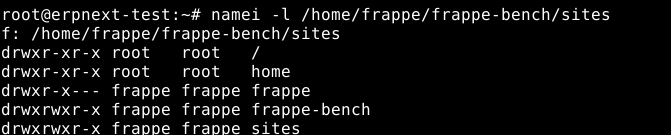
The service did not start during testing because something was already listening on that port.
The issue was a TCP port conflict on 127.0.0.1:11000. When Redis Queue starts, it needs to use the IP address and port set in its configuration. If another process is using it, Redis will fail to start. If the process keeps failing to start, Supervisor may eventually mark it as FATAL.
Possible causes in a real environment include:
- Another Redis instance using the same port.
- A Redis process was started manually while the service was already running.
- Duplicate service configurations attempting to use the same port.
- A stale or unexpected process occupying the required port.
Step 3.3: Resolve the Port Conflict
First, identify which process owns the port:
sudo ss -lntp | grep ':11000'For additional process details, use:
sudo lsof -nP -iTCP:11000 -sTCP:LISTENIf you don’t have lsof installed, grab it using your package manager.
Check out which process is running on that port. Stop or reconfigure only the confirmed conflicting process. Check first what is running on that port and then stop it.
In this controlled test, the conflicting listener was the temporary nc process created for the reproduction. It was removed with:
sudo fuser -k 11000/tcpWe then verified that the port was free:
sudo ss -lntp | grep ':11000' || echo "Port 11000 is free"The output confirmed:
Port 11000 is free
Step 3.4: Restart Redis Queue
Once the conflict was fixed, Redis Queue was started again through Supervisor.
sudo supervisorctl start frappe-bench-redis:frappe-bench-redis-queueSupervisor responded:
frappe-bench-redis:frappe-bench-redis-queue: startedThis indicated that the startup command had been accepted. Check the service status and Redis connection to confirm that everything is running as it should.
redis-cli -h 127.0.0.1 -p 11000 pingExpected output:
PONGStep 3.5: Verify Service Recovery
Check the Supervisor status:
sudo supervisorctl status
Confirm that Redis Queue shows RUNNING in Supervisor and that the Redis server responds to a connection test.
Conclusion
When ERPNext services throw errors, start by checking the logs for clues. ERPNext background jobs can stop working because of Supervisor errors, incorrect directory permissions, Redis connection issues, or scheduler problems. Check the service logs, fix the identified problem, and verify that the required processes and scheduled jobs are working properly.