
How to Optimize the Cost of Your Instances on AccuWeb.Cloud?
If you are running virtual machines on AccuWeb.Cloud, every hour an instance stays powered on adds to your bill. AccuWeb.Cloud gives you simple tools right inside your dashboard to control when your instances run, so you only pay for what you actually use. This article covers two ways to bring your costs down: powering off instances manually when you don’t need them, and setting up an automatic on/off schedule. We will also explain an important billing detail that often causes confusion.
Step 1: Log In to Your Dashboard
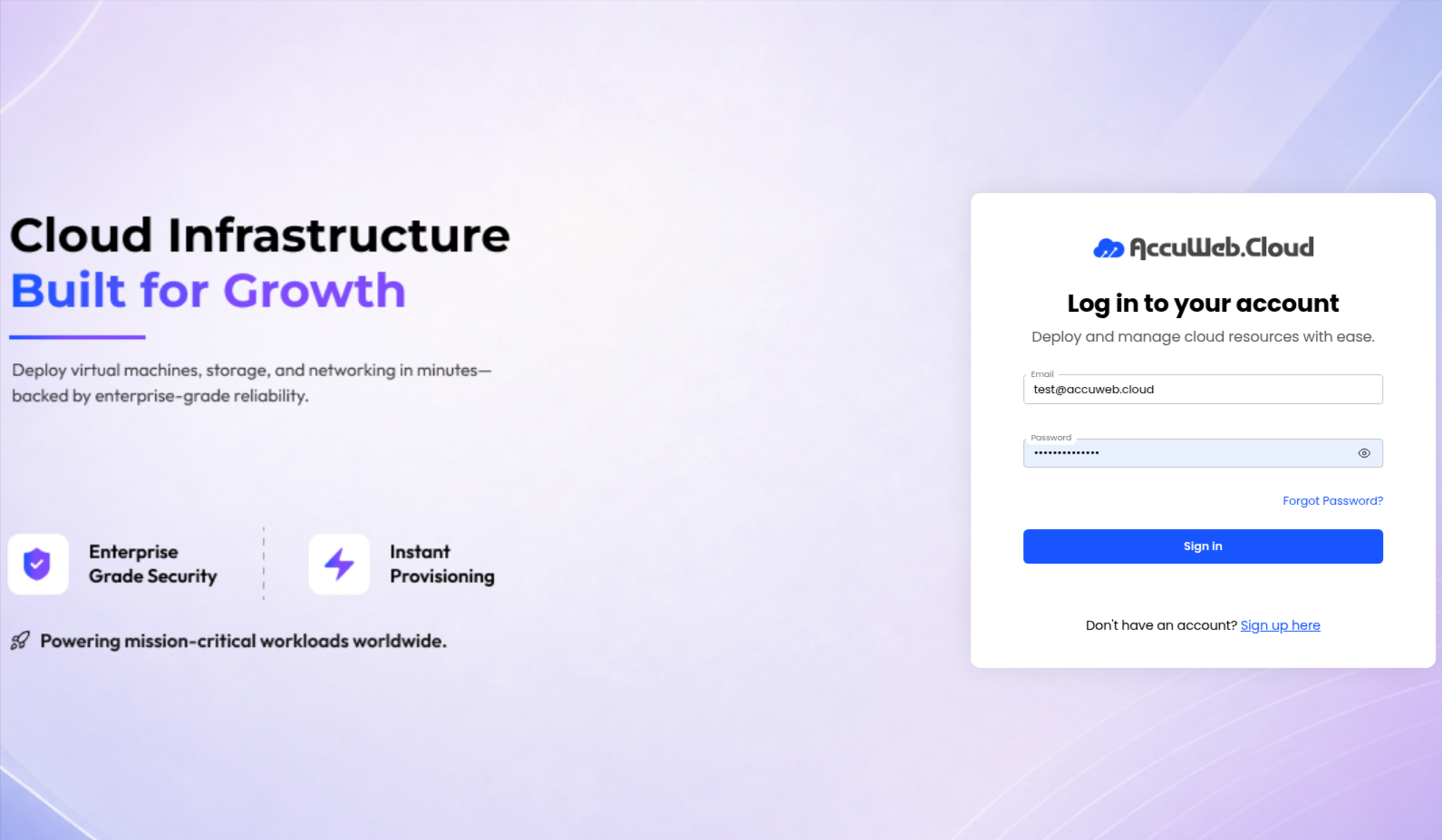
Go to the AccuWeb.Cloud login page and sign in using your registered email address and password.
Step 2: Open the Instances Section
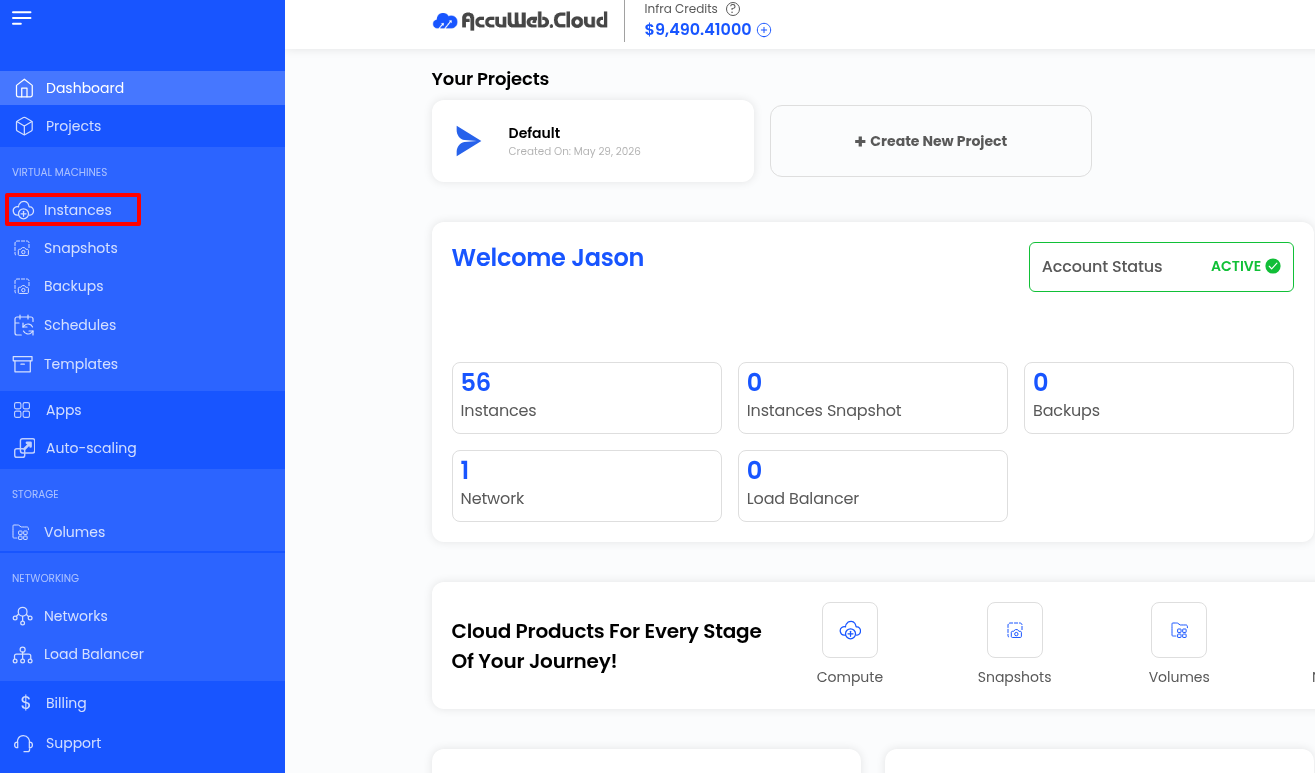
On the left panel of your dashboard, click on Instances. This shows you the list of all VMs running under your account along with their current status.
Step 3: Choose How You Want to Optimize Your Cost
There are two ways to reduce your cost from here. You can turn off an instance manually whenever you know you won’t be using it, or set up a schedule so AccuWeb.Cloud powers it on and off automatically at fixed times.
Method 1: Manually Power Off Your Instance When Not in Use
While an instance is in the Stopped state, you are not billed for that period. This is a good option if your usage is unpredictable and you would rather switch things off yourself as needed.
An important billing detail: AccuWeb.Cloud calculates charges in blocks of 60 minutes, not by the exact minute. If you stop an instance for less than a full hour, you will still be billed for that hour, since charges are only excluded once the instance has been off for a complete 60 minute block or more in multiple of 60.
For example, if you stop your instance for 58 minutes, you are still charged for that hour. But if you keep it stopped for 60 minutes or longer in multiple of 60, that hour is excluded from your bill. So to actually benefit from power off, make sure the instance stays off for at least a full hour at a time.
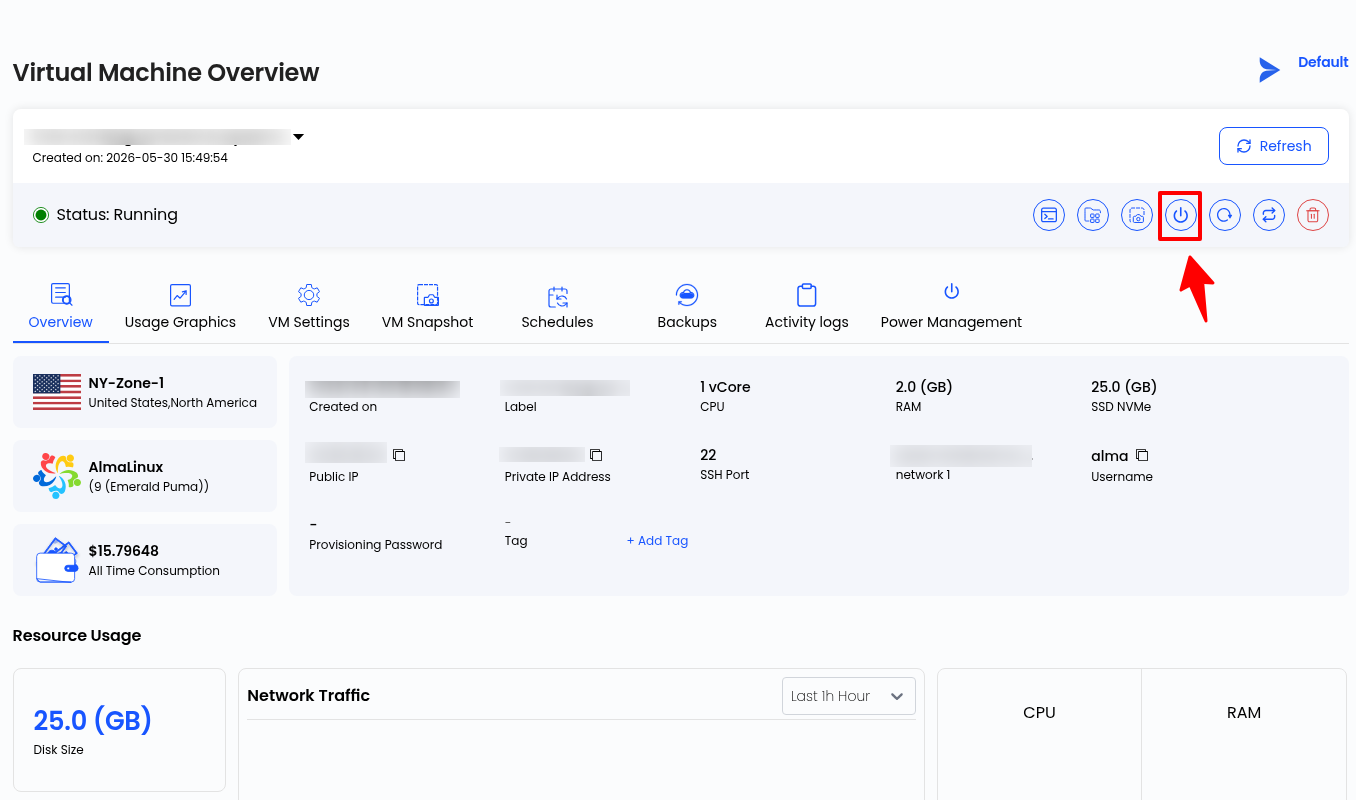
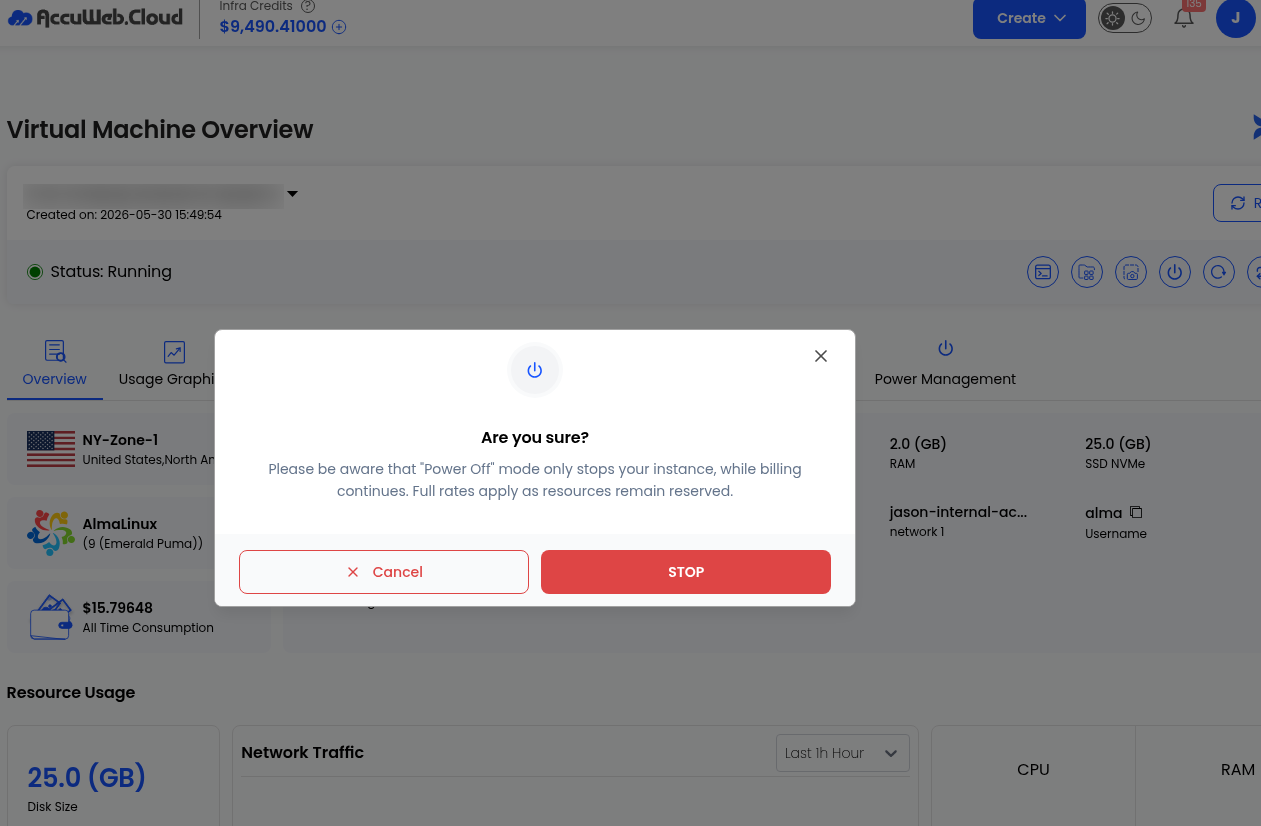
To manually shut down an instance: search for it in your Instances list, open its Overview page, click the power button, then click Stop.
Method 2: Schedule Automatic Power On and Off
If your instance follows a predictable pattern, for example, it’s only needed during business hours or specific days, scheduling is far more convenient than switching it off manually every day. AccuWeb.Cloud will handle the timing for you automatically.
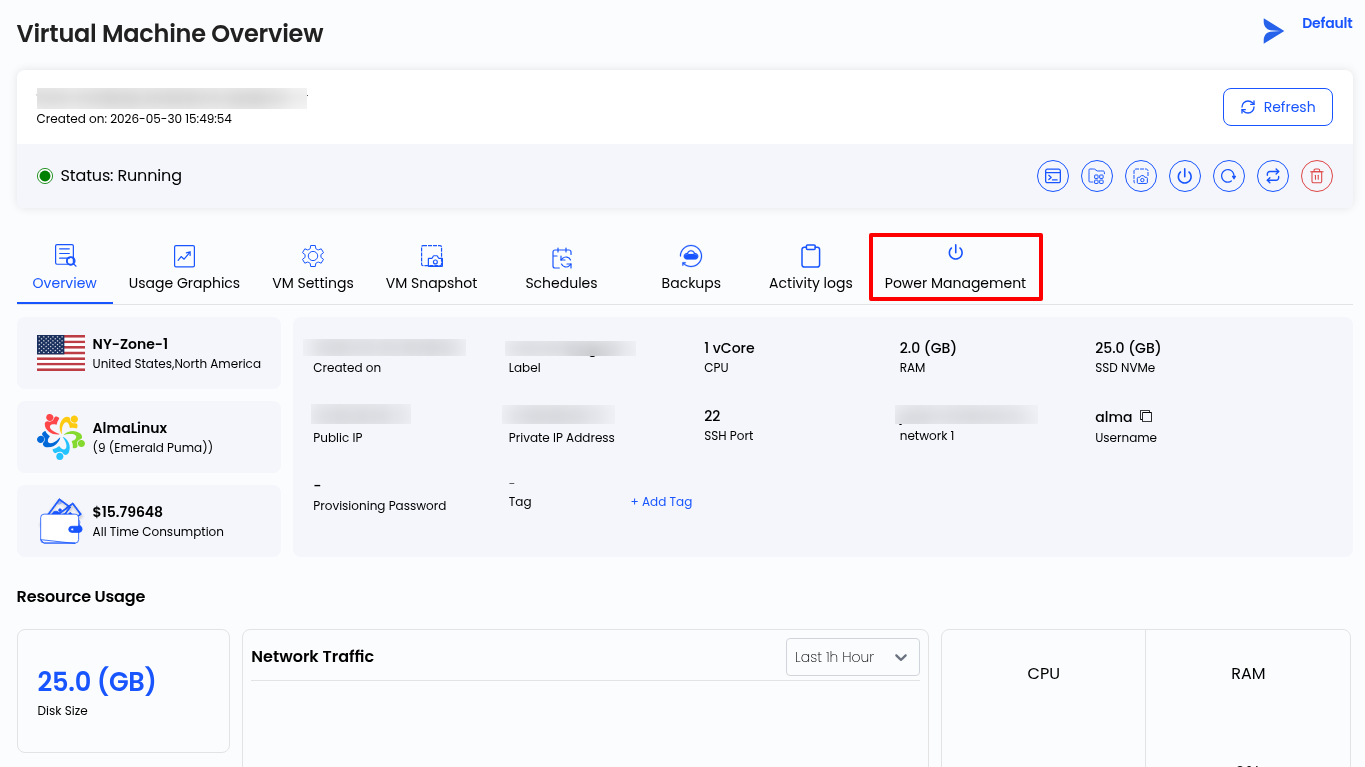
To set this up, open the instance’s Overview page and click on Power Management.
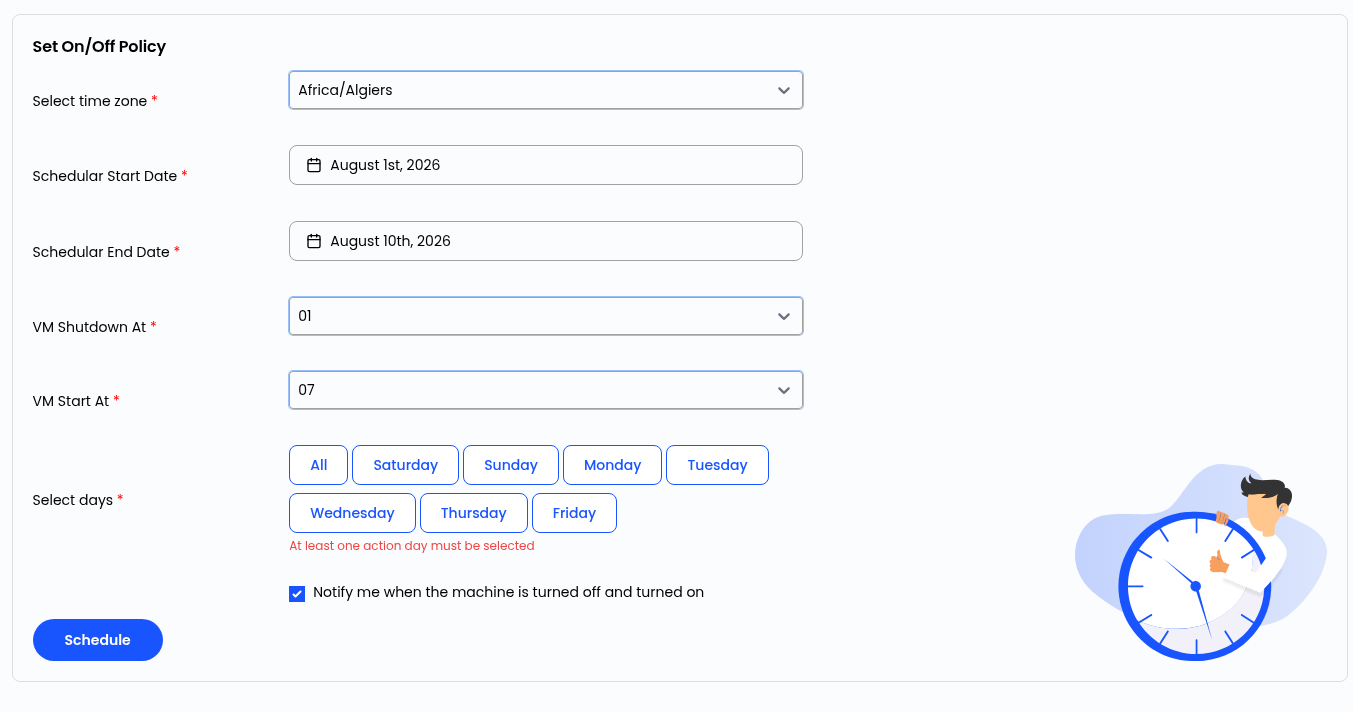
Under the Set On/Off Policy, configure the following:
- Select time zone: the time zone your schedule should follow.
- Schedular Start Date / End Date: the date range this schedule should apply for.
- VM Shutdown At / VM Start At: the exact hours the instance should power off and on (for example, 01 for 1 AM and 07 for 7 AM).
- Select days: choose which days this should run on, or click All to apply it every day. At least one day must be selected.
- Notify me when the machine is turned off and turned on: keep this checked if you’d like an email each time the schedule triggers.
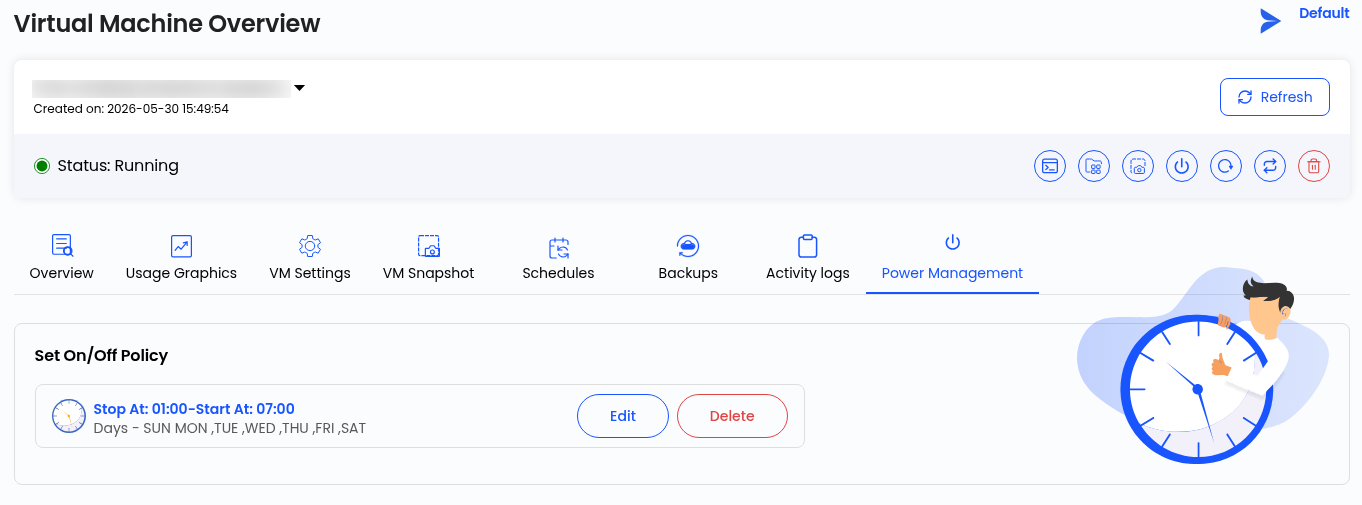
Once configured, click Schedule to save it. Your configured schedule will then show on the same page with its stop and start times and selected days, along with Edit and Delete options in case your usage pattern changes.
Billing Comparison After 5 Days
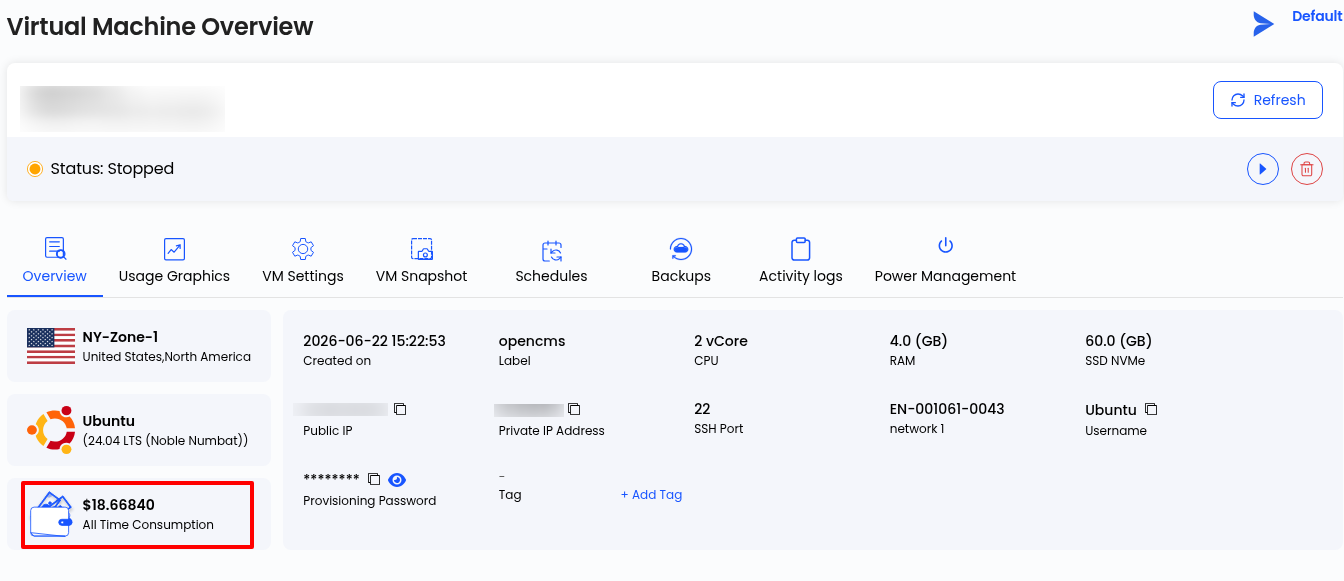
We checked the billing again after five days.
- Previous billing: Approximately $16.79
- Billing after optimization (5 days): Approximately $18.66
You can see the difference in the billing is $1.87 which is charged in 5 days
This comparison demonstrates the impact of the optimization. Based on the observed usage, this feature can help improve cost efficiency and increase your overall savings over time.
Why This Matters for Your Billing
An instance running around the clock when it’s only needed part of the time is money spent for nothing. Powering off instances during long idle periods, or scheduling automatic shutdowns during hours you know they won’t be needed, can meaningfully lower your monthly compute costs without affecting your actual work. This is especially useful for development, staging, or testing environments that are only needed during working hours.
Conclusion
Controlling your cloud costs on AccuWeb.Cloud doesn’t need constant monitoring. Switch off instances when you know they’ll sit idle for an hour or more, or set up a Power Management schedule and let the system handle it automatically. Either way, you directly cut down the hours you’re billed for. Take a few minutes to review your instances and pick the method that fits your usage best, it can make a real difference on your monthly invoice.