
How to create compute Instances in AccuWeb.Cloud?
A Compute Instance is a cloud-based virtual machine designed to deliver computing power on demand. Similar to a physical server, it includes dedicated resources such as CPU, RAM, and storage, allowing you to deploy applications, host websites, run databases, or manage development environments.
Compute Instances provide flexibility, scalability, and full control over the server environment, making them suitable for both lightweight and enterprise-grade workloads.
Deploying a Compute Instance
This guide explains how to create and configure a new Compute Instance from the AccuWeb.Cloud platform.
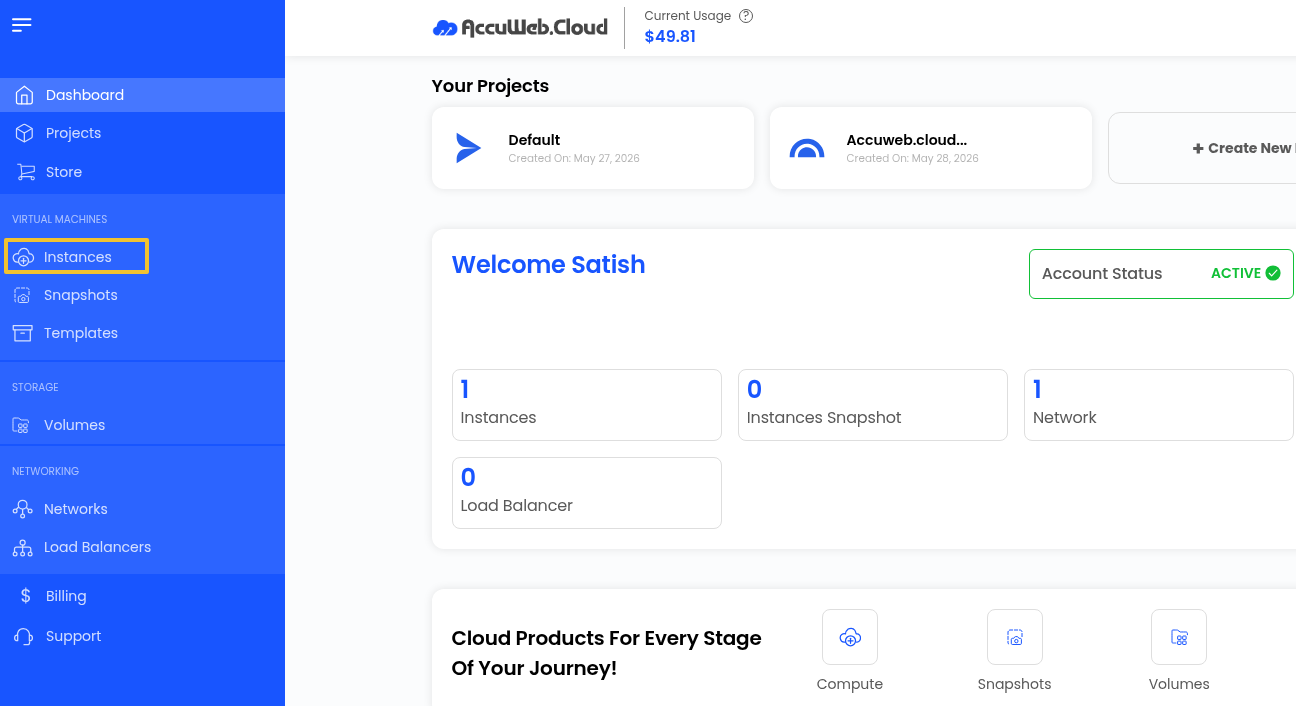
Access the Instances Section
Log in to your AccuWeb.Cloud dashboard and select Instances from the left navigation menu.
This will open the instances management page, where all existing virtual machines are displayed.
To create a new instance, click the + icon available on the top-right side of the page.

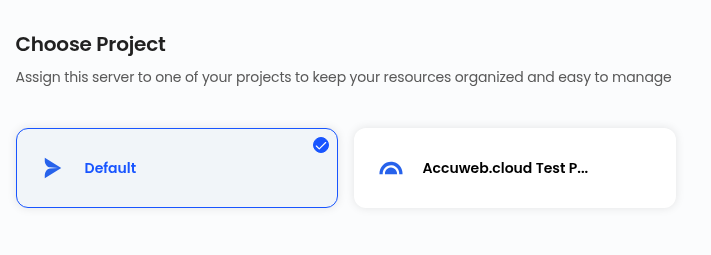
Assign the Instance to a Project
You can organize resources by assigning the instance to an existing project.
Projects help simplify resource management, user access control, and billing organization.
 Select a Deployment Location
Choose the data center region where the server will be deployed.
Selecting a location closer to your users can help reduce latency and improve application performance.
Available locations will be displayed during the deployment process.

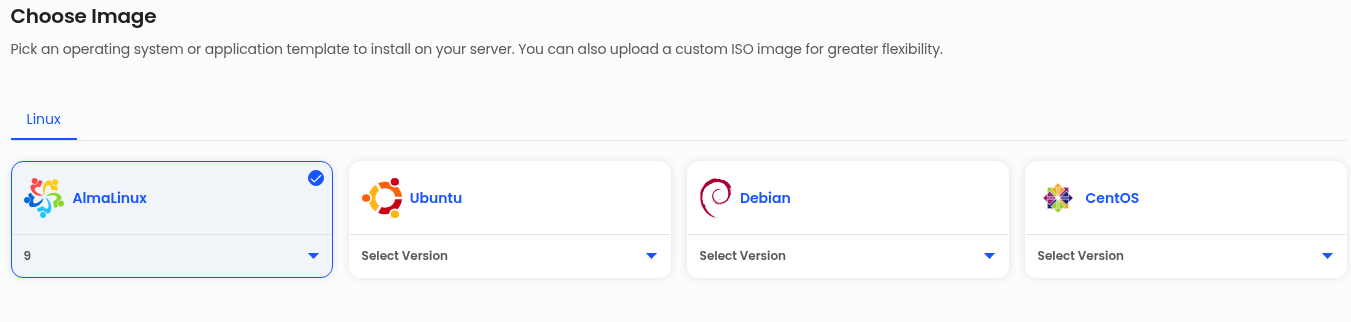
Choose an Operating System or Application Image
Select the image you want to install on the instance.
You can deploy instances using:
- Ubuntu
- Almalinux
- CentOS
- Debian
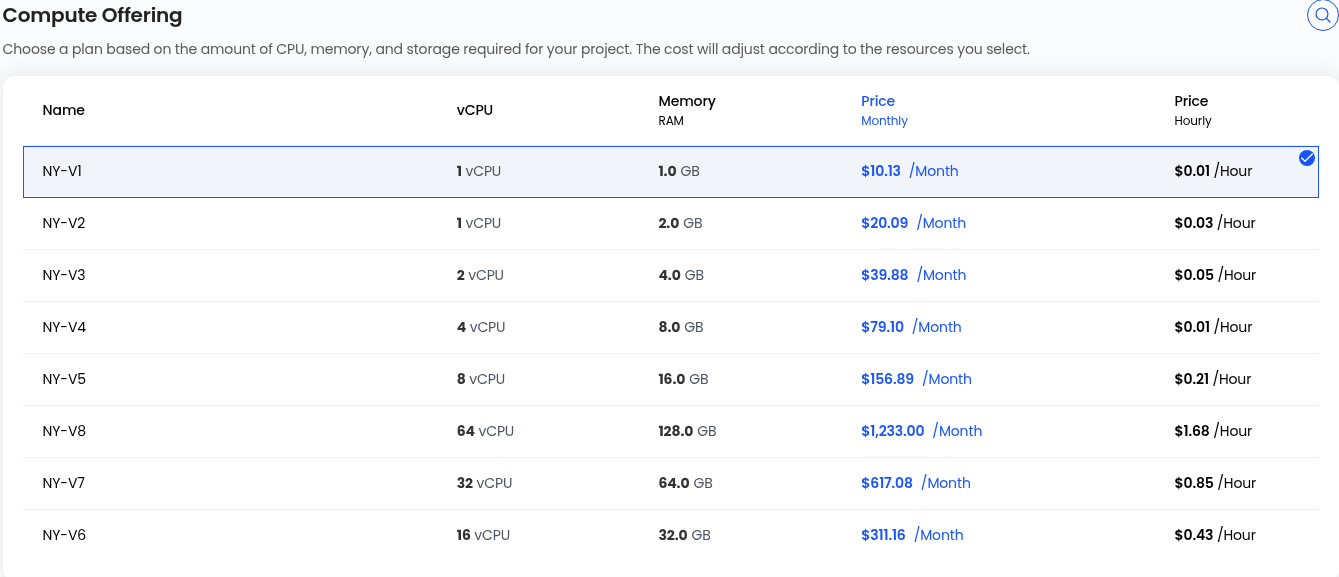
Select Compute Offering
AccuWeb.Cloud offers multiple compute offering models to match different workload requirements. Choose a plan according to your workload requirements, including CPU and RAM.
Configure Networking
Select the preferred network configuration for your instance.
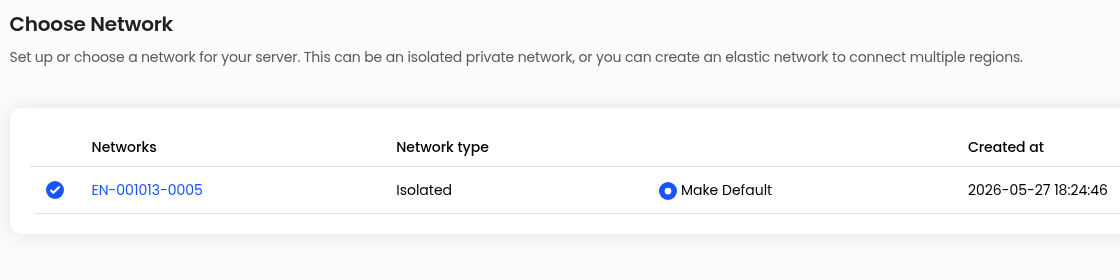
Public IP
You can also enable or disable public IPv4 access depending on whether internet connectivity is required.

Configure Server Access and Initialization
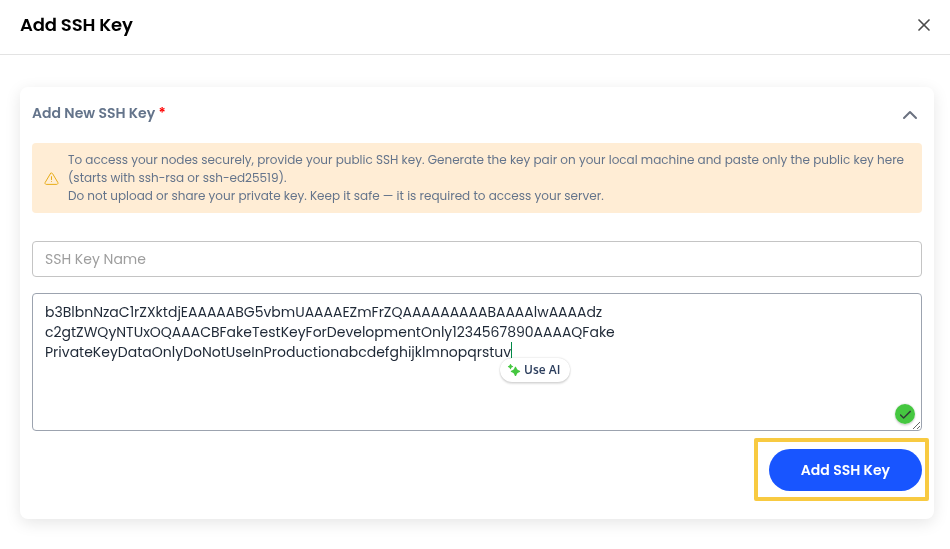
Add an SSH Key
For secure server authentication, you can add an SSH key during deployment.
Click Add Now to create or upload a new SSH key.
Enter:
- SSH Key Name
- SSH Public Key Value
Then click Add SSH Key.
Add a Startup Script
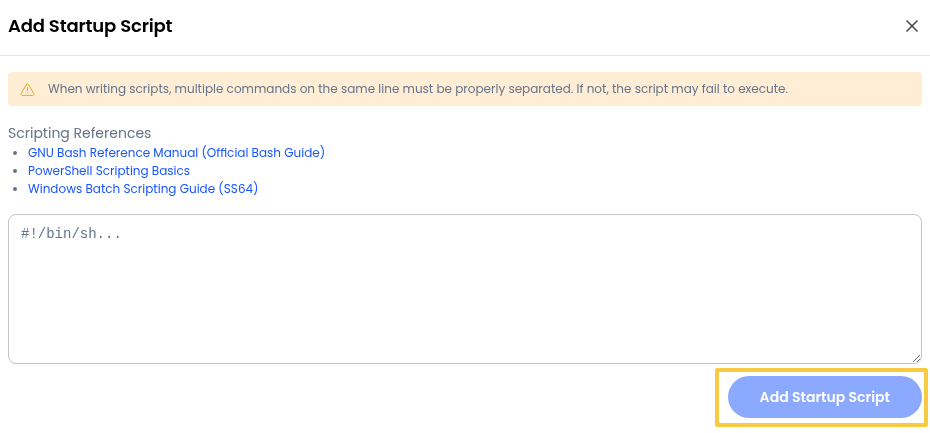
Startup scripts can automate tasks during the initial server boot process.
Examples include:
- Software installation
- Package updates
- Configuration automation
- Service initialization
Click Add Now to configure a startup script.
Advanced Configuration Options
Enable Advanced Mode to access additional server configuration settings.
Boot Mode
Choose the startup security mode:
- Legacy Boot
- Secure Boot
Boot Type
Select the firmware type for the virtual machine:
- UEFI
- BIOS

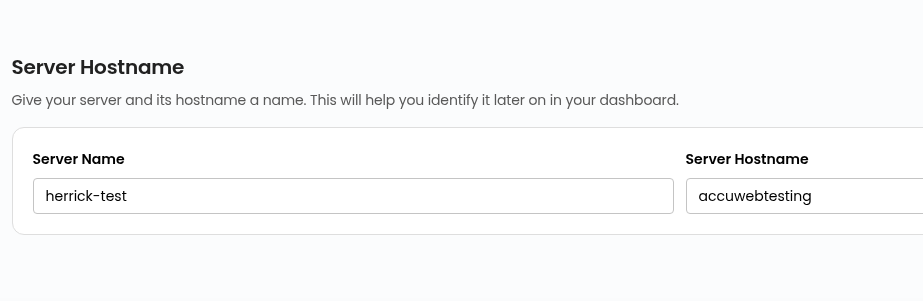
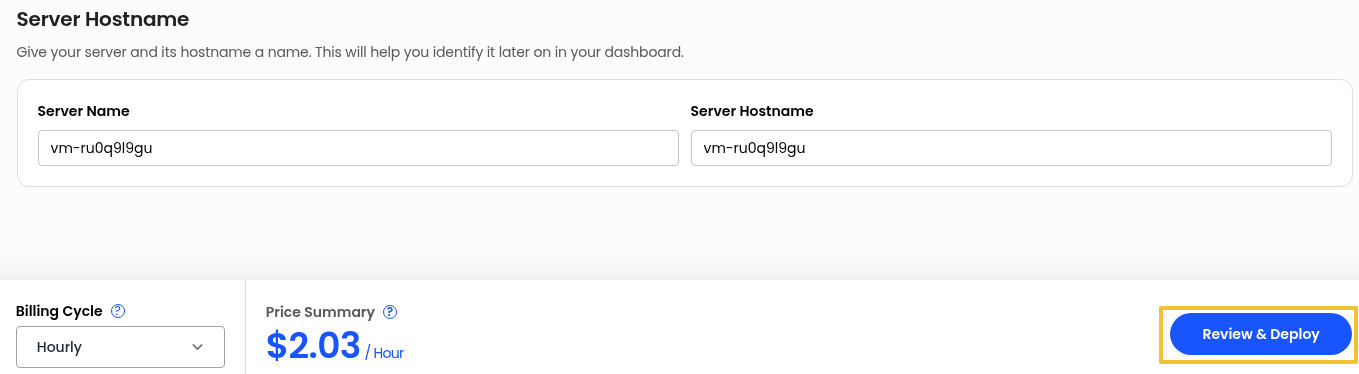
Define Server Details
Enter the following details for the instance:
- Server Name
- Hostname
Using a unique and descriptive hostname makes server identification easier within the cloud dashboard.
Review Configuration and Deploy
Before deployment, review all selected configurations, including:
- Server specifications
- Network settings
- Billing details
- Resource allocation
AccuWeb.Cloud supports the following billing cycles, including:
- Hourly
- Monthly
After reviewing the pricing summary and deployment settings, click Review & Deploy to launch the Compute Instance.
Conclusion
AccuWeb.Cloud compute instances provide a flexible and scalable platform for deploying applications, websites, and enterprise workloads. With multiple CPU types, networking options, and resource plans available, users can customize infrastructure according to their exact performance and operational requirements.
Properly configuring networking, access controls, and scaling settings helps ensure improved performance, security, and efficient resource utilization.