
How to Sign Up and Log In to AccuWeb.Cloud: A Complete Step-by-Step Guide?
If you’re new to AccuWeb.Cloud, getting your account up and running only takes a few minutes. There’s a bit of information to gather upfront: your billing details, a payment method, and a way to verify your email. Once that’s sorted, the actual sign-up flow is quick and straightforward.
Here’s exactly what to expect, from the moment you land on the homepage to the first time you log into your dashboard.
What You’ll Need Before You Start?
Have these on hand before you begin so you’re not scrambling mid-signup:
- A valid email address (for OTP verification)
- A phone number
- Billing information: currency, country, state/province, city, street address, and postal code
- A payment method, such as:
- Credit card
- PayPal
Step 1: Visit the Website and Click Sign Up
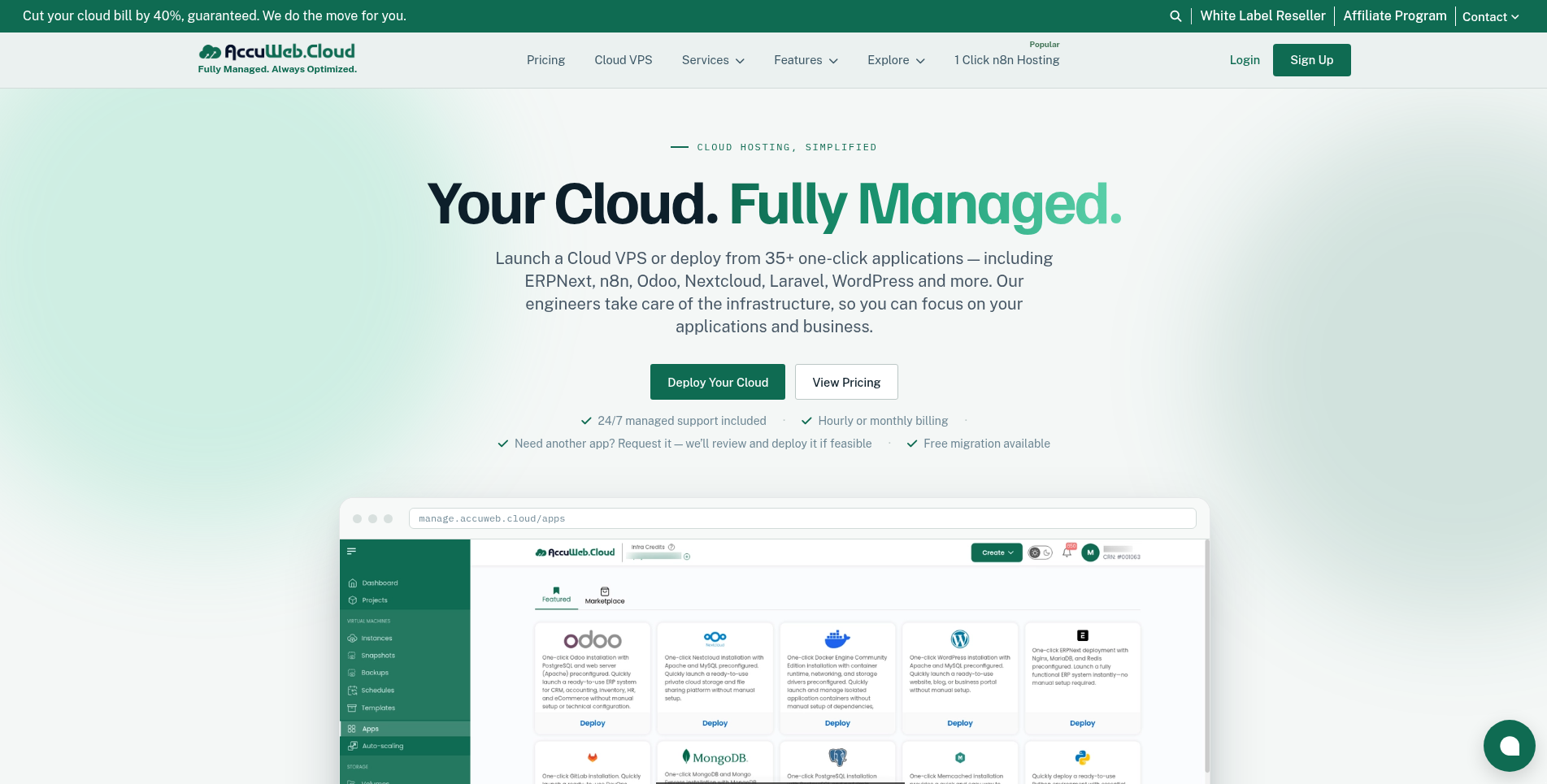
Go to https://accuweb.cloud in your browser. You’ll see a sign-up button in the top-right corner of the homepage; click that to kick things off.
When the homepage opens, you’ll find the Sign Up button in the top-right corner. Click it to get started.
Step 2: Fill in Your Personal Details
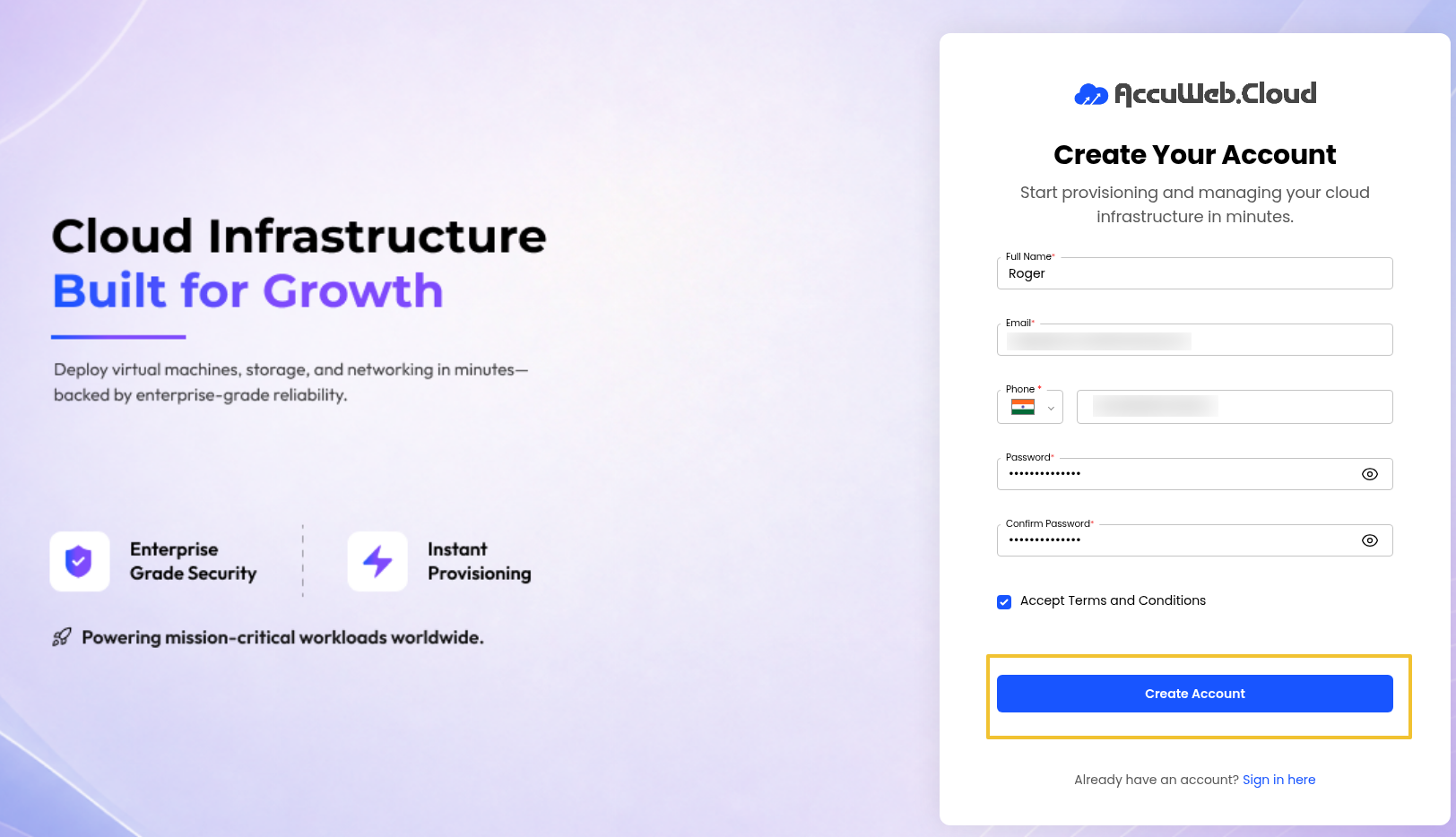
Clicking Sign Up takes you to the registration form, where you’ll fill in:
| Field | What to Enter |
| Full Name | Your complete name |
| Email Address | A valid email address you can access |
| Password | Create a strong, secure password |
| Confirm Password | Re-enter your password |
A quick tip on passwords: mix in uppercase and lowercase letters, numbers, and a special character or two. It’ll save you a headache later.
Note: Kindly save your password and email address for future login.
Before you submit, check the box to accept the Terms and Conditions (worth a skim if you haven’t read them before), then click Create Account.
To read the terms and conditions, please visit https://accuweb.cloud/terms-of-services
Step 3: Verify Your Email
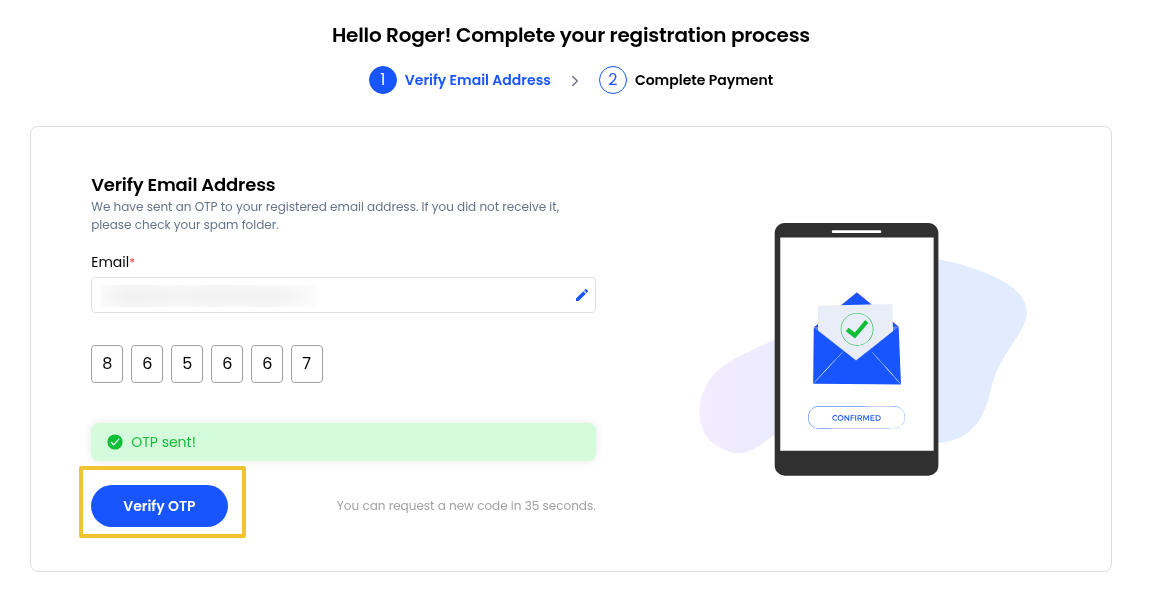
Once you submit your details, you’ll land on a verification page. AccuWeb.Cloud sends a 4-digit OTP to your email. Just type it into the field provided.
Get it right, and you’ll see a confirmation checkmark pop up. Click Verify, and you’re through to the next step.
Step 4: Set Up Billing and Payment
After verification, you’ll be taken to the billing setup page.
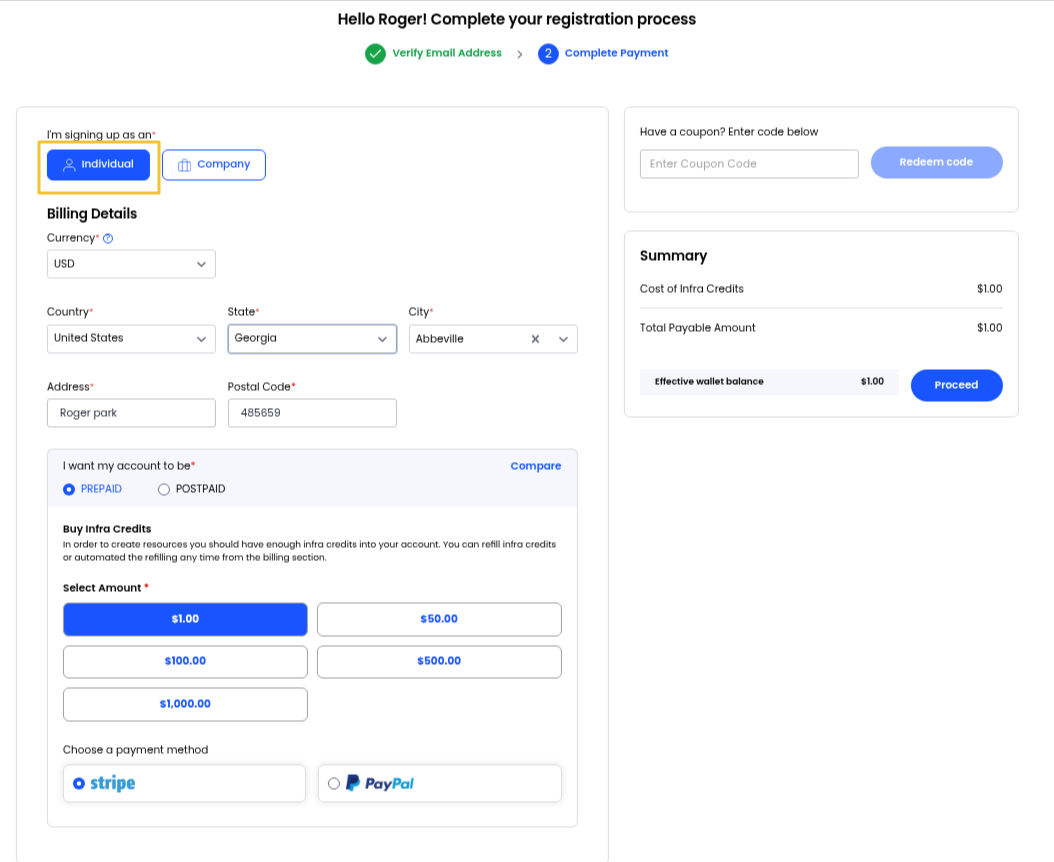
4.1 Choose Your Account Type
Select one of the following:
- Individual
- Company
4.2 Enter Your Billing Information
Complete the following details:
- Currency
- Country
- State/Province
- City
- Street Address
- Postal/ZIP Code
4.3 Choose Your Billing Model
AccuWeb.Cloud offers two billing options.
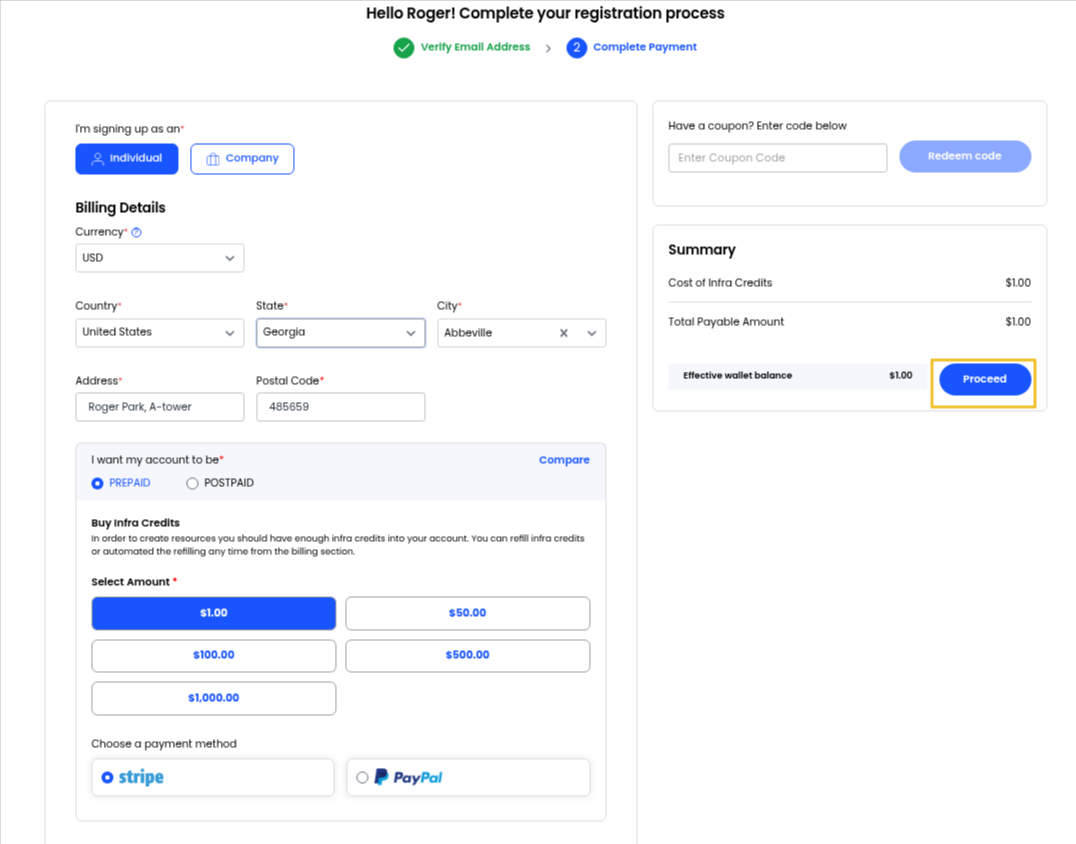
- Prepaid (Recommended):
- With a prepaid account, you add infrastructure credits in advance, which are then used to create and manage resources on the platform.
- To get started, select the amount of infrastructure credits you want to purchase.
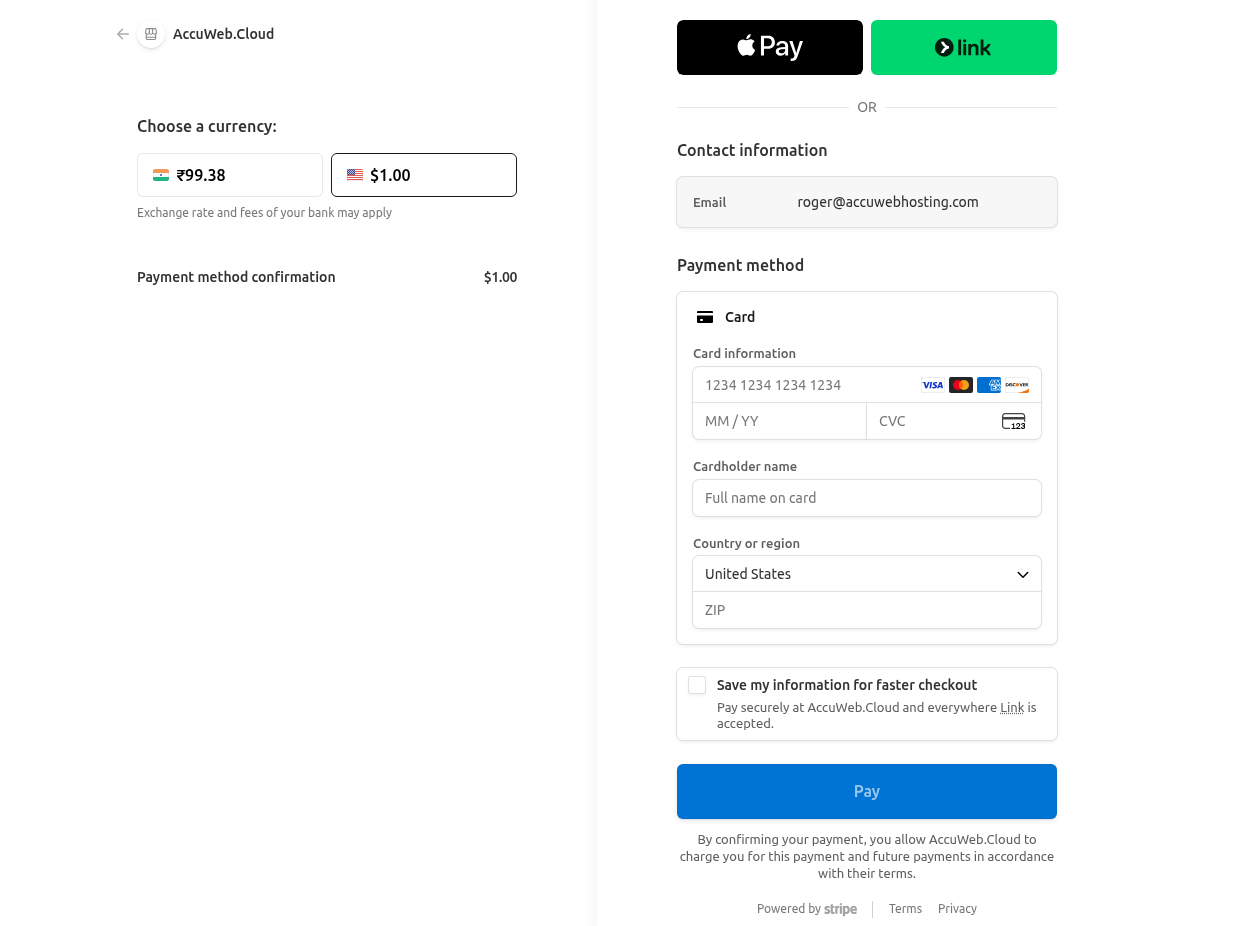
- Next, choose your preferred payment method (such as Stripe or PayPal) and click Proceed to complete your payment.
2. Postpaid:
- With a postpaid account, you pay for infrastructure resources after they have been used. This option may require additional verification, such as providing billing details or completing a credit check.
- To set up your account, choose your payment method (Stripe) and click Save Card to complete the setup.
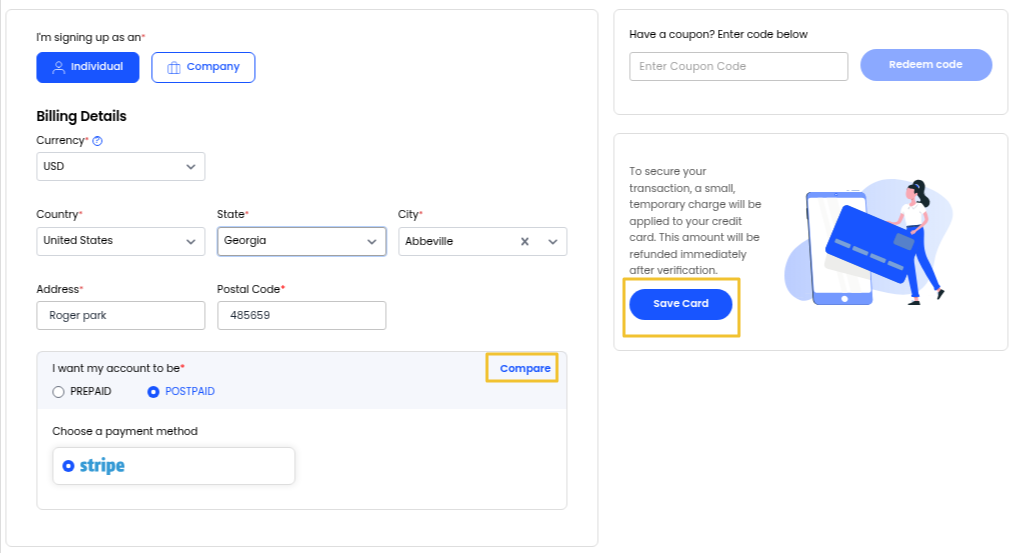
If you’re unsure which option is best, click Compare to view a side-by-side comparison.
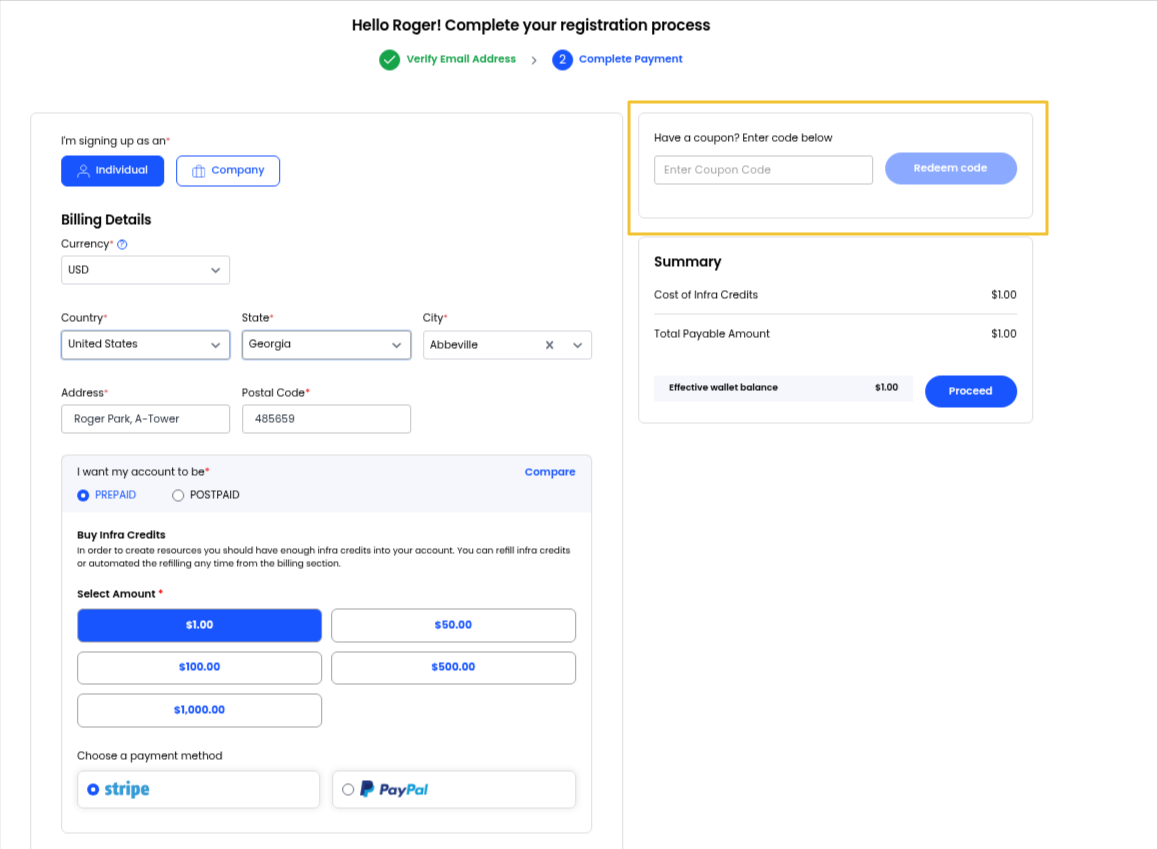
- If you have a coupon code, enter and redeem it during checkout to apply the associated discount or promotional offer.
4.4 Adding Coupon
If you have a coupon, redeem it at checkout to receive a discount or promotional offer.
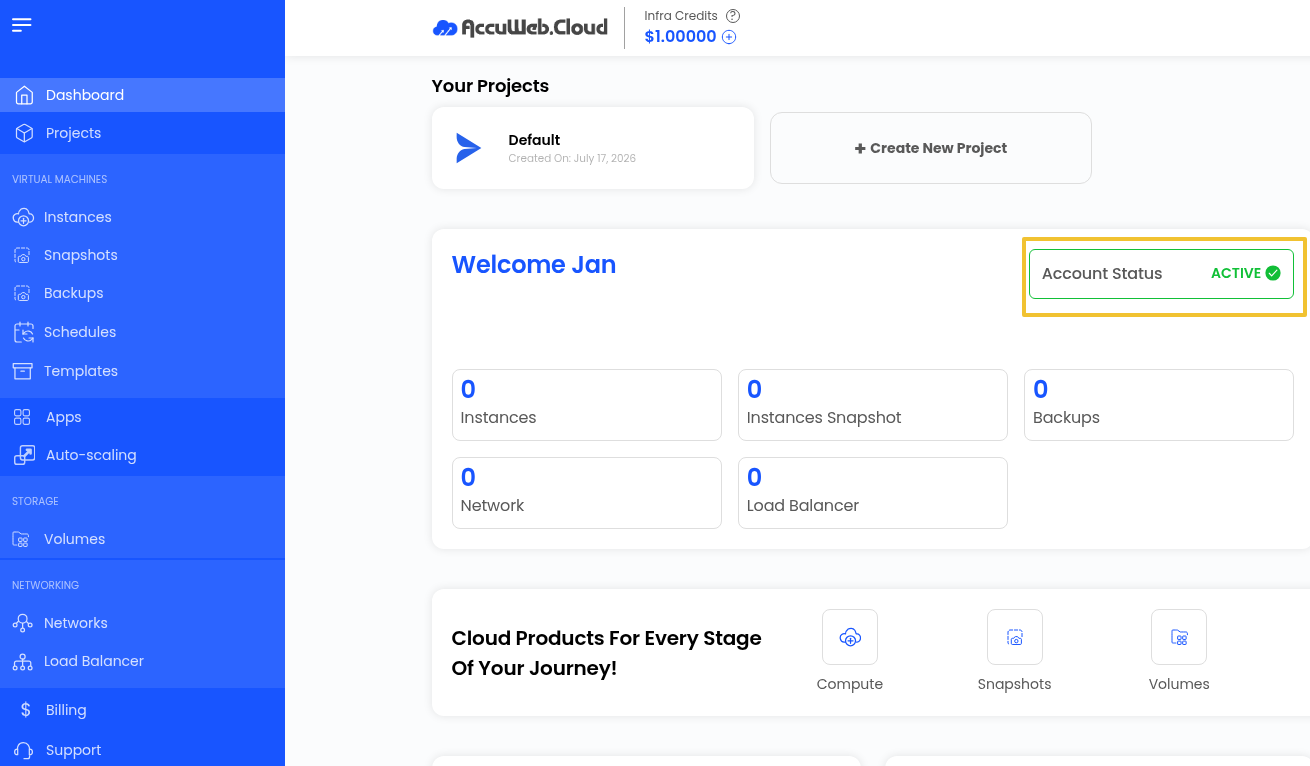
Step 5: Access Your Dashboard
Once your payment is successfully processed, your account is ready.
You’ll be automatically redirected to the AccuWeb.Cloud Dashboard.
From your dashboard, you can:
- Deploy applications and environments
- Browse the Application Marketplace
- Monitor resource usage
- Track billing
- Raise support tickets
Step 6: Log In to Your Account
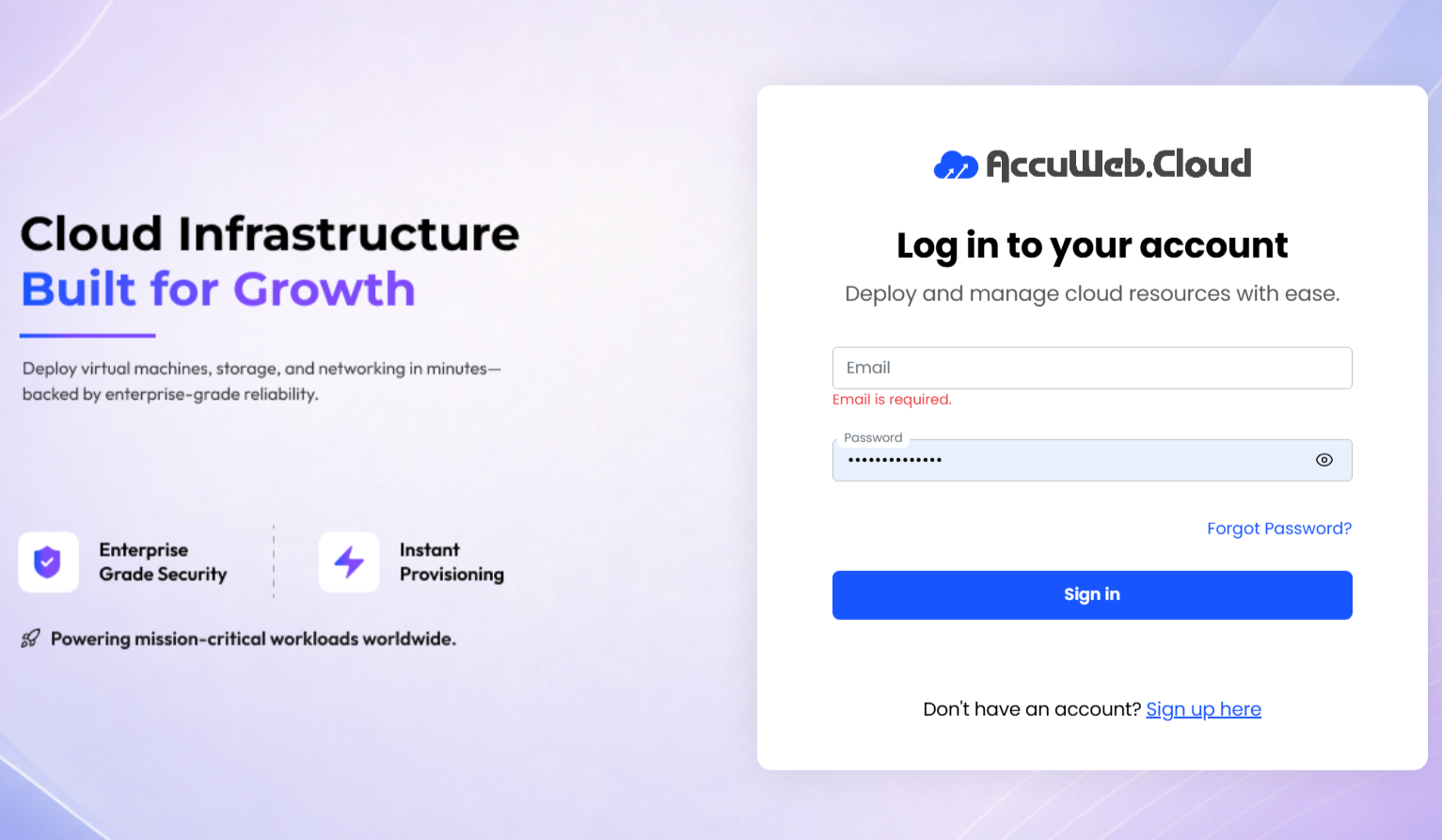
To access your account in the future, visit:
https://manage.accuweb.cloud/login
Alternatively:
- Visit https://accuweb.cloud
- Click Login or Sign In
- Enter your registered email address and password
- Complete any additional verification if prompted
Forgot Your Password?
Click Forgot Password on the login page and follow the instructions sent to your registered email address.
Conclusion
Signing up for AccuWeb.Cloud isn’t complicated once you know the flow: register, verify, set up billing, and you’re in. From there, the dashboard puts everything you need within reach: deploying your first environment, exploring the marketplace, or scaling infrastructure as your project grows.