
Why SSH Login Fails and How to Fix Basic Access Issues?
Remote access is essential for managing a VPS. If you can’t connect to your Linux server using SSH, the issue is often caused by a simple configuration problem rather than a server failure.
Below are the most common reasons login attempts fail and how to resolve them.
1. Incorrect IP Address
One of the most common causes of connection failures is using the wrong server IP address.
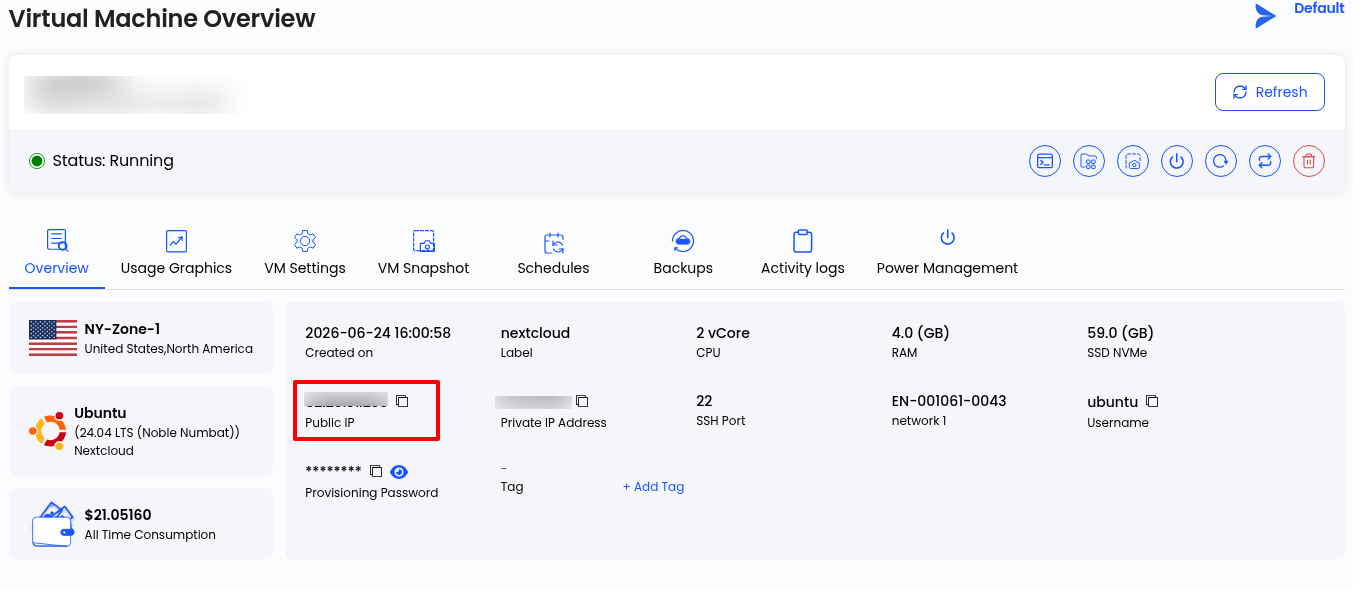
Verify that you’re connecting to the current public IP assigned to your instance. You can verify the server IP from your Accuweb.cloud dashboard in the Virtual machine overview. If the server was recently rebuilt or migrated, its IP address may have changed.
2. Server Is Offline
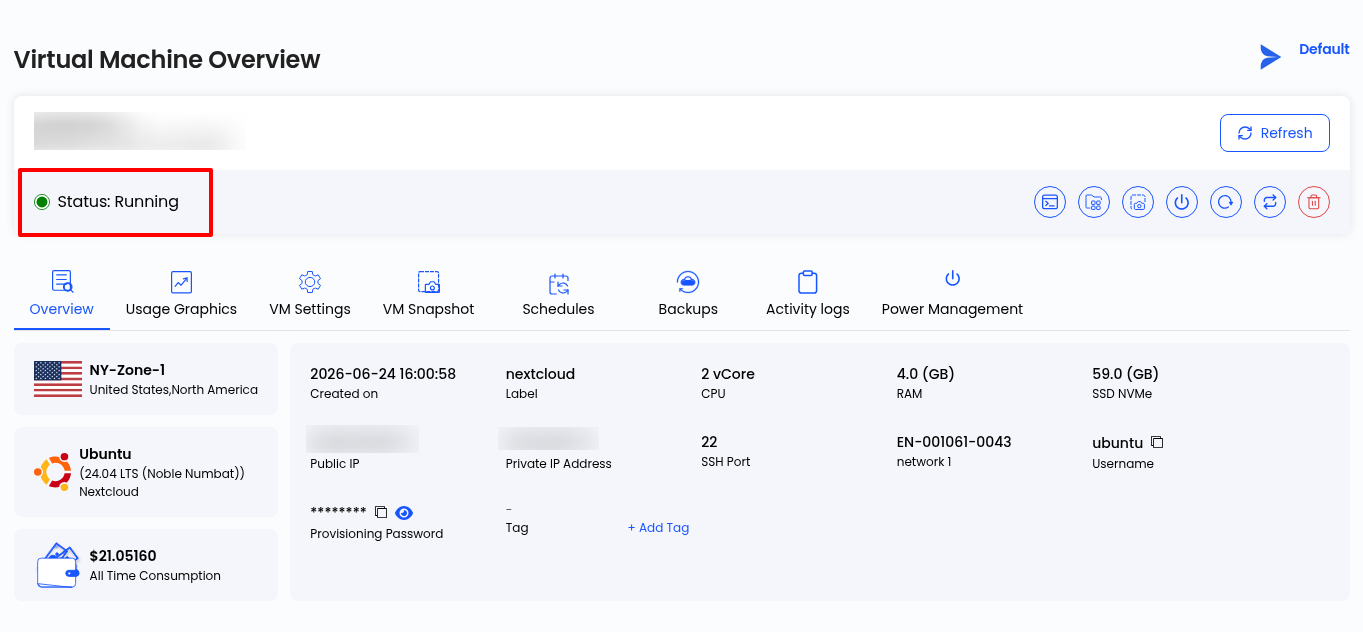
If the instance is stopped or experiencing a system issue, SSH connections won’t succeed.
Check on your Accuweb.cloud dashboard to confirm the server is running.
3. SSH Service Is Not Running
The remote access service must be running before clients can connect.
For Linux:
sudo systemctl status sshd
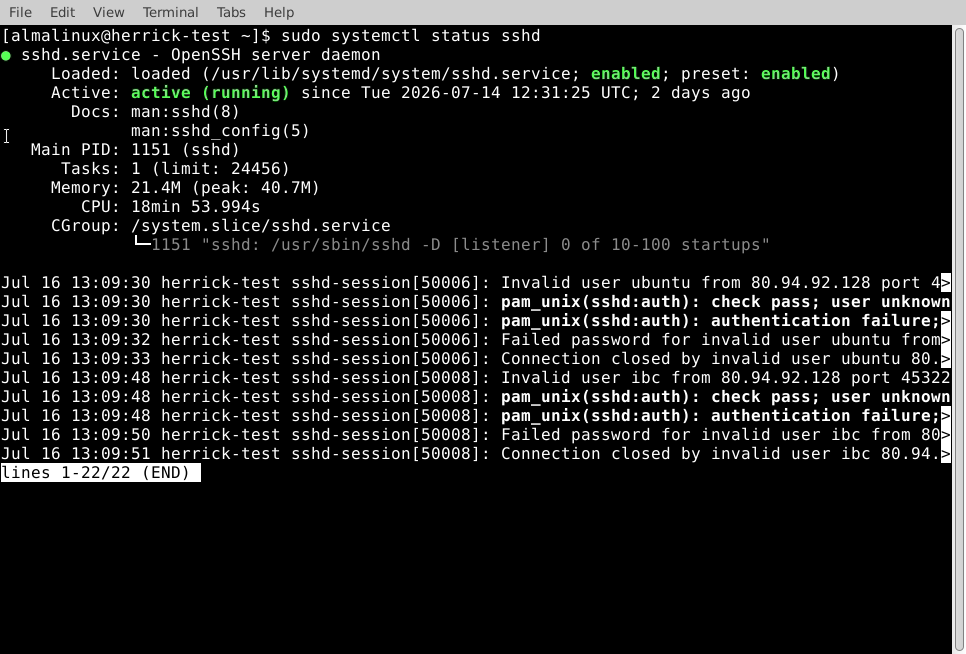
If the service is stopped, start it with:
sudo systemctl start sshd.
4. Firewall Blocking the Connection
A firewall may block incoming connections even if the server is online.
Check the active firewall rules:
sudo firewall-cmd –list-services
If SSH isn’t allowed, enable it:
sudo firewall-cmd –add-service=ssh –permanent
sudo firewall-cmd –reload
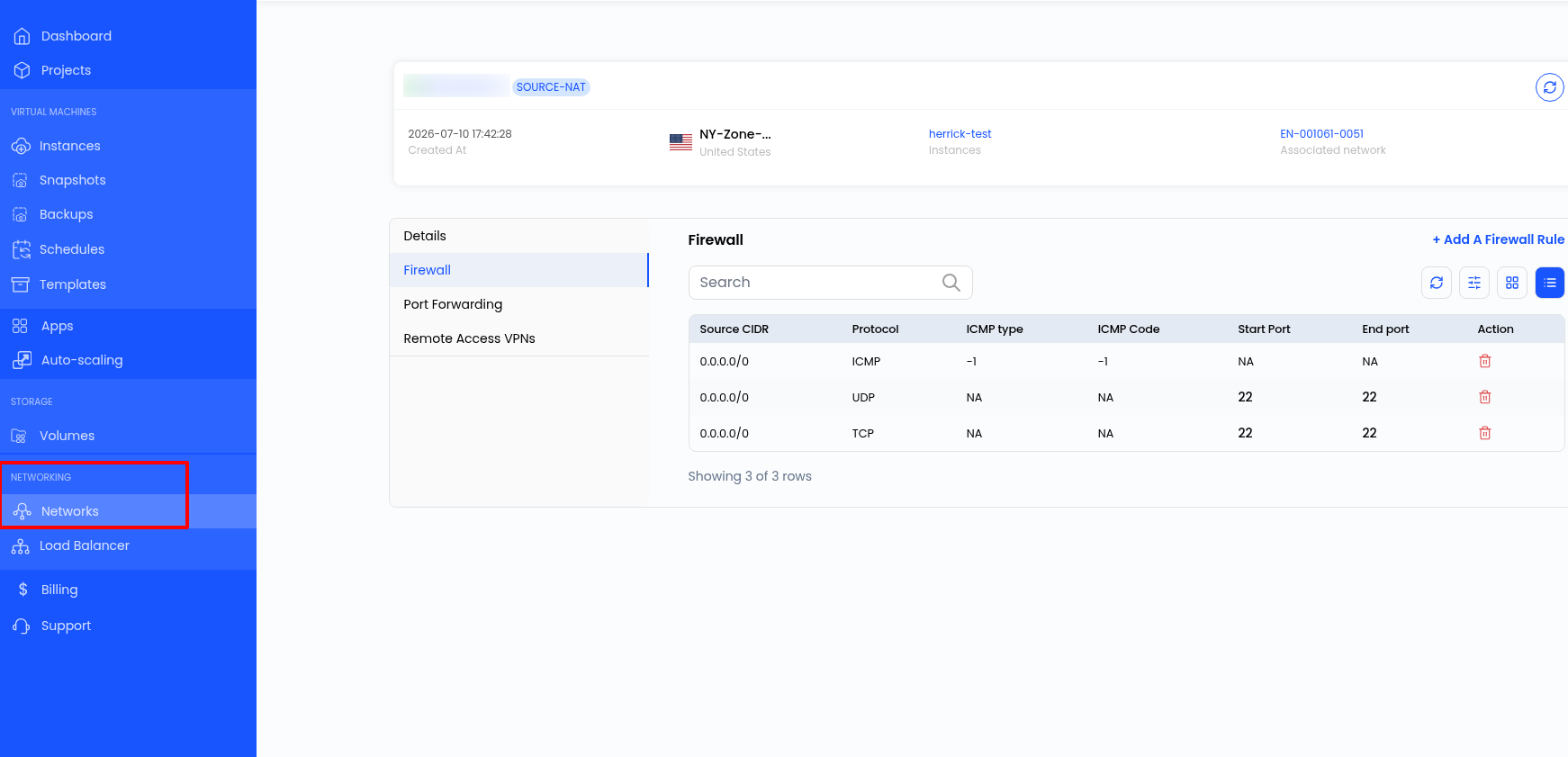
You can also check in your Accuweb.cloud Dashboard:
- Go to your Virtual Machine Overview
- Copy the Public IP address of your instance
- Go to the Networks tab, as highlighted in the screen capture, and search for the IP address, which you copied.
- Click on Firewall and check if the SSH port 22 is enabled or not
5. Incorrect Login Credentials
Using the wrong username, password, or SSH key will prevent authentication.
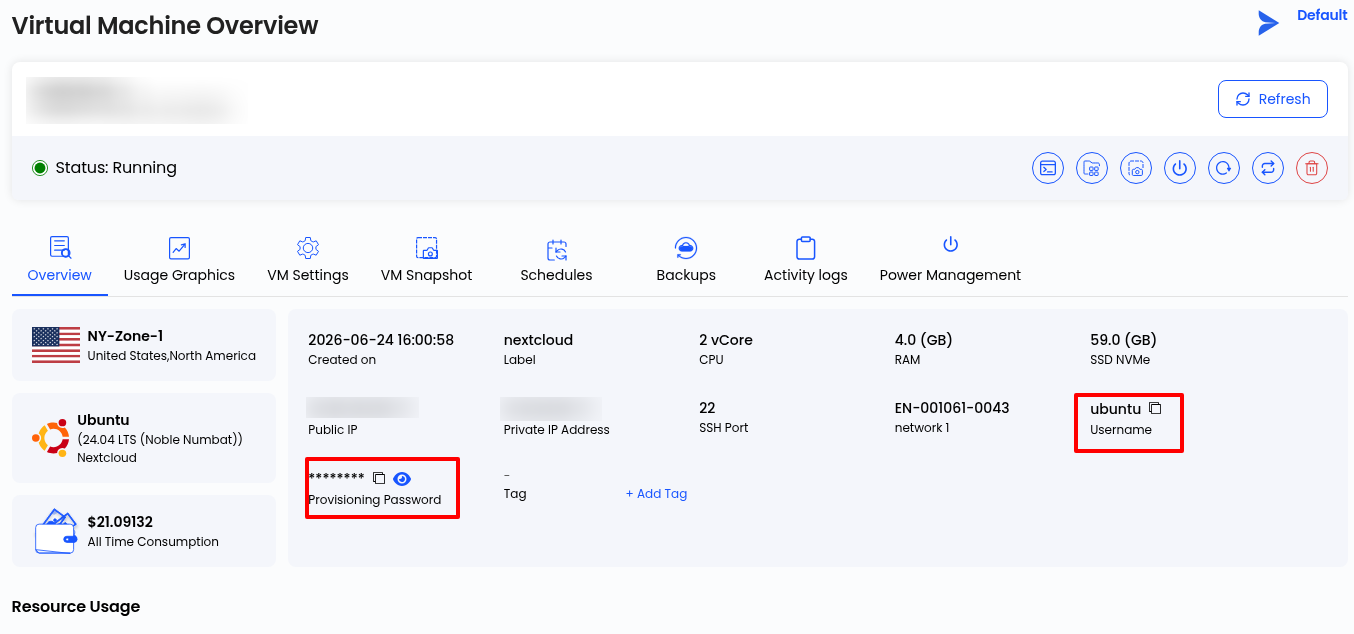
Always verify you’re using the correct credentials for your server. You will find the username and the password from your Virtual Machine overview page.
6. Wrong SSH Port
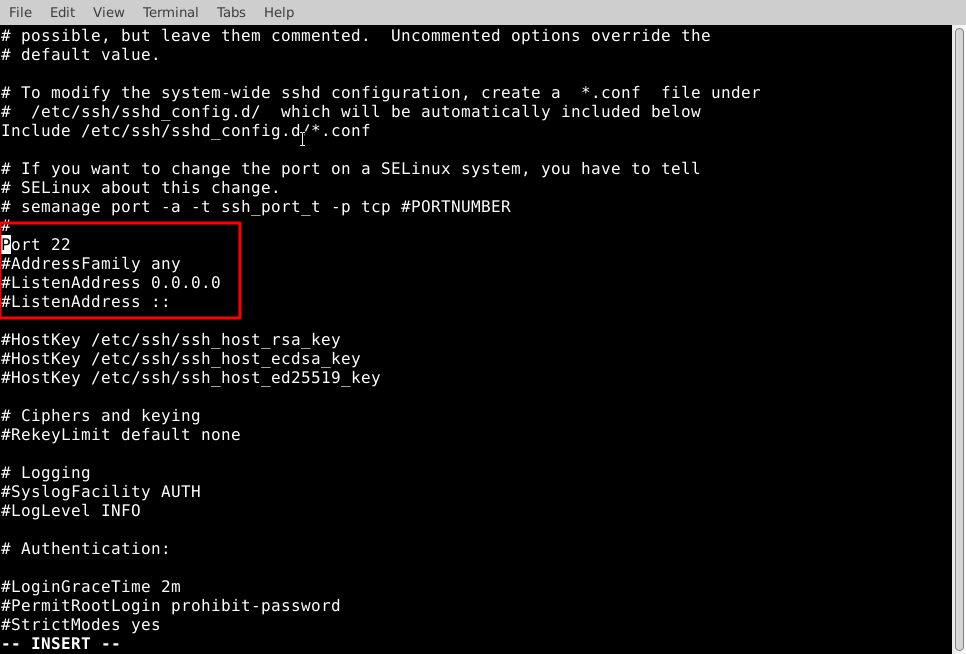
SSH uses port 22 by default. If service has been configured to use a custom port, you’ll need to specify that port when connecting.
You can verify the SSH port with:
Sudo nano /etc/ssh/sshd_config
7. Failed Login Attempts Triggered a Security Block
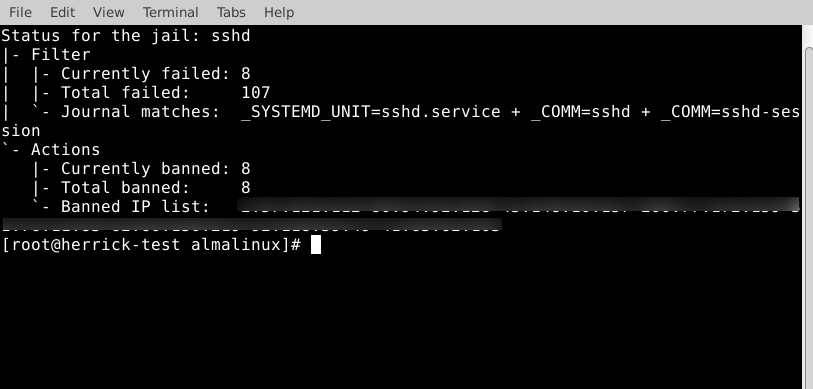
Security tools such as Fail2Ban may temporarily block your IP after multiple unsuccessful login attempts.
You can check the Fail2Ban status with:
sudo fail2ban-client status sshd
If your IP is banned, remove it from the ban list before trying again.
Conclusion
Most SSH login issues are caused by one of a few common problems: an incorrect IP address, a stopped remote access service, firewall restrictions, invalid credentials, blocked ports, or security rules.
Checking these areas first can quickly identify the cause and restore access without requiring advanced troubleshooting.