
How to Fix 502/504 Gateway Errors?
A 502 Bad Gateway or 504 Gateway Timeout usually means the web server isn’t getting a valid response from the backend application. The site may still be up, but the connection between the proxy and the app is failing.
This can happen when the backend service is down, the server is overloaded, the proxy is pointing to the wrong port, or a firewall is blocking traffic. The fastest way to narrow it down is to check the service status, logs, and server load first.
Common causes
Gateway errors are usually caused by one of these:
- The backend application is not running.
- The reverse proxy has the wrong IP address or port.
- The application is slow or overloaded.
- CPU or memory usage is too high.
- Firewall rules are blocking the connection.
Step 1: Connect to the server
Log in to your virtual machine over SSH first.
ssh root@<your-server-ip>
Once you are connected, you can start checking the services and logs.
Step 2: Check the web server
Start by confirming that the web server is running.
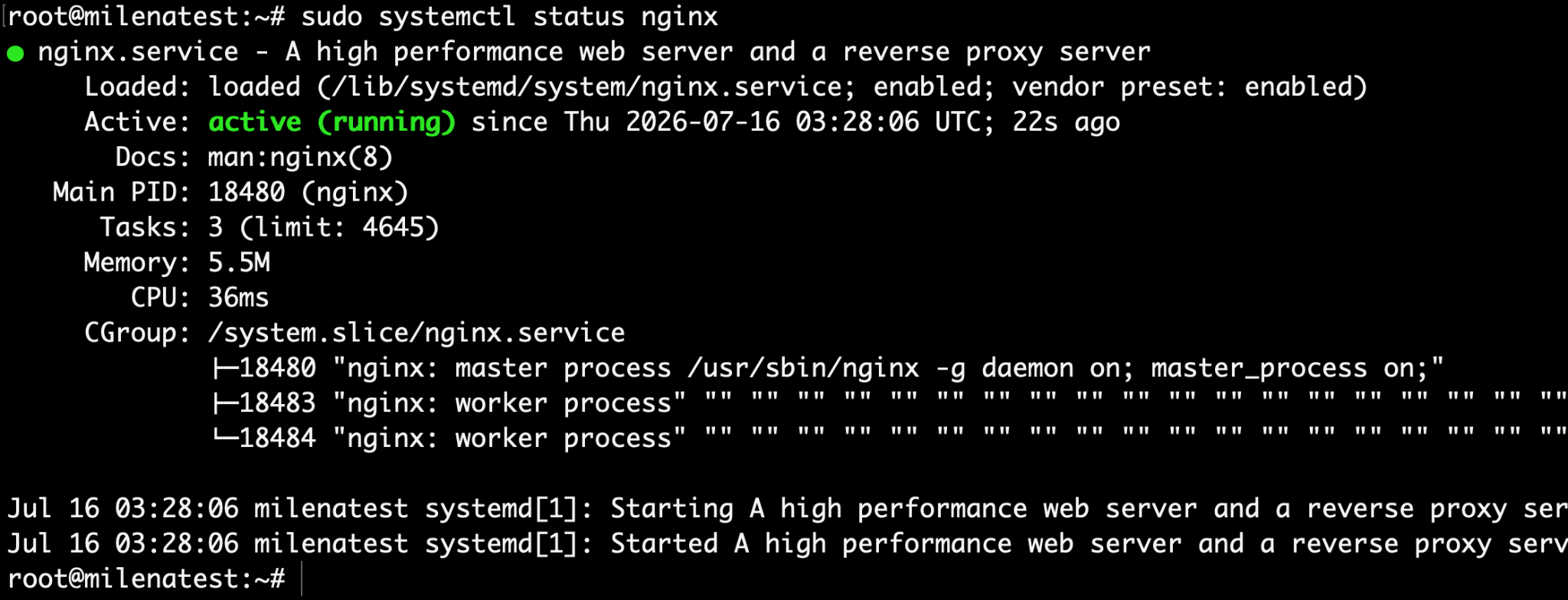
For Nginx:
sudo systemctl status nginx
sudo systemctl start nginx
For Apache on Ubuntu or Debian:
sudo systemctl status apache2
For Apache on AlmaLinux or CentOS:
sudo systemctl status https
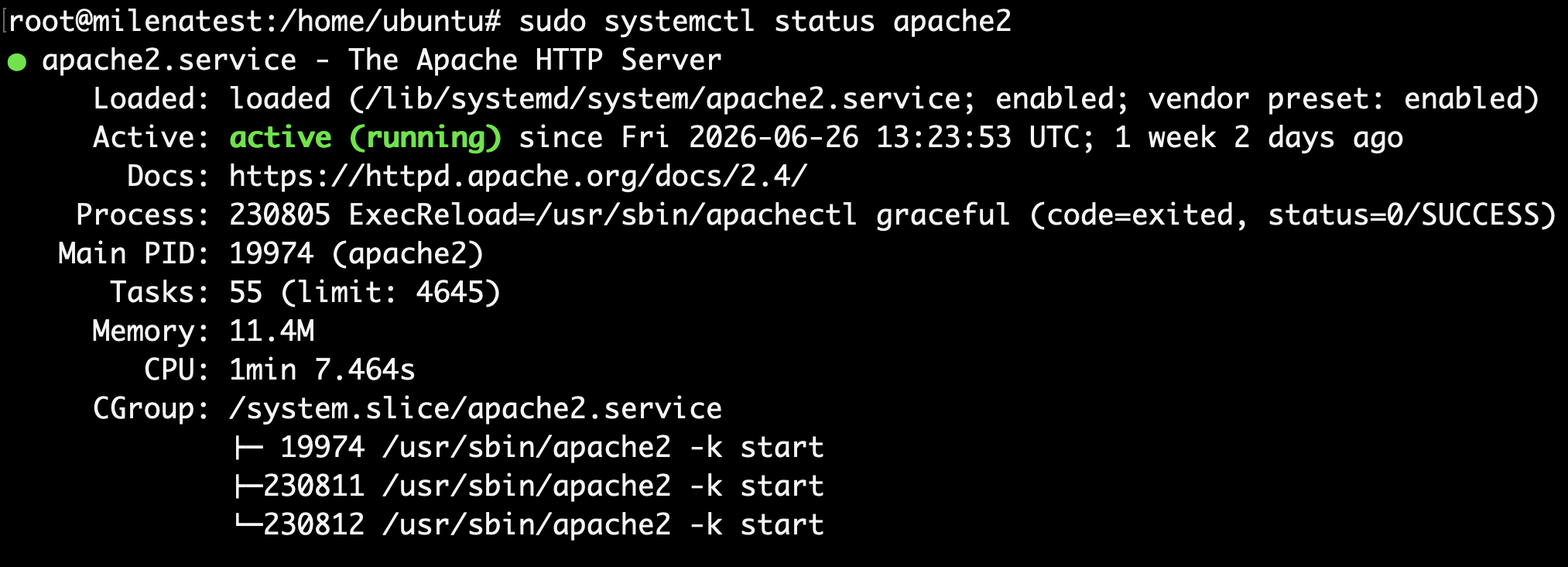
If Apache is stopped, start the service and verify whether the website becomes accessible again.
Step 3: Check the backend application
Even if Nginx or Apache is running, the site will still fail if the backend app is down.
If the app is managed by PM2:
pm2 status

If it runs as a system service:
systemctl status your-service
For PHP apps, check PHP-FPM too, for example:
sudo systemctl status php8.1-fpm
sudo systemctl restart php8.1-fpm
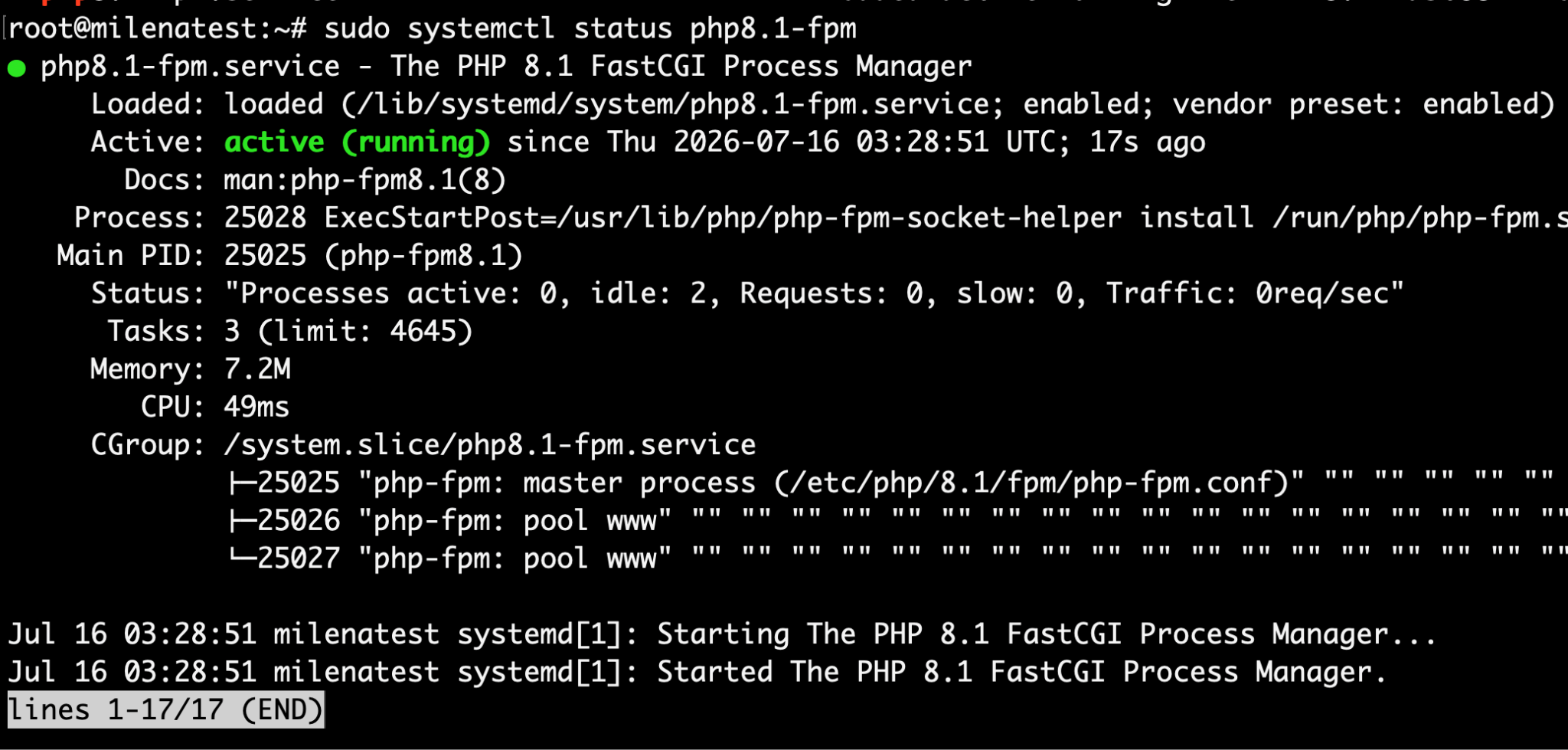
A stopped PHP-FPM service is one of the most common reasons for 502 errors on PHP-based sites.
Step 4: Review the logs
Logs usually tell you what is actually wrong.
For Nginx:
sudo tail -f /var/log/nginx/error.log
Common messages include:
- connect() failed (111: Connection refused)
- upstream timed out

For Apache, check the relevant error log:
Ubuntu or Debian:
sudo tail -f /var/log/apache2/error.log
AlmaLinux or CentOS:
sudo tail -f /var/log/httpd/error_log

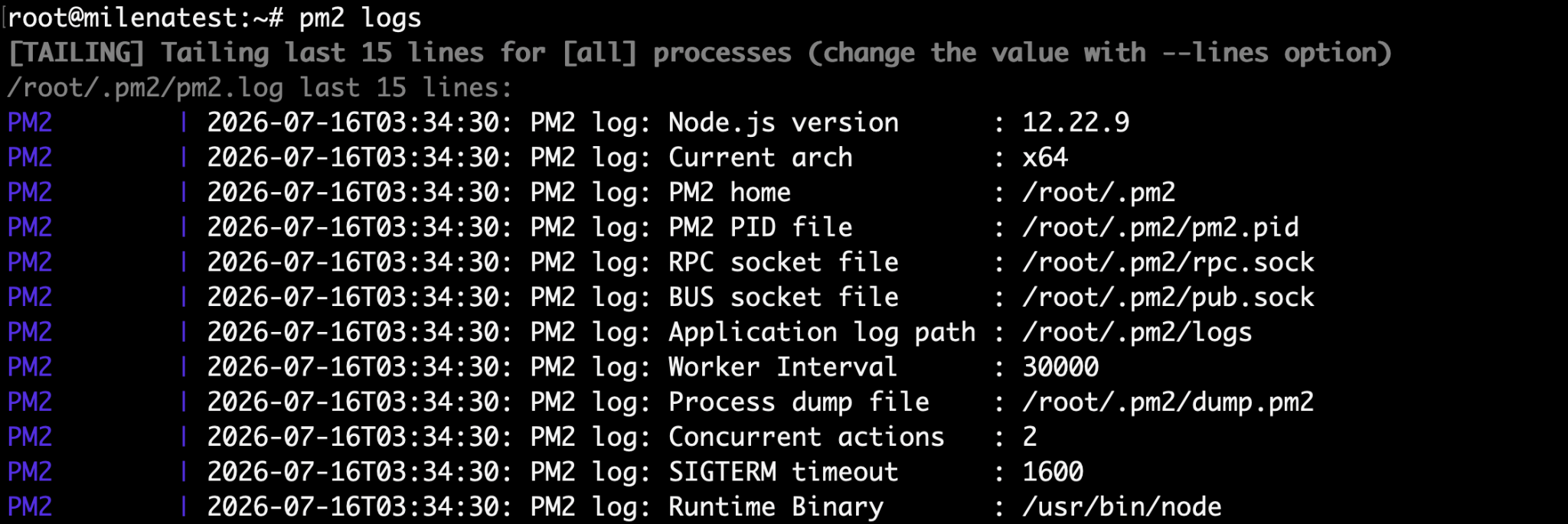
You should also check application logs:
pm2 logs
journalctl -u your-service

These logs often show whether the app failed to start, crashed, or simply took too long to respond.
Step 5: Check server resources
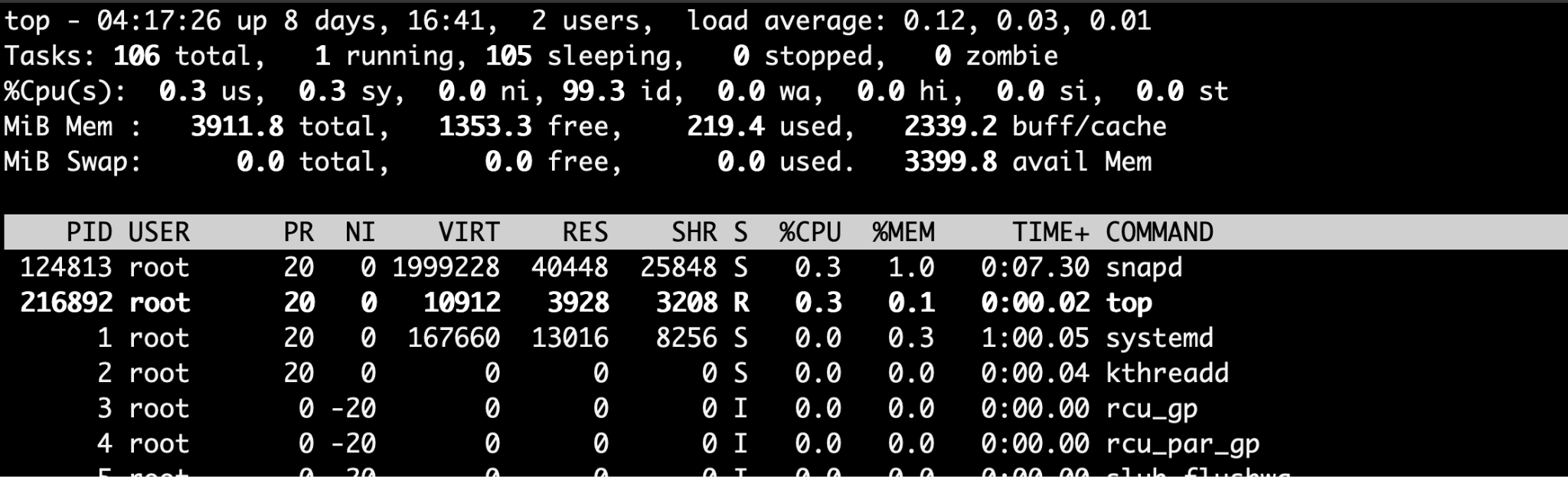
If the server is under heavy load, the backend may respond too slowly and trigger a gateway error.
Check CPU usage:
top
Check memory:
free -h

Check disk space:
df -h
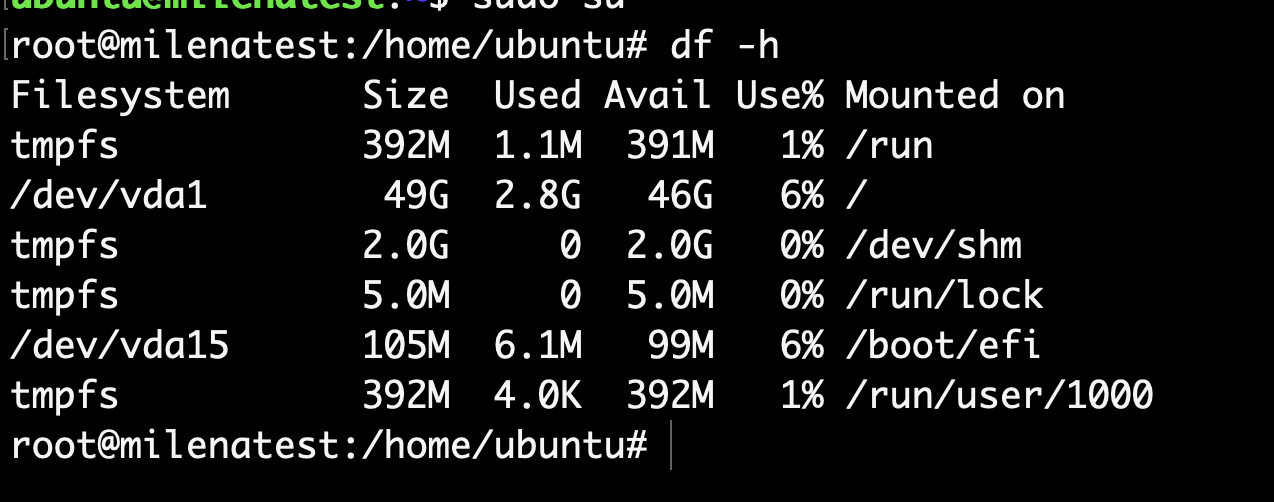
If CPU, RAM, or disk space is consistently high, stop unnecessary services or upgrade the VM if needed.
Step 6: Test the backend directly
Instead of testing through the browser, hit the backend from the server itself.
curl http://127.0.0.1:3000

If you get a response, the backend is reachable. If the command fails or hangs, the app may be down or listening on a different port.
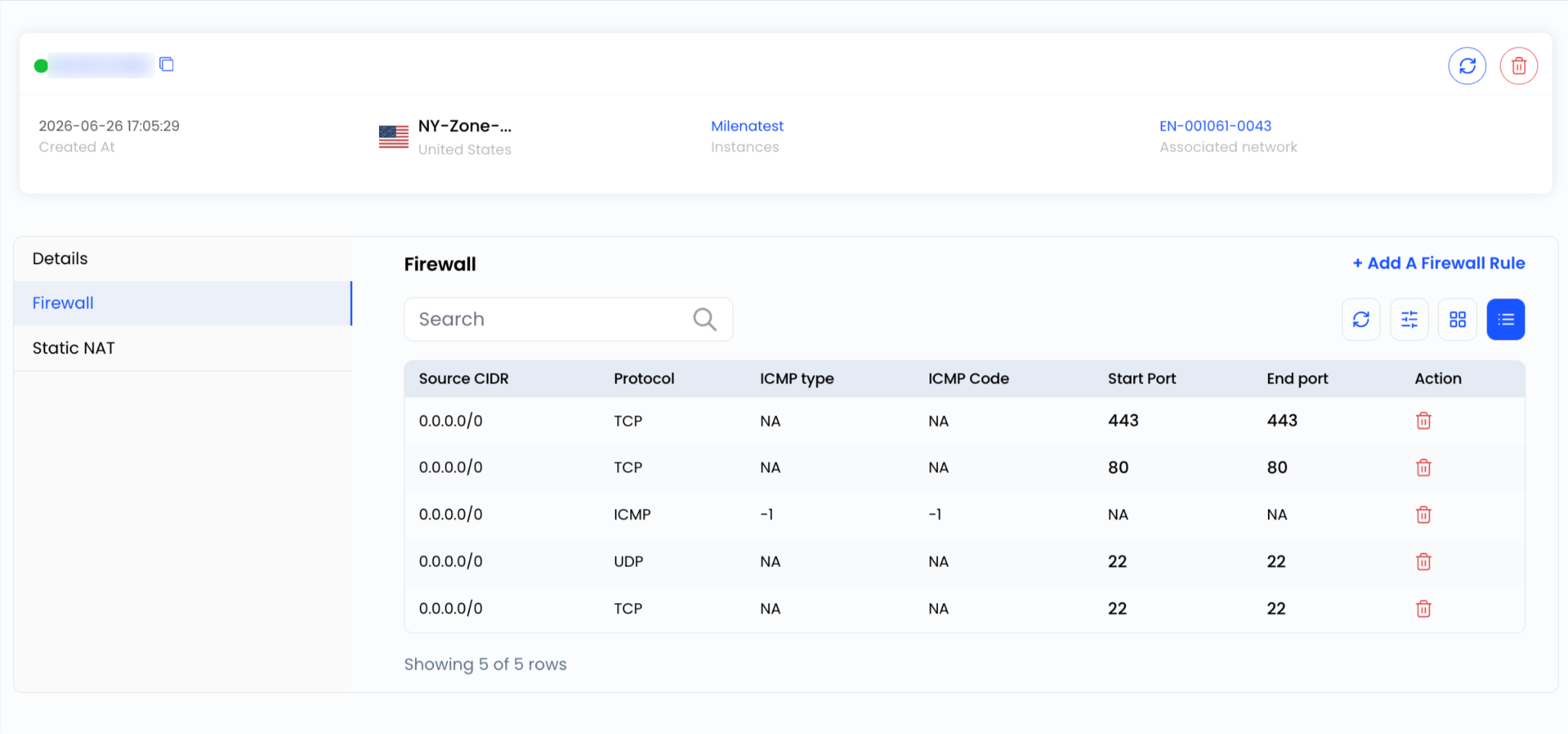
Step 7: Check firewall settings
If the web server and backend are both running, make sure traffic between them is not being blocked.
You can also verify the firewall rules from the Network section of your VM in AccuWeb.Cloud portal. You can follow the firewall guide here: Configure firewall rules for a virtual machine.
Step 8: Restart the services
After making changes, restart the affected services.
sudo systemctl restart nginx
sudo systemctl restart php8.1-fpm
sudo systemctl restart your-service

Then refresh the website and check whether the error is gone.
Tips to avoid future errors
A few simple habits can prevent these errors from coming back:
- Keep backend services running with PM2 or systemd.
- Monitor CPU, memory, and disk usage regularly.
- Check logs as soon as something behaves strangely.
- Keep your operating system and web server packages updated.
- Make sure proxy settings and ports stay in sync.stackify+3
Final thoughts
A 502 Bad Gateway or 504 Gateway Timeout usually points to a communication problem between the web server and the backend application, not a full server failure. In most cases, checking the service status, logs, server resources, and firewall rules will lead you to the cause quickly.