
How Do Cloud Firewall Rules Protect Your Instance?
Introduction
When you launch an instance, it’s connected to the internet and can be reached by anyone unless you limit access. Automated bots constantly scan servers for open ports, while attackers may try to exploit exposed services or guess login credentials.
A Cloud Firewall helps protect your instance by controlling which traffic is allowed to reach it. Instead of relying only on the operating system’s firewall, Cloud Firewall filters traffic at the cloud network level, blocking unwanted connections before they ever reach your server.
In this guide, you’ll learn what Cloud Firewall rules are, how they improve your instance security, and how to configure them in AccuWeb.Cloud.
What Is a Cloud Firewall?
A Cloud Firewall is a security feature that monitors and filters network traffic going to and from your instance. It works by following a set of rules that you define, such as allowing traffic on specific ports or blocking connections from certain IP addresses.
For example, if your instance hosts a website, you may want to allow visitors to access ports 80 (HTTP) and 443 (HTTPS) while restricting SSH (22) access to your own IP address.
Since these rules are enforced at the cloud infrastructure level, unwanted traffic is stopped before it reaches your server.
Why Are Firewall Rules Important?
Without firewall rules, every open service on your instance is potentially accessible from the internet. Even if your applications are secure, reducing unnecessary exposure is one of the simplest and most effective ways to improve security.
Using Cloud Firewall rules allows you to:
- Allow access only to the services you need.
- Block unnecessary or unused ports.
- Restrict administrative access to trusted IP addresses.
- Protect databases and internal services from public access.
- Reduce the chances of unauthorized login attempts.
How Cloud Firewall Protects Your Instance
Prevents Unauthorized Access
Not every service on your instance needs to be publicly accessible. For example, SSH or Remote Desktop should typically be available only to administrators.
By creating a firewall rule that allows access only from your office or home IP address, you prevent unauthorized users from even attempting to connect.
Reduces Port Scanning
One of the first things attackers do is scan servers to identify open ports and running services.
Cloud Firewall helps reduce your server’s visibility by blocking ports that aren’t meant to be publicly accessible. If a port is blocked, it won’t respond to scan requests, making your instance a less attractive target.
Helps Stop Brute-Force Attacks
Services such as SSH, RDP, FTP, and database servers are common targets for automated password-guessing attacks.
Restricting these services to trusted IP addresses greatly reduces the number of login attempts your server receives.
Protects Databases and Internal Services
Database services like MySQL, PostgreSQL, and Redis are designed to communicate with applications, not with the public internet.
Instead of exposing these services to everyone, you can configure firewall rules so they are accessible only from your application server or private network.
Gives You Better Control Over Network Traffic
Firewall rules allow you to decide exactly what traffic is permitted.
For example, a web server might only require:
- HTTP (Port 80)
- HTTPS (Port 443)
Everything else can remain blocked unless there’s a specific need for it.
This approach keeps your instance more secure while reducing unnecessary exposure.
Common Firewall Rules
| Service | Protocol | Port | Recommendation |
|---|---|---|---|
| HTTP | TCP | 80 | Allow |
| HTTPS | TCP | 443 | Allow |
| SSH | TCP | 22 | Allow only from trusted IPs |
| RDP | TCP | 3389 | Allow only from trusted IPs |
| MySQL | TCP | 3306 | Allow only on private networks or trusted IPs |
Example
Imagine you’re hosting a WordPress website on your instance.
A good firewall configuration would be:
- Allow HTTP (80) for website visitors.
- Allow HTTPS (443) for secure browsing.
- Allow SSH (22) only from your personal IP address.
- Block direct access to the MySQL database (3306) from the internet.
- Deny all other unnecessary inbound traffic.
This setup keeps your website publicly accessible while protecting administrative and backend services.
How to Configure Cloud Firewall in AccuWeb.Cloud
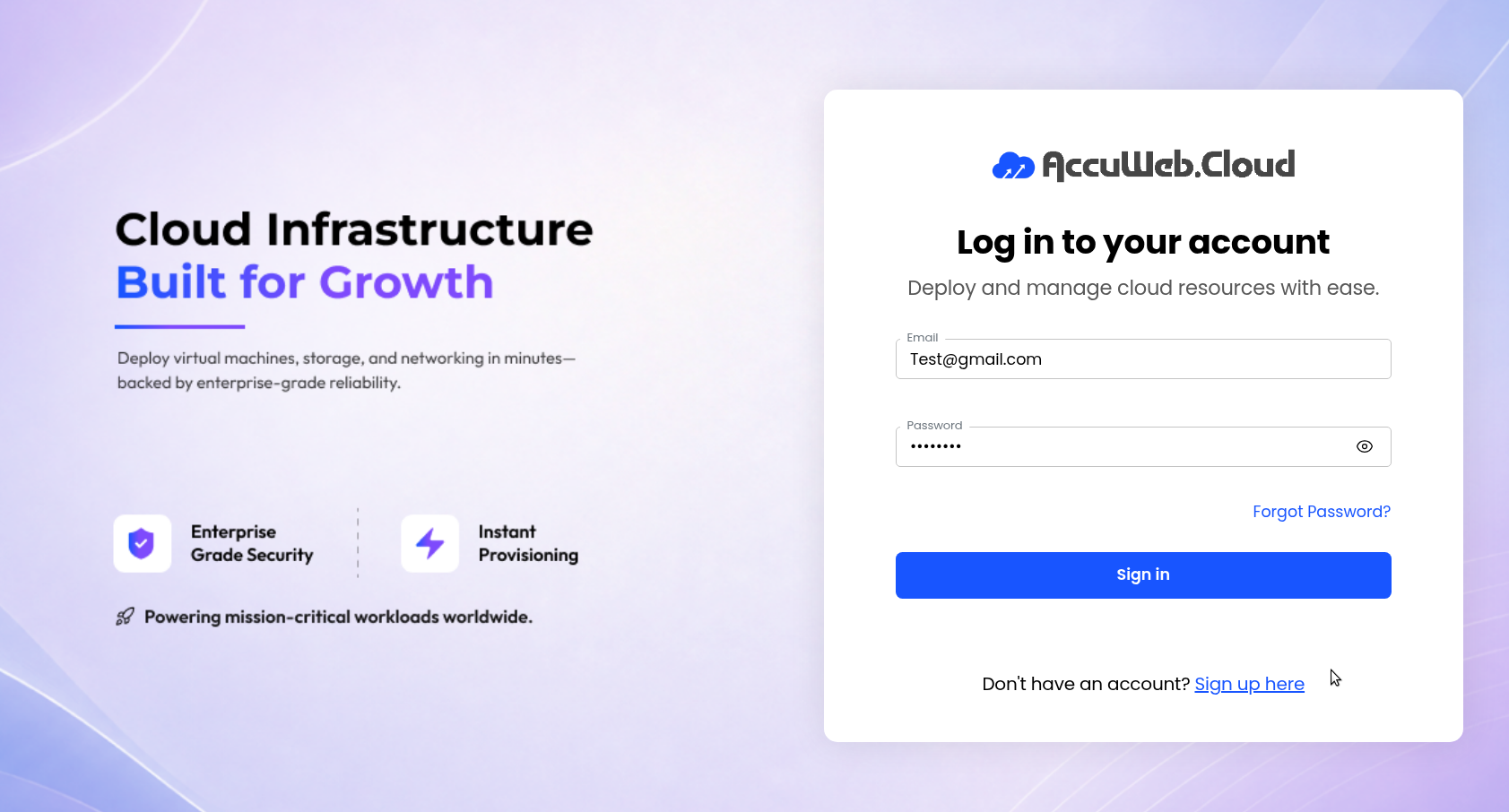
Step 1: Log in to AccuWeb.Cloud
Go to https://manage.accuweb.cloud/ and log in using your registered credentials.
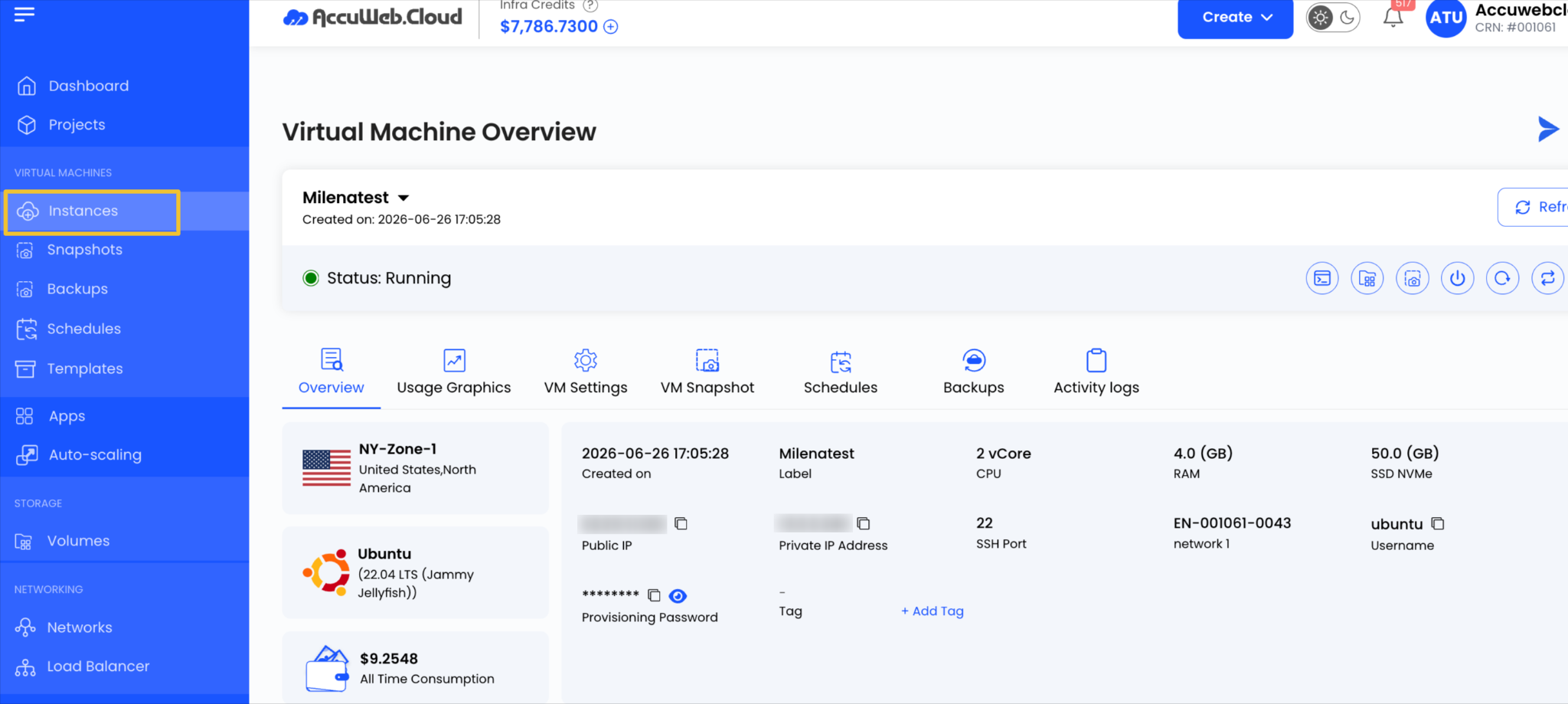
Step 2: Select Your instance
Open the instance you want to protect.
Step 3: Open the Firewall Settings
Navigate to the instance Settings and then Firewall section from the instance management page.


Step 4: Add a Firewall Rule
Create a new rule by specifying:
Source CIDR: Defines which IP addresses can access the port.
- Use 0.0.0.0/0 to allow access from all IP addresses (for example, public websites on ports 80 and 443).
- Use a specific IP with /32 (for example, 203.0.113.25/32) to allow access only from that trusted IP, such as for SSH or RDP access.
Protocol: Select TCP, UDP, or ICMP based on the service requirement.
- TCP – Used for services such as HTTP, HTTPS, SSH, RDP, FTP, and databases.
- UDP – Used for services such as DNS, VoIP, streaming, and certain gaming applications.
- ICMP – Used for network diagnostics, such as the ping command.
Start Port / End Port: Specify the port or port range to allow. For a single port, use the same value for both fields (for example, SSH: 22 – 22).

Step 5: Save and Apply
Save the rule and apply it to your instance.
The firewall starts enforcing the new rule immediately.
Best Practices
To get the most from Cloud Firewall protection:
- Only open ports that are actually required.
- Restrict SSH and RDP access to trusted IP addresses whenever possible.
- Keep database ports private unless remote access is necessary.
- Remove firewall rules that are no longer needed.
- Review your firewall configuration regularly as your applications change.
- Combine Cloud Firewall with your operating system’s firewall for an extra layer of security.
Conclusion
Cloud Firewall is one of the easiest and most effective ways to improve your instance security. By filtering network traffic before it reaches your server, it helps block unauthorized access, reduces exposure to common attacks, and ensures only the traffic you expect is allowed through.
A well-planned set of firewall rules doesn’t just make your instance more secure; it also gives you greater control over how your applications communicate with the outside world. Taking a few minutes to configure your firewall today can help prevent much bigger security issues in the future.