
How to Connect a GitHub Repository to an Instance?
Connecting your GitHub repository to an instance allows you to easily download, update, and manage your application’s source code directly on the server. This is useful for deploying websites, applications, or scripts hosted on GitHub.
This guide explains how to install Git, connect your GitHub repository, and clone your project onto your VM.
Prerequisites
Before you begin, ensure that:
- You have an active AccuWeb.Cloud instance.
- You have SSH access to the VM.
- You have a GitHub account.
- You have access to the GitHub repository.
Step 1: Connect to Your Virtual Machine
Open a terminal on your local computer and connect to your VM using SSH.
ssh username@your-server-ip
Enter your password (or use your SSH key) when prompted.

Step 2: Install Git
If Git is not already installed, install it using your operating system’s package manager.
Ubuntu/Debian
sudo apt update
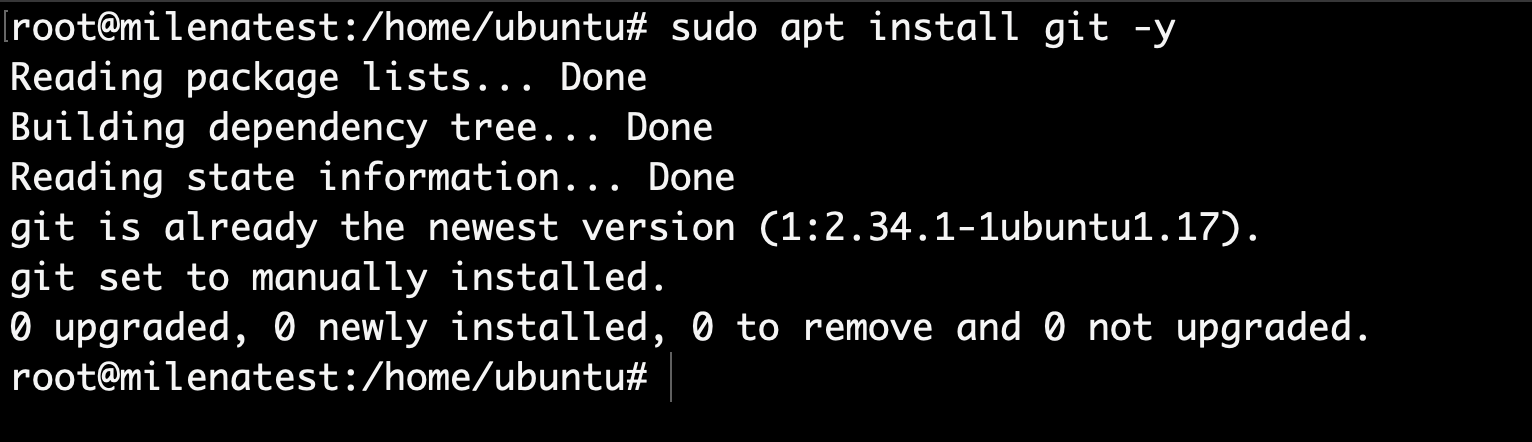
sudo apt install git -y

AlmaLinux / CentOS
sudo dnf install git -y
Verify the installation:
git –version

Step 3: Clone Your GitHub Repository
Navigate to the directory where you want to store the project.
cd /var/www/

Clone the repository.
Using HTTPS
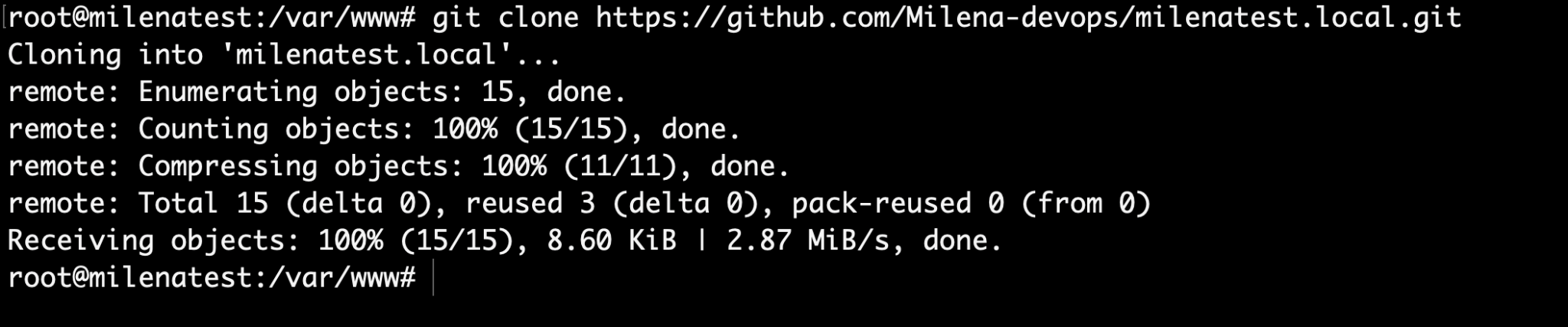
git clone https://github.com/Milena-devops/milenatest.local.git
Or using SSH
git clone [email protected]:Milena-devops/milenatest.local.git
Replace username and repository with your GitHub repository details.
After the cloning process completes, your project files will be available on the VM.
Step 4: Update Your Repository
Whenever new changes are pushed to GitHub, navigate to your project directory and run:
cd repository
git pull
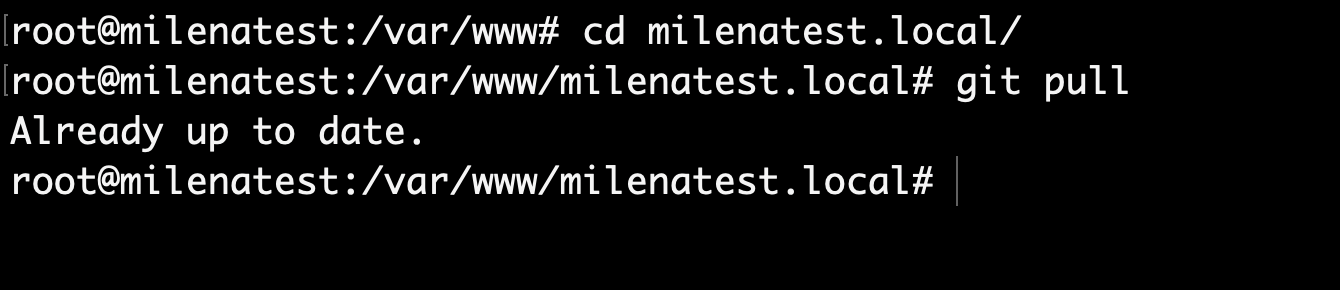
This downloads the latest changes from your GitHub repository.
Troubleshooting
- Authentication Failed
If you see: fatal: Authentication failed for’https://github.com/username/repository.git’
Solution:
Use a GitHub Personal Access Token (PAT) instead of your GitHub password, or configure SSH keys and clone the repository using the SSH URL.
Example (HTTPS):
git clone https://github.com/username/repository.git
When prompted, enter:
Username: your-github-username
Password: <Your GitHub Personal Access Token>
- Repository Not Found
If you receive: remote: Repository not found.
Solution: Verify that the repository URL is correct, confirm that the repository exists, and ensure your GitHub account has permission to access the repository.
- Git Not Installed
If you see: git: command not found
Solution: Install Git on your Virtual Machine by following Step 2: Install Git, then verify the installation by running: git –version
Conclusion
Connecting a GitHub repository to your AccuWeb.Cloud Virtual Machine is a simple way to deploy and manage your application code. After connecting to your VM via SSH and cloning the repository, you can keep your project up to date at any time by running the git pull command.