
How to Manually Backup and Restore Your Instance on Accuweb.Cloud?
Anyone who’s managed servers for a while has a horror story, a bad update, a wrong config change, or a script that didn’t do what it was supposed to. It’s usually in that exact moment that you wish you’d taken a backup five minutes earlier. Accuweb.Cloud gives you an easy way to avoid that regret. Right from your dashboard, you can create a manual backup of any instance in just a few clicks and restore it just as easily if something goes wrong.
Automated backups are great for day-to-day protection, but there are times you want a backup right now, before a major update, before migrating an app, or before touching a config file you’re not 100% sure about. That’s exactly what manual backups are for, and here’s how to do it.
Steps to Take a Manual Backup
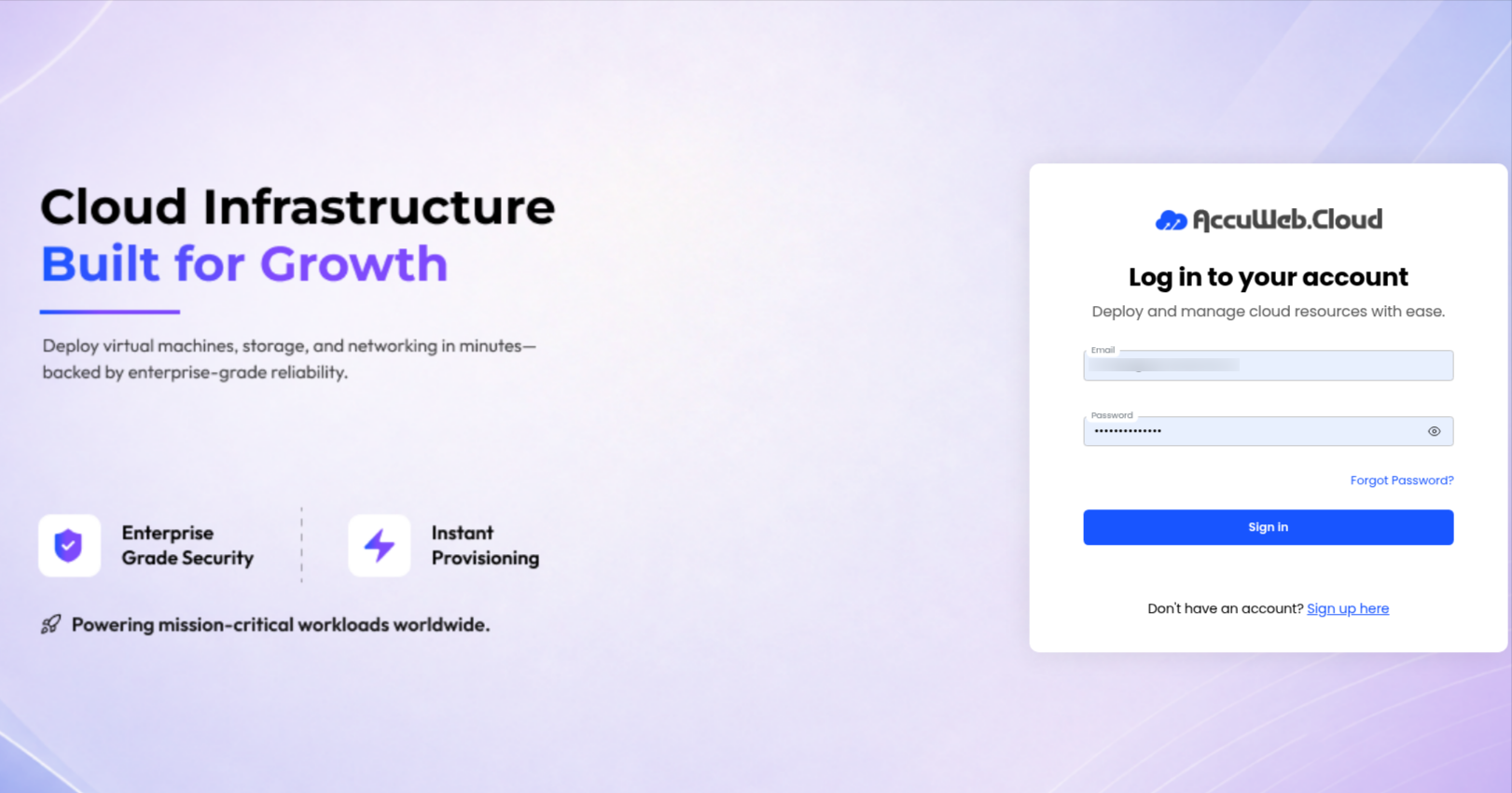
Step 1: Log in to Your Accuweb.Cloud Dashboard
Go to https://manage.accuweb.cloud/ and log in using your registered credentials.
Step 2: Navigate to the Instances Section
Once you are on the dashboard, click on the Instance option available in the left-side navigation panel.

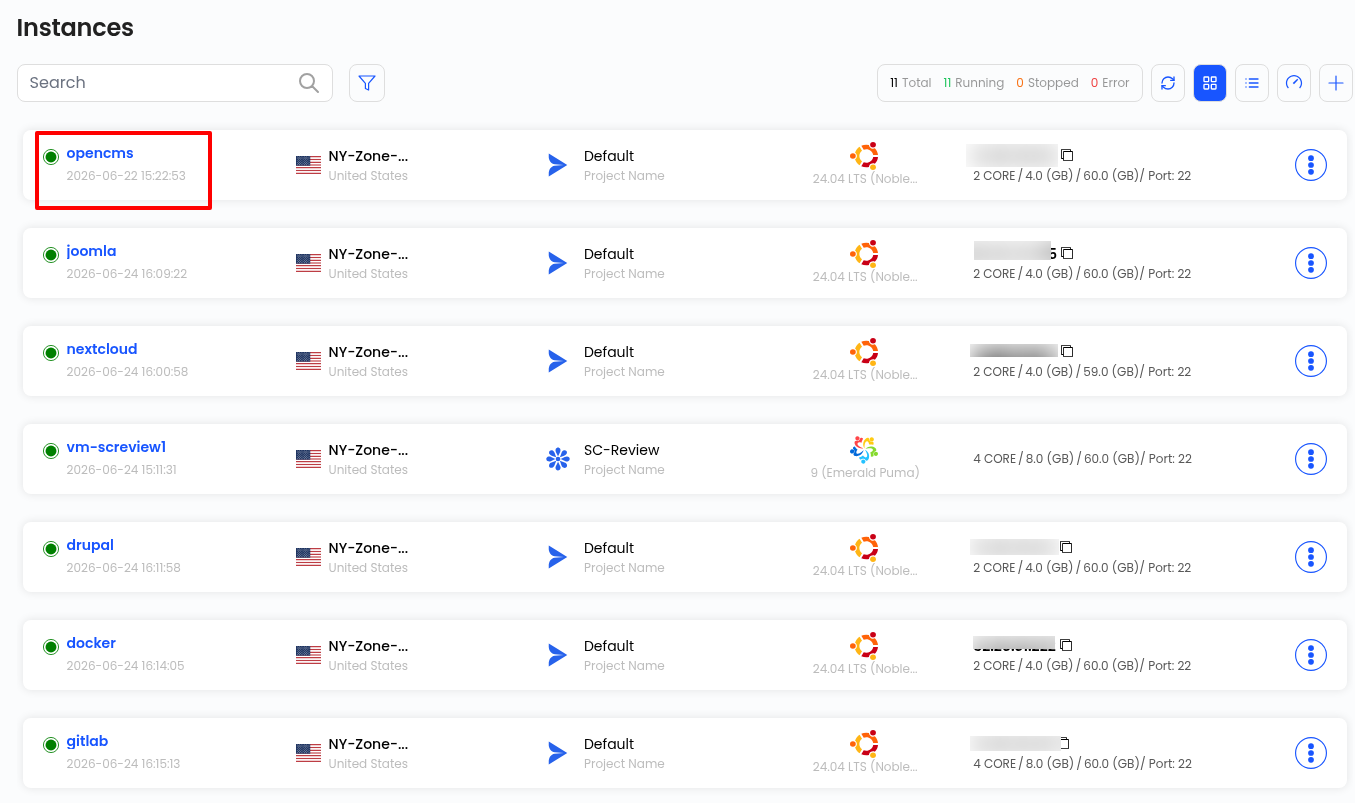
Step 3: Select the Instance
From the list of instances displayed, select the specific instance for which you want to take a manual backup.
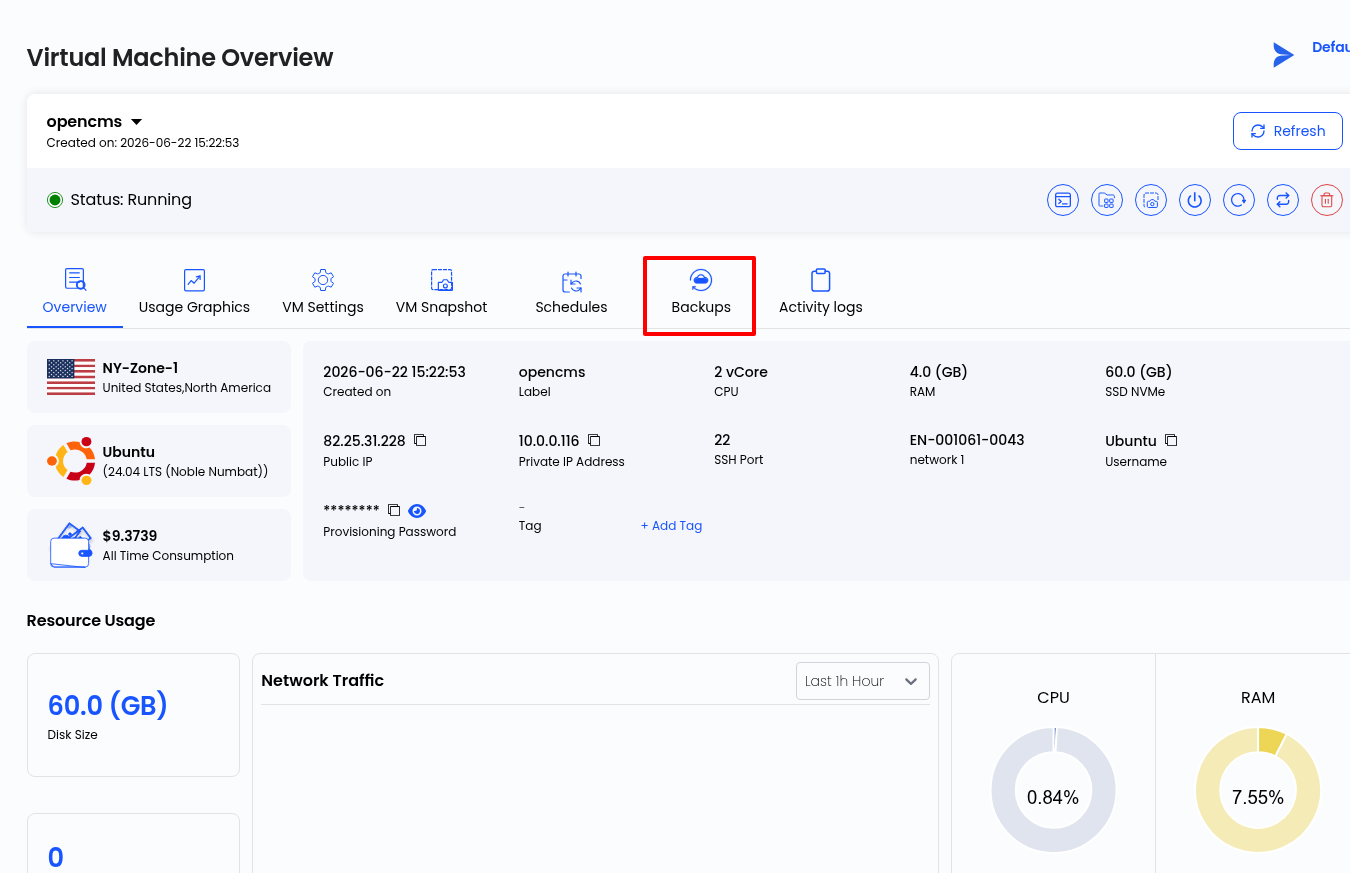
Step 4: Open the Backups Tab
On the instance details page, click on the Backups tab.
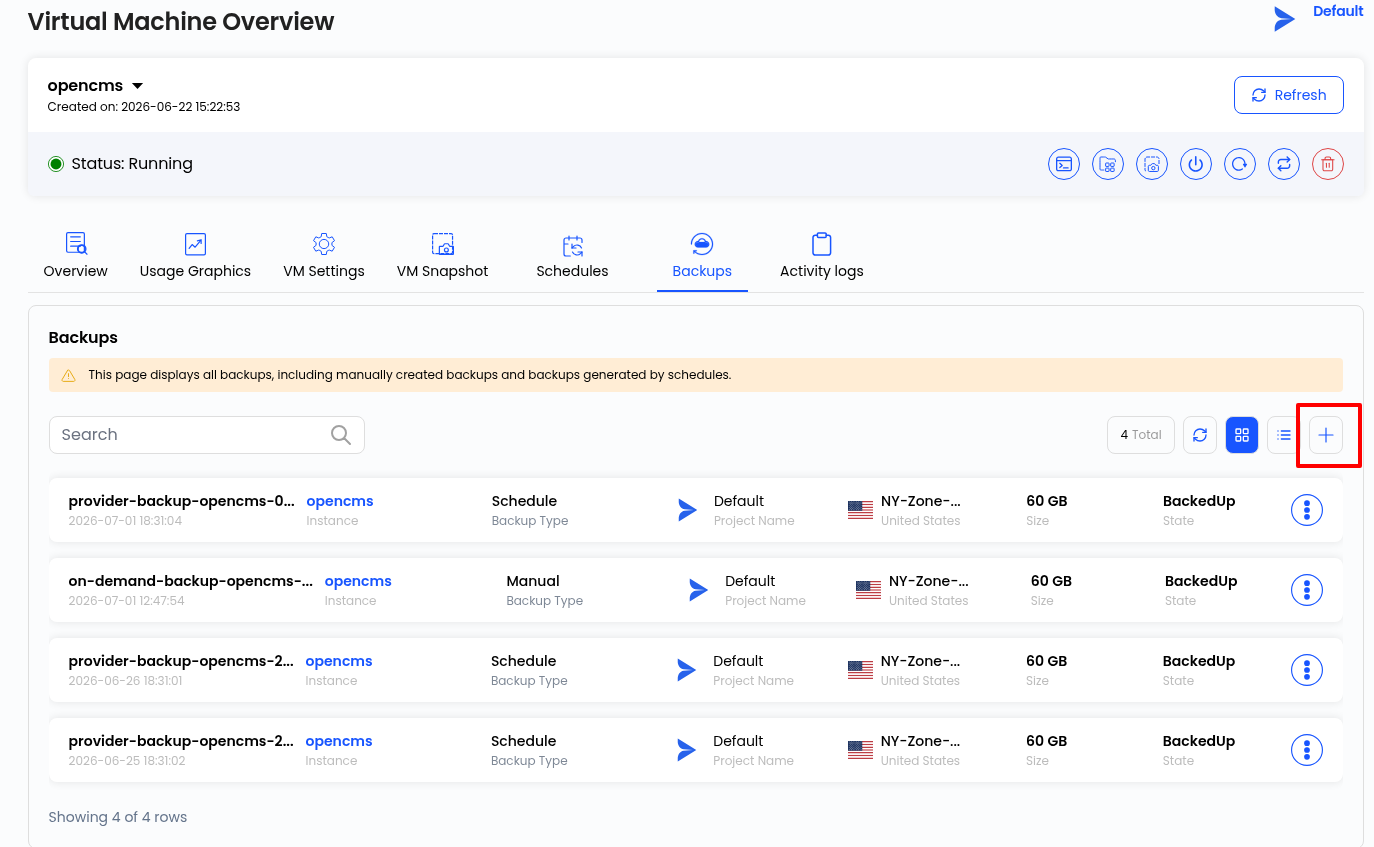
Step 5: Create a New Backup
Here, you’ll see a list of all the backups taken for this instance so far. To create a new one, click on the “+” icon.
Step 6: Configure Backup Details
On the backup creation page, select the following:
- The Data Center Region where you want the backup to be created
- Select the Project (if you’ve created one) or select Default if no project has been assigned
- The Instance for which you want to take the backup

Step 7: Review and Create the Backup
Once you’ve configured the details, click on Review & Create. Carefully review the backup instance details, and then click on Create Backup. The backup will be created within a few seconds.

Steps to Restore Your Instance from a Backup
Step 1: Shut Down the Instance
Go back to the Instance page and select the instance you created the backup for. Before restoring, shut down the instance.

Step 2: Restore from Backup
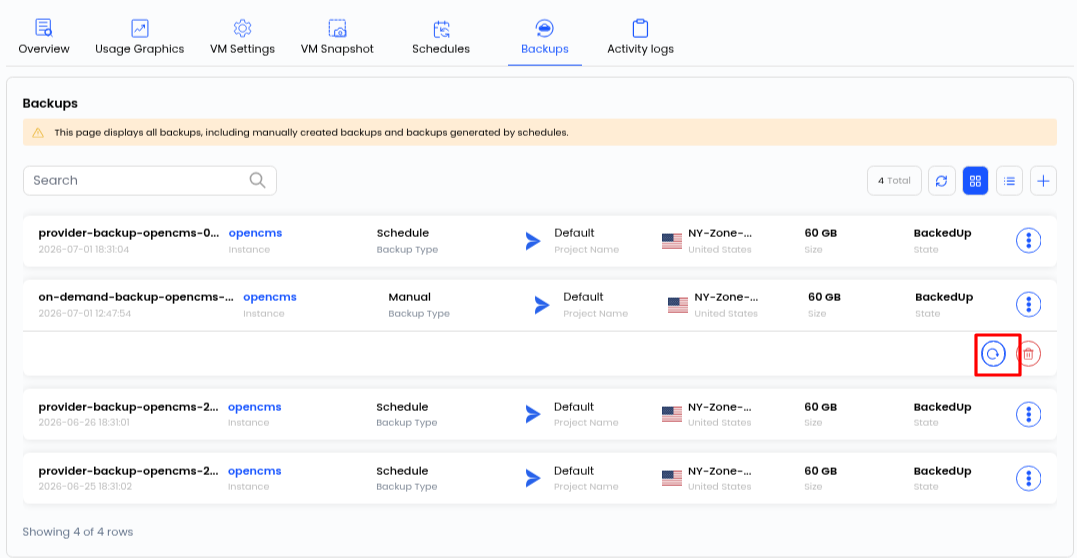
Navigate to the Backups section of the instance, where you’ll see the backup you just created. Since this backup was created manually, its type will be listed as Manual. Click on the Restore icon next to the backup to begin the restoration process.
Step 3: Power On the Instance
Once the restoration is complete, simply turn your instance back on. Your instance is now restored to the exact state captured in the backup.
Conclusion
Taking manual backups on Accuweb.Cloud is a quick and reliable way to safeguard your instances before making significant changes or simply as an added layer of protection. With just a few clicks, you can create a backup and restore it whenever required, giving you complete control and peace of mind over your cloud environment. We recommend making it a habit to take a manual backup before any major update or deployment, ensuring you always have a safe point to fall back on.