
The Roles feature in AccuWeb.Cloud allows account owners and administrators to create custom roles and assign specific permissions to users. This helps control access to cloud resources and ensures users only have the permissions required for their responsibilities.
Accessing the Roles Section
Step 1: Log in to AccuWeb.Cloud Panel. – https://manage.accuweb.cloud/
Step 2: Click on your Profile icon in the top-right corner and select Roles from the menu.
Available Roles
AccuWeb.Cloud provides predefined roles to help manage access permissions.
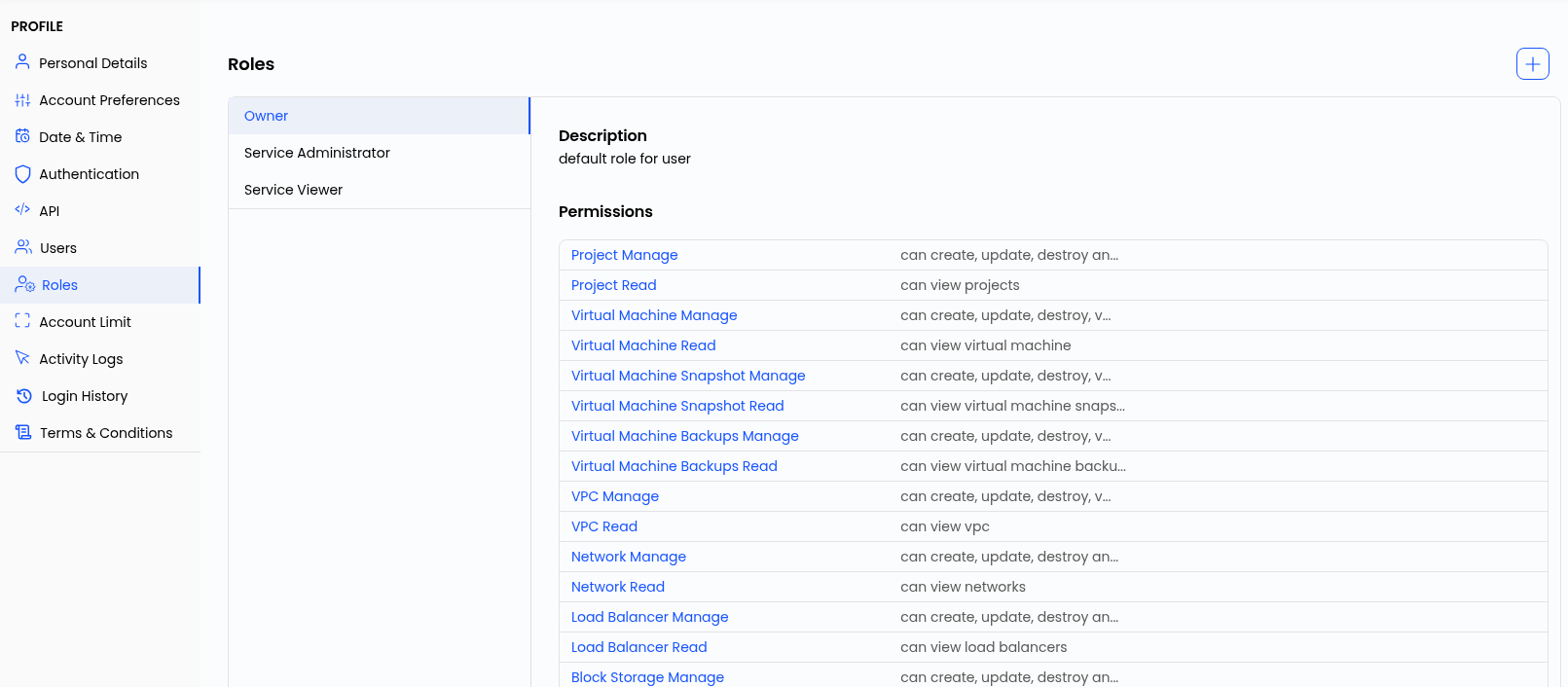
Owner
The Owner role is the default account role and has full access to all account resources and settings.
Users with the Owner role can:
- Manage projects
- Create, modify, and delete virtual machines
- Manage storage resources
- Configure networking services
- Manage billing and subscriptions
- Create and manage sub-users
- Configure roles and permissions
- Access support and monitoring features
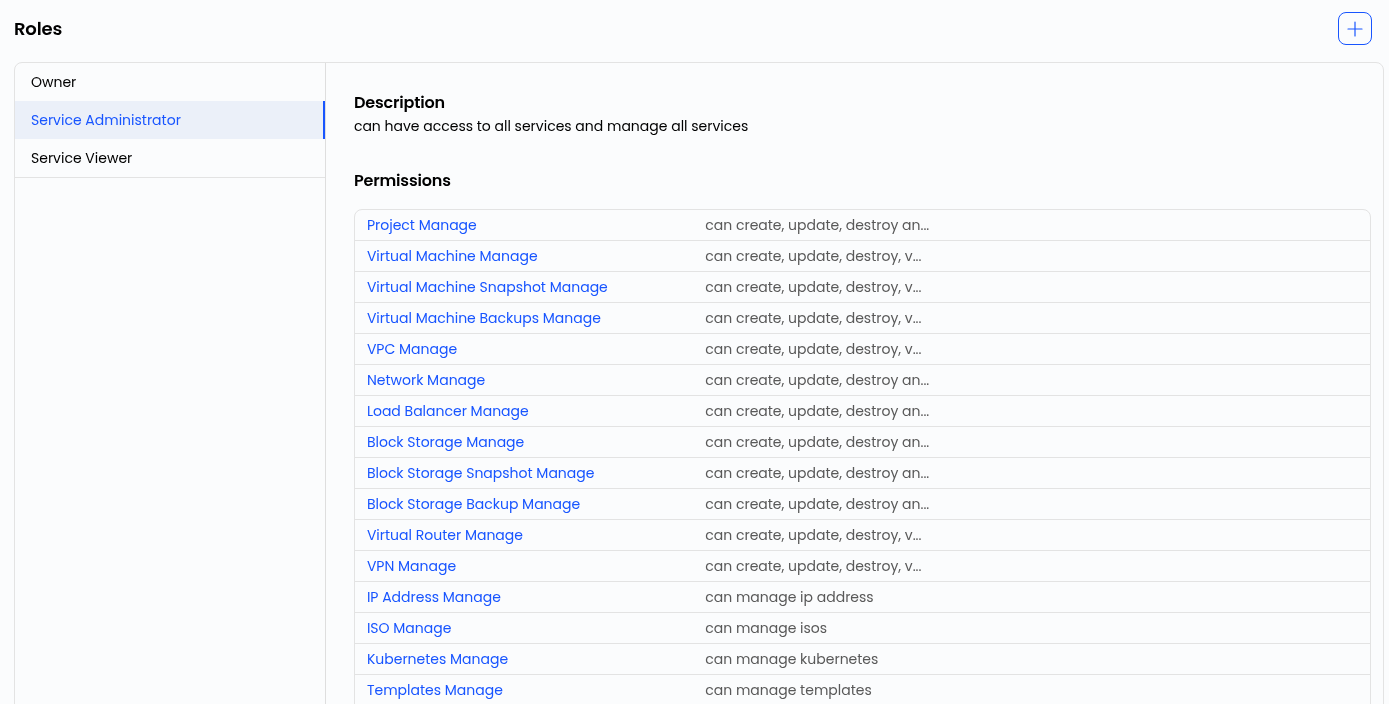
Service Administrator
The Service Administrator role is designed for users who need to manage cloud resources without having full account ownership privileges.
This role typically includes permissions to:
- Manage projects
- Manage virtual machines
- Manage storage resources
- Configure networking services
- Monitor infrastructure resources
Service Viewer
The Service Viewer role provides read-only access to cloud resources.
Users assigned this role can:
- View projects
- View virtual machines
- View storage resources
- View networking configurations
- View monitoring information

Creating a New Role;The Owner; role is the default account role and has full access to all account resources and settings.
To create a custom role:
Step 1: Click on Add New Role.
The Create Role form will appear.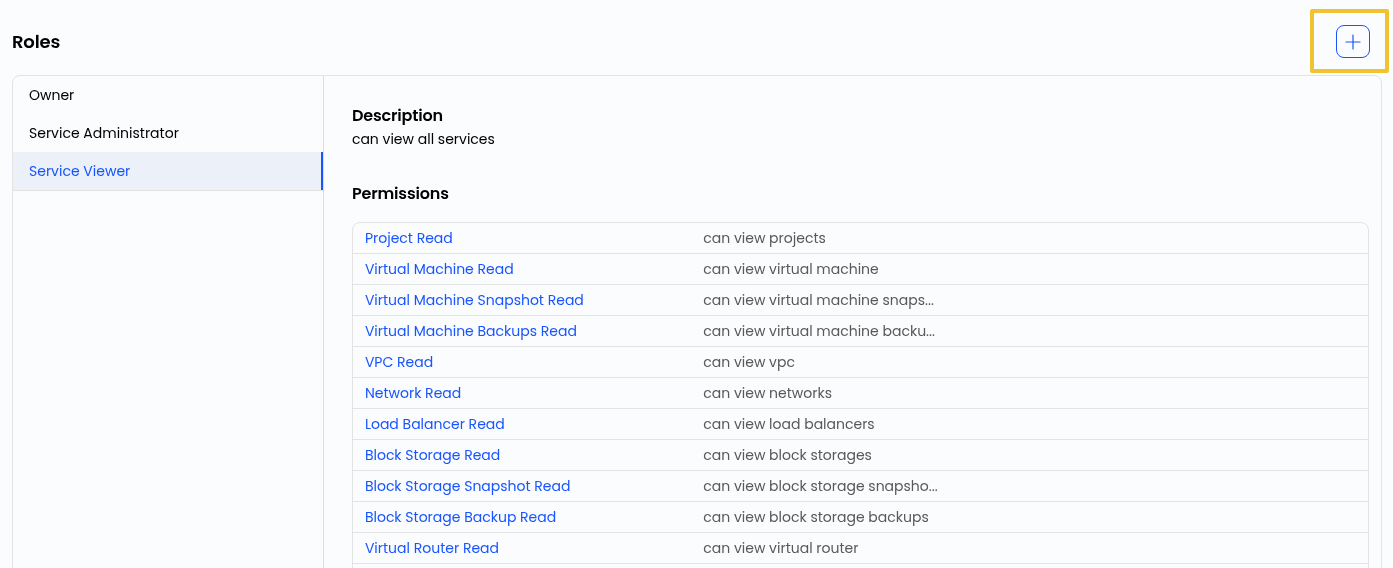 Enter Role Details
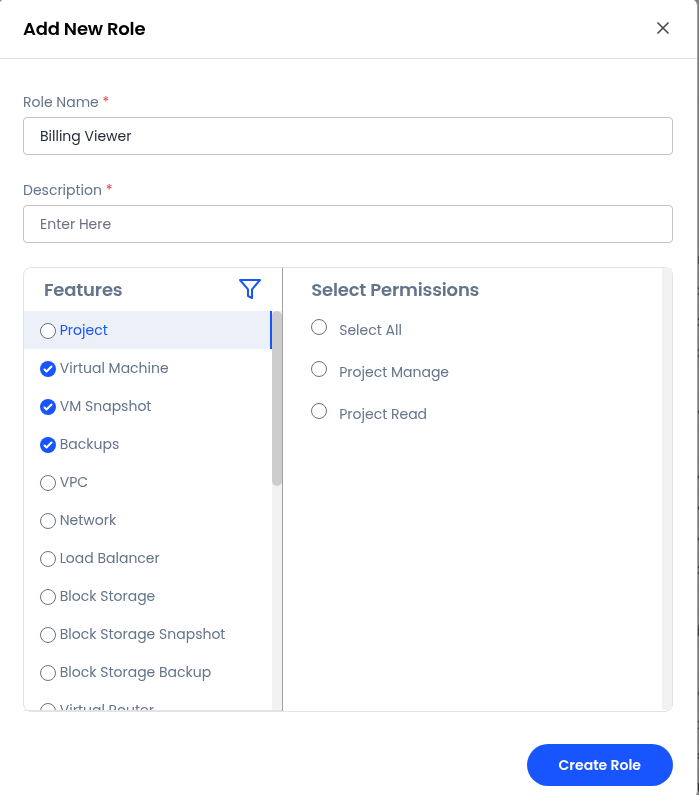
Step 2: Enter the following information:
Role Name
- Enter a unique name for the role.
- Example: Project Administrator, Network Manager, Billing Viewer.
Description
- Provide a brief description explaining the purpose of the role.
Example:
- “Can manage virtual machines and networking resources.”
- “Read-only access to billing and monitoring.”
Select Features
The Features section allows you to choose which services the role can access.
Available features include:
- Project
- Virtual Machine
- VM Snapshot
- Backups
- VPC
- Network
- Load Balancer
- Block Storage
- Block Storage Snapshot
- Block Storage Backup
- Virtual Router
- VPN
- IP Address
- ISO
- Kubernetes
- My Template
- VM Autoscaling
- Support
- Store
- Monitoring
- DNS
- Security Group
- Profile
- Billing
Select the features that users assigned to this role should be able to access.
Configure Permissions
After selecting features, choose the permissions that will be granted.
Permissions are generally divided into:
Manage Permission
Allows users to:
- Create resources
- Modify resources
- Perform administrative actions
Read Permission
Allows users to:
- View resources
- Monitor configurations
- Access information without making changes
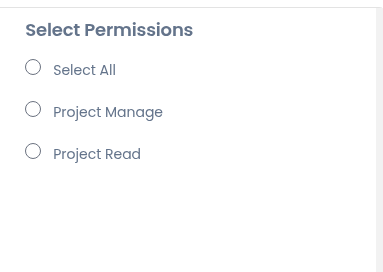
Select All Permissions
If required, you can use the Select All option to grant all available permissions for the selected features.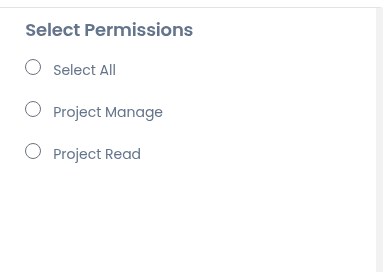
This is useful when creating administrator-level roles.
Create the Role
After configuring all required permissions:
Step 1: Review the selected features and permissions.
Step 2: Click Create Role.
The new role will be added to the Roles list and can be assigned to sub-users.
Managing Existing Roles
From the Roles page, you can:
- View role details
- Edit permissions
- Update role descriptions
- Delete unused roles
This allows administrators to adjust permissions as organizational requirements change.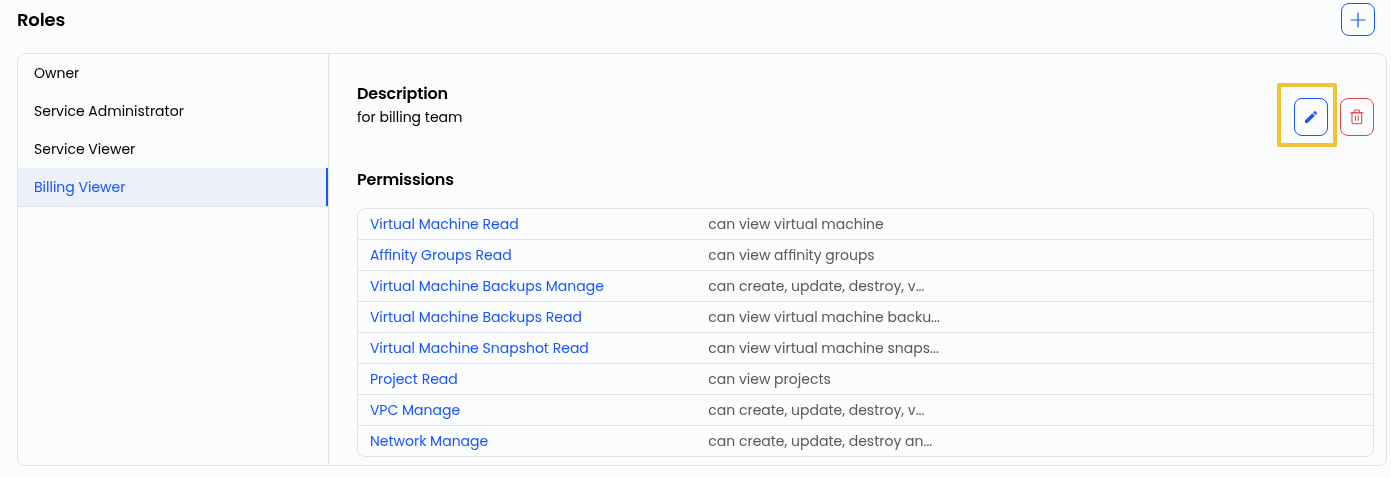
Conclusion
The Roles feature in AccuWeb.Cloud provides flexible access control by allowing administrators to create custom roles and assign granular permissions. By selecting specific features and permissions, organizations can securely manage user access while maintaining control over cloud resources.