
How to Create, Attach and Detach Volume in AccuWeb.Cloud?
Block Storage Volumes in AccuWeb.Cloud provide scalable NVMe SSD storage that can be attached to or detached from virtual machine instances. These volumes are commonly used for databases, application data, backups, and other storage-intensive workloads.
1. How to Create a Volume
Step 1: Log in to AccuWeb.Cloud Panel. (https://manage.accuweb.cloud/)

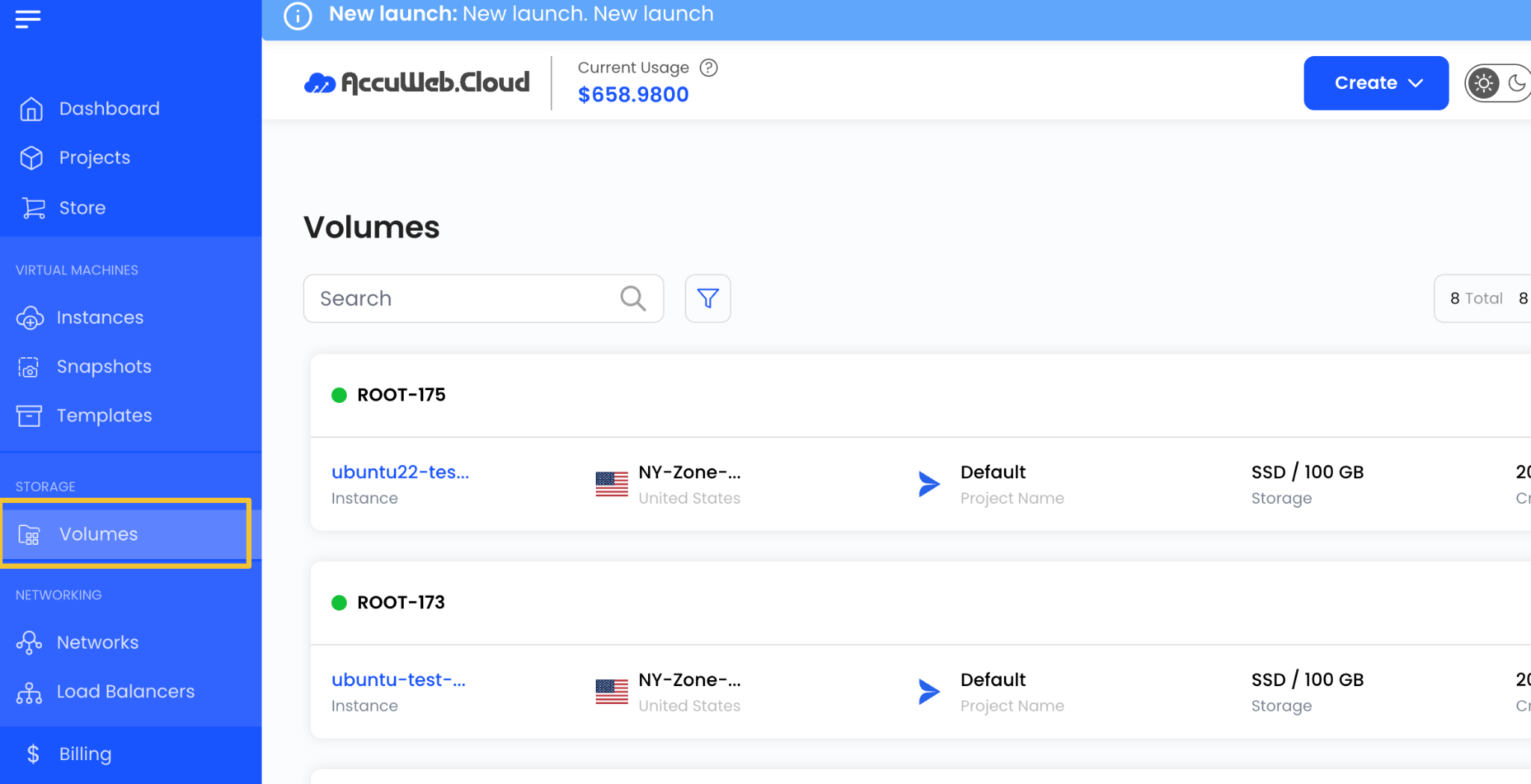
Step 2: From the left-side menu, click on Volume.
Step 3: Click on Create Volume or the + icon available on the right side of the page.
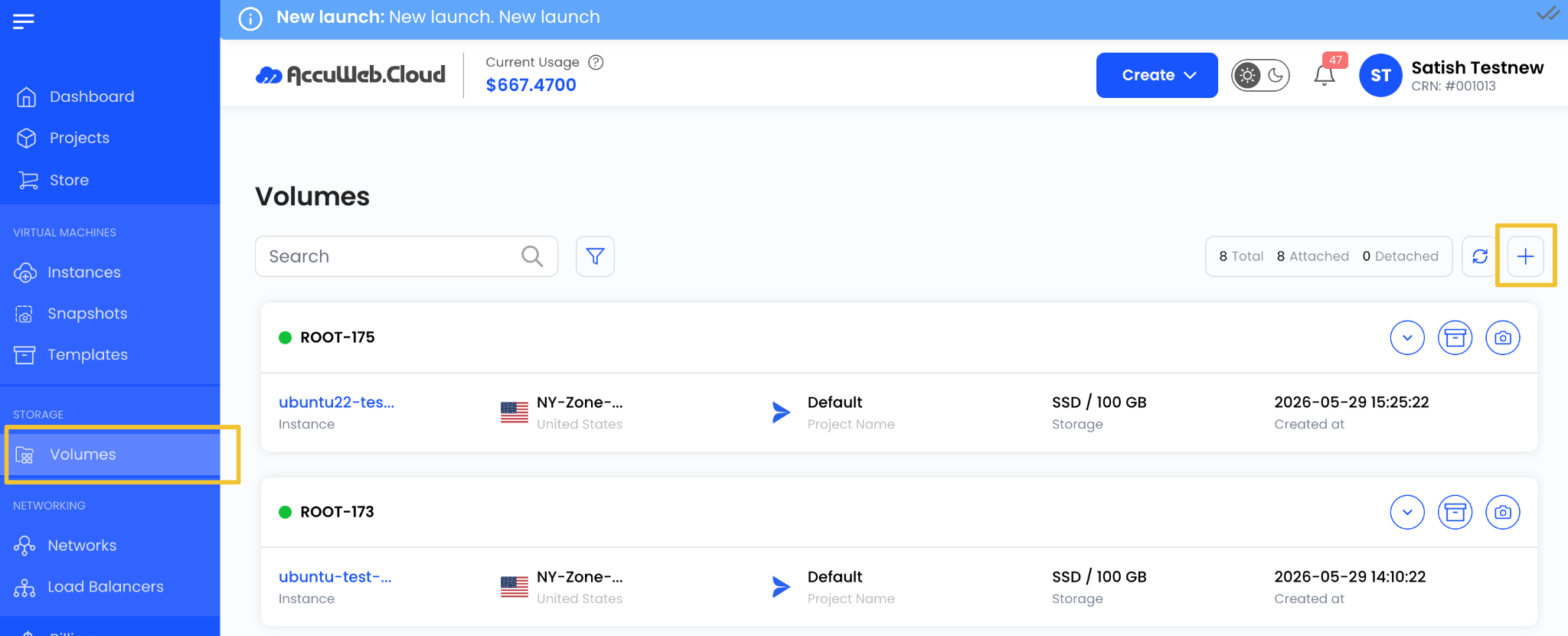
This will open the Volume Snapshot creation wizard.
Choose a Location
Select the data center location where the volume is hosted.
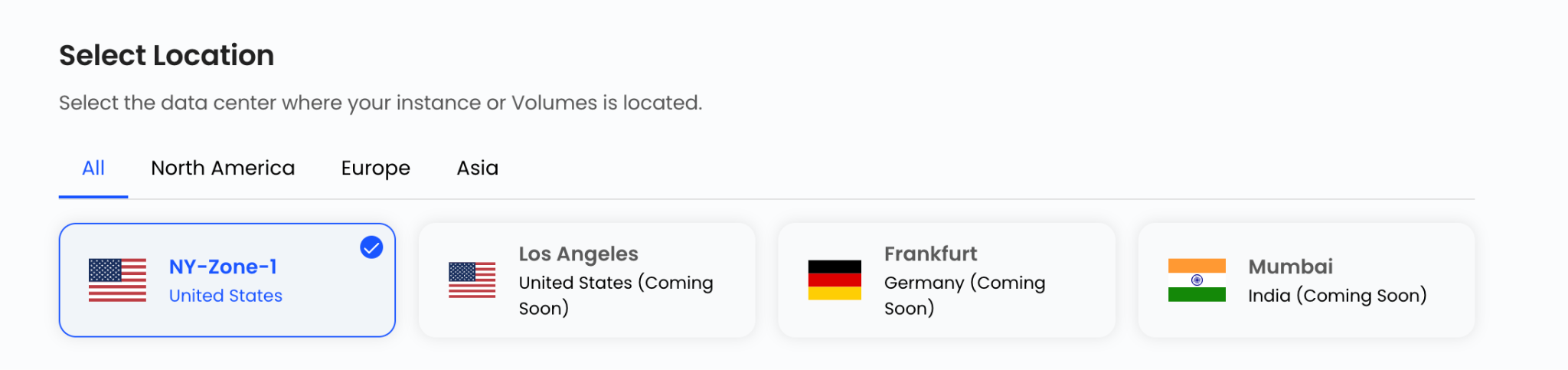
Choose the required location from the available list.
Assign to a Project
Select the project where you want to manage the volume snapshot.
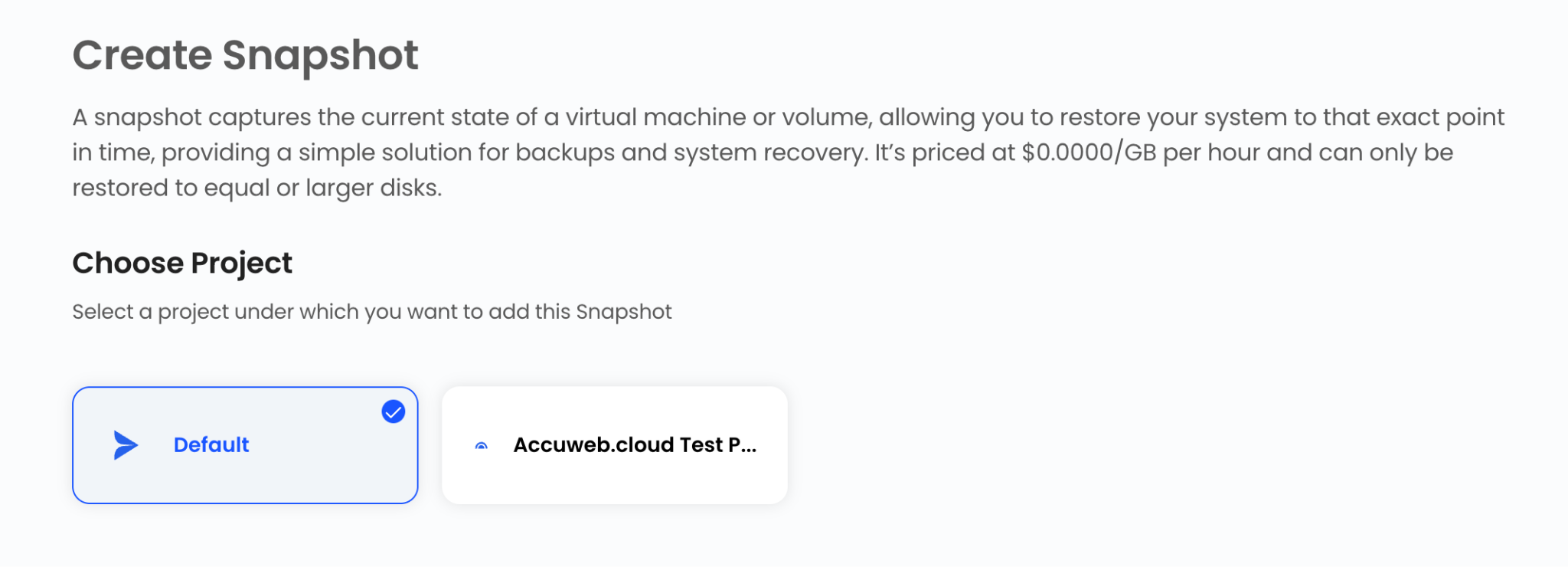
Projects help organize cloud resources and simplify resource management.
Select Volume Size
The available plans and storage options are displayed on the volume creation page. Select the plan that best matches your performance and capacity requirements.
You can choose from the available storage plans or create a custom volume size if required.
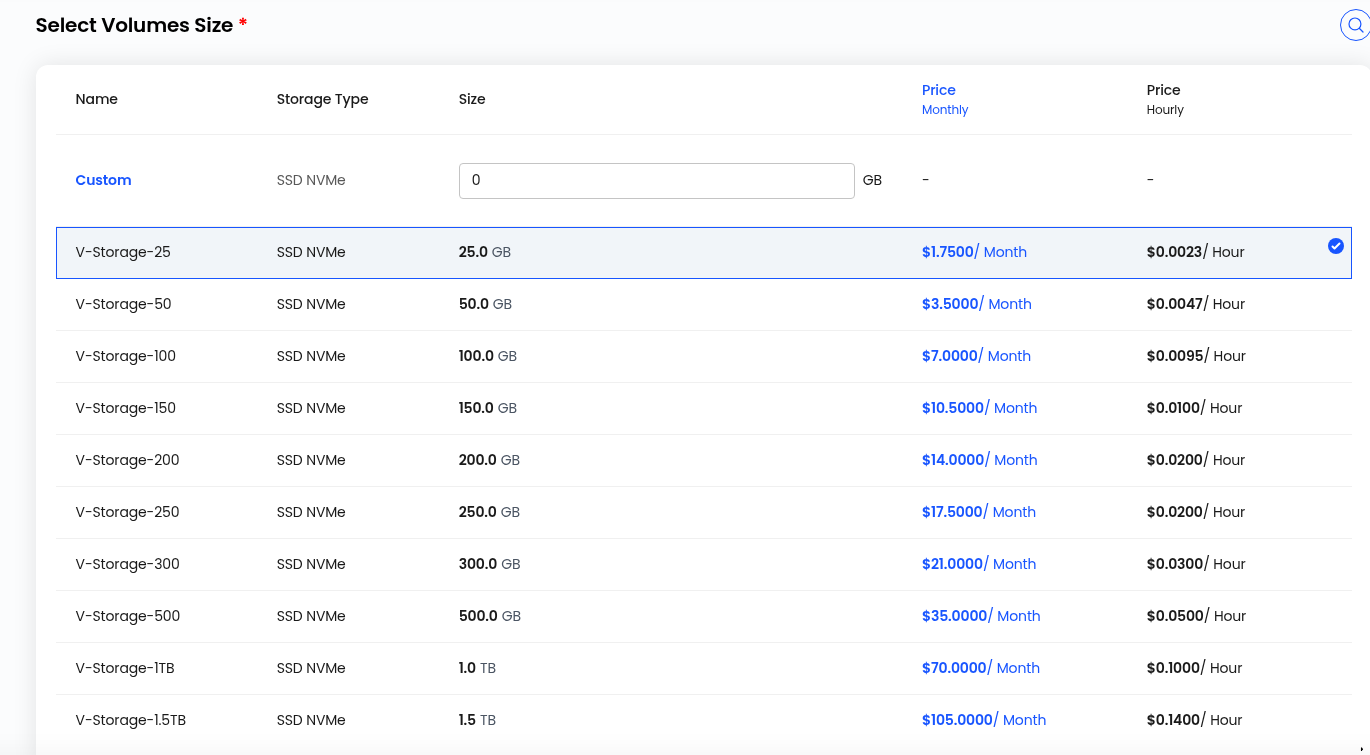
The pricing will automatically adjust based on the selected storage type and volume size.
Choose Snapshot Name
Enter a unique name for the snapshot.
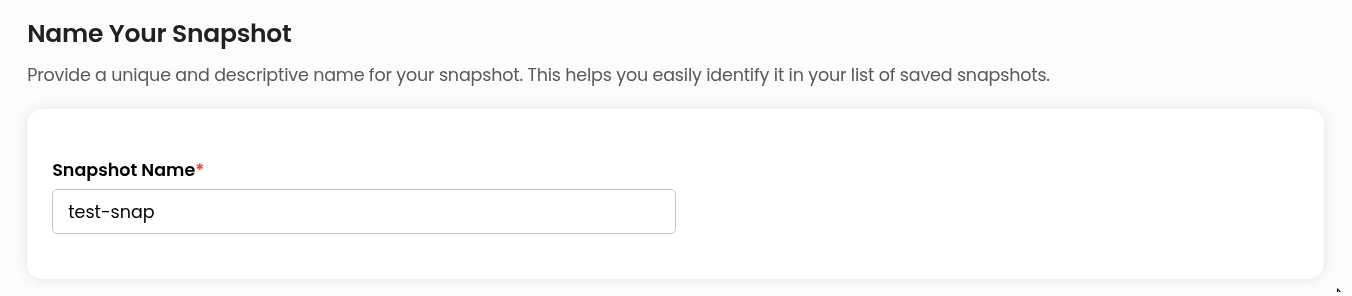
Using a descriptive name makes it easier to identify and manage snapshots later.
Create Snapshot
Select the desired billing cycle for the snapshot.
Volume Snapshots support:
- Hourly Billing Cycle
- Fixed Prorata Billing Rule
Review all configuration details and verify the pricing summary.

Click on Review & Deploy to create the volume.
How to attach a VM from a Volume
Go to Volumes
Navigate to Volumes in the panel.
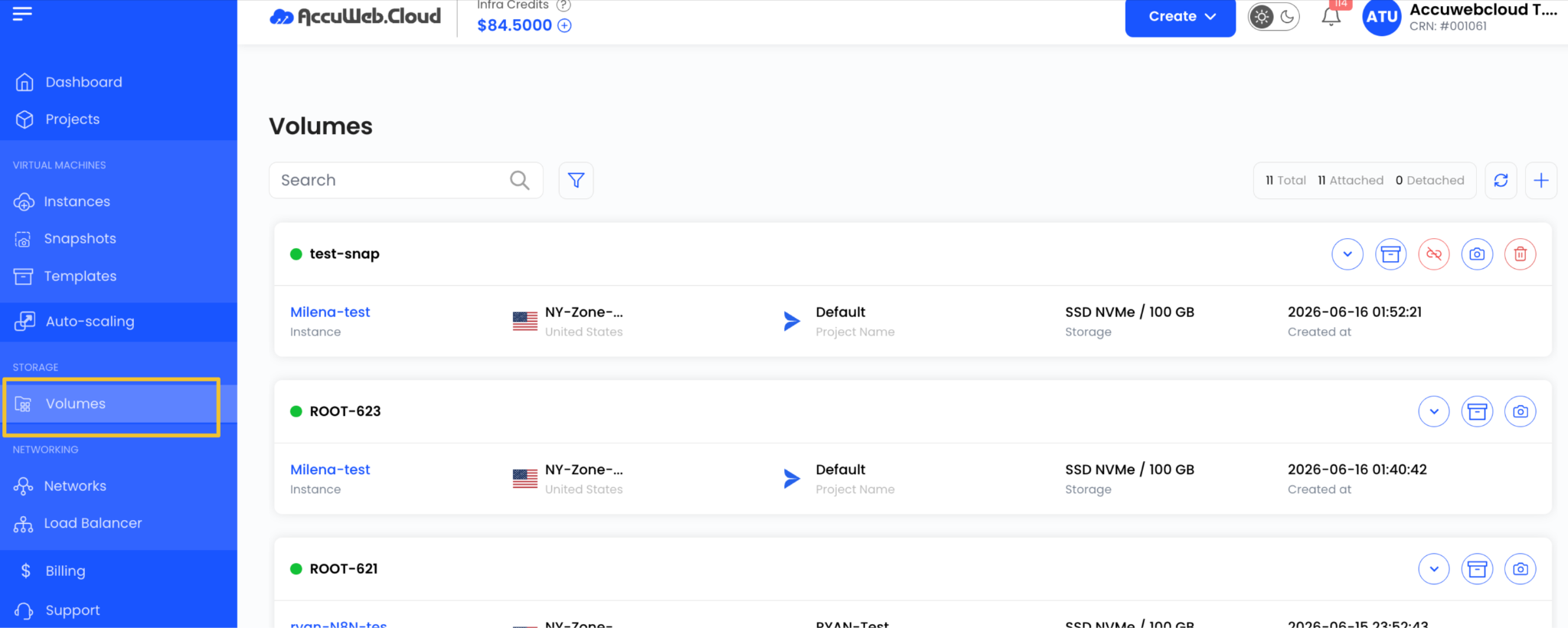
Select Volume
Click on the volume you want to attach.

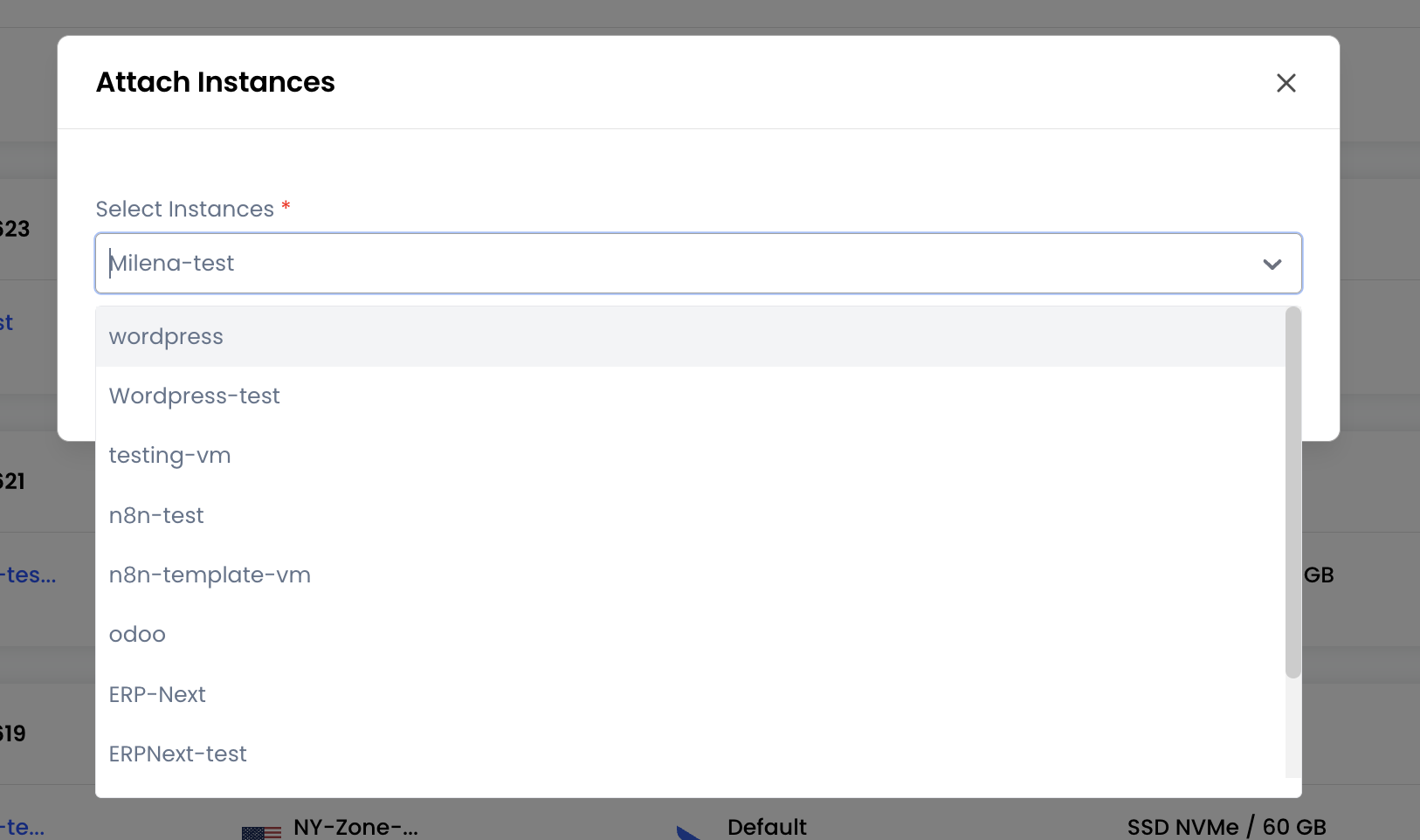
Attach to Instance
Click Attach Instace.

Choose Virtual Machine
Select the target VM instance from the list and click Submit.
How to Detach a VM from a Volume
Go to Volumes
Navigate to Volumes in the panel.
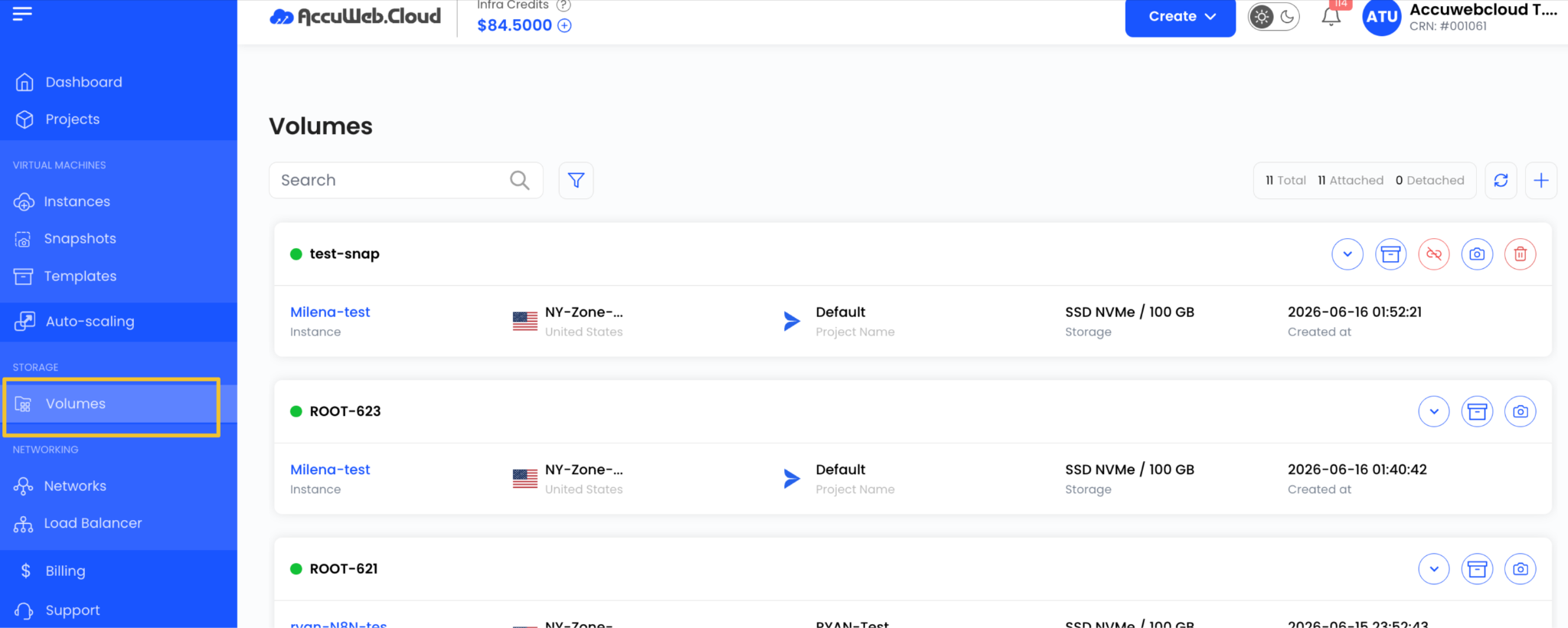
Select Attached Volume
Click the volume that is currently attached to a VM.

Detach Volume
Click Detach VM.

Confirm Action
Confirm the detachment request.
Summary
Volumes in AccuWeb.Cloud provide flexible and high-performance block storage that can be dynamically attached or detached from virtual machines. This makes it easy to scale storage, manage workloads, and maintain data reliability without downtime.