
How to Monitor Resource Usage in AccuWeb.Cloud?
AccuWeb.Cloud provides built-in resource monitoring tools that allow users to track the performance and utilization of their cloud instances in real time. The Usage Graphics section displays detailed visual reports for CPU, memory, network activity, and disk performance, helping users monitor system health and optimize resource usage.
This guide explains how to access resource monitoring graphs and understand the available performance metrics.
Access Usage Graphics for an Instance
Follow the steps below to access monitoring statistics for your cloud server.
Step 1: Open the Instances Section
Log in to the AccuWeb.Cloud dashboard.
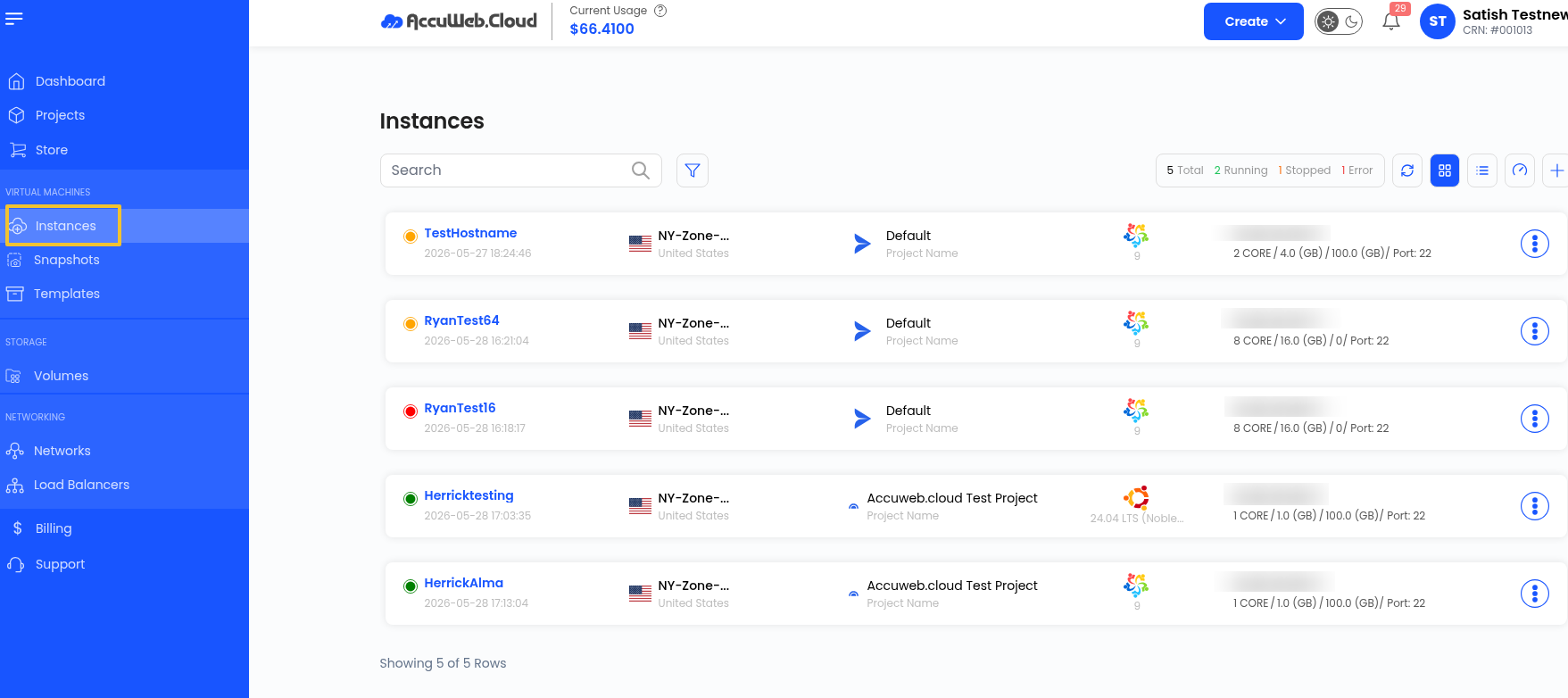
From the left-side navigation menu, click on Instances.
This will display the list of all available virtual machines under your account.
Step 2: Select the Required Instance
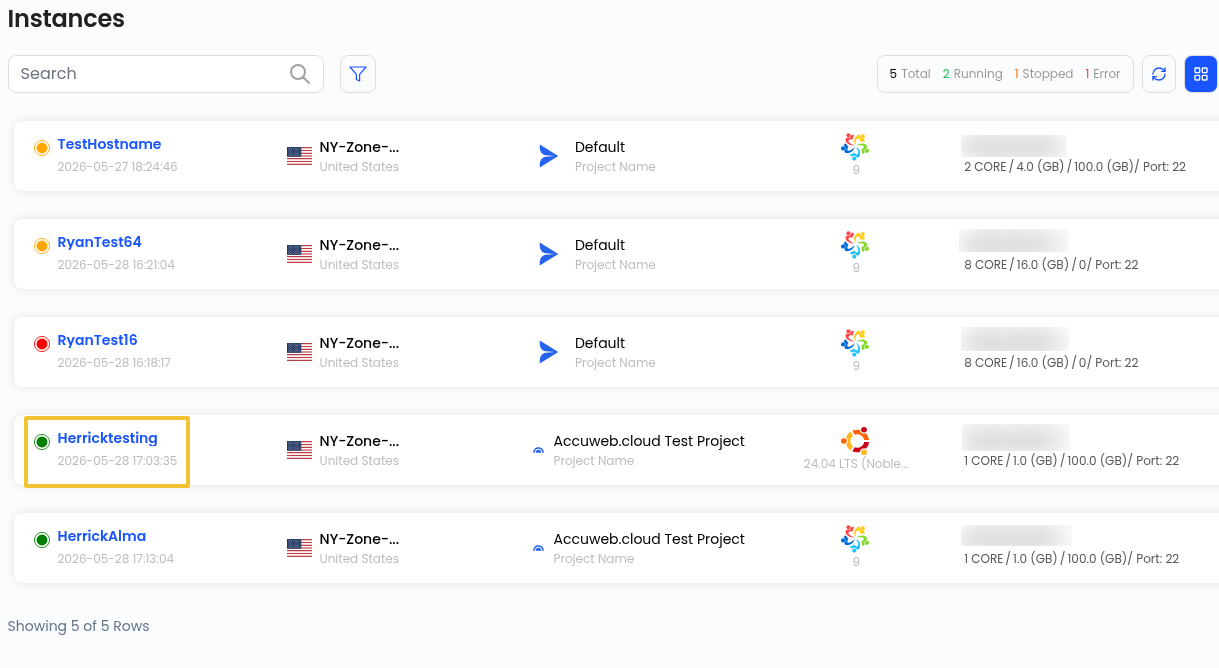
Locate the instance for which you want to monitor resource usage.
Click on the instance name to open its instance overview page.
Step 3: Open the Usage Graphics Tab
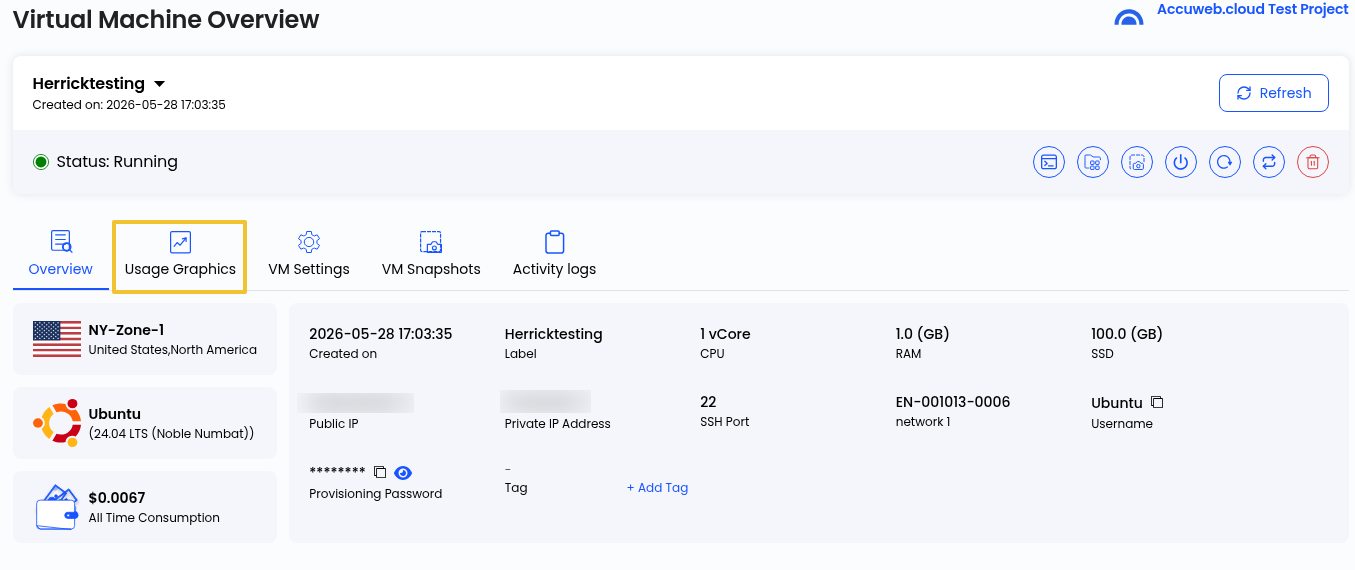
On the instance overview page, click on the Usage Graphics tab.
The Usage Graphics page provides visual monitoring data for multiple system resources over selected period.
Available Resource Monitoring Graphs
The monitoring dashboard includes several performance charts that help analyze system activity and resource consumption.
Network Traffic
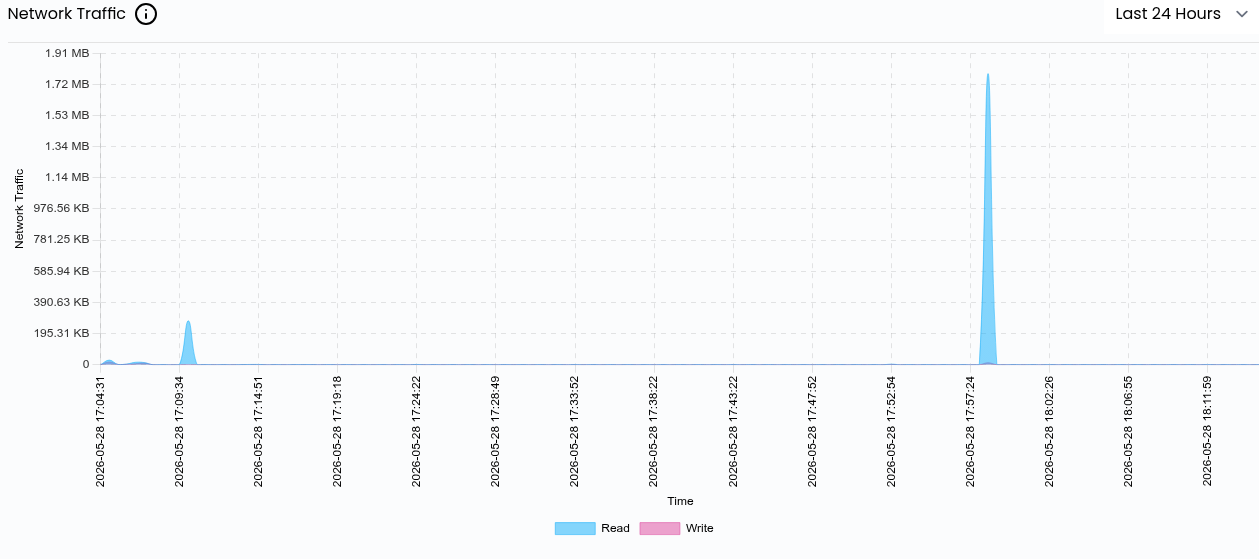
The Network Traffic graph displays incoming and outgoing network usage over time.
This graph helps users:
- Monitor bandwidth consumption
- Analyze network activity trends
- Detect unusual traffic spikes
- Troubleshoot connectivity or traffic-related issues
Regular network monitoring can help maintain stable and optimized communication between services.
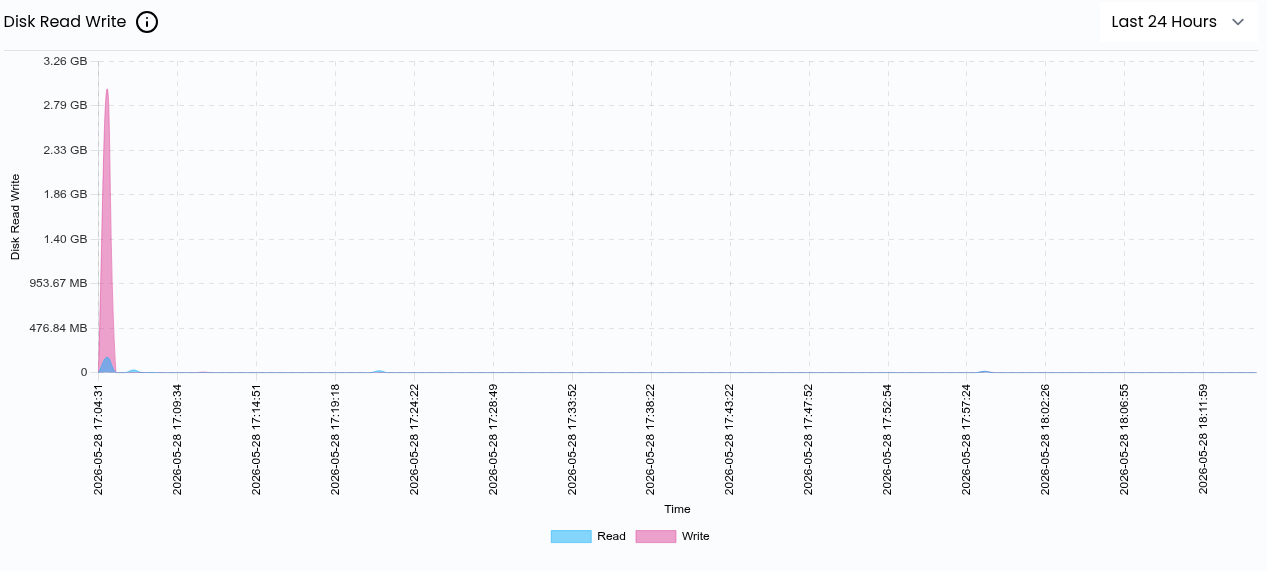
Disk I/O Monitoring
The Disk I/O graph tracks storage read and write operations performed by the instance.
This information is useful for:
- Measuring storage performance
- Identifying high disk activity
- Detecting storage bottlenecks
- Monitoring application workload behavior
High disk utilization may indicate intensive database operations, backups, or heavy application processing.
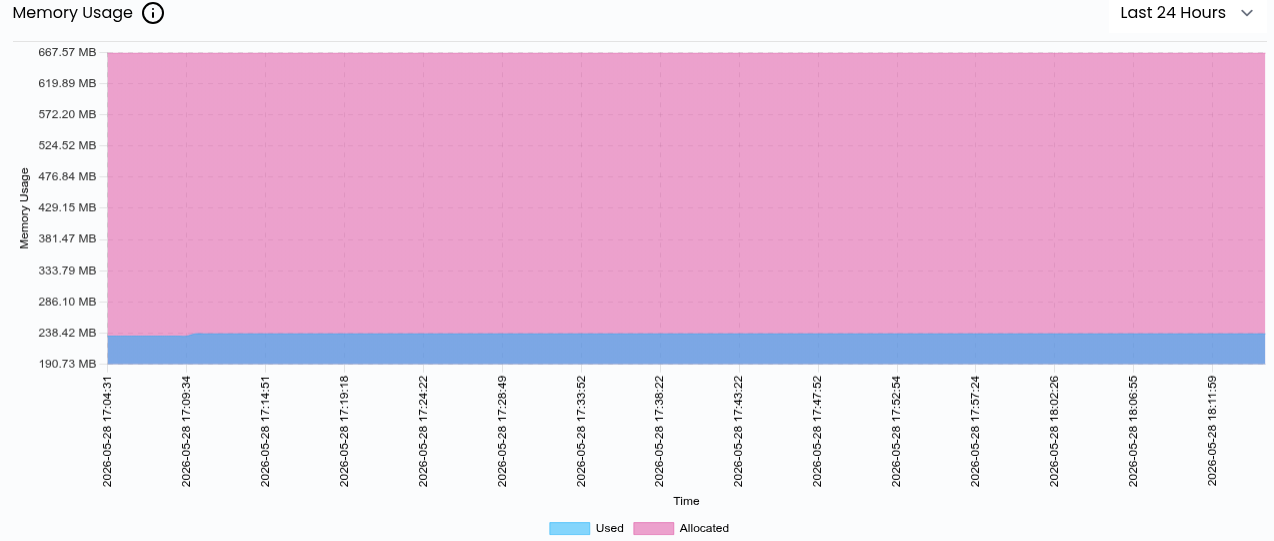
Memory Usage
The Memory Usage graph provides real-time insights into RAM consumption.
Monitoring memory usage helps users:
- Analyze memory allocation
- Detect excessive RAM usage
- Identify possible memory leaks
- Improve application performance planning
Efficient memory management helps maintain server stability and responsiveness.
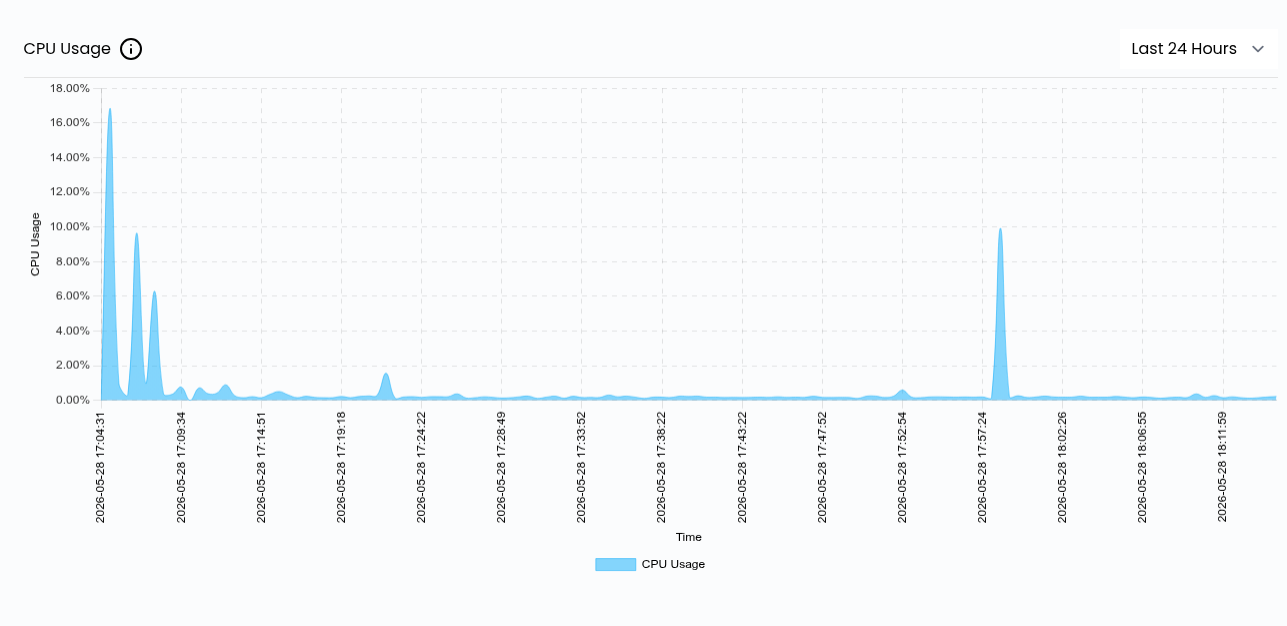
CPU Usage
The CPU Usage graph displays processor utilization over a selected timeframe.
This graph can be used to:
- Monitor overall system load
- Identify CPU-intensive applications
- Detect performance bottlenecks
- Evaluate workload distribution
Consistently high CPU usage may indicate the need for additional computing resources.
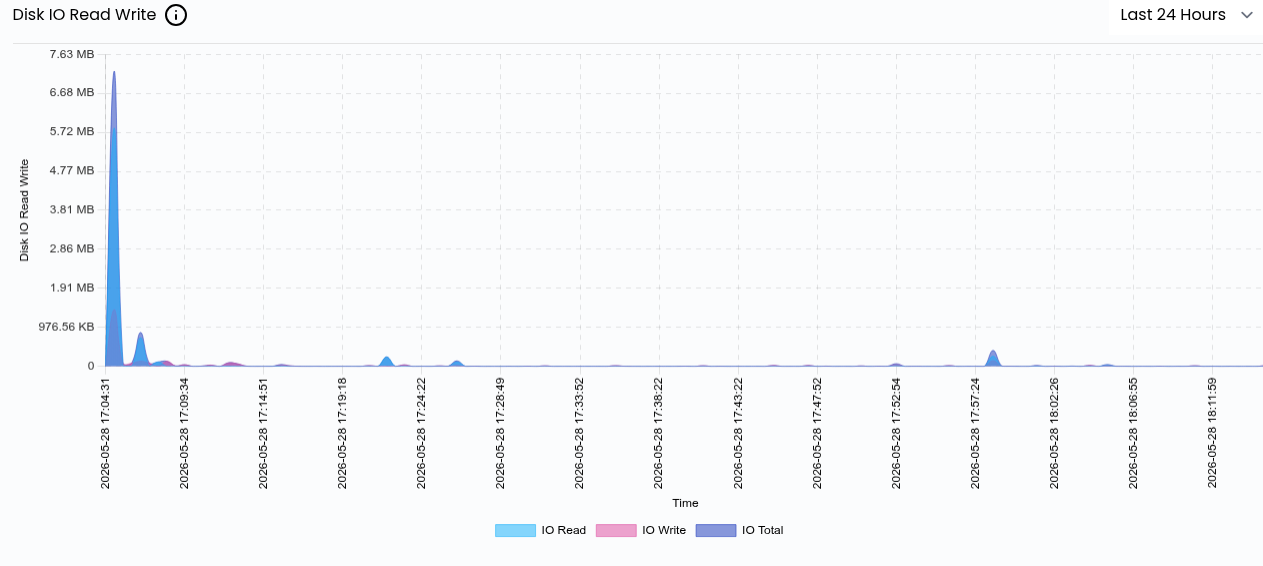
Disk Read and Write Activity
The Disk Read/Write graph provides a detailed breakdown of data being read from and written to storage devices.
This monitoring data helps users:
- Review storage access patterns
- Analyze workload distribution
- Detect abnormal disk behavior
- Assess storage subsystem performance
Understanding disk activity can assist in improving storage efficiency and application responsiveness.
Benefits of Resource Monitoring
Resource monitoring enables administrators to proactively monitor cloud infrastructure and maintain optimal server performance.
Advantages include:
- Real-time infrastructure visibility
- Faster issue detection
- Improved resource planning
- Better performance optimization
- Efficient workload management
Regular monitoring helps ensure reliable and stable cloud operations.
Conclusion
The Usage Graphics feature in AccuWeb.Cloud provides detailed insights into server performance through interactive monitoring charts. By tracking CPU, memory, network, and storage activity, users can better understand workload behavior, troubleshoot performance issues, and optimize overall infrastructure efficiency.
Still don’t have an account?